# How to Parse Data with AngleSharp (Tutorial 2026)
> Learn AngleSharp for advanced C# web scraping: A tutorial on parsing HTML, CSS, and more with .NET's powerful library.
Source: https://www.zenrows.com/blog/anglesharp
AngleSharp lets you manipulate HTML documents and also extract data from them. Want to know how it works?
We'll teach you the basics of HTML parsing in C# using AngleSharp. After that, we'll go into more complex scenarios using real-world examples.
* [What is AngleSharp?](#what-is-anglesharp)
* [How to parse HTML in C# Using AngleSharp?](#how-to-parse-html-in-csharp-using-anglesharp)
* [Examples of extracting specific data](#examples-of-extracting-specific-data).
* [Render JavaScript with AngleSharp](#render-javascript-with-anglesharp).
* [Extra capabilities of AngleSharp](#extra-capabilities-of-anglesharp).
## What Is AngleSharp?
[AngleSharp](https://github.com/AngleSharp/AngleSharp) is an open-source .NET parsing library. It actually extends beyond conventional HTML parsing to include CSS and any angle bracket (<>) based hypertexts like SVG and MathML.
The library works with a DOM that aligns with the official W3C-specified API. It also ensures that even advanced features like `querySelectorAll` are inherently available. AngleSharp focuses on standards compliance, interactivity, and extensibility. And that's one of the features that makes it an excellent choice for [web scraping in C#](/blog/web-scraping-c-sharp).
> **Skip the blocks.** [Try Zenrows free](/) and get clean web data without the anti-bot fight.
## How to Parse HTML in C# Using Anglesharp?
To parse HTML in C# using AngleSharp, you must **create a virtual browsing context,** load the HTML content, and then navigate to extract the desired information.
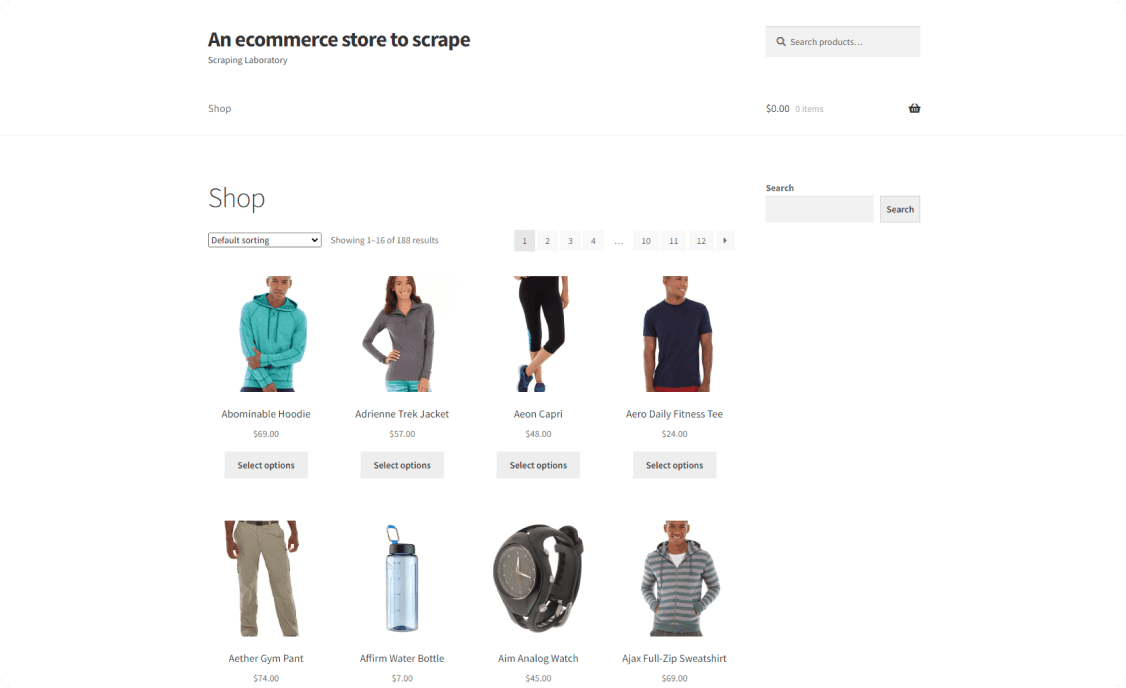
In this tutorial, our hands-on example will focus on extracting data (product name, price, and image link) from [ScrapingCourse.com](https://www.scrapingcourse.com/ecommerce/), a sample website for testing web scrapers.
### Step 1: Get the HTML Before Parsing
Before parsing, we must obtain the **HTML source file** from the target website. That requires an HTTP client to make a `GET` request and return the response. While there are various C# options for this purpose, we'll use the native .NET HttpClient in this tutorial.
Here's a basic script that retrieves the HTML source file of [ScrapingCourse.com](https://www.scrapingcourse.com/ecommerce/).
```csharp
using System;
using System.Net.Http;
class Scraper
{
static async Task Main()
{
string url = "https://www.scrapingcourse.com/ecommerce/";
using (HttpClient client = new HttpClient())
{
HttpResponseMessage response = await client.GetAsync(url);
string htmlContent = await response.Content.ReadAsStringAsync();
Console.WriteLine(htmlContent);
}
}
}
```
The code snippet above creates a new HttpClient instance, uses it to make a `GET` request to the target website, and then prints the HTML content.
Your result should be similar to the one below.
```nginx
Ecommerce Test Site to Learn Web Scraping – ScrapingCourse.com
Showing 1–16 of 188 results
`
```
**A quick side note**: We recommend complementing your scraper with [Zenrows](/) to avoid getting blocked, as it is a common challenge with real websites.
### Step 2: Extract a Single Element
AngleSharp, out of the box, offers CSS query selectors for identifying and selecting HTML elements. Also, some extensions let you use other query syntaxes like XPath.
**Remark**: Ensure you have AngleSharp installed. You can do so using the following command.
```nginx
dotnet add package Anglesharp
```
First, to extract a single element, identify the HTML element attribute: tag name, class, ID, etc. Then, call the `querySelector()` method on the AngleSharp `IDocument` instance, passing in the identified CSS attribute.
Let's extract the title of our target website (https://www.scrapingcourse.com/ecommerce/)
```csharp
using AngleSharp;
class Scraper
{
static async Task Main()
{
string url = "https://www.scrapingcourse.com/ecommerce/";
using (HttpClient client = new HttpClient())
{
HttpResponseMessage response = await client.GetAsync(url);
string htmlContent = await response.Content.ReadAsStringAsync();
// Create an AngleSharp configuration
var config = Configuration.Default.WithDefaultLoader();
// Create browser session using config
var context = BrowsingContext.New(config);
// Load HTML into Anglesharp
var document = await context.OpenAsync(req => req.Content(htmlContent));
// Query for page title
string pageTitle = document.QuerySelector("title")?.TextContent ?? "Not available";
Console.WriteLine(pageTitle);
}
}
}
```
This code creates an AngleSharp configuration, which it uses to create a browsing context (a browsing session for managing the document's lifecycle). It then opens a new document based on the retrieved HTML content and queries the document for the page title using the `QuerySelector()` method.
Also, the null-conditional operator (?) checks if the `` element exists, and the null-coalescing operator (??) assigns `pageTitle` a default value if the element isn't found. This is necessary to avoid a null reference exception.
Run the code, and you'll have the following result.
```nginx
Ecommerce Test Site to Learn Web Scraping – ScrapingCourse.com
```
Bingo!
### Step 3: Extract Multiple Elements
Now that you've dipped your toes into HTML parsing with AngleSharp let's take it up a notch by extracting multiple elements. For this example, we'll retrieve the name, price, and image source of the first product on [ScrpingCourse.com](https://www.scrapingcourse.com/ecommerce/).
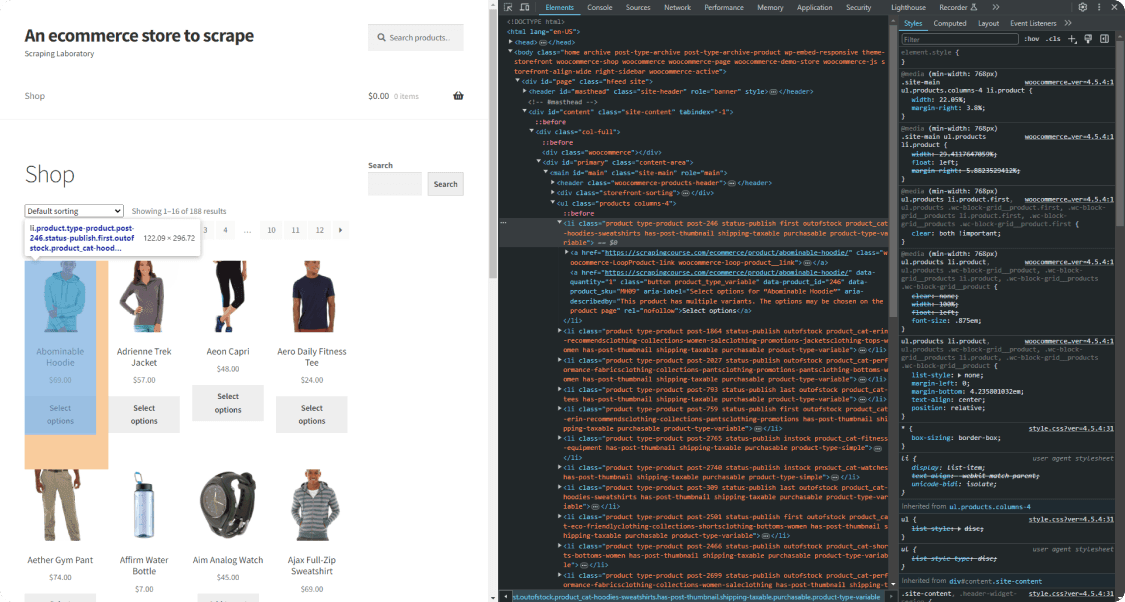
First, inspect the target webpage to identify the elements with the sought-after information.
A closer look reveals that each product is wrapped in a `<ul>` with class `products`. The first product, Abominable Hoodie, resides in an `<li>` with the distinctive class `post-246`. Within this `<li>` is an anchor tag containing the name (`H2` with class; woocommerce-loop-product\_\_title), price (span tag with class, `price`), and image (`<img>` tag).
Next, select the element containing the desired data, in this case, the `<li>` with class `post-759`. Then, extract the name, price, and image from the `<li>`.
<!-- scraper.cs -->
```csharp
using AngleSharp
class Scraper
{
static async Task Main()
{
//..
{
//..
// Querying for the first product element
var firstProduct = document.QuerySelector(".post-759");
// Checking if a product element is found
if (firstProduct != null)
{
// Extracting product information: name, price, and image
string name = firstProduct.QuerySelector("h2")?.TextContent ?? "Not available";
string price = firstProduct.QuerySelector(".price")?.TextContent ?? "Not available";
string image = firstProduct.QuerySelector("img")?.GetAttribute("src") ?? "Not available";
Console.WriteLine($"Product Name: {name}");
Console.WriteLine($"Product Price: {price}");
Console.WriteLine($"Product Image: {image}");
}
}
}
}
```
Add the HTTP request and load the retrieved HTML into AngleSharp, like in the previous examples, to get your complete code.
<!-- scraper.cs -->
```csharp
using AngleSharp
class Scraper
{
static async Task Main()
{
string url = "https://www.scrapingcourse.com/ecommerce/";
// Create new HttpClient instance
using (HttpClient client = new HttpClient())
{
// Sending a GET request to the specified URL
HttpResponseMessage response = await client.GetAsync(url);
// Reading the HTML content from the response
string htmlContent = await response.Content.ReadAsStringAsync();
// Configuring AngleSharp
var config = Configuration.Default.WithDefaultLoader();
// Creating a new browsing context
var context = BrowsingContext.New(config);
// Loading the fetched HTML content into AngleSharp.
var document = await context.OpenAsync(req => req.Content(htmlContent));
// Querying for the first product element
var firstProduct = document.QuerySelector(".post-759");
// Checking if a product element is found
if (firstProduct != null)
{
// Extracting product information: name, price, and image
string name = firstProduct.QuerySelector("h2")?.TextContent ?? "Not available";
string price = firstProduct.QuerySelector(".price")?.TextContent ?? "Not available";
string image = firstProduct.QuerySelector("img")?.GetAttribute("src") ?? "Not available";
Console.WriteLine($"Product Name: {name}");
Console.WriteLine($"Product Price: {price}");
Console.WriteLine($"Product Image: {image}");
}
}
}
}
```
Run this code; your result should be similar to the one below.
```nginx
Product Name: Abominable Hoodie
Product Price: $69.00
Product Image: https://www.scrapingcourse.com/ecommerce/wp-content/uploads/2024/03/mh09-blue_main-324x324.jpg
```
Congrats! You now know how to parse HTML using AngleSharp.
### Step 4: Extract All Matching Elements from a Page
What if you're interested in all the products on the target web page?
This step demonstrates how to iterate through a collection of matching elements to extract all the relevant information. For this example, we'll retrieve names, prices, and images of all the products on [ScrapingCourse.com](https://www.scrapingcourse.com/ecommerce/).
Again, start by inspecting the page to identify CSS attributes common to all the products on the web page.
We already know they're list elements (`<li>`) wrapped in a `<ul>` with class `products`. A further inspection shows that all the names are `H2s`, the prices are span tags with class `price`, and the images are the only `<img>` tags in the list.
Next, select the element containing all the desired items using `QuerySelectorAll`. In this case, the `lis` contains all the product elements. Then, loop through each list and extract the names, prices, and images.
<!-- scraper.cs -->
```csharp
using AngleSharp;
class Scraper
{
static async Task Main()
{
//..
{
//..
// Query all li within the <ul> with class 'products'
var Products = document.QuerySelectorAll(".products li");
// Check if any lists exist
if (Products != null)
{
// Iterate through each li
foreach (var product in Products)
{
// Extract product information: name, price, and image
string name = product.QuerySelector("h2")?.TextContent ?? "Name not available";
string price = product.QuerySelector(".price")?.TextContent ?? "Price not available";
string image = product.QuerySelector("img")?.GetAttribute("src") ?? "Image not available";
Console.WriteLine($"Product Name: {name}");
Console.WriteLine($"Product Price: {price}");
Console.WriteLine($"Product Image: {image}");
Console.WriteLine(new string('-', 30)); // Separator for better readability
}
}
}
}
}
```
Like in the previous example, add the HTTP request and the remaining AngleSharp code blocks to complete your scraper.
<!-- scraper.cs -->
```csharp
using AngleSharp;
class Scraper
{
static async Task Main()
{
string url = "https://www.scrapingcourse.com/ecommerce/";
// Create a new HttpClient instance
using (HttpClient client = new HttpClient())
{
// Send an HTTP GET request to the specified URL
HttpResponseMessage response = await client.GetAsync(url);
// Read the HTML content from the response
string htmlContent = await response.Content.ReadAsStringAsync();
// Configure AngleSharp
var config = Configuration.Default.WithDefaultLoader();
// Create a new browsing context
var context = BrowsingContext.New(config);
// Load HTML into AngleSharp
var document = await context.OpenAsync(req => req.Content(htmlContent));
// Query all li within the <ul> with class 'products'
var Products = document.QuerySelectorAll(".products li");
// Check if any lists exist
if (Products != null)
{
// Iterate through each li
foreach (var product in Products)
{
// Extract product information: name, price, and image
string name = product.QuerySelector("h2")?.TextContent ?? "Name not available";
string price = product.QuerySelector(".price")?.TextContent ?? "Price not available";
string image = product.QuerySelector("img")?.GetAttribute("src") ?? "Image not available";
Console.WriteLine($"Product Name: {name}");
Console.WriteLine($"Product Price: {price}");
Console.WriteLine($"Product Image: {image}");
Console.WriteLine(new string('-', 30)); // Separator for better readability
}
}
}
}
}
```
Here's the result
```nginx
Product Name: Abominable Hoodie
Product Price: $69.00
Product Image: https://www.scrapingcourse.com/ecommerce/wp-content/uploads/2024/03/mh09-blue_main-324x324.jpg
------------------------------
Product Name: Adrienne Trek Jacket
Product Price: $57.00
Product Image: https://www.scrapingcourse.com/ecommerce/wp-content/uploads/2024/03/wj08-gray_main-324x324.jpg
------------------------------
Product Name: Aeon Capri
Product Price: $48.00
Product Image: https://www.scrapingcourse.com/ecommerce/wp-content/uploads/2024/03/wp07-black_main-324x324.jpg
------------------------------
//... truncated for brevity.
```
Great! You've successfully extracted all matching elements from a page.
This example focuses on a single page. For multiple pages, you need to build a crawler. If you want a step-by-step tutorial on how to do that, check out our [C# web crawling guide](/blog/c-sharp-web-crawler).
## Examples of Extracting Specific Data
Let's explore practical examples of extracting specific data elements from HTML using AngleSharp. Each example is akin to real-world scenarios, showcasing this tool's versatility in parsing various types of information.
### Find Elements By Attributes
Some scenarios require locating elements by their attributes. Let's see how you can do that using AngleSharp.
Consider a situation where you want to retrieve the links and text content from all <a> (anchor) tags with a specific attribute, such as `data-category="navigation"`, like the snippet below.
```html
<body>
<a href="#home" data-category="navigation" class="nav-link">Home</a>
<a href="#blog" data-category="blog" class="nav-link">Blog</a>
<a href="#about" data-category="navigation" class="nav-link">About</a>
<a href="#team" data-category="team" class="nav-link">Team</a>
<a href="#services" data-category="navigation" class="nav-link">Services</a>
<a href="#contact" data-category="navigation" class="nav-link">Contact</a>
<a href="#portfolio" data-category="portfolio" class="nav-link">Portfolio</a>
<a href="#faq" class="nav-link">FAQ</a>
<a href="#support" class="nav-link">Support</a>
</body>
```
AngleSharp provides a convenient way to achieve this. Assuming you've already configured AngleSharp and loaded the HTML source file, like in previous examples, query all anchor tags with the desired attribute using `QuerySelectorAll()`.
Then, loop through each tag and extract the link and text content.
<!-- scraper.cs -->
```csharp
//..
// Query all <a> tags with data-category="navigation"
var navigationLinks = document.QuerySelectorAll("a[data-category='navigation']");
// Loop through each anchor tag
foreach (var link in navigationLinks)
{
var linkHref = link.GetAttribute("href") ?? "Not available";
var linkText = link.TextContent ?? "Not available";
Console.WriteLine($"Link Href: {linkHref}");
Console.WriteLine($"Link Text: {linkText}");
}
```
### Get All Links
Extracting all links is a common task when engaging in web crawling. Using AngleSharp, you can achieve this by selecting all anchor tags on the page, looping through each tag, and retrieving all href using the `GetAttribute()` method.
You can also store the links as a string list of URLs.
<!-- scraper.py -->
```csharp
//..
// Query for all <a> tags
var allLinks = document.QuerySelectorAll("a");
// Create List to store links
List<string> linksList = new List<string>();
// Add the href attribute of each link to the list
foreach (var link in allLinks)
{
var linkHref = link.GetAttribute("href") ?? "Not available";
linksList.Add(linkHref);
}
```
### Scrape a List
Scraping a list from a webpage involves extracting information from an unordered list (`<ul>`) or ordered list (`<ol>`). Regardless of the list type, the approach is the same.
Let's assume your target web page contains an unordered list with text content, like the sample snippet below.
```html
<ul>
<li>Item 1</li>
<li>Item 2</li>
<li>Item 3</li>
</ul>
```
AngleSharp enables you to extract the text content of each list element (`<li>`) by selecting all the lists within the `<ul>`, looping through each, and querying the text content. Additionally, you can store the extracted data in a C# array. For that, create a list and append the text content to the list for each list item.
<!-- scraper.cs -->
```csharp
//..
// Select all list items within the unordered list
var listItems = document.QuerySelectorAll("ul li");
// Storing list items in a list for further processing
List<string> itemList = new List<string>();
// Loop through each list item
foreach (var item in listItems)
{
// extract the text content
var itemText = item.TextContent ?? "Not available";
itemList.Add(itemText);
}
```
### Find Elements By InnerText
Defining a selector strategy can be challenging in some scenarios, mainly when dealing with complex websites. However, knowing the element's inner text might be all you need.
AngleSharp lets you query the HTML document for elements with specific inner text using the `:contains` pseudo-class. Below is an example.
```csharp
//..
// Specify the inner text
string targetInnerText = "Example Text";
// Query for the element with the specified inner text
var targetElement = document.QuerySelector($"*:contains('{targetInnerText}')");
// Checking if the element was found
if (targetElement != null)
{
var elementText = targetElement.TextContent ?? "Not available";
Console.WriteLine(elementText);
}
```
### Retrieve Data From a Table
Tables are common structures used to organize data on web pages. Extracting information from tables is a frequent requirement in real-world web scraping scenarios.
Take a look at the table below, for example.
```html
<table class="episodes">
<thead>
<tr>
<th>Number</th>
<th>Title</th>
<th>Description</th>
<th>Date</th>
</tr>
</thead>
<tbody>
<tr>
<td>1</td>
<td>Episode 1</td>
<td>Description of Episode 1</td>
<td>2023-01-01</td>
</tr>
<tr>
<td>2</td>
<td>Episode 2</td>
<td>Description of Episode 2</td>
<td>2023-02-01</td>
</tr>
<!-- Other rows... -->
</tbody>
</table>
```
Using AngleSharp, you can retrieve numbers, titles, descriptions, and dates from the provided table by iterating through the rows (<tr>) and extracting the content from the corresponding cells (<td>).
Here's an example.
<!-- scraper.cs -->
```csharp
//..
// Query for the table and its rows
var table = document.QuerySelector("table.episodes");
var rows = table?.QuerySelectorAll("tbody tr");
if (table != null && rows != null)
{
foreach (var row in rows)
{
// Extract data from each cell
var number = row.QuerySelector("td:nth-child(1)")?.TextContent ?? "Not available";
var title = row.QuerySelector("td:nth-child(2)")?.TextContent ?? "Not available";
var description = row.QuerySelector("td:nth-child(3)")?.TextContent ?? "Not available";
var date = row.QuerySelector("td:nth-child(4)")?.TextContent ?? "Not available";
// Print the extracted data
Console.WriteLine($"Number: {number} | Title: {title} | Description: {description} | Date: {date}");
}
}
```
## Render JavaScript with AngleSharp
Modern websites increasingly rely on JavaScript to dynamically load part or all of their content.
A good example is the [ScrapingCourse infinite scrolling challenge page](https://www.scrapingcourse.com/infinite-scrolling) below that loads content dynamically as you scroll to the bottom of your window. You can find other popular examples in the endless scrolling on your Twitter and Instagram feeds.
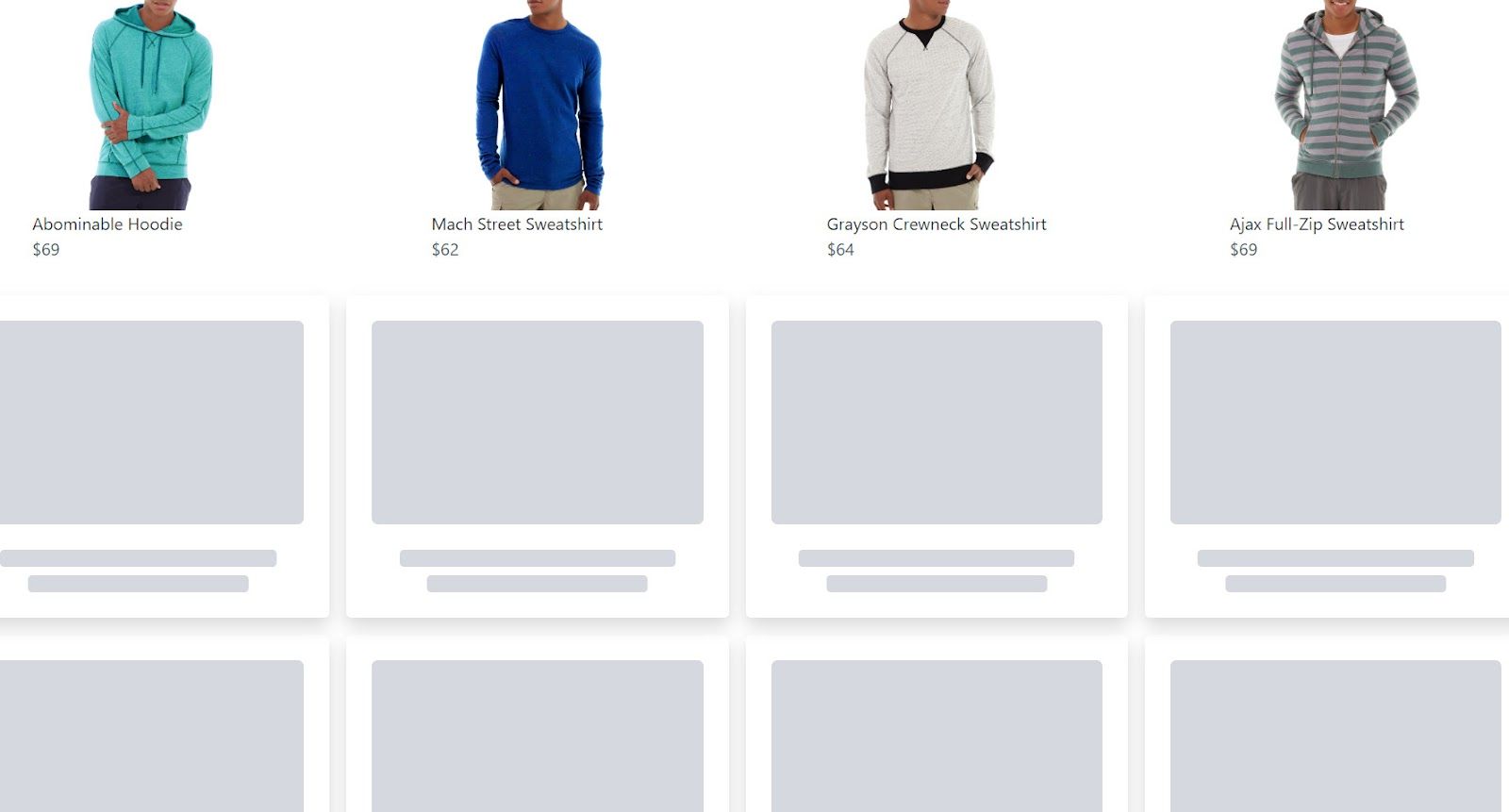
To retrieve data from such websites, **you must render the web page like a browser before fetching the HTML content**. This is because dynamic content is not readily present in a website's static HTML.
While AngleSharp does not inherently possess the ability to render JavaScript, it can **integrate with headless browsers** to render the target web page, fetch HTML, and extract the desired data.
Let's see this in practice.
For this example, we'll use **PuppeteerSharp**, one of the most popular C# headless browsers, to render the target web page and simulate infinite scrolling before parsing it using AngleSharp.
You can explore other JavaScript rendering alternatives in our guide on the [best C# web scraping libraries](/blog/c-sharp-web-scraping-library),
To get started, add the PuppeteerSharp .NET package to your project using the following command.
```nginx
dotnet add package PuppeteerSharp
```
Then, use it to render the page, handle infinite scrolling, and fetch the raw HTML before extracting each product's name and price.
<!-- scraper.cs -->
```csharp
using PuppeteerSharp;
using AngleSharp;
public class Product
{
public string? Name { get; set; }
public string? Price { get; set; }
}
class Program
{
static async Task Main(string[] args)
{
// To store the scraped data
var products = new List<Product>();
// Download the browser executable
await new BrowserFetcher().DownloadAsync();
// Browser execution configs
var launchOptions = new LaunchOptions
{
Headless = true, // run browser in headless mode
};
// Open a new page in the controlled browser
using (var browser = await Puppeteer.LaunchAsync(launchOptions))
using (var page = await browser.NewPageAsync())
{
// Visit the target page
await page.GoToAsync("https://www.scrapingcourse.com/infinite-scrolling");
// Deal with infinite scrolling
var jsScrollScript = @"
const scrolls = 10
let scrollCount = 0
// Scroll down and then wait for 0.5s
const scrollInterval = setInterval(() => {
window.scrollTo(0, document.body.scrollHeight)
scrollCount++
if (scrollCount === scrolls) {
clearInterval(scrollInterval)
}
}, 500)
";
await page.EvaluateExpressionAsync(jsScrollScript);
// Wait for 10 seconds for the products to load
await page.WaitForTimeoutAsync(10000);
// Get the fully rendered content after JavaScript rendering
var contentAfterRender = await page.GetContentAsync();
// Create a new browsing context with AngleSharp
var context = BrowsingContext.New(Configuration.Default);
// Open a document with the rendered HTML content
var document = await context.OpenAsync(req => req.Content(contentAfterRender));
// Select all product HTML elements
var productElements = document.QuerySelectorAll(".product-item");
// Iterate over them and extract the desired data
foreach (var productElement in productElements)
{
// Select the name and price elements
var nameElement = productElement.QuerySelector(".product-name");
var priceElement = productElement.QuerySelector(".product-price");
// Extract their text
var name = nameElement?.TextContent ?? "";
var price = priceElement?.TextContent ?? "";
// Instantiate a new product and add it to the list
var product = new Product { Name = name, Price = price };
products.Add(product);
}
}
// Display the scraped data
foreach (var product in products)
{
Console.WriteLine($"Name: {product.Name} | Price: {product.Price}");
}
}
}
```
Awesome! You now know how to scrape dynamic content using AngleSharp.
**Remark:** To learn more about simulating browser interactions, check out our [PuppeteerSharp tutorial](/blog/puppeteersharp).
## Extra Capabilities of AngleSharp
Yes, we've virtually flipped every "parsing with AngleSharp" page. Yet, AngleSharp offers more for and beyond HTML parsing.
Below are a few of the most essential extra capabilities.
| <span style="min-width: 8rem; display: block;">Feature</span> | <span style="min-width: 8rem; display: block;">Used For</span> | <span style="min-width: 8rem; display: block;">Code Example</span> |
|---|---|---|
| `IConfiguration` | Provides an enumeration of services to use or create for a browsing context, if any | `var config = Configuration.Default.WithCulture("de-de");` |
| `InputFile` | Makes it possible to append files to, e.g., `<input type=file>` elements | `var element = document.QuerySelector("input[type=file]"); var file = new InputFile("foo.png", "image/png", new Byte[0] {}); element.AppendFile(file);` |
| `GetStyleRuleWith` | Gets the first top-level style rule that matches the given selector exactly | `var rule = sheet.GetStyleRuleWith("p>a");` |
| `GetValueOf` | Obtains the `ICssValue` instance behind the property with the given name. | `var color = rule.GetValueOf("border-right-color")` |
| `AsRgba` | Works against the ICssValue to get an elementary value out of it. | `var color = rule.GetValueOf("border-right-color").AsRgba();` |
| `IsNotConsumingCharacterReferences` | If active, then every ampersand will just be considered as an ampersand. | `{ IsNotConsumingCharacterReferences = true, });` |
{.break-all }
Visit the [official documentation](https://anglesharp.github.io/docs/01-articles) to learn more.
## Conclusion
We've explored parsing HTML using AngleSharp, from the basics to more advanced use cases, including rendering JavaScript. Here's a quick recap of the steps we covered.
1. Create an AngleSharp configuration.
2. Create a new browser session using the AngleSharp config.
3. Load HTML into AngleSharp using `OpenAsync`.
4. Query for the desired data.
However, remember that getting blocked remains a common web scraping challenge as websites increasingly use techniques to mitigate bot traffic. For tips and best practices on scraping undetected, check out our guide on [Web Scraping Without Getting Blocked](/blog/web-scraping-without-getting-blocked).
## FAQ
### Is AngleSharp Free to Use?
Yes, AngleSharp is free to use. It is an open-source library released under the MIT License. The MIT License is a permissive open-source license that allows you to use, modify, and distribute the library freely for commercial and non-commercial purposes.
### How Does AngleSharp Compare to HTML Agility Pack?
AngleSharp and [HTML Agility Pack](/blog/html-agility-pack) (HAP) are popular .NET libraries for parsing HTML. But they have some differences. For example, AngleSharp supports parsing HTML5, MathML, SVG, and CSS, while HAP primarily focuses on HTML parsing and manipulation. Also, AngleSharp uses CSS query selectors, while HAP natively supports selection by XPATH