
How to Build an AI Agent with Web Access Using Flowise and Zenrows
Learn to build an AI agent with access to web data. Avoid blocks and enhance your agent’s performance with rich, up-to-date context via web scraping.



Access to live web data is crucial for maintaining an up-to-date context in AI agents and applications. Web scraping is the best way to achieve this at scale. Unfortunately, many scraping requests get blocked due to inadequate setup.
This article shows you how to build a reliable and efficient web scraper into your FlowiseAI workflow, including the best tactic for consistently supplying your AI agent with web data at scale without getting blocked.
What Is Flowise?
Flowise is an open-source, low-code automation platform that enables you to build AI-powered applications and agents. With Flowise's drag-and-drop interface, you can connect various pre-built and personalized code components to form complex applications and automated workflows.
In Flowise, workflows can be controlled by a large language model (LLM), allowing you to execute a series of actions using simple prompts. This feature provides the LLM with more context about how your AI-powered application works and can serve as the basis for enriching it with live data via web scraping.
Why Your FlowiseAI Workflow Needs Live Data
Generally, LLMs only work within the context of the data they were trained on. Flowise's AI workflow orchestration typically relies on the connected nodes, which define the available actions and data sources.
However, when your workflow requires up-to-date external information, such as getting product details from an ecommerce website, connecting it to relevant live data sources becomes essential.
Websites' APIs are often more restrictive and less flexible regarding the amount and type of data that you can collect. To overcome the API limitations, data-oriented teams rely heavily on web scraping to extract up-to-date information from target sites. This gives them access to data not available through direct API calls.
You can scrape data on platforms like Flowise by adding a web scraping request node to your workflow. This enables your AI agent to access live data and respond more accurately to specific queries.
Related: How to Integrate Web Scraping Into Your n8n Workflows
Depending on your goal, you can incorporate the scraped data into your application to power different use cases, such as product research, competitive intelligence, price comparison, sentiment analysis, news aggregation, lead generation, and more.
That said, web scraping has its challenges, as many websites deploy various anti-bot measures to prevent data extraction.
Skip the blocks. Try Zenrows free and get clean web data without the anti-bot fight.
Overcoming AI Agents' Web Scraping Limitations
Web scraping has some limitations that can frustrate you if you don't know how to approach them. Many of the websites you'll need to scrape for live data use one or more forms of anti-bot measures to detect and block web scraping activities.
Web Application Firewalls (WAFs) and CAPTCHA challenges are direct anti-bot technologies that restrict automated requests from accessing the target page. Some websites also use rate-limiting to block IP addresses that exceed specified request limits, preventing large-scale scraping. Geo-restrictions also deny scrapers access to data based on their IP region.
Additionally, traditional web scraping tools can't handle dynamic content delivered with JavaScript, leading to incomplete, inaccurate, or zero data.
If not handled properly, these limitations can cause your AI agent to make inaccurate decisions or hallucinate.
Next, you'll see how to reliably extract data into your Flowise workflow while avoiding these scraping challenges.
Scrape without Getting Blocked with Zenrows and Flowise
The easiest way to scrape any target without getting blocked is to integrate your workflows' scraping node with a web scraping API, such as the Zenrows Fetch.
Zenrows is a web scraping solution that automatically deploys all the necessary toolkits to scrape any website without being blocked. It bypasses CAPTCHA and other anti-bot measures behind the scenes. Zenrows also features headless browser capabilities that enable you to scrape dynamic content efficiently at scale.
This automanaged, auto-scaled architecture allows your team to focus on data fine-tuning and decision-making, rather than wasting time and resources on fixing broken scrapers.
Integrating Zenrows with Flowise exposes your scraping request node to all the features of Zenrows Fetch.
In this section, you'll build a workflow that uses a web scraping node to extract product data from the Ecommerce Challenge page. You'll then draw insights from the scraped data using an LLM.
Prerequisites
To begin, sign up for free on Zenrows to get your API key and load the Request Builder.
You also need a Flowise account. So, create an account on Flowise if you've not already done so.
This tutorial uses OpenAI. Obtain your OpenAI API key and keep it safe. However, note that you can use other LLMs, as long as they're available as a Flowise model.
Now, let's start by building your scraping request on Zenrows.
Step 1: Build Your Scraping Request
The first step is to build your scraping request parameters on Zenrows using the following steps:
- Once in the Zenrows Request Builder, paste the target URL in the link box.
- Then, activate Premium Proxies and JS Rendering for a high success rate.
- Include the
css_extractorparameter to target specific elements on the target site. In this case, we've targeted the product name selector (.product-name) and price element selector (.price).
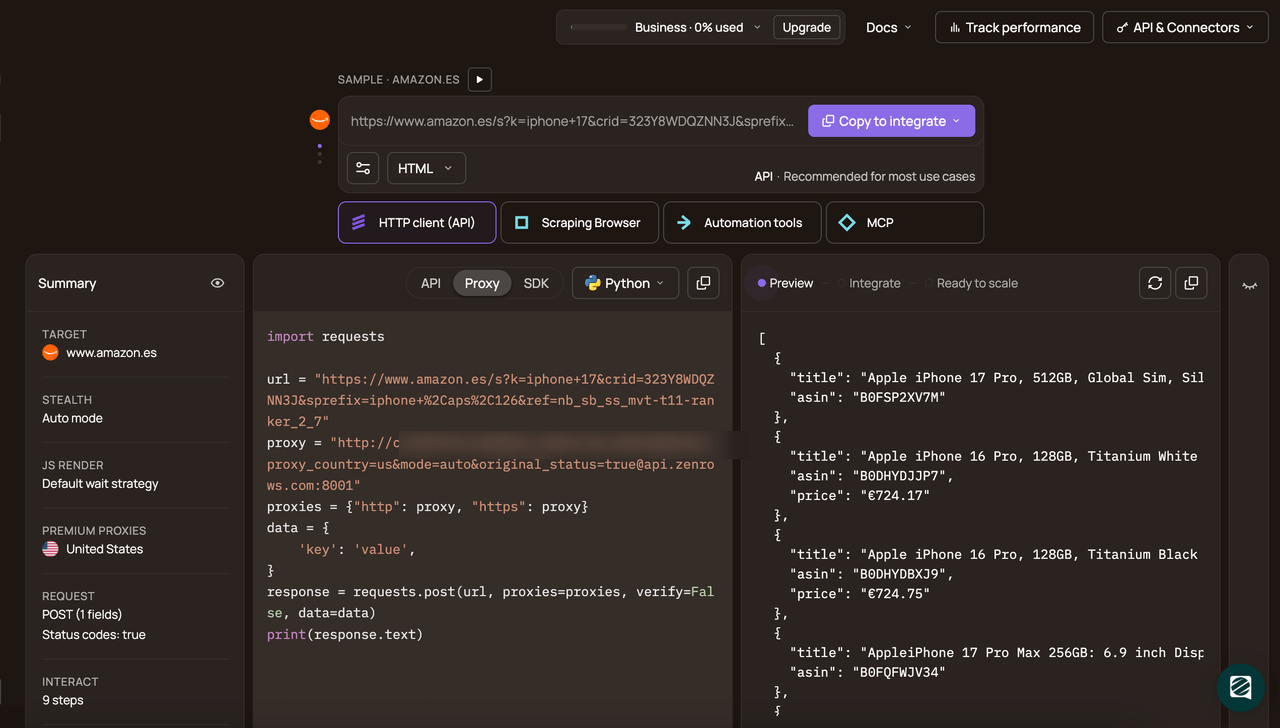
- Choose the API connection mode and select cURL as your programming language.
Copy the generated URL in the cURL code. Here's the generated URL from the cURL command:
https://api.zenrows.com/v1/?apikey=<YOUR_ZENROWS_API_KEY>&url=https%3A%2F%2Fwww.scrapingcourse.com%2Fecommerce%2F&js_render=true&premium_proxy=true&css_extractor=%7B%22name%22%3A%22.product-name%22%2C%22price%22%3A%22.price%22%7D
Now, open Flowise to start building your workflow.
Step 2: Create Your Scraping Workflow
Once in your Flowise dashboard, use the following steps to create your scraper workflow:
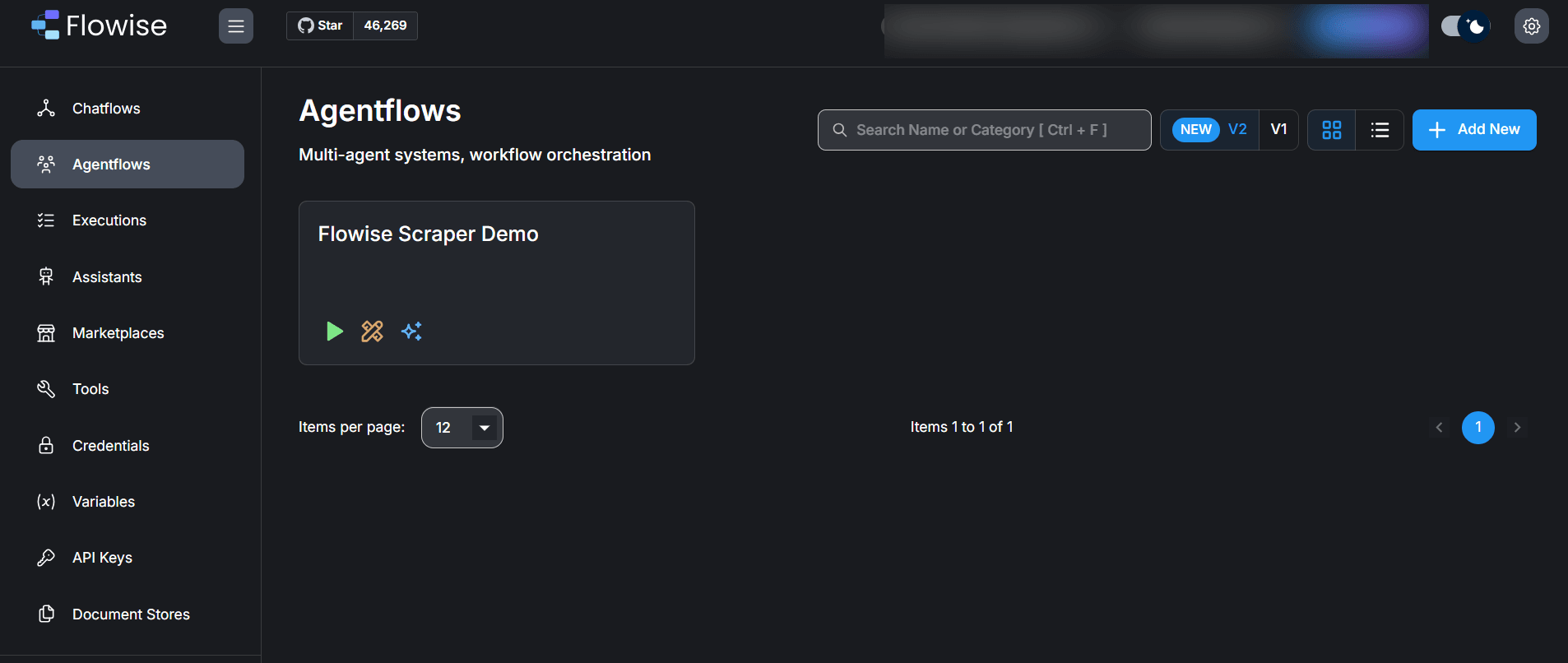
- Go to "Agentflows" on the left sidebar.
- Click "+Add New" at the top-right to open a new workflow canvas.
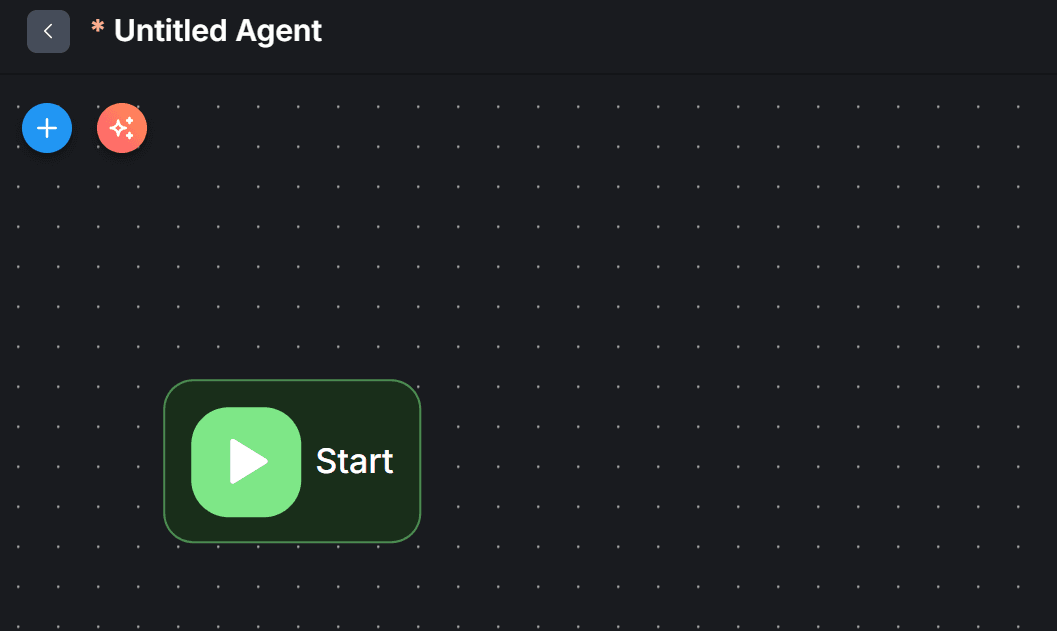
- In the workflow canvas, click "+" at the top-left.
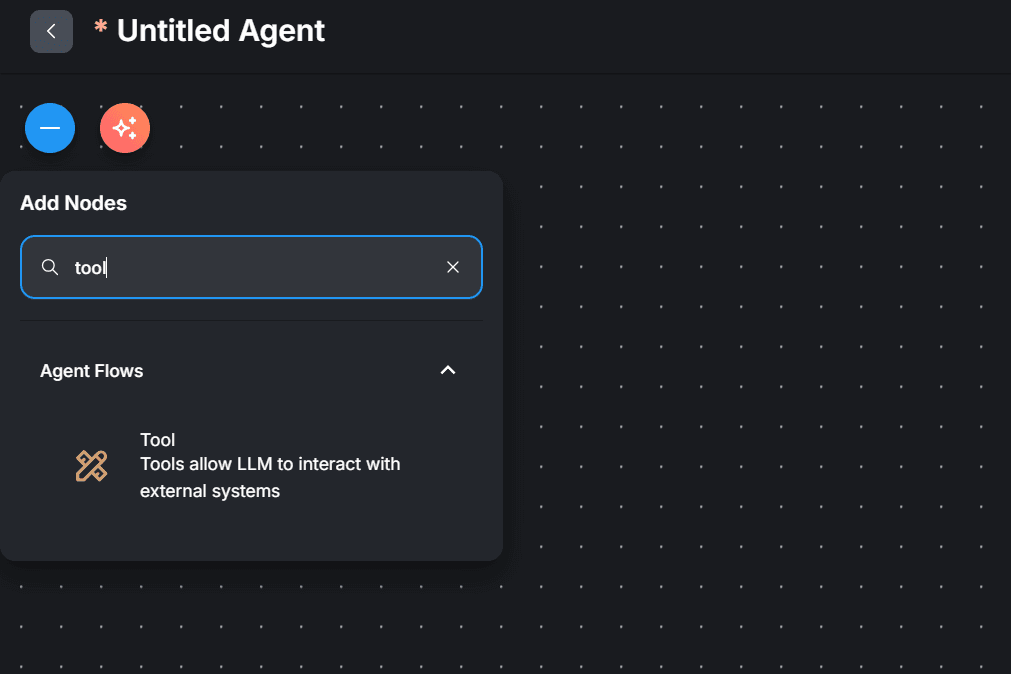
- Search "Tool." Then, select and drag it into the canvas.
- Link the Tool node to the Start node by dragging a line from the Start node to the Tool node.
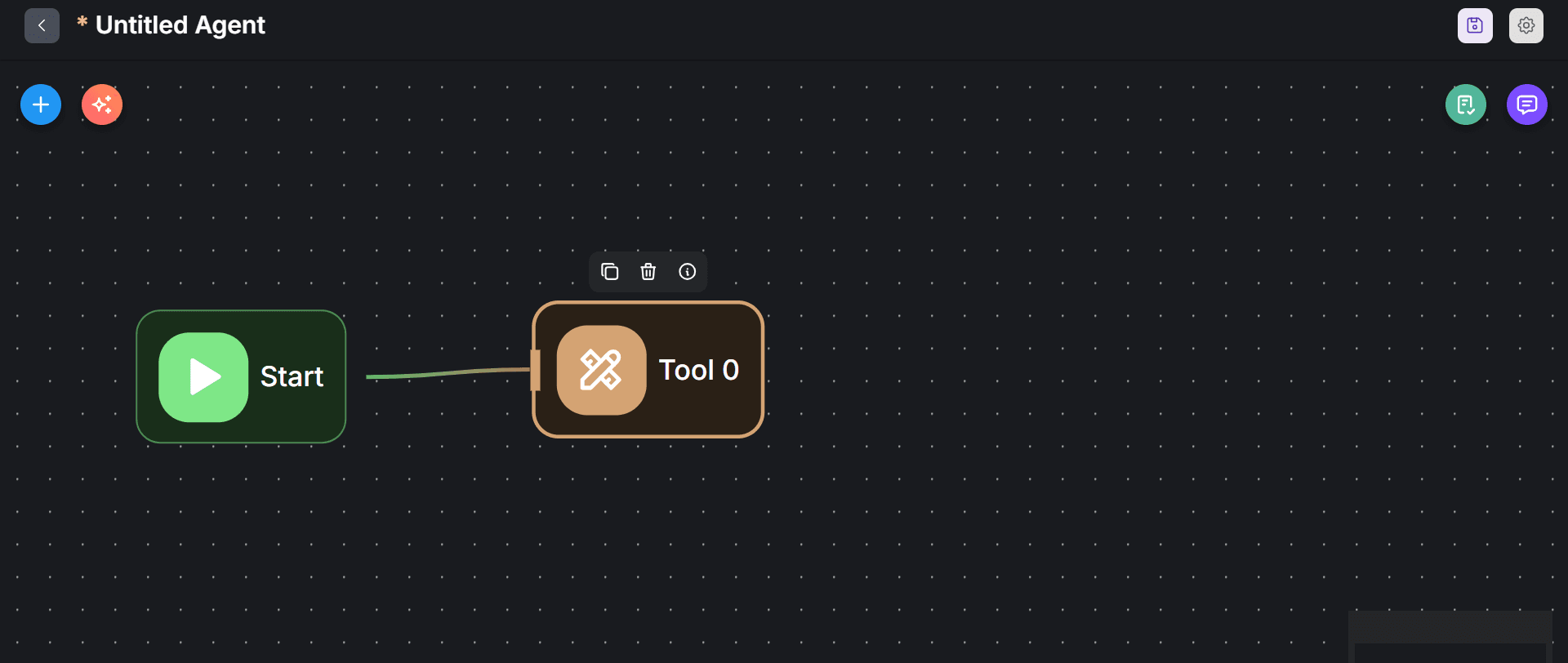
- Double-click the "Tool" node to configure a scraping request.
- Rename the node by clicking the edit icon at the top of the opened modal. Then, press Enter.
- From the Tool search box, search for and select "Requests Get."
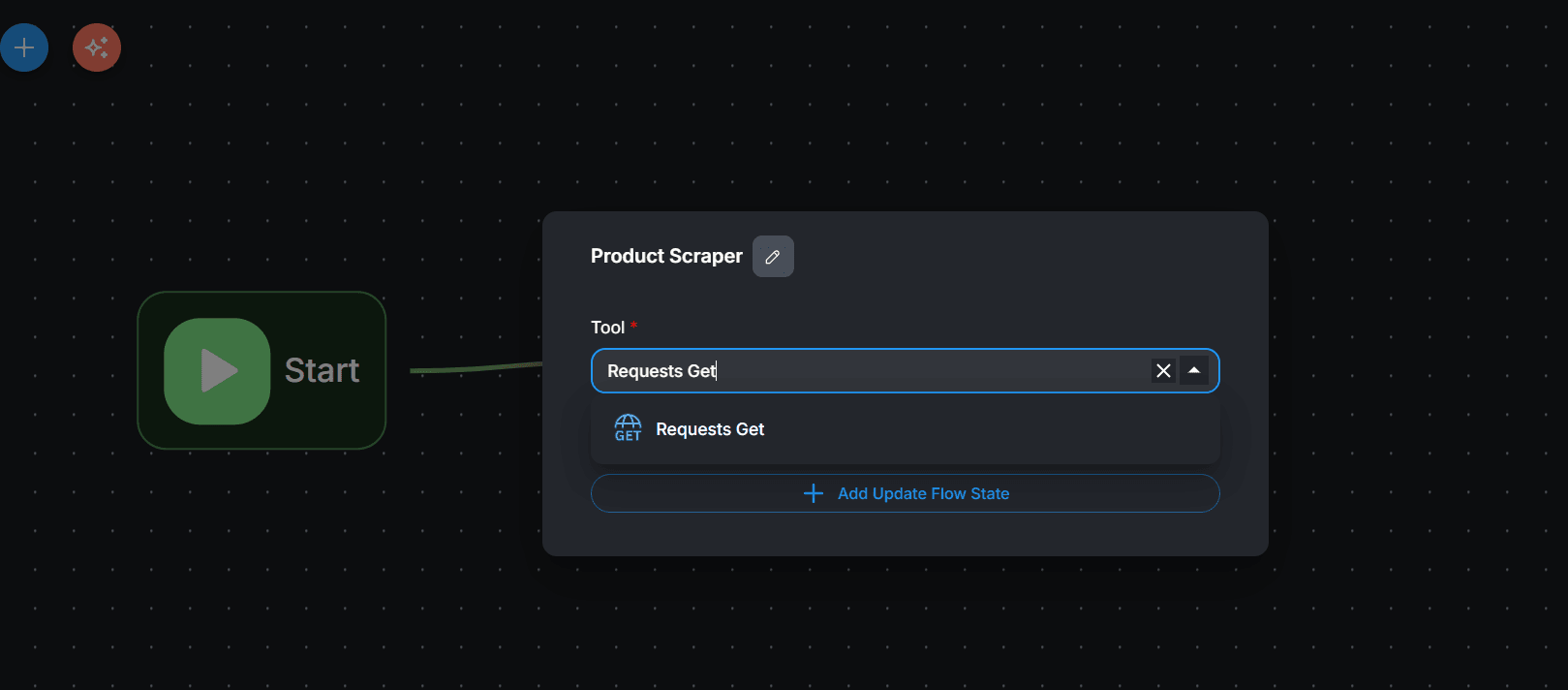
- Click the "Requests Get Parameters" dropdown.
- Then, paste the request URL you generated from Zenrows previously into the URL box.
- Enter a preferred name in the Name field. For instance, you can use "Zenrows Scraping Request."
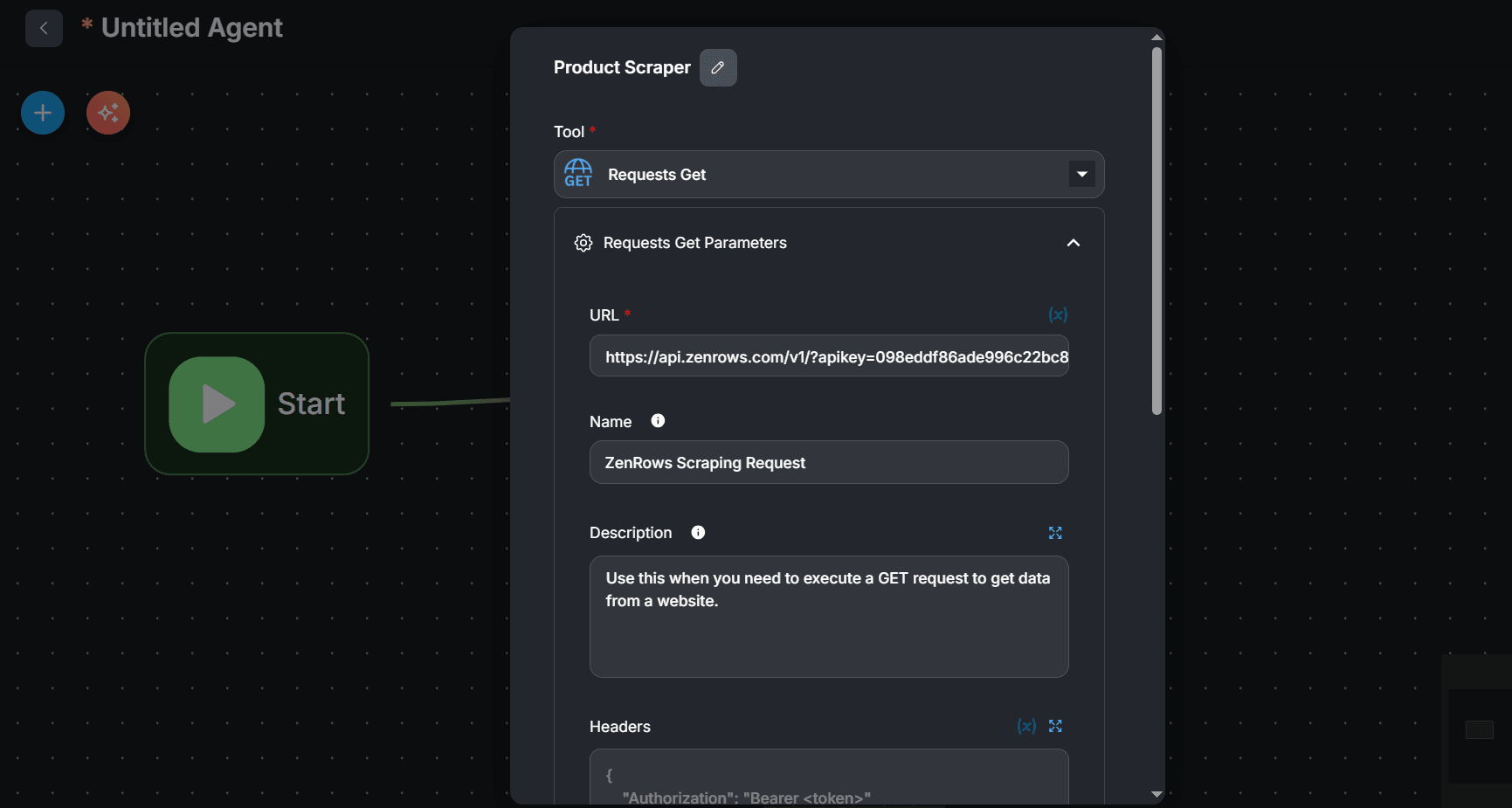
- Click anywhere around the canvas to close the tool setup modal.
- Finally, rename your entire workflow by clicking the save icon at the top-right corner of the canvas. Give your workspace any name you prefer.
- Finally, click "Save."
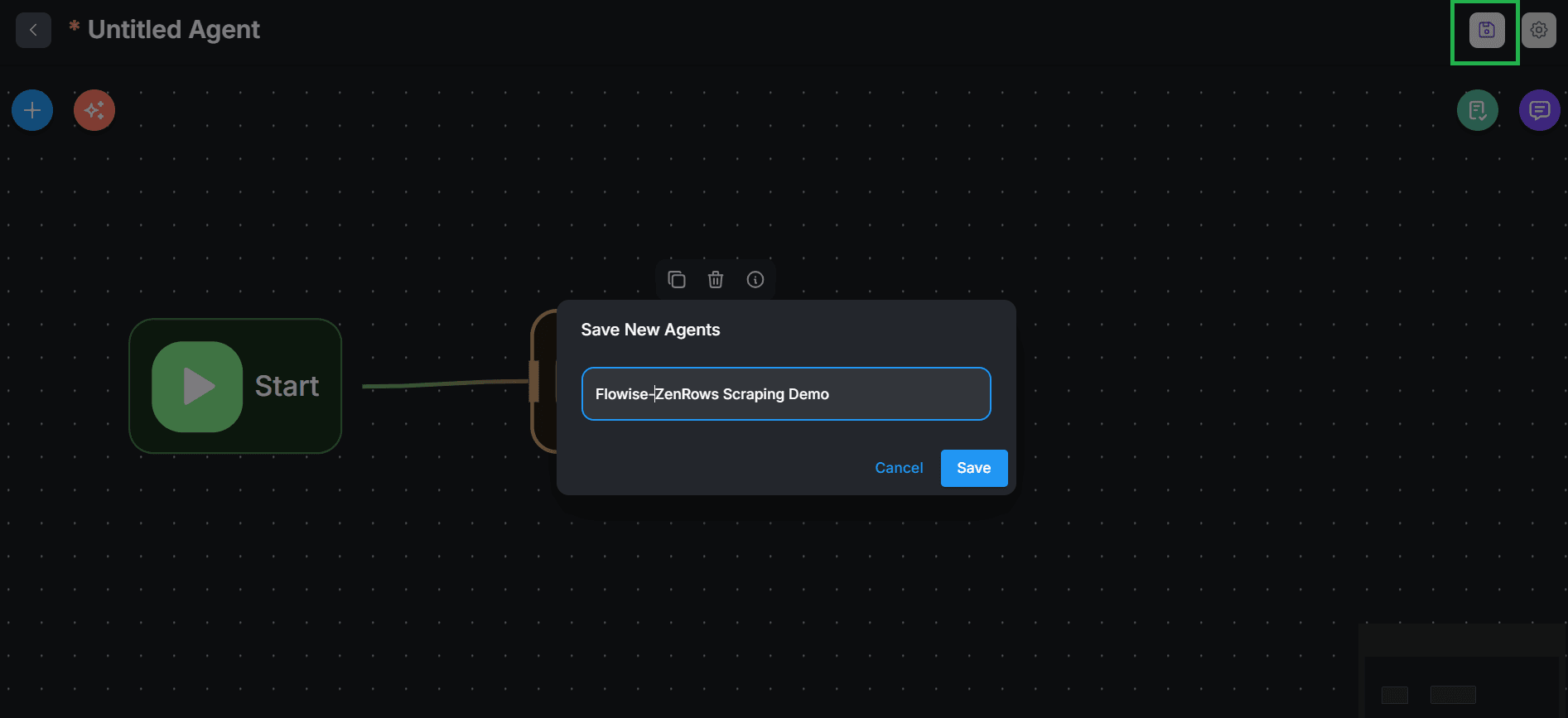
At this point, your workflow should look like this:
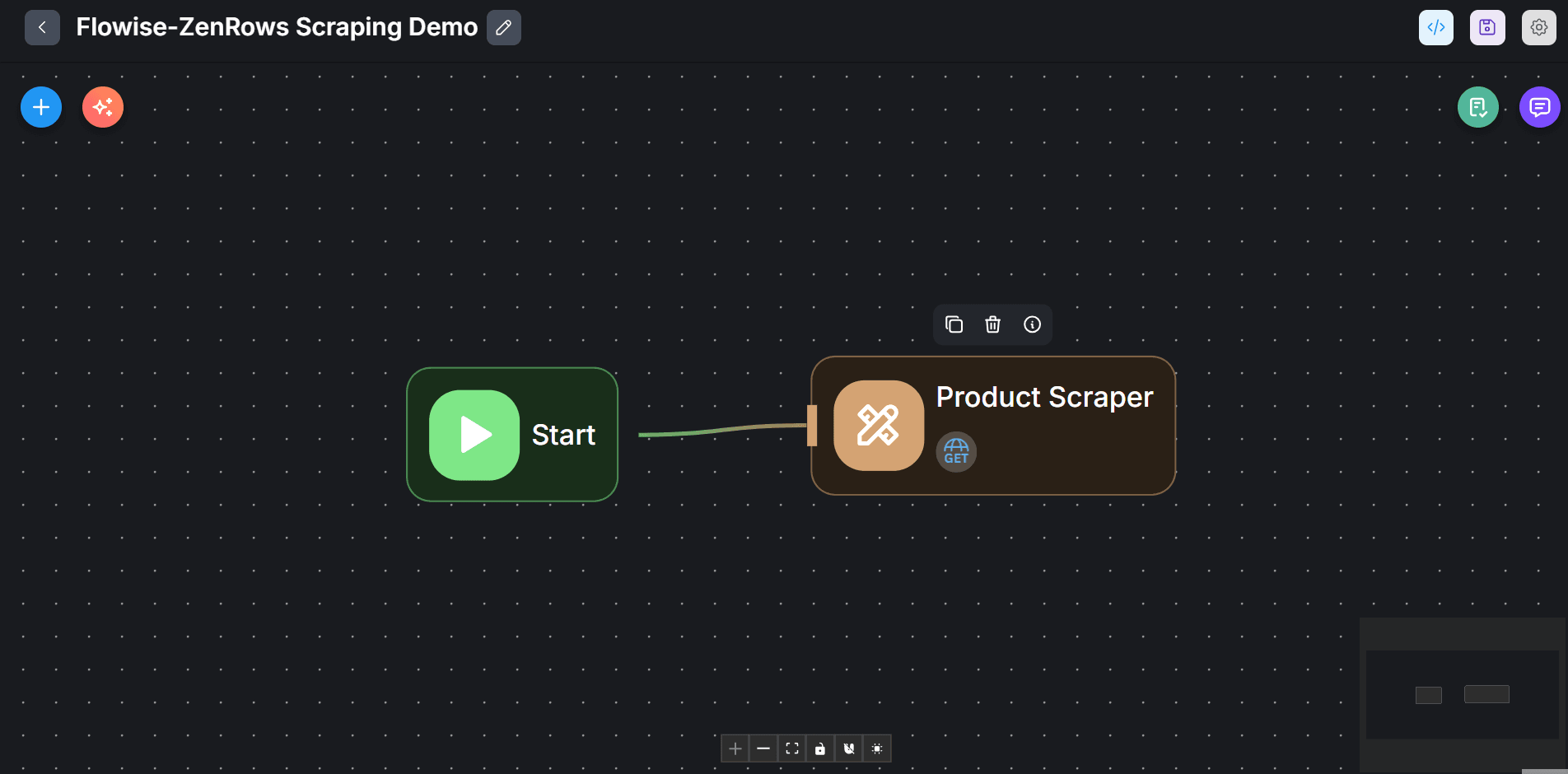
To test the Zenrows scraping integration, click the message icon at the right. Then, type "Run" in the chat box to execute the workflow.
The request runs and outputs the following result within the chatbox:
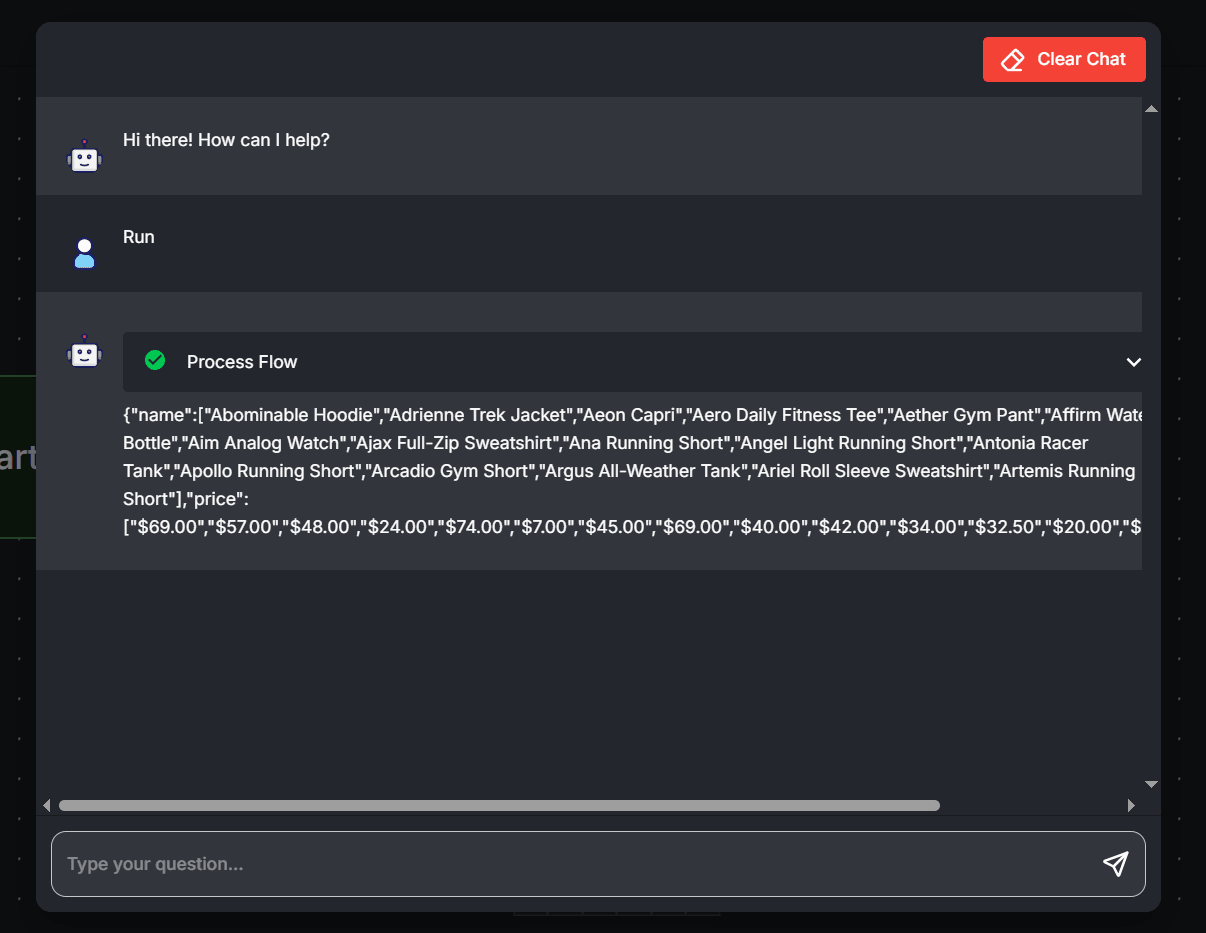
Your scraping layer is ready! Now, let's feed this result into an AI agent.
Step 3: Connect an LLM for Data Retrieval and Generation
In this step, you'll draw insight from the extracted product data using the OpenAI model.
- Click "+" in the canvas.
- Search for LLM. Then, drag and drop it into the canvas (after the Product Scraper tool).
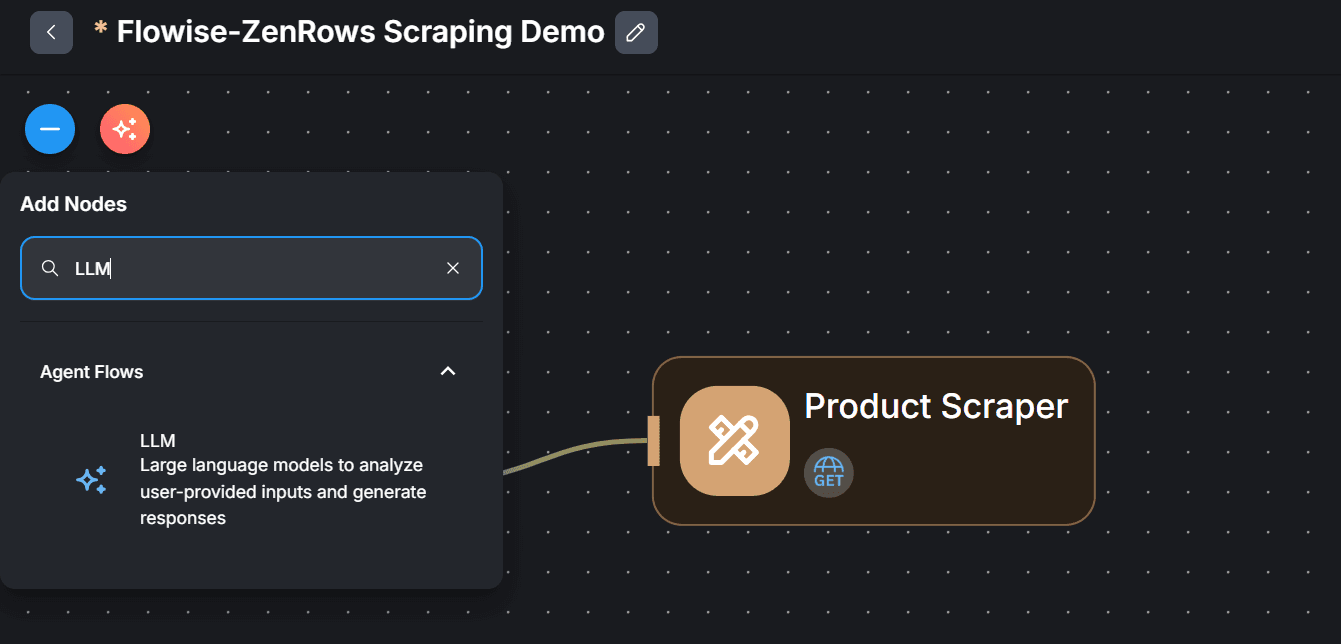
- Link the Product Scraper tool to the LLM node.
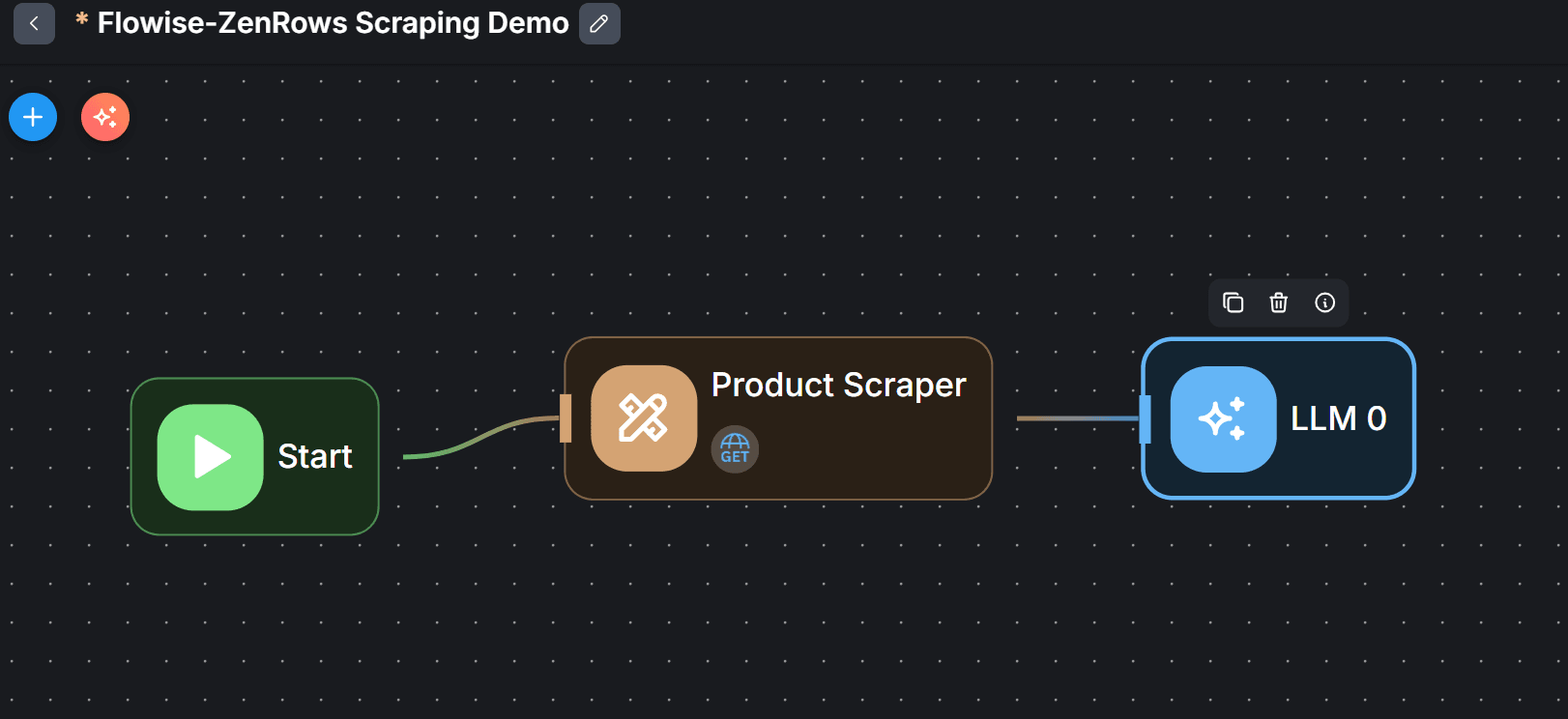
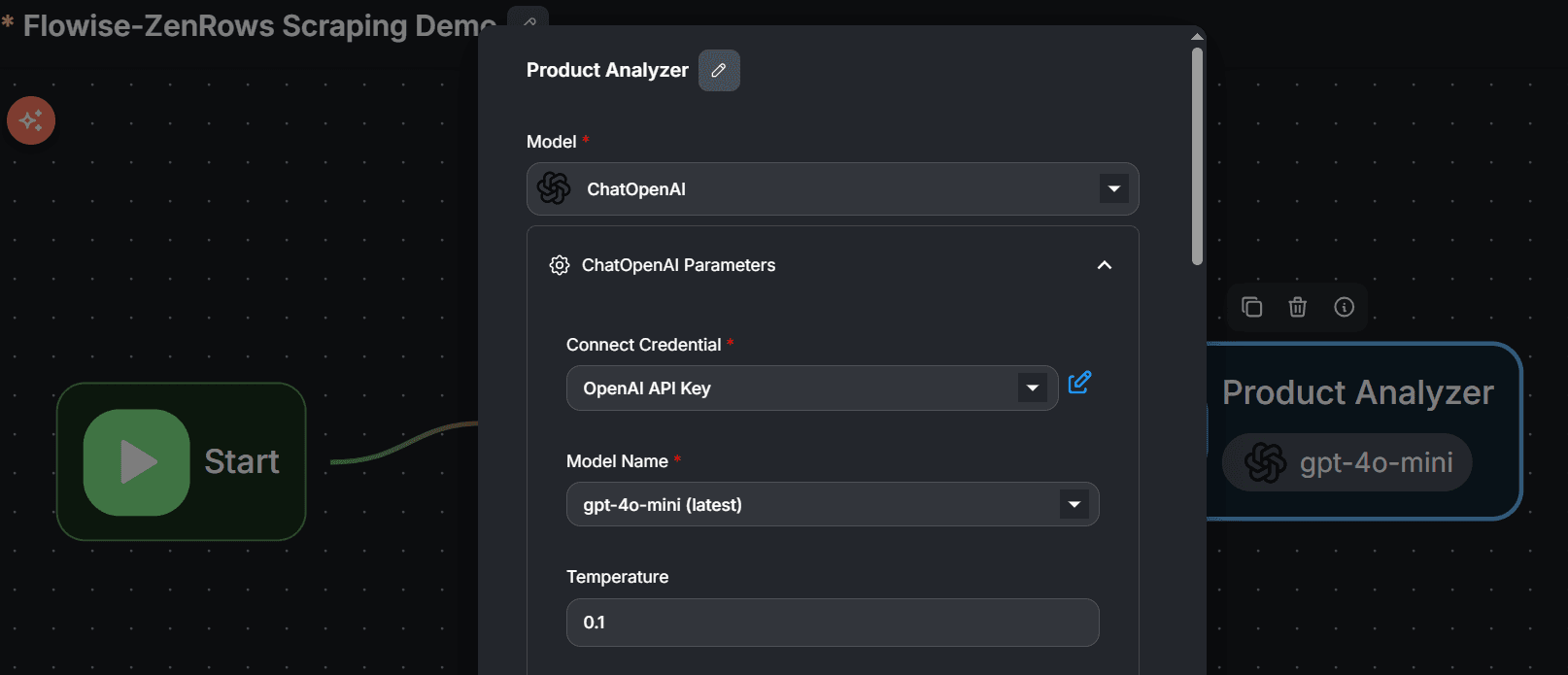
- Double-click the LLM node to configure your chosen model.
- Click the edit icon to rename the node.
- Under the "Model" dropdown, search for and select "ChatOpenAI."
- Click the "ChatOpenAI Parameters" dropdown.
- Next, click the "Connect Credentials" dropdown to add your OpenAI API key.
- Choose your preferred AI model and temperature setting. Then, close the ChatOpenAI Parameters dropdown.
- Click "Add Messages."
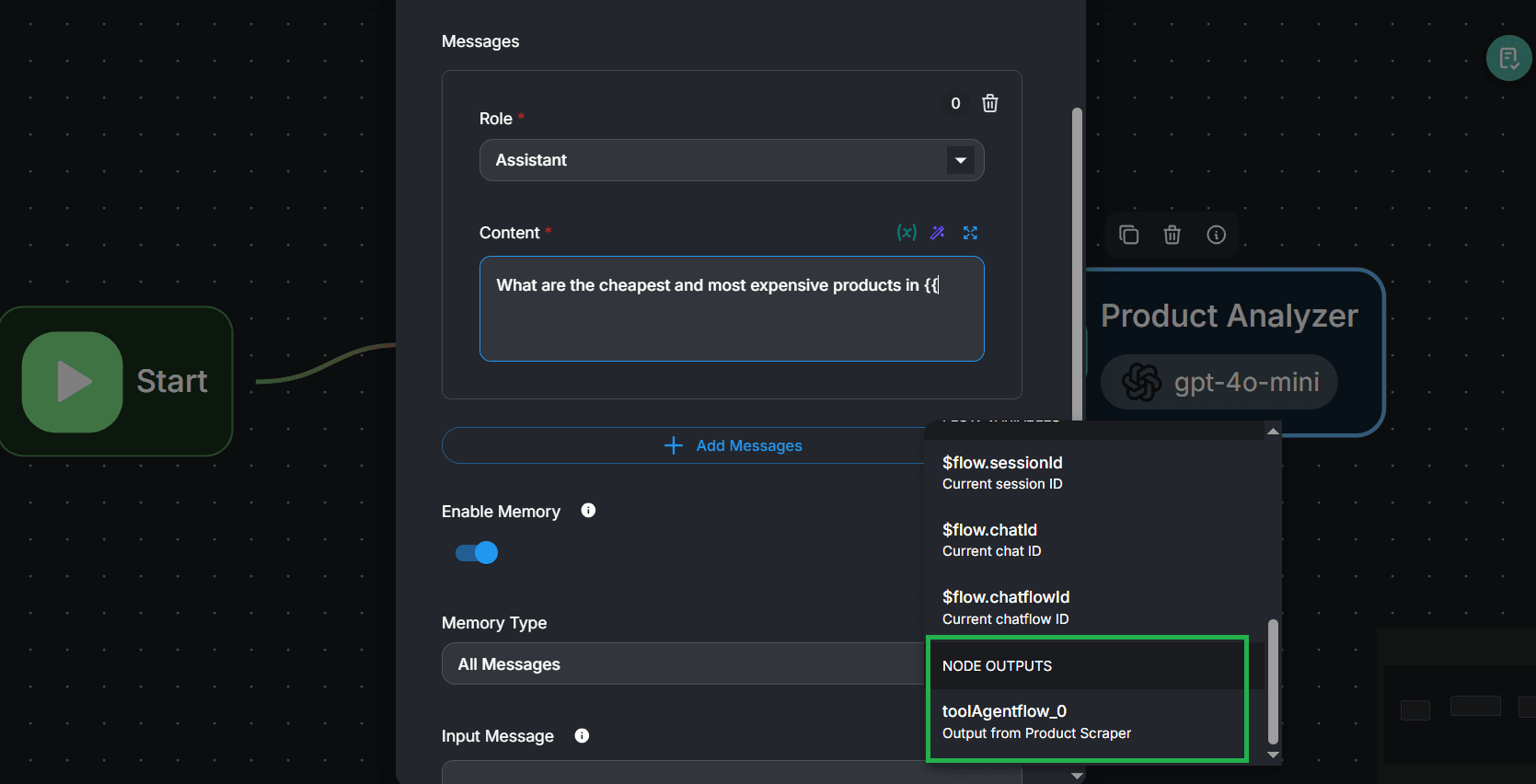
- Under Role, select "Assistant."
- Enter a prompt in the "Content" field.
We used the following prompt in this case:
What are the cheapest and most expensive products in {{ toolAgentflow_0 }}
Note that {{ toolAgentflow_0 }} is the scraping result from the Product Scraper tool. You can populate it into your prompt by typing two curly braces ({{) and then selecting toolAgentFlow under "NODE OUTPUTS."
Click anywhere within the canvas to close the modal. Then, click the save icon at the top-right to update your workflow with these new changes.
Click the chat icon and type "Run" in the chat box to execute the workflow.
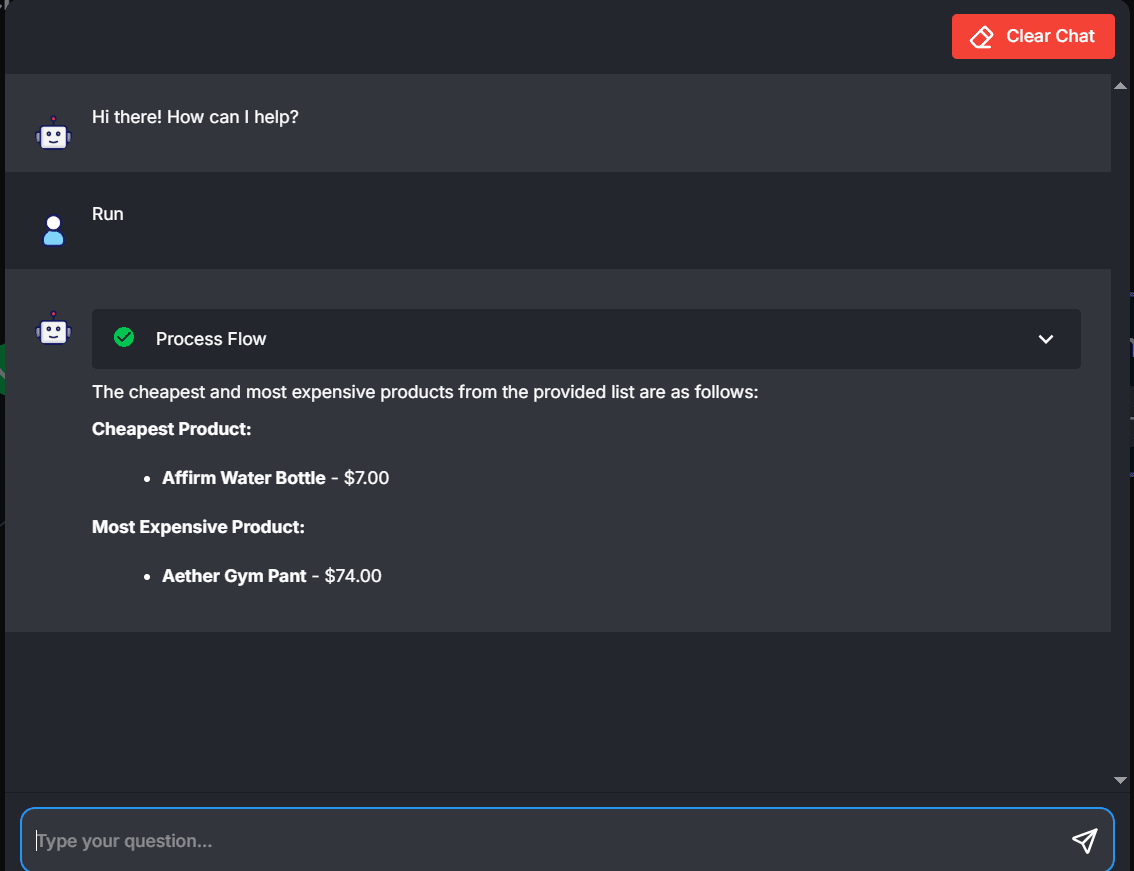
The LLM returns the cheapest and most expensive products as shown, confirming your AI agent now has access to live data from the target site:
The cheapest and most expensive products from the provided list are as follows:
Cheapest Product:
Affirm Water Bottle - $7.00
Most Expensive Product:
Aether Gym Pant - $74.00
Here's the direct chat output on Flowise:
Congratulations! 🎉 You've just added live web data to your LLM workflow on Flowise and are now ready to build AI agents with web scraping capabilities. With the Zenrows integration, you can scrape any site reliably at scale without worrying about getting blocked.
Conclusion
In this tutorial, you've learned how to build an AI agent for web scraping on Flowise using Zenrows integration. Adding a reliable web scraping layer to your workflow ensures that your AI agent consistently receives up-to-date data for more accurate decisions.
Keep in mind that for your AI agent to perform optimally, your web scraping setup must maintain steady, unblocked access to target websites. This prevents inaccurate responses and hallucinations. Zenrows is the best scraping solution, offering an all-in-one toolkit that enables you to scrape any website at scale without limitations.
Try Zenrows for free now or speak with sales!
FAQ
Is AI scraping for Flowise legal?
AI web scraping agents are legal as long as they comply with the relevant laws and regulations. Generally, scraping publicly available data for personal or research use is allowed. Avoid violating the target site's terms and ensure you use the scraped data ethically to avoid legal actions.
Can I write custom scraping functions in Flowise?
Yes, Flowise features a built-in code node that allows you to write custom JavaScript functions that run as part of your workflow. This provides more flexibility for building custom tools to store, clean, visualize, and fine-tune data.
Can I build a RAG system with Flowise?
Yes, you can build a Retrieval-Augmented Generation (RAG) system with Flowise. Flowise supports integration with popular vector databases and retrieval tools, making it a good choice for building RAG pipelines without extensive coding. This enables the creation of workflows where your AI agent retrieves relevant information from your data sources and generates accurate, context-aware responses.