# PuppeteerSharp: Tutorial for Puppeteer in C# [2026]
> Learn how to implement and use PuppeteerSharp (Puppeteer in C#) for your web scraping purposes: JavaScript rendering and avoid getting blocked.
Source: https://www.zenrows.com/blog/puppeteersharp
Puppeteer is one of the top browser automation tools for web scraping and testing. It's a JavaScript library, but its popularity has opened the door to many ports in different languages. PuppeteerSharp is the .NET port for an API providing the same functionality!
In this tutorial, you'll learn the Puppeteer C# basics and then dig into more advanced interactions. You'll see:
- [How to use Puppeteer in C#](#how-to-use-puppeteersharp).
- [Interact with web pages in a browser](#interacting-with-web-pages).
- [Avoid getting blocked](#avoid-getting-blocked).
Let's dive in!
## Why You Should Use PuppeteerSharp (Puppeteer in C#)
Puppeteer is one of the most used [headless browser libraries](/blog/c-sharp-headless-browser). It has millions of weekly downloads thanks to its high-level and easy API to control Chrome and is great for simulating any user interactions. Some applications? Testing and web scraping!
[Puppeteer Sharp](https://www.puppeteersharp.com/) is a .NET port of the Node.js Puppeteer library. It implements the same API but in C#. The main difference is that it uses Google Chrome v115 instead of the latest version of Chromium.
*Before diving into this PuppeteerSharp tutorial, you might be interested in taking a look at our articles on [headless browser scraping](/blog/headless-browser-scraping) and [web scraping in C#](/blog/web-scraping-c-sharp)*.
## How to Use PuppeteerSharp
To move the first steps with Puppeteer in C#, we'll scrape the [infinite scrolling demo](https://scrapingclub.com/exercise/list_infinite_scroll/) page below:
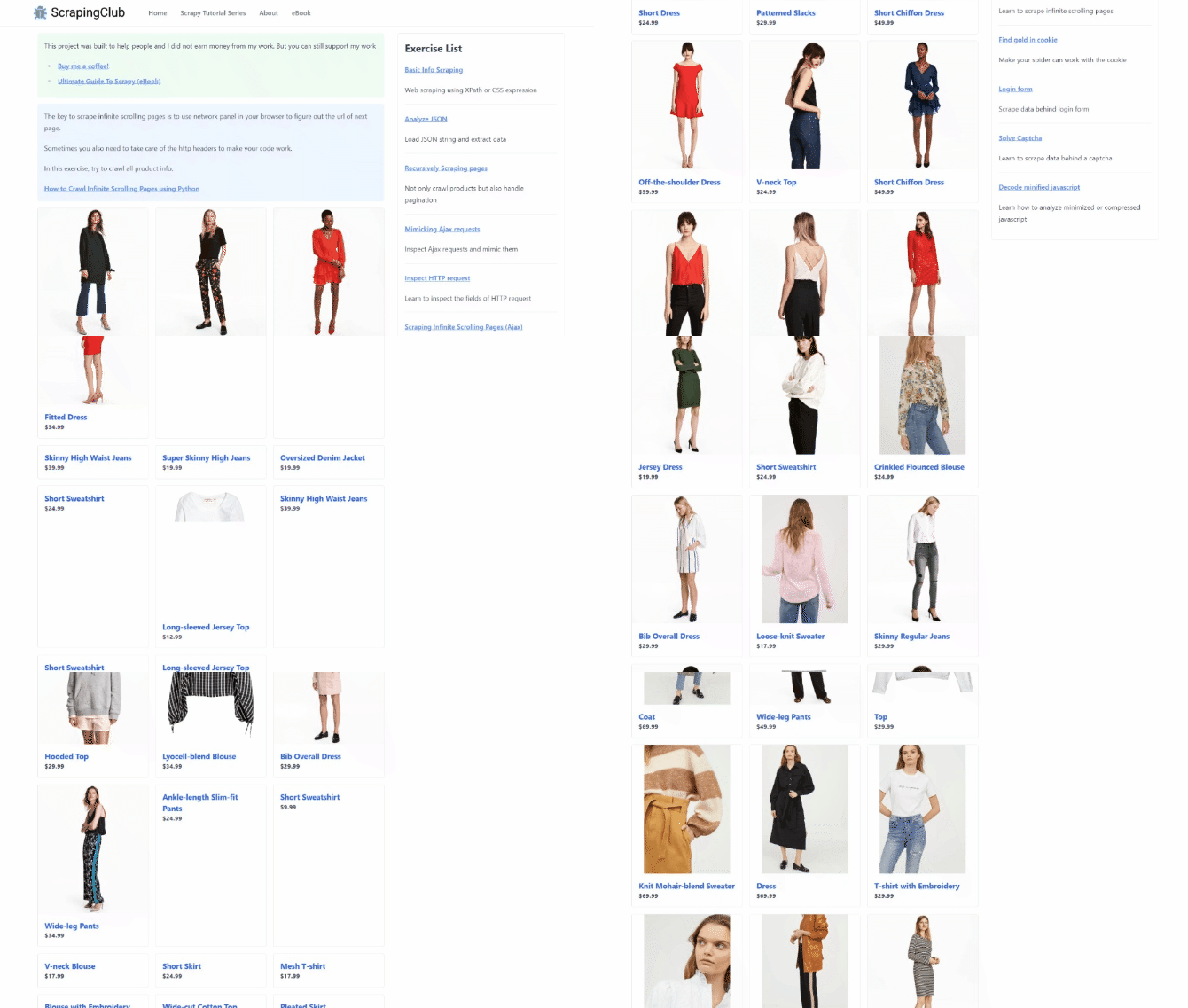
It loads new products as the user scrolls down via JavaScript. The only way to deal with the target site is through a technology that can run JS, such as Puppeteer. That makes it a prime example of a dynamic content page that needs a headless browser for data retrieval.
Time to perform browser automation to extract some data from it!
### Step 1: Install PuppeteerSharp
You need the .NET SDK installed on your computer to follow this tutorial. [Get the .NET 7+ installer](https://dotnet.microsoft.com/en-us/download/dotnet/7.0), execute it, and follow the wizard. You'll also need Chrome installed on your computer.
You're ready to initialize a Puppeteer C# project. Create a `PuppeteerSharpProject` folder and enter it in a PowerShell session:
```nginx
mkdir PuppeteerSharpProject
cd PuppeteerSharpProject
```
Run the [`new console`](https://learn.microsoft.com/en-us/dotnet/core/tutorials/with-visual-studio-code?pivots=dotnet-7-0) command to initialize a C# application. The project directory will contain the `Program.cs` and `puppeteersharp-demo.csproj` files.
```csharp
dotnet new console --framework net7.0
```
Next, add [Puppeteer Sharp](https://www.nuget.org/packages/PuppeteerSharp/) to your project's dependencies:
```nginx
dotnet add package PuppeteerSharp
```
Awesome! You have everything you need to set up a PuppeteerSharp script.
Open the project in Visual Studio (or your favorite IDE) and initialize `Program.cs` with the code below. The first line contains the import for PuppeteerSharp. `Main()` is the entry function of the C# program and will contain the scraping logic.
```csharp
using PuppeteerSharp;
namespace PuppeteerSharpProject
{
class Program
{
static async Task Main(string[] args)
{
// scraping logic...
}
}
}
```
You can execute the C# script with the following command:
```csharp
dotnet run
```
Perfect! Your C# PuppeteerSharp project is ready!
> **Skip the blocks.** [Try Zenrows free](/) and get clean web data without the anti-bot fight.
### Step 2: Access a Web Page with Puppeteer Sharp
Add the lines below to the `Main()` function to
1) Download Chrome locally,
2) Instantiate a [Puppeteer](https://www.puppeteersharp.com/api/PuppeteerSharp.Puppeteer.html) object to control a Chrome instance
3) Open a new page in the controlled browser with [`NewPageAsync()`](https://www.puppeteersharp.com/api/PuppeteerSharp.Browser.html#PuppeteerSharp_Browser_NewPageAsync).
```csharp
// download the browser executable
await new BrowserFetcher().DownloadAsync();
// browser execution configs
var launchOptions = new LaunchOptions
{
Headless = true, // = false for testing
};
// open a new page in the controlled browser
using (var browser = await Puppeteer.LaunchAsync(launchOptions))
using (var page = await browser.NewPageAsync())
{
// scraping logic...
}
```
> **Info**
>
> The `Headless = true` option ensures that Chrome will start in headless mode. Set it to `false` if you want to view the actions performed by your script on the page in real-time.
Use `page` to open the target page in the browser instance:
```nginx
await page.GoToAsync("https://scrapingclub.com/exercise/list_infinite_scroll/");
```
Next, retrieve the raw HTML content from the page and print it with `Console.WriteLine()`. The `GetContentAsync()` method returns the current page's source.
```csharp
var html = await page.GetContentAsync();
Console.WriteLine(html);
```
This is what your current `Program.cs` file should contain now:
```csharp
using PuppeteerSharp;
namespace PuppeteerSharpProject
{
class Program
{
static async Task Main(string[] args)
{
// download the browser executable
await new BrowserFetcher().DownloadAsync();
// browser execution configs
var launchOptions = new LaunchOptions
{
Headless = true, // = false for testing
};
// open a new page in the controlled browser
using (var browser = await Puppeteer.LaunchAsync(launchOptions))
using (var page = await browser.NewPageAsync())
{
// visit the target page
await page.GoToAsync("https://scrapingclub.com/exercise/list_infinite_scroll/");
// retrieve the HTML source code and log it
var html = await page.GetContentAsync();
Console.WriteLine(html);
}
}
}
}
```
Run your script in headless mode (setting `Headless = false`) with the command `dotnet run`. A Chrome window will open, and it'll visit the Infinite Scrolling demo page:
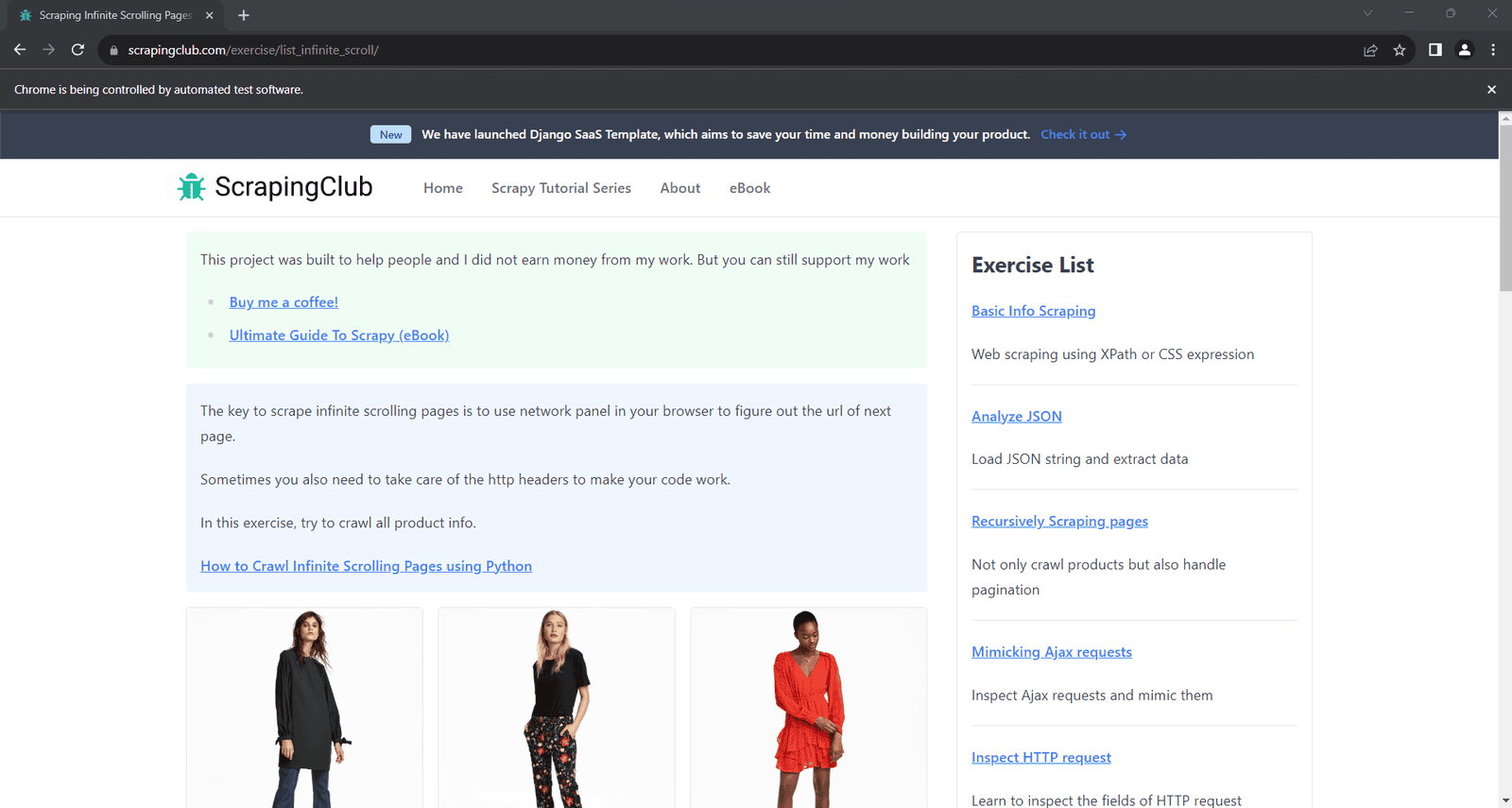
The "Chrome is being controlled by automated test software" means Puppeteer Sharp is working on Chrome as expected.
Your C# scraper will produce the output below in PowerShell:
```nginx
Scraping Infinite Scrolling Pages (Ajax) | ScrapingClub
```
Fantastic! That's exactly the HTML source code of your target page!
Now that you have access to the HTML code, it's time to see how to extract specific data from it.
### Step 3: Extract Specific Data by Parsing
Let's suppose your scraping goal is to retrieve the name and price of each product on the page. Puppeteer enables you to select HTML elements and extract data from them. Achieving that involves these steps:
First, select the DOM elements associated with the product by applying a selector strategy. Then, collect the desired information from each of them. Lastly, store the scraped data in C# objects.
A selector strategy usually relies on a [CSS Selector](https://developer.mozilla.org/en-US/docs/Learn/CSS/Building_blocks/Selectors) or [XPath](/blog/xpath-web-scraping) expression. Both of those methods are useful for finding elements in the DOM. CSS selectors are intuitive, while XPath expressions are generally more complex. Find out more in our article on [CSS Selector vs XPath.](/blog/xpath-vs-css-selector)
Keep it simple and opt for CSS selectors. How to define them? Open your target page in the browser and inspect a product HTML element with the DevTools to discover it:
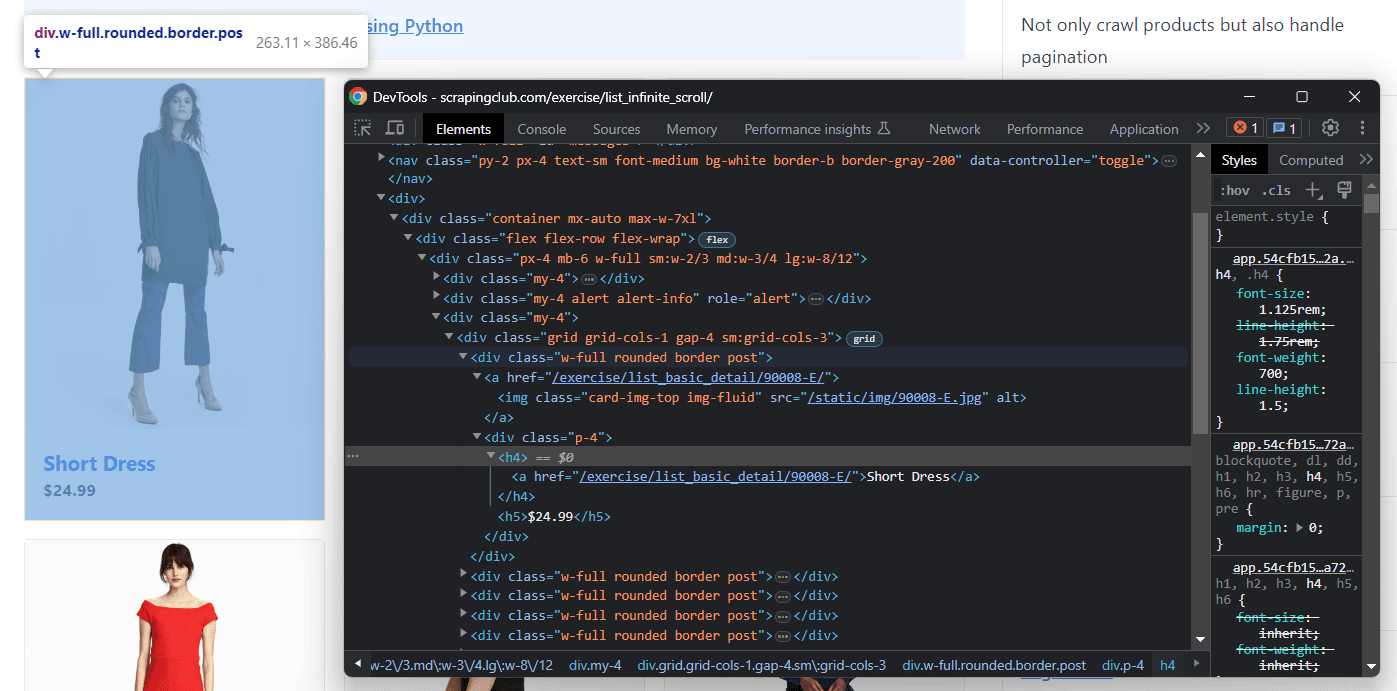
There, you can see that a product is a `.post` DOM element containing:
- The name in an `
` node.
- The price in an `
` node.
Follow the instructions below to look at how to get the name and price of the products on the target page:
First, create a `Product` class with the attribute to store the desired data:
```javascript
public class Product
{
public string? Name { get; set; }
public string? Price { get; set; }
}
```
In `Main()`, initialize a list of `Product`s. Its goal is to contain all the scraped data retrieved from the page.
```javascript
var products = new List();
```
Use the `QuerySelectorAllAsync()` method to find the product HTML elements via a CSS selector.
```javascript
var productElements = await page.QuerySelectorAllAsync(".post");
```
After selecting the product nodes, iterate over them and apply the data parsing logic. And, thanks to the [`innerText`](https://developer.mozilla.org/en-US/docs/Web/API/HTMLElement/innerText) HTML property, you can get the rendered text of a node.
```csharp
foreach (var productElement in productElements)
{
// select the name and price elements
var nameElement = await productElement.QuerySelectorAsync("h4");
var priceElement = await productElement.QuerySelectorAsync("h5");
// extract their text
var name = (await nameElement.GetPropertyAsync("innerText")).RemoteObject.Value.ToString();
var price = (await priceElement.GetPropertyAsync("innerText")).RemoteObject.Value.ToString();
// instantiate a new product and add it to the list
var product = new Product { Name = name, Price = price };
products.Add(product);
}
```
```csharp
using PuppeteerSharp;
namespace PuppeteerSharpProject
{
public class Product
{
public string? Name { get; set; }
public string? Price { get; set; }
}
class Program
{
static async Task Main(string[] args)
{
// to store the scraped data
var products = new List();
// download the browser executable
await new BrowserFetcher().DownloadAsync();
// browser execution configs
var launchOptions = new LaunchOptions
{
Headless = true, // = false for testing
};
// open a new page in the controlled browser
using (var browser = await Puppeteer.LaunchAsync(launchOptions))
using (var page = await browser.NewPageAsync())
{
// visit the target page
await page.GoToAsync("https://scrapingclub.com/exercise/list_infinite_scroll/");
// select all product HTML elements
var productElements = await page.QuerySelectorAllAsync(".post");
// iterate over them and extract the desired data
foreach (var productElement in productElements)
{
// select the name and price elements
var nameElement = await productElement.QuerySelectorAsync("h4");
var priceElement = await productElement.QuerySelectorAsync("h5");
// extract their text
var name = (await nameElement.GetPropertyAsync("innerText")).RemoteObject.Value.ToString();
var price = (await priceElement.GetPropertyAsync("innerText")).RemoteObject.Value.ToString();
// instantiate a new product and add it to the list
var product = new Product { Name = name, Price = price };
products.Add(product);
}
}
// log the scraped products
foreach (var product in products)
{
Console.WriteLine($"Name: {product.Name}, Price: {product.Price}");
};
}
}
}
```
Launch the script, and it'll print the following lines:
```nginx
Name: Short Dress, Price: $24.99
Name: Patterned Slacks, Price: $29.99
// omitted for brevity...
Name: Short Lace Dress, Price: $59.99
Name: Fitted Dress, Price: $34.99
```
Way to go! The data extraction logic produces the expected output!
### Step 4: Export the Data to CSV
The easiest way to convert the scraped data to CSV is to use [CsvHelper](https://joshclose.github.io/CsvHelper/), a .NET library for dealing with CSV files. Add it to your project's dependencies like this:
```nginx
dotnet add package CsvHelper
```
Import it into your application by adding this line to the top of your `Program.cs` file:
```csharp
using CsvHelper;
```
Create a `products.csv` file and use CsvHelper to populate it with the CSV-representation of the `products` objects.
```
// initialize the CSV output file
using (var writer = new StreamWriter("products.csv"))
// create the CSV writer
using (var csv = new CsvWriter(writer, CultureInfo.InvariantCulture))
{
// populate the CSV file
csv.WriteRecords(products);
}
```
> **Note**
>
> The [`CultureInfo.nvariantCulture`](https://learn.microsoft.com/en-us/dotnet/api/system.globalization.cultureinfo.invariantculture?view=net-7.0) option ensures that any software can parse the produced CSV, regardless of the user's local settings.
Add the import below to make `CultureInfo` work:
```
using System.Globalization;
```
This is the entire code of your scraping script:
```csharp
using PuppeteerSharp;
using CsvHelper;
using System.Globalization;
namespace PuppeteerSharpProject
{
public class Product
{
public string? Name { get; set; }
public string? Price { get; set; }
}
class Program
{
static async Task Main(string[] args)
{
// to store the scraped data
var products = new List();
// download the browser executable
await new BrowserFetcher().DownloadAsync();
// browser execution configs
var launchOptions = new LaunchOptions
{
Headless = true, // = false for testing
};
// open a new page in the controlled browser
using (var browser = await Puppeteer.LaunchAsync(launchOptions))
using (var page = await browser.NewPageAsync())
{
// visit the target page
await page.GoToAsync("https://scrapingclub.com/exercise/list_infinite_scroll/");
// select all product HTML elements
var productElements = await page.QuerySelectorAllAsync(".post");
// iterate over them and extract the desired data
foreach (var productElement in productElements)
{
// select the name and price elements
var nameElement = await productElement.QuerySelectorAsync("h4");
var priceElement = await productElement.QuerySelectorAsync("h5");
// extract their text
var name = (await nameElement.GetPropertyAsync("innerText")).RemoteObject.Value.ToString();
var price = (await priceElement.GetPropertyAsync("innerText")).RemoteObject.Value.ToString();
// instantiate a new product and add it to the list
var product = new Product { Name = name, Price = price };
products.Add(product);
}
}
// initialize the CSV output file and create the CSV writer
using (var writer = new StreamWriter("products.csv"))
using (var csv = new CsvWriter(writer, CultureInfo.InvariantCulture))
{
// populate the CSV file
csv.WriteRecords(products);
}
}
}
}
```
Run the Puppeteer C# scraper:
```nginx
dotnet run
```
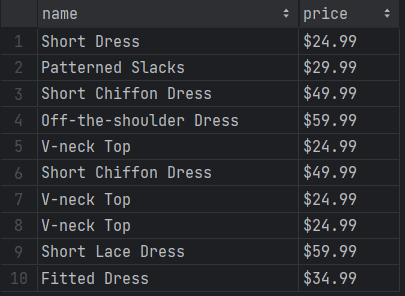
Wait for the script to complete. A `products.csv` file with the following data will appear in the root folder of your project:
Amazing! The basics of Puppeteer Sharp are no longer a secret for you!
At the same time, pay attention to the current output, and you'll realize it only involves ten elements. That's because the target page initially contains only a few products, relying on infinite scrolling to load more. Don't worry, you'll see how to extract all product data in the next section!
> **Skip the blocks.** [Try Zenrows free](/) and get clean web data without the anti-bot fight.
## Interacting with Web Pages in a Browser: Scroll, Screenshot, Etc.
PuppeteerSharp can simulate several automated user interactions. These include mouse movements, waits, and more. Your script can use them to behave like a human, gaining access to dynamic content and eluding [anti-bot](/blog/anti-bot) measures.
The most important interactions supported by C# Puppeteer are:
- Click page elements.
- Mouse movements and actions.
- Wait for DOM nodes on the page to be present, visible, or hidden.
- Fill out input fields.
- Submit forms.
- Take screenshots.
The operations are all available through native methods. For the remaining interactions, such as scrolling and dragging, you can use [`EvaluateExpressionAsync()`](https://www.puppeteersharp.com/api/PuppeteerSharp.IPage.html#PuppeteerSharp_IPage_EvaluateExpressionAsync_System_String_). This function executes a JavaScript script directly on the page to support any other browser interaction.
It's time to see how to scrape all products from the [infinite](https://scrapingclub.com/exercise/list_infinite_scroll/) [s](https://scrapingclub.com/exercise/list_infinite_scroll/)[croll demo page](https://scrapingclub.com/exercise/list_infinite_scroll/). Then, we'll explore other popular interactions in different PuppeteerSharp examples!
### Scrolling
Your target page contains only ten products at the beginning, and it loads new data as the user scrolls down. Note that PuppeteerSharp doesn't provide a method to scroll down. Thus, you need custom JavaScript logic to deal with infinite scrolling.
The following JS script instructs the browser to scroll down the page ten times at an interval of 0.5 seconds each:
```javascript
// scroll down the page 10 times
const scrolls = 10
let scrollCount = 0
// scroll down and then wait for 0.5s
const scrollInterval = setInterval(() => {
window.scrollTo(0, document.body.scrollHeight)
scrollCount++
if (scrollCount === numScrolls) {
clearInterval(scrollInterval)
}
}, 500)
```
Store the above script in a variable and execute it through the `EvaluateExpressionAsync()` method:
```javascript
// deal with infinite scrolling
var jsScrollScript = @"
const scrolls = 10
let scrollCount = 0
// scroll down and then wait for 0.5s
const scrollInterval = setInterval(() => {
window.scrollTo(0, document.body.scrollHeight)
scrollCount++
if (scrollCount === numScrolls) {
clearInterval(scrollInterval)
}
}, 500)
";
await page.EvaluateExpressionAsync(jsScrollScript);
```
> **Info**
>
> The operation must be run before getting the HTML products to ensure the DOM has been updated as desired.
The scrolling interaction takes time, so you have to instruct Puppeteer Sharp to wait for the operation to end. Use [`WaitForTimeoutAsync()`](https://www.puppeteersharp.com/api/PuppeteerSharp.IPage.html#PuppeteerSharp_IPage_WaitForTimeoutAsync_System_Int32_) to wait 10 seconds for new products to load:
```
await page.WaitForTimeoutAsync(10000);
```
This should be your new complete script:
```csharp
using PuppeteerSharp;
using CsvHelper;
using System.Globalization;
namespace PuppeteerSharpProject
{
public class Product
{
public string? Name { get; set; }
public string? Price { get; set; }
}
class Program
{
static async Task Main(string[] args)
{
// to store the scraped data
var products = new List();
// download the browser executable
await new BrowserFetcher().DownloadAsync();
// browser execution configs
var launchOptions = new LaunchOptions
{
Headless = true, // = false for testing
};
// open a new page in the controlled browser
using (var browser = await Puppeteer.LaunchAsync(launchOptions))
using (var page = await browser.NewPageAsync())
{
// visit the target page
await page.GoToAsync("https://scrapingclub.com/exercise/list_infinite_scroll/");
// deal with infinite scrolling
var jsScrollScript = @"
const scrolls = 10
let scrollCount = 0
// scroll down and then wait for 0.5s
const scrollInterval = setInterval(() => {
window.scrollTo(0, document.body.scrollHeight)
scrollCount++
if (scrollCount === numScrolls) {
clearInterval(scrollInterval)
}
}, 500)
";
await page.EvaluateExpressionAsync(jsScrollScript);
// wait for 10 seconds for the products to load
await page.WaitForTimeoutAsync(10000);
// select all product HTML elements
var productElements = await page.QuerySelectorAllAsync(".post");
// iterate over them and extract the desired data
foreach (var productElement in productElements)
{
// select the name and price elements
var nameElement = await productElement.QuerySelectorAsync("h4");
var priceElement = await productElement.QuerySelectorAsync("h5");
// extract their text
var name = (await nameElement.GetPropertyAsync("innerText")).RemoteObject.Value.ToString();
var price = (await priceElement.GetPropertyAsync("innerText")).RemoteObject.Value.ToString();
// instantiate a new product and add it to the list
var product = new Product { Name = name, Price = price };
products.Add(product);
}
}
// initialize the CSV output file and create the CSV writer
using (var writer = new StreamWriter("products.csv"))
using (var csv = new CsvWriter(writer, CultureInfo.InvariantCulture))
{
// populate the CSV file
csv.WriteRecords(products);
}
}
}
}
```
The `products` list will now contain all 60 products. Execute the script to verify that:
```nginx
dotnet run
```
Be patient as the execution will take more than 10 seconds.
The `products.csv` file generated by the script now stores more than just the first ten elements:
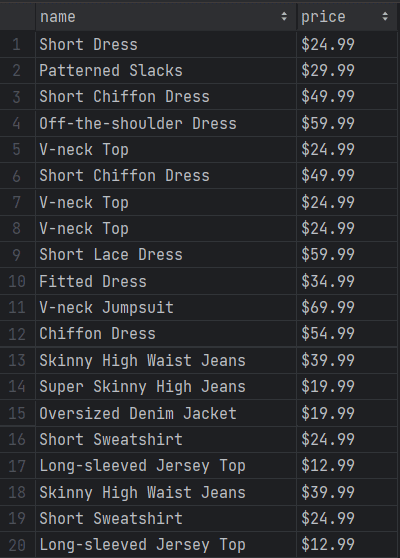
Mission completed! You just scraped all product data from the page.
### Wait for Element
The current PuppeteerSharp example script uses a hard wait. That's globally discouraged as it makes the automation logic flaky. You don't want your scraper to fail because of a browser or network slowdown!
You shouldn't wait for a fixed amount of seconds every time the page loads dynamic data. That's unreliable and slows down your script. Instead, you need to wait for DOM elements to be on the page before interacting with them. That way, your scraper will produce consistent results all the time.
The Puppeteer API offers the `WaitForSelector()` method to check if a DOM node is present on the page. Use it to wait up to ten seconds for the 60th `.post` element to appear:
```csharp
await page.WaitForSelectorAsync(".post:nth-child(60)", new WaitForSelectorOptions { Timeout = 10000 });
```
Replacing the `WaitForTimeoutAsync()` instruction with the above line. The scraper will now wait for the page to render the products retrieved by the AJAX calls triggered by the scrolls.
Your definitive Puppeteer C# script code is here:
```csharp
using PuppeteerSharp;
using CsvHelper;
using System.Globalization;
namespace PuppeteerSharpProject
{
public class Product
{
public string? Name { get; set; }
public string? Price { get; set; }
}
class Program
{
static async Task Main(string[] args)
{
// to store the scraped data
var products = new List();
// download the browser executable
await new BrowserFetcher().DownloadAsync();
// browser execution configs
var launchOptions = new LaunchOptions
{
Headless = true, // = false for testing
};
// open a new page in the controlled browser
using (var browser = await Puppeteer.LaunchAsync(launchOptions))
using (var page = await browser.NewPageAsync())
{
// visit the target page
await page.GoToAsync("https://scrapingclub.com/exercise/list_infinite_scroll/");
// deal with infinite scrolling
var jsScrollScript = @"
const scrolls = 10
let scrollCount = 0
// scroll down and then wait for 0.5s
const scrollInterval = setInterval(() => {
window.scrollTo(0, document.body.scrollHeight)
scrollCount++
if (scrollCount === numScrolls) {
clearInterval(scrollInterval)
}
}, 500)
";
await page.EvaluateExpressionAsync(jsScrollScript);
// wait up to 10 seconds for the 60th products to be on the page
await page.WaitForSelectorAsync(".post:nth-child(60)", new WaitForSelectorOptions { Timeout = 10000 });
// select all product HTML elements
var productElements = await page.QuerySelectorAllAsync(".post");
// iterate over them and extract the desired data
foreach (var productElement in productElements)
{
// select the name and price elements
var nameElement = await productElement.QuerySelectorAsync("h4");
var priceElement = await productElement.QuerySelectorAsync("h5");
// extract their text
var name = (await nameElement.GetPropertyAsync("innerText")).RemoteObject.Value.ToString();
var price = (await priceElement.GetPropertyAsync("innerText")).RemoteObject.Value.ToString();
// instantiate a new product and add it to the list
var product = new Product { Name = name, Price = price };
products.Add(product);
}
}
// initialize the CSV output file and create the CSV writer
using (var writer = new StreamWriter("products.csv"))
using (var csv = new CsvWriter(writer, CultureInfo.InvariantCulture))
{
// populate the CSV file
csv.WriteRecords(products);
}
}
}
}
```
Run it, and you'll get the same results as before but faster as it no longer wastes time on a fixed wait.
### Wait for the Page to Load or Other Events
`browser.GoToAsync()` automatically waits for the page to fire the [`load`](https://developer.mozilla.org/en-US/docs/Web/API/Window/load_event) event. This occurs when the whole page has loaded, including all dependent resources such as images and JS scripts. So, the Puppeteer Sharp library already waits for pages to load.
If you want to change the type of event to wait for or the timeout, you can pass some arguments to `GoToAsync()` as follows:
```csharp
await page.GoToAsync(
"https://scrapingclub.com/exercise/list_infinite_scroll/",
10000, // wait up to 10 seconds
new WaitUntilNavigation[] {WaitUntilNavigation.DOMContentLoaded} // wait for the DOMContentLoaded event to be fired
);
```
If this wasn't enough, `page` provides several other wait methods for more control:
- [`WaitForNavigationAsync()`](https://www.puppeteersharp.com/api/PuppeteerSharp.IPage.html#PuppeteerSharp_IPage_WaitForNavigationAsync_PuppeteerSharp_NavigationOptions_): Wait for a specific event when navigating to a new URL or reloading the page.
- [`WaitForFunctionAsync()`](https://www.puppeteersharp.com/api/PuppeteerSharp.IPage.html#PuppeteerSharp_IPage_WaitForFunctionAsync_System_String_System_Object___): Wait for a function to be evaluated to a truthy value.
- [`WaitForRequestAsync()`](https://www.puppeteersharp.com/api/PuppeteerSharp.IPage.html#PuppeteerSharp_IPage_WaitForRequestAsync_System_String_PuppeteerSharp_WaitForOptions_): Wait for an AJAX request to be performed.
- [`WaitForResponseAsync()`](https://www.puppeteersharp.com/api/PuppeteerSharp.IPage.html#PuppeteerSharp_IPage_WaitForResponseAsync_System_Func_PuppeteerSharp_IResponse_System_Boolean__PuppeteerSharp_WaitForOptions_): Wait for the response of an AJAX request to be received.
- [`WaitForSelectorAsync()`](https://www.puppeteersharp.com/api/PuppeteerSharp.IPage.html#PuppeteerSharp_IPage_WaitForSelectorAsync_System_String_PuppeteerSharp_WaitForSelectorOptions_): Wait for an element identified by a selector to be added to the DOM.
### Click Elements
Puppeteer C# elements expose the `ClickAsync()` method to simulate click interactions. This function instructs the browser to click on the selected node as a human user would.
```csharp
element.ClickAsync();
```
If `ClickAsync()` triggers a page change (as in the example below), you'll have to adapt the data parsing logic to the new page structure:
```csharp
var product = await page.QuerySelectorAsync(".post");
await product.ClickAsync();
// wait for the new page to load
await page.WaitForNavigationAsync();
// you are now on the detail product page...
// new scraping logic...
```
### File Download
Create a `download` directory in your project and configure it as the browser's default download folder, as follows:
```csharp
// current project directory + "/download"
var downloadDirectory = Path.Combine(Directory.GetCurrentDirectory(), "download");
// set the default download folder of the browser
await page.Target.CreateCDPSessionAsync().Result.SendAsync("Page.setDownloadBehavior", new
{
behavior = "allow",
downloadPath = downloadDirectory
}, false);
```
Perform a user interaction that triggers a file download. Chrome will now store the downloaded files in the local `download` folder.
```csharp
var downloadButton = await browser.QuerySelectorAsync(".download");
await downloadButton.ClickAsync();
```
### Submit Form
You can submit a form in Puppeteer Sharp with this approach:
1. Select the input elements in the form.
2. Use the `TypeAsync()` method to fill them out.
3. Submit the form by calling `ClickAsync()` on the submit button.
See an example below:
```csharp
// retrieve the input elements
var emailElement = await productElement.QuerySelectorAsync("name=email");
var passwordElement = await productElement.QuerySelectorAsync("name=password");
// fill in the form
await emailElement.TypeAsync("john.doe@example.com");
await passwordElement.TypeAsync("46hdb18sna9");
// submit the form
var submitElement = await page.QuerySelectorAsync("[type=submit]");
await submitElement.ClickAsync();
```
### Take a Screenshot
Online data retrieval involves not only textual information but also images. Taking screenshots of specific elements or the entire page is useful too! For example, you could use it to study what competitors are doing for the user experience of their site.
PuppeteerSharp comes with built-in screenshot capabilities thanks to the `ScreenshotAsync()` method:
```csharp
// take a screenshot of the current viewport
await page.ScreenshotAsync(".\\screenshot.jpg");
```
Launch the script, and a `screenshot.jpg` file will appear in the root folder of your project.
Keep in mind that you can call `ScreenshotAsync()` also on a single element, and the screenshot will include only the selected element.
```csharp
// take a screenshot of the current element
await element.ScreenshotAsync(".\\element.jpg");
```
## Avoid Getting Blocked when Web Scraping with PuppeteerSharp
The biggest challenge when scraping data from a page is getting blocked. An effective way to minimize that issue involves using proxies to make your requests come from different IPs and locations, and use a real User-Agent in the HTTP request header.
Set a custom User Agent in PuppeteerSharp with the [`SetUserAgentAsync()`](https://www.puppeteersharp.com/api/PuppeteerSharp.IPage.html#PuppeteerSharp_IPage_SetUserAgentAsync_System_String_PuppeteerSharp_UserAgentMetadata_) method:
```nginx
await page.SetUserAgentAsync("Mozilla/5.0 (Windows NT 10.0; Win64; x64) AppleWebKit/537.36 (KHTML, like Gecko) Chrome/117.0.0.0 Safari/537.36");
```
We recommend checking out our guide on [User Agents for web scraping](/blog/user-agent-web-scraping) to learn more.
Configuring a proxy in PuppeteerSharp is a bit trickier as it involves an advanced Chrome flag. First, get a free proxy from sites like [Free Proxy List](https://free-proxy-list.net/). Then, specify it in the `--proxy-server` argument:
```csharp
var proxyServerURL = "50.170.90.25";
var launchOptions = new LaunchOptions
{
// other configs...
Args = new string[] {
"--proxy-server=" + proxyServerURL
}
};
using (var browser = await Puppeteer.LaunchAsync(launchOptions))
// ...
```
> **Info**
>
> Free proxies are short-lived and unreliable. By the time you read this article, it is unlikely that the proxy we chose would work.
Keep in mind that these are just baby steps to avoid anit-bots. Advanced solutions like [Cloudflare](/blog/bypass-cloudflare), [Akamai](/blog/bypass-akamai), [PerimeterX](/blog/perimeterx-bypass) and [DataDome](/blog/datadome-bypass) will still be able to detect and block you.
On top of that, there are two huge issues with `--proxy-server`. First, it works at the browser level, which means you can't set different proxies for different requests. The exit server's IP is likely to get blocked at some point. Second, the flag doesn't support proxies with a username and password. Thus, forget about using premium proxies that require authentication.
The solution to [bypass anti-bots like Cloudflare in Puppeteer](/blog/puppeteer-cloudflare-bypass) is to use [Zenrows](/). As a technology that perfectly integrates with PuppeteerSharp, it provides you with User-Agent rotation and rotating residential proxies to avoid getting blocked.
To get started with Zenrows, [sign up for free](/) and you'll get to the Request Builder page.
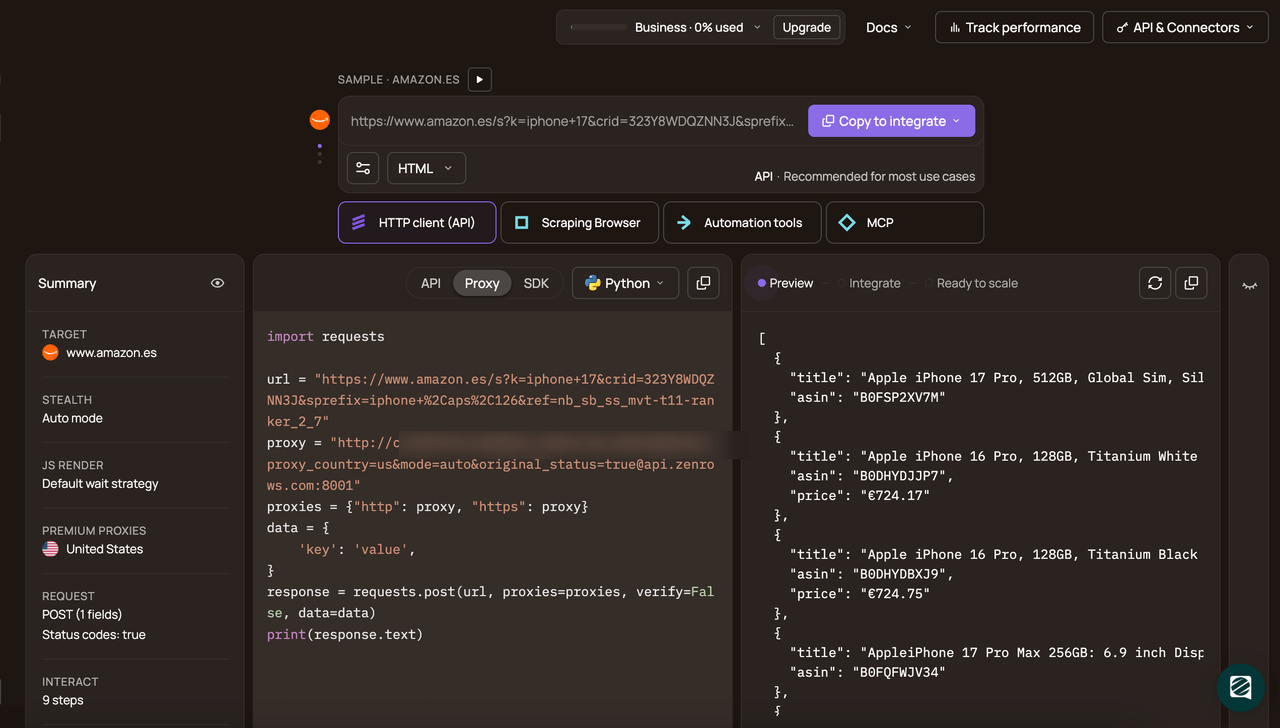
Suppose you want to scrape data from Amazon. Paste your target URL (`https://www.amazon.com/PlayStation-5-Console-CFI-1215A01X/dp/B0BCNKKZ91/`), and check the "Premium Proxy" option to get rotating IPs. User Agent rotation is included by default.
Then, on the right side of the screen, select "cURL". Copy the generated link and paste it into your code as a target URL inside C# Puppeteer's `GoToAsync()` method.
```csharp
using PuppeteerSharp;
namespace PuppeteerSharpProject
{
class Program
{
static async Task Main(string[] args)
{
// download the browser executable
await new BrowserFetcher().DownloadAsync();
// browser execution configs
var launchOptions = new LaunchOptions
{
Headless = true, // = false for testing
};
// open a new page in the controlled browser
using (var browser = await Puppeteer.LaunchAsync(launchOptions))
using (var page = await browser.NewPageAsync())
{
// visit the target page
await page.GoToAsync("https://api.zenrows.com/v1/?apikey=&url=https%3A%2F%2Fwww.amazon.com%2FPlayStation-5-Console-CFI-1215A01X%2Fdp%2FB0BCNKKZ91%2F&premium_proxy=true&autoparse=true");
// retrieve the HTML source code and log it
var html = await page.GetContentAsync();
Console.WriteLine(html);
}
}
}
}
```
Execute it, and it'll log the the HTML of the page:
```nginx
```
Wow! You just integrated Zenrows with Puppeteer Sharp.
Now, what about the anti-bot solutions that can stop PuppeteerSharp, like CAPTCHAS? Note that Zenrows doesn't only extend PuppeterSharp, but can replace it entirely! That's because it offers the same JavaScript rendering functionality.
The advantage of adopting Zenrows is the additional possibility of getting its advanced anti-bot bypass feature, which can get you access to any website. For that, enable the "AI Anti-bot" option in the Request Builder and call the target URL from any HTTP client of your choice, like RestSharp.
Moreover, as a SaaS solution, Zenrows also introduces significant machine cost savings!
## Conclusion
In this PuppeteerSharp tutorial, you saw the fundamentals of Chrome automation in C#. You started from the basics and explored more complex techniques to become an expert.
Now you know:
- How to set up a Puppeteer Sharp project.
- How to use it to scrape data from a dynamic content page.
- What user interactions you can simulate through some PuppeteerSharp examples.
- The challenges of web scraping and how to go over them.
However, no matter how sophisticated your browser automation is, anti-bot measures can still block you. Luckily, you can bypass them all with Zenrows, a web scraping API with headless browser capabilities, IP rotation, and an advanced AI-based anti-scraping bypass toolkit. Nothing will stop your automated scripts. [Try Zenrows for free!](/)