# Scrapy Playwright: Complete Tutorial 2026
> Learn how to use Scrapy with Playwright so that you can render dynamic content and pages. Also, that'll help you avoid getting blocked while web scraping.
Source: https://www.zenrows.com/blog/scrapy-playwright
Scrapy Playwright is a library that adds JavaScript rendering capabilities to Scrapy. It enables you to instruct a headless browser to scrape [dynamic web pages](/blog/dynamic-web-pages-scraping-python) and simulate human behavior to reduce the chances of your spiders getting blocked.
In this tutorial, you'll first jump into the basics and then explore more advanced interactions through examples.
- [Prerequisites](#getting-started).
- [How to use Scrapy with Playwright](#how-do-you-use-scrapy-with-playwright).
- [Interact with web pages](#interact-with-web-pages).
- [Avoid getting blocked with a proxy](#avoid-getting-blocked).
Let's dive in!
## Why Use Playwright with Scrapy?
You can use `scrapy-playwright` to render JavaScript-based sites and thus extract their content. Loading pages in a web browser is also essential to fool most anti-bot systems. Learn more in our [Playwright scraping guide](/blog/playwright-scraping).
Unlike other headless browsers, **Playwright is efficient, supports several browsers, and has a modern API**. It's also easy to [block resources in Playwright](/blog/blocking-resources-in-playwright) and speed up scraping. At the same time, it's not the most popular one and requires custom tweaking for anti-bot bypassing (you might need to learn [how to avoid bot detection in Playwright](/blog/avoid-playwright-bot-detection)).
While some opt for [Scrapy Splash](/blog/scrapy-splash) to scrape JavaScript-heavy websites, Playwright remains a widely adopted tool for many Scrapy users. That's thanks to its powerful features and extensive documentation.
## Getting Started: Scrapy Playwright Tutorial
Follow this step-by-step section to set up Playwright in Scrapy.
### 1. Set Up a Scrapy Project
You'll need Python 3 to follow this tutorial. Many systems come with it preinstalled, so verify that with the command below:
```nginx
python --version
```
If yours does, you'll receive an output like this:
```nginx
Python 3.11.3
```
**In case you get an error or version 2.x**, your system doesn't meet the prerequisites. Download the [Python 3.x installer](https://www.python.org/downloads/), execute it, and follow the instructions.
You now have everything required to initialize a Scrapy project.
Create a `scrapy-playwright-project` folder with a [Python virtual environment](https://docs.python.org/3/library/venv.html) using the command below:
```nginx
mkdir scrapy-playwright-project
cd scrapy-playwright-project
python3 -m venv env
```
Activate and enter the environment:
```nginx
.env/bin/activate
```
Then, install Scrapy. Be patient, as this may take a couple of minutes.
```nginx
pip3 install scrapy
```
Great! The scraping library is ready. Check out our guide to learn more about how to use [Scrapy in Python](/blog/scrapy-python).
Initialize a Scrapy project called `playwright_scraper`:
```nginx
scrapy startproject playwright_scraper
```
The `scrapy-playwright-project` directory will now contain these folders and files:
```
├── scrapy.cfg
└── playwright_scraper
├── __init__.py
├── items.py
├── middlewares.py
├── pipelines.py
├── settings.py
└── spiders
└── __init__.py
```
### 2. Install Scrapy Playwright
In the virtual environment terminal, run the command below to install [`scrapy-playwright`](https://pypi.org/project/scrapy-playwright/). Then, [`playwright`](https://pypi.org/project/playwright/) is going to be added as part of your project dependencies by default.
```nginx
pip3 install scrapy-playwright
```
Underline**Note**: `scrapy-playwright` relies on the [`SelectorEventLoop`](https://docs.python.org/3/library/asyncio-eventloop.html#asyncio.SelectorEventLoop) from `asyncio`, which [isn't supported by Windows](https://docs.python.org/3/library/asyncio-platforms.html#asyncio-windows-subprocess). That means that running your spiders would result in [`NotImplementedError`](https://docs.python.org/3/library/exceptions.html#NotImplementedError) on PowerShell, but avoid that by setting up WSL (Windows Subsystem for Linux) on Windows, as explained in the [official guide](https://learn.microsoft.com/en-us/windows/wsl/install).
Next, install Chromium. Again, this might take a while, so wait for a bit.
```nginx
python3 -m playwright install chromium
```
Complete the Playwright configuration with the Chromium system dependencies:
```nginx
python3 -m playwright install-deps chromium
```
**Note:** Replace `chromium` with the name of your target browser engine if you want to use other browsers.
Fantastic! You can now control a Chrome instance via Playwright in Scrapy.
### 3. Integrate Playwright into Scrapy
Open `setting.py` and add the following lines to configure `ScrapyPlaywrightDownloadHandler` as the default `http/https` handler. In other words, Scrapy will now perform HTTP or HTTPS requests through Playwright.
```nginx
DOWNLOAD_HANDLERS = {
"http": "scrapy_playwright.handler.ScrapyPlaywrightDownloadHandler",
"https": "scrapy_playwright.handler.ScrapyPlaywrightDownloadHandler",
}
```
You also need the following line to enable the [`asyncio-based Twisted reactor`](https://docs.scrapy.org/en/latest/topics/asyncio.html#installing-the-asyncio-reactor), yet the most recent versions of Playwright already have it in `setting.py`.
```nginx
TWISTED_REACTOR = "twisted.internet.asyncioreactor.AsyncioSelectorReactor"
```
By default, Playwright operates in headless mode. If you'd want to see the actions performed by your scraping script in the browser, add this value:
```nginx
PLAYWRIGHT_LAUNCH_OPTIONS = {
"headless": False,
}
```
Chrome will start in headed mode with the UI. Keep in mind that the browser won't show up on WSL as it's just bash, not a GUI desktop.
Perfect! Scrapy Playwright is ready to use. It's time to see it in action!
## How Do You Use Scrapy with Playwright?
To learn how to use Scrapy with Playwright, we'll use an [infinite scrolling demo](https://scrapingclub.com/exercise/list_infinite_scroll/) page as a target URL. It loads more products as the user scrolls down, so it's a perfect example of a dynamic-content page that needs JavaScript rendering for data retrieval.
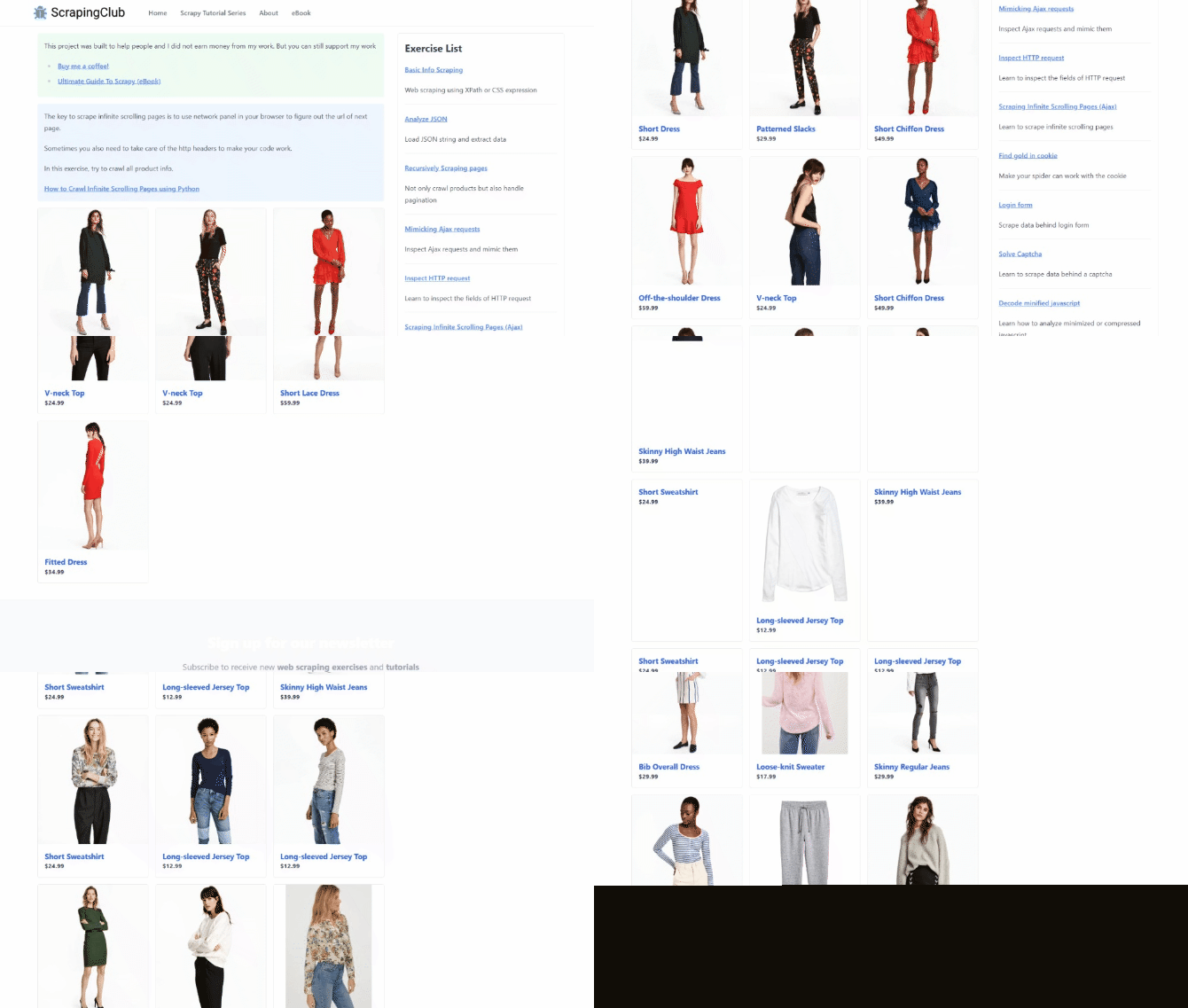
Initialize a Scrapy spider for the target page:
```nginx
scrapy genspider scraping_club https://scrapingclub.com/exercise/list_infinite_scroll/
```
The `/spiders` folder will contain the following `scraping_club.py` file. It's what a basic Scrapy spider looks like.
```python
import scrapy
class ScrapingClubSpider(scrapy.Spider):
name = "scraping_club"
allowed_domains = ["scrapingclub.com"]
start_urls = ["https://scrapingclub.com/exercise/list_infinite_scroll/"]
def parse(self, response):
pass
```
To open a page in Chrome via Playwright, rather than making an HTTP GET request for the first page that the spider should visit, implement the [`start_requests()`](https://docs.scrapy.org/en/latest/topics/spiders.html#scrapy.Spider.start_requests) method instead of specifying the starting URL in `start_urls`.
```python
def start_requests(self):
url = "https://scrapingclub.com/exercise/list_infinite_scroll/"
yield scrapy.Request(url, meta={"playwright": True})
```
The `meta={"playwright": True}` argument above tells Scrapy to route the request through `scrapy-playwright`.
Since `start_requests()` replaces `start_urls`, you can remove the attribute from the class. Here is what the complete code of your new spider looks like:
```python
import scrapy
class ScrapingClubSpider(scrapy.Spider):
name = "scraping_club"
allowed_domains = ["scrapingclub.com"]
def start_requests(self):
url = "https://scrapingclub.com/exercise/list_infinite_scroll/"
yield scrapy.Request(url, meta={"playwright": True})
def parse(self, response):
# scraping logic...
pass
```
It only remains to implement the scraping logic in the `parse()` method. Open the target site in the browser and inspect a product HTML node with DevTools to define a data extraction strategy:
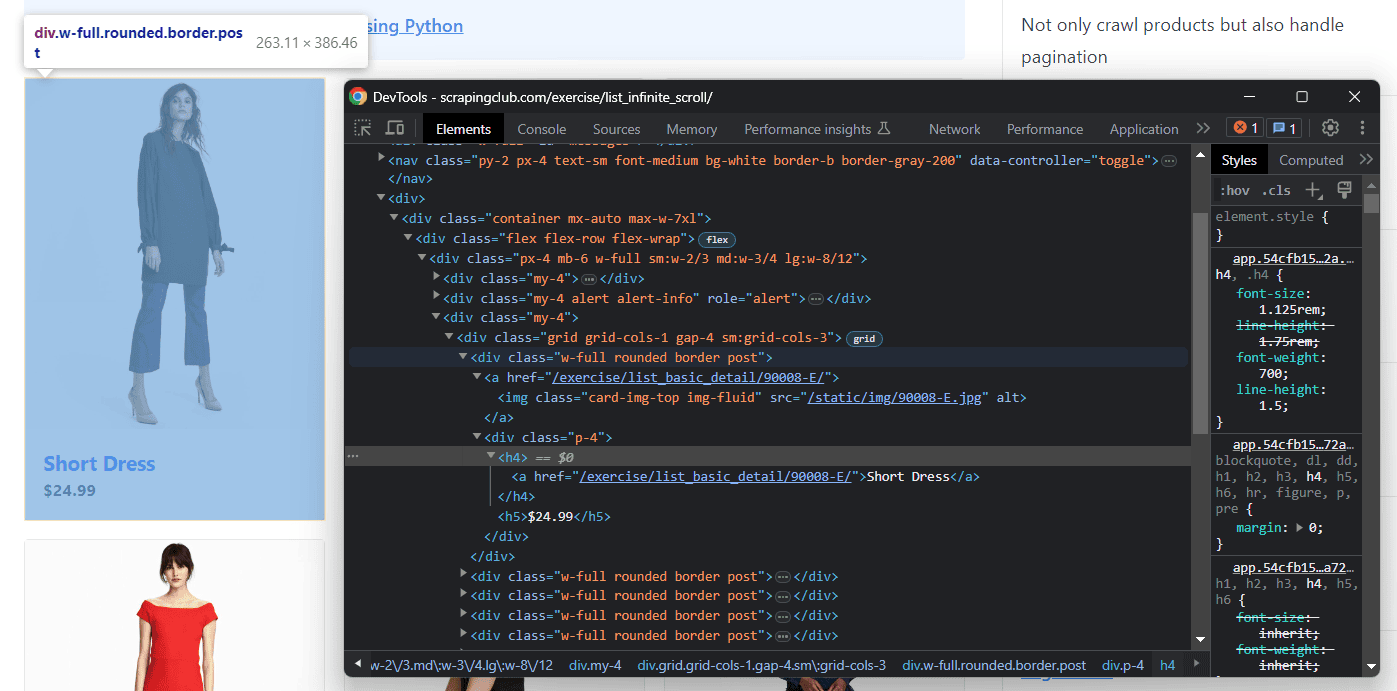
The following snippet selects all product HTML elements with the `css()` function to employ CSS Selectors. Then, it iterates over them to extract their data and uses `yield` to create a new set of scraped items:
```nginx
def parse(self, response):
# iterate over the product elements
for product in response.css(".post"):
# scrape product data
url = product.css("a").attrib["href"]
image = product.css(".card-img-top").attrib["src"]
name = product.css("h4 a::text").get()
price = product.css("h5::text").get()
# add the data to the list of scraped items
yield {
"url": url,
"image": image,
"name": name,
"price": price
}
```
Your entire `scraping_club.py` script should now look like this:
```nginx
import scrapy
class ScrapingClubSpider(scrapy.Spider):
name = "scraping_club"
allowed_domains = ["scrapingclub.com"]
def start_requests(self):
url = "https://scrapingclub.com/exercise/list_infinite_scroll/"
yield scrapy.Request(url, meta={"playwright": True})
def parse(self, response):
# iterate over the product elements
for product in response.css(".post"):
# scrape product data
url = product.css("a").attrib["href"]
image = product.css(".card-img-top").attrib["src"]
name = product.css("h4 a::text").get()
price = product.css("h5::text").get()
# add the data to the list of scraped items
yield {
"url": url,
"image": image,
"name": name,
"price": price
}
```
Run the spider to verify that it works:
```nginx
scrapy crawl scraping_club
```
**Note**: You may get the error below:
```nginx
scrapy.exceptions.NotSupported: Unsupported URL scheme 'https': No module named 'scrapy_playwright'
```
To fix that, deactivate your venv with `.env/bin/deactivate` and then activate it again before relaunching the `crawl` command.
Spot the lines below in the logs to make sure `scrapy-playwright` is visiting pages in Chrome:
```nginx
[scrapy-playwright] INFO: Launching browser chromium
[scrapy-playwright] INFO: Browser chromium launched
```
The output that matters in the logs is the list of the scraped objects:
```nginx
{'url': '/exercise/list_basic_detail/90008-E/', 'image': '/static/img/90008-E.jpg', 'name': 'Short Dress', 'price': '$24.99'}
{'url': '/exercise/list_basic_detail/96436-A/', 'image': '/static/img/96436-A.jpg', 'name': 'Patterned Slacks', 'price': '$29.99'}
# 6 products omitted for brevity...
{'url': '/exercise/list_basic_detail/96643-A/', 'image': '/static/img/96643-A.jpg', 'name': 'Short Lace Dress', 'price': '$59.99'}
{'url': '/exercise/list_basic_detail/94766-A/', 'image': '/static/img/94766-A.jpg', 'name': 'Fitted Dress', 'price': '$34.99'}
```
At the end, you'll see the browser closed:
```nginx
[scrapy-playwright] DEBUG: Browser context closed: 'default' (persistent=False)
[scrapy-playwright] INFO: Closing browser
```
The current output only involves ten items as the page uses infinite scrolling to load data, but let's see how to scrape all products in the next section of this `scrapy-playwright` tutorial.
Well done! The basics of Playwright in Scrapy are no longer a secret for you!
## Interact with Web Pages with scrapy-playwright
Scrapy Playwright can control a headless browser, allowing you to programmatically wait for elements, move the mouse, and more. These actions help to fool [anti-bot](/blog/anti-bot) measures because your spider will look like a human user.
The interactions supported by Playwright include:
- Scroll down or up the page.
- Click page elements and perform other mouse actions.
- Wait for page elements to load.
- Fill out and clear input fields.
- Submit forms.
- Take screenshots.
- Export the page to a PDF.
- Drag and drop elements.
- Stop image rendering or abort specific asynchronous requests.
You can achieve those operations through the [`playwright_page_methods`](https://github.com/scrapy-plugins/scrapy-playwright#playwright_page_methods) argument. It accepts a list of [`PageMethod`](https://github.com/scrapy-plugins/scrapy-playwright#pagemethod-class) objects that specify the actions to perform on the page before returning the final response to `parse()`:
```python
from scrapy_playwright.page import PageMethod
# ...
def start_requests(self):
url = "https://scrapingclub.com/exercise/list_infinite_scroll/"
yield scrapy.Request(url, meta={
"playwright": True,
"playwright_page_methods": [
# PageMethod(...), operation 1
# ...
# PageMethod(...) operation n
],
})
```
Let's see how `PageMethod` helps you scrape all the products from the [infinite scroll demo page](https://scrapingclub.com/exercise/list_infinite_scroll/) and then explore other popular Playwright interactions!
**Note:** If you instead need to access the Playwright [`page`](https://playwright.dev/python/docs/api/class-page) object in `parse()` to get some useful extra methods from the Playwright API to interact with a web page, set [`playwright_include_page`](https://github.com/scrapy-plugins/scrapy-playwright#playwright_include_page) to `True`. Yet, consider this mechanism involves extra logic and some error handling to work properly. Find more about it in the [docs](https://github.com/scrapy-plugins/scrapy-playwright#receiving-page-objects-in-callbacks).
> **Skip the blocks.** [Try Zenrows free](/) and get clean web data without the anti-bot fight.
### Scrolling
After the first page load of the target [demo shop](https://scrapingclub.com/exercise/list_infinite_scroll/), you didn't get all products because the page relies on infinite scrolling to load new data. A base Scrapy spider can't deal with that popular interaction as it requires JavaScript, but you can thanks to Scrapy Playwright!
Playwright doesn't have specific methods to deal with scrolling and relies on JavaScript. Instruct a browser to perform infinite scrolling in JavaScript by automatically scrolling down the page eight times at an interval of 0.5 seconds in the browser.
```javascript
// scroll down the page 8 times
const scrolls = 8
let scrollCount = 0
// scroll down and then wait for 0.5s
const scrollInterval = setInterval(() => {
window.scrollTo(0, document.body.scrollHeight)
scrollCount++
if (scrollCount === numScrolls) {
clearInterval(scrollInterval)
}
}, 500)
```
Store the script below in a `scrolling_script` variable and pass it to `PageMethod` as follows. The `evaluate` argument on `PageMethod` will instruct `scrapy-playwright` to call `page`'s [`evaluate()`](https://playwright.dev/python/docs/api/class-page#page-evaluate). That's the method Playwright exposes to run JavaScript on a page.
```javascript
scrolling_script = """
const scrolls = 8
let scrollCount = 0
// scroll down and then wait for 0.5s
const scrollInterval = setInterval(() => {
window.scrollTo(0, document.body.scrollHeight)
scrollCount++
if (scrollCount === numScrolls) {
clearInterval(scrollInterval)
}
}, 500)
"""
class ScrapingClubSpider(scrapy.Spider):
name = "scraping_club"
allowed_domains = ["scrapingclub.com"]
def start_requests(self):
url = "https://scrapingclub.com/exercise/list_infinite_scroll/"
yield scrapy.Request(url, meta={
"playwright": True,
"playwright_page_methods": [
PageMethod("evaluate", scrolling_script),
],
})
```
The spider will now:
1. Visit the page in Scrapy Playwright.
2. Perform the operations specified in `playwright_page_methods` in order.
3. Return the `response` object to `scrape()` containing the HTML document affected by the previous operations.
Since the scrolling logic uses timers, you also need to tell Playwright to wait for the operation to end before passing the response to `parse()`. So, add the following instruction to `playwright_page_methods`:
```nginx
PageMethod("wait_for_timeout", 5000)
```
This should be your new complete code:
```python
import scrapy
from scrapy_playwright.page import PageMethod
scrolling_script = """
const scrolls = 8
let scrollCount = 0
// scroll down and then wait for 0.5s
const scrollInterval = setInterval(() => {
window.scrollTo(0, document.body.scrollHeight)
scrollCount++
if (scrollCount === numScrolls) {
clearInterval(scrollInterval)
}
}, 500)
"""
class ScrapingClubSpider(scrapy.Spider):
name = "scraping_club"
allowed_domains = ["scrapingclub.com"]
def start_requests(self):
url = "https://scrapingclub.com/exercise/list_infinite_scroll/"
yield scrapy.Request(url, meta={
"playwright": True,
"playwright_page_methods": [
PageMethod("evaluate", scrolling_script),
PageMethod("wait_for_timeout", 5000)
],
})
def parse(self, response):
# iterate over the product elements
for product in response.css(".post"):
# scrape product data
url = product.css("a").attrib["href"]
image = product.css(".card-img-top").attrib["src"]
name = product.css("h4 a::text").get()
price = product.css("h5::text").get()
# add the data to the list of scraped items
yield {
"url": url,
"image": image,
"name": name,
"price": price
}
```
The `response` object in `parse()` will contain all the 60 product elements instead of just the first ten. Run the spider again to verify:
```nginx
scrapy crawl scraping_club
```
This will be in your logs:
```nginx
{'url': '/exercise/list_basic_detail/90008-E/', 'image': '/static/img/90008-E.jpg', 'name': 'Short Dress', 'price': '$24.99'}
{'url': '/exercise/list_basic_detail/96436-A/', 'image': '/static/img/96436-A.jpg', 'name': 'Patterned Slacks', 'price': '$29.99'}
# 56 other products omitted for brevity...
{'url': '/exercise/list_basic_detail/96771-A/', 'image': '/static/img/96771-A.jpg', 'name': 'T-shirt', 'price': '$6.99'}
{'url': '/exercise/list_basic_detail/93086-B/', 'image': '/static/img/93086-B.jpg', 'name': 'Blazer', 'price': '$49.99'}
```
Underline
Fantastic, mission complete! You just scraped all products from the page.
### Wait for Element
The current spider relies on a hard wait. As stressed in [Playwright's documentation](https://playwright.dev/python/docs/api/class-page#page-wait-for-timeout), that's discouraged as it makes the scraping logic unreliable. The script might fail because of a browser or network slowdown, and you don't want that to happen!
Waiting for elements to be on the page before dealing with them leads to consistent results. Considering how common it's for pages to get data dynamically or render nodes in the browser, this is key for building effective spiders.
Playwright provides [`wait_for_selector()`](https://playwright.dev/python/docs/api/class-page#page-wait-for-selector) to wait for an element to be visible and ready for interaction. Use it to wait for the 60th `.post` element to be on the page:
```python
def start_requests(self):
url = "https://scrapingclub.com/exercise/list_infinite_scroll/"
yield scrapy.Request(url, meta={
"playwright": True,
"playwright_page_methods": [
PageMethod("evaluate", scrolling_script),
PageMethod("wait_for_selector", ".post:nth-child(60)")
],
})
```
After scrolling down, the spider will wait for the AJAX call to be made and the last product element to be rendered on the page.
Now, the complete code of your spider code no longer involves hard waits:
```python
import scrapy
from scrapy_playwright.page import PageMethod
scrolling_script = """
const scrolls = 8
let scrollCount = 0
// scroll down and then wait for 0.5s
const scrollInterval = setInterval(() => {
window.scrollTo(0, document.body.scrollHeight)
scrollCount++
if (scrollCount === numScrolls) {
clearInterval(scrollInterval)
}
}, 500)
"""
class ScrapingClubSpider(scrapy.Spider):
name = "scraping_club"
allowed_domains = ["scrapingclub.com"]
def start_requests(self):
url = "https://scrapingclub.com/exercise/list_infinite_scroll/"
yield scrapy.Request(url, meta={
"playwright": True,
"playwright_page_methods": [
PageMethod("evaluate", scrolling_script),
PageMethod("wait_for_selector", ".post:nth-child(60)")
],
})
def parse(self, response):
# iterate over the product elements
for product in response.css(".post"):
# scrape product data
url = product.css("a").attrib["href"]
image = product.css(".card-img-top").attrib["src"]
name = product.css("h4 a::text").get()
price = product.css("h5::text").get()
# add the data to the list of scraped items
yield {
"url": url,
"image": image,
"name": name,
"price": price
}
```
If you run it, you'll get the same results as before but with better performance because you're now waiting for the right amount of time.
Time to see other useful interactions in action!
### Wait for Time
Since dynamic operations on a web page take time to complete, you might need to wait for a few seconds for debugging purposes.
Playwright offers the `wait_for_timeout()` function to stop the execution for a specified number of milliseconds:
```nginx
PageMethod("wait_for_timeout", 1000) # wait for 1 second
```
**Note:** As mentioned before, fixed timeouts must be avoided in production.
### Click Elements
Clicking an element in `scrapy-playwright` allows you to trigger AJAX calls or JavaScript operations. That's the most essential interaction you can mimic.
Playwright exposes the [`click()`](https://playwright.dev/python/docs/api/class-locator#locator-click) method on a specific locator to click it. For example, you can enter product pages that way. Use it in a `PageMethod` as follows to select the `.post` HTML element and then call the `click()` method on it.
```nginx
PageMethod("click", ".post")
```
If the `click` triggers a page change (and this is such a case), the response passed to `parse()` will contain the new HTML document:
```python
import scrapy
from scrapy_playwright.page import PageMethod
class ScrapingClubSpider(scrapy.Spider):
name = "scraping_club"
allowed_domains = ["scrapingclub.com"]
def start_requests(self):
url = "https://scrapingclub.com/exercise/list_infinite_scroll/"
yield scrapy.Request(url, meta={
"playwright": True,
"playwright_page_methods": [
# click on the first product card
PageMethod("click", ".post")
],
})
def parse(self, response):
# scrape the product detail page for the first product...
```
If you want to extract data from the product pages, adapt the scraping logic to the new page to complete this script.
### Take Screenshot
Extracting data from a page isn't the only way to get useful information from it. Taking screenshots of the entire page or specific elements gives you visual feedback. That's important to see how a site looks in different scenarios or track competitors.
Playwright comes with built-in screenshot capabilities thanks to [`screenshot()`](https://playwright.dev/python/docs/api/class-page#page-screenshot). Take advantage of it in `PageMethod`:
```nginx
PageMethod("screenshot", path=".")
```
**Note:** `` can be `jpg` or `png`.
The function also accepts all other `screenshot()` arguments separated by commas:
- `full_page` forces Playwright to consider the entire page in the image and not just the viewport.
- `omit_backround` hides the default white background and captures a screenshot with transparency.
```nginx
PageMethod(
"screenshot",
path="example.png",
full_page=True,
omit_background=True
# ...
)
```
## Avoid Getting Blocked with a Scrapy Playwright Proxy
The biggest challenge when scraping data from the web is getting blocked by anti-scraping measures like rate limiting and IP bans. An effective way to [avoid bot detection](/blog/bypass-bot-detection) is to use proxies, making requests come from different IPs.
Before digging into the code, you can check out our guide on how to deal with [proxies in Scrapy](/blog/scrapy-proxy). Besides that, you might also need to rotate the [User-Agent in Scrapy](/blog/scrapy-user-agent).
Let's now learn how to set a proxy in Scrapy Playwright.
First, get a free proxy from providers like [Free Proxy List](https://free-proxy-list.net/). Then, specify it in the `proxy` key of the `PLAYWRIGHT_LAUNCH_OPTIONS` setting:
```nginx
class ProxySpider(scrpy.Spider):
name = "scraping_club"
allowed_domains = ["scrapingclub.com"]
custom_settings = {
"PLAYWRIGHT_LAUNCH_OPTIONS": {
"proxy": {
"server": "http://107.1.93.217:80", # proxy URL
# "username": "",
# "password": "",
},
}
}
# ...
```
**Note:** Free proxies typically don't have a username and password.
The main problem with this approach is that it works at the browser level, which means you can't set a different proxy for each request, so the exit server's IP is likely to be blocked. Plus, free proxies are unreliable, short-lived, and error-prone. Let's be honest: you can't rely on them in a real-world scenario.
**The solution? An alternative to Playwright with Scrapy that can scrape dynamic-content pages** **but also help you avoid getting blocked**. Here [Zenrows](/) comes in! As a powerful web scraping API that you can easily integrate with Scrapy, it offers IP rotation through premium residential proxies, User-Agent rotation, and the most advanced anti-bot bypass toolkit that exists. [Get your free 1,000 credits today!](/)
## Run Custom JavaScript Code
As seen before, `scrapy-playwright` supports custom JavaScript scripts. That's helpful for simulating user interactions that aren't directly supported by the Playwright API. Some examples? Scroll down or up and update the DOM of a page.
To run JavaScript in Scrapy Playwright, store your logic in a string (isolating your JS scripts in variables is better for readability). The above snippet above uses [`querySelectorAll()`](https://developer.mozilla.org/en-US/docs/Web/API/Document/querySelectorAll) to get all product price elements and update their content by replacing the currency symbol.
```nginx
js_script = """
document.querySelectorAll(".post h5").forEach(e => e.innerHTML = e.innerHTML.replace("$", "€"))
"""
```
_Italic_Then, pass `js_script` to the `evaluate` action in `PageRequest`. The JavaScript code will be executed on the page after loading it and before passing the results to the `parse()` method.
```nginx
PageMethod("evaluate", js_script)
```
Here's the working code that changes the currency of the prices from dollar to euro:
```python
import scrapy
from scrapy_playwright.page import PageMethod
# USD to EUR
js_script = """
document.querySelectorAll(".post h5").forEach(e => e.innerHTML = e.innerHTML.replace("$", "€"))
"""
class ScrapingClubSpider(scrapy.Spider):
name = "scraping_club"
allowed_domains = ["scrapingclub.com"]
def start_requests(self):
url = "https://scrapingclub.com/exercise/list_infinite_scroll/"
yield scrapy.Request(url, meta={
"playwright": True,
"playwright_page_methods": [
PageMethod("evaluate", js_script)
],
})
def parse(self, response):
# iterate over the product elements
for product in response.css(".post"):
# scrape product data
url = product.css("a").attrib["href"]
image = product.css(".card-img-top").attrib["src"]
name = product.css("h4 a::text").get()
price = product.css("h5::text").get()
# add the data to the list of scraped items
yield {
"url": url,
"image": image,
"name": name,
"price": price
}
```
Launch the spider again, and the logs will now include this:
```nginx
{'url': '/exercise/list_basic_detail/90008-E/', 'image': '/static/img/90008-E.jpg', 'name': 'Short Dress', 'price': '€24.99'}
{'url': '/exercise/list_basic_detail/96436-A/', 'image': '/static/img/96436-A.jpg', 'name': 'Patterned Slacks', 'price': '€29.99'}
# 6 products omitted for brevity...
{'url': '/exercise/list_basic_detail/96643-A/', 'image': '/static/img/96643-A.jpg', 'name': 'Short Lace Dress', 'price': '€59.99'}
{'url': '/exercise/list_basic_detail/94766-A/', 'image': '/static/img/94766-A.jpg', 'name': 'Fitted Dress', 'price': '€34.99'}
```
Awesome! The currency went from `$` to `€` as expected.
## Timeout with Scrapy Playwright
Playwright enforces several [timeouts](https://playwright.dev/docs/test-timeouts), including:
- Timeout for the server to respond when visiting a new page. Default: 30000ms.
- Timeout for a specific event to occur, function to return a value, element to be visible, or page to be ready for a screenshot. Default: 30000ms.
When any of these timeouts aren't met, the spider will fail and display the error below:
```nginx
playwright._impl._api_types.TimeoutError: Timeout 30000ms exceeded.
```
To avoid `TimeoutError` exceptions, specify a custom timeout through the `timeout` argument:
```nginx
PageMethod("wait_for_selector", ".post:nth-child(60)", timeout=60000) # 60s timeout
```
Add the [`PLAYWRIGHT_DEFAULT_NAVIGATION_TIMEOUT`](https://github.com/scrapy-plugins/scrapy-playwright#playwright_default_navigation_timeout) setting to `settings.py` to override the default page navigation timeout:
```nginx
PLAYWRIGHT_DEFAULT_NAVIGATION_TIMEOUT = 60000 # 60s
```
## Conclusion
In this Scrapy Playwright tutorial, you learned the fundamentals of using Playwright in Scrapy. You began from the basics and explored more complex techniques to become a scraping expert.
Now you know:
- How to integrate Playwright into a Scrapy project.
- What interactions you can simulate with it.
- How to execute custom JavaScript logic on web pages in Scrapy.
- The challenges of web scraping with `scrapy-playwright`.
To be considered, your browser automation may be extremely sophisticated, but anti-bot measures can still block you. However, you can avoid that with Zenrows, a web scraping API with headless browser capabilities, IP and User-Agent rotation, and a top-notch anti-scraping bypass system. Getting data from dynamic-content web pages has never been easier. [Try Zenrows for free!](/)
## FAQ
### What Is the Difference Between Playwright and Scrapy?
The difference between Playwright and Scrapy is that Playwright has headless browsing for interacting with dynamic content. Scrapy is primarily for web scraping and doesn’t support JavaScript execution by default.
### Scrapy vs. Playwright: Which Is Best?
The best tool for web scraping between Scrapy vs. Playwright is Scrapy. Although Playwright is superior for dynamic content scraping, it’s best to pair it with Scrapy for large-scale web scraping.
### What Are the Alternatives for Scrapy Splash?
The alternatives for Scrapy Splash are Playwright with Scrapy, [Selenium Scrapy](/blog/scrapy-selenium), and Pyppeteer Scrapy.