# TypeScript Web Scraping: Step-by-Step Tutorial 2026

> Learn to configure a TypeScript environment and scrape web pages efficiently. Step-by-step guide to using axios and cheerio for data extraction.

Source: https://www.zenrows.com/blog/web-scraping-typescript

Tired of ambiguity and silly bugs in your JavaScript data extraction scripts? Try creating a TypeScript web scraping script instead. Thanks to its robust typing capabilities, the process will be easier and more reliable.

In this tutorial, you'll learn how to do web scraping with TypeScript plus `axios` and `cheerio`. Let's dive in!

## Is TypeScript Good for Web Scraping?
Yes, TypeScript is a great choice for web scraping! 

Think of it this way. [Javascript for scraping](/blog/web-scraping-javascript-nodejs) works well thanks to its large ecosystem of libraries. Add the robustness given by strong typing to the mix, and you'll get TypeScript web scraping.

The interoperability with JavaScript isn't enough to make TypeScript the most used option. [Python web scraping](/blog/web-scraping-python) is still preferred thanks to its simplicity and large community. 

## Prerequisites
Set up a TypeScript environment for web scraping with `axios` and `cheerio`.

### Set Up the Environment
To follow this tutorial, you need Node.js installed locally. [Download the latest LTS version](https://nodejs.org/en/download), launch it, and follow the installation wizard.

Next, install [TypeScript](https://www.typescriptlang.org/download) globally with the npm command below:

```nginx
npm install typescript -g
```

This will also set up [`tsc`](https://www.typescriptlang.org/docs/handbook/compiler-options.html), the TypeScript compiler. You'll need it to compile your TypeScript scraping script to JavaScript.

A TypeScript IDE such as [Visual Studio Code](https://code.visualstudio.com/download) is also recommended. 

Well done! You now have everything you need to initialize a web scraping TypeScript project.

### Set Up a TypeScript Project
Create a project folder for your TypeScript scraper and then enter it into the terminal:

```nginx
mkdir web-scraper-typescript
cd web-scraper-typescript
```

Execute the [`npm init`](https://docs.npmjs.com/cli/v10/commands/npm-init) command inside the folder to initialize an npm project. The `-y` option is for setting up a project with the default options:

```nginx
npm init -y
```

Your Node.js JavaScript project folder will now contain a `package.json` file. Turn it into a TypeScript project by initializing a [`tsconfig.json`](https://www.typescriptlang.org/docs/handbook/tsconfig-json.html) file with:

```nginx
npx tsc --init
```

Your project will now contain a `tsconfig.json` file, as shown below. That's the TypeScript configuration file that defines the options needed by `tsc` to compile the project:

```json
{
  "compilerOptions": {
  "target": "es2016",
  "module": "commonjs",
  "esModuleInterop": true,
  "forceConsistentCasingInFileNames": true,
  "strict": true,
  "skipLibCheck": true
  }
}
```

Your TypeScript project will contain a Node.js script, so you need to install the [Node.js TypeScript types](https://www.npmjs.com/package/@types/node):

```nginx
npm install --save-dev @types/node
```

You're now ready to initialize your web scraping TypeScript script. Open the project folder in your IDE, and add a `scraper.ts` file to it. Initialize it as follows:

<!-- scraper.ts -->
```
console.log("Hello, World!")
```

To test it, you first need to compile it with `tsc`:

```nginx
tsc scraper.ts
```

This will produce a `scraper.js` JavaScript file. Execute it as a Node.js script:

```nginx
node scraper.js 
`
```

The final result will be:

```nginx
Hello, World!
```

Fantastic! The script currently prints the “Hello, World!” message, but you will soon learn how to implement TypeScript web scraping logic. Keep reading to see how to define that.

## Tutorial: How to Do Web Scraping with TypeScript
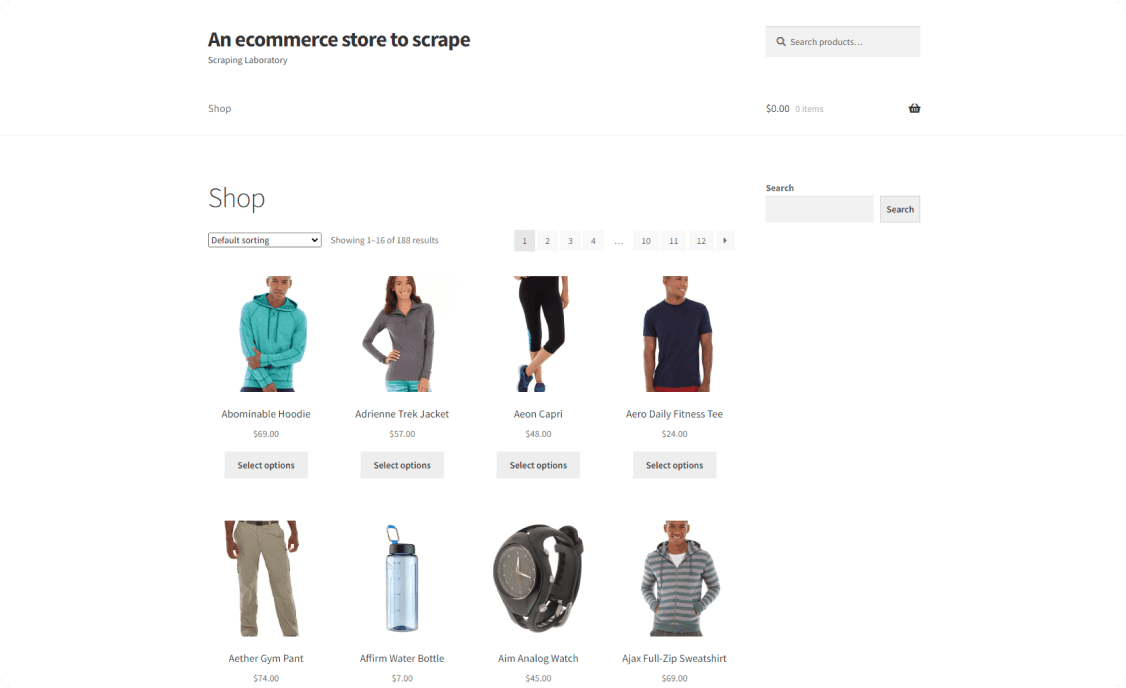
In this step-by-step section, you'll learn the basics of web scraping with TypeScript. The goal of the scraper you'll build to retrieve all product data from [ScrapingCourse.com](https://www.scrapingcourse.com/ecommerce/), a demo website with e-commerce features:
![Scrapingcourse Ecommerce Store ](https://static.zenrows.com/content/scrapingcourse_ecommerce_homepage_37fdf97bd4.png)

Follow the instructions below to write some web scraping TypeScript logic.

### Step 1: Retrieve the HTML of Your Target Page
Make an HTTP GET request to get the HTML document associated with a web page. 

This operation requires a JavaScript HTTP client. With millions of downloads, [`axios`](https://github.com/axios/axios) is one of the most used HTTP client packages in JavaScript. That is because of its intuitive API and vast set of features. Learn more in our guide on [`axios web scraping`](/blog/axios-web-scraping).

Add [`axios`](https://www.npmjs.com/package/axios) to your project dependencies:

```nginx
npm install axios
```

> **Info**
>
> The `axios` npm package comes with TypeScript typings, so you don't need to install them separately.

Import `axios` by adding this line at the top of your `scraper.ts` file:

<!-- scraper.js -->
```javascript
import axios from "axios"
```

Use `axios` to perform a GET request to the target page, extract its HTML source code, and log it in the terminal:

<!-- scraper.js -->
```javascript
import axios from "axios"

async function scrapeSite() {
  // perform an HTTP GET request to the target page
  const response = await axios.get("https://www.scrapingcourse.com/ecommerce/")
  // get the HTML from the server response
  // and log it
  const html = response.data
  console.log(html)
}

scrapeSite()
```

Since the [`get()`](https://axios-http.com/docs/intro) method is `async`, you should wrap the page retrieval logic with an [`async`](https://developer.mozilla.org/en-US/docs/Web/JavaScript/Reference/Statements/async_function) function.

Compile the web scraping TypeScript script and run it. It'll produce the following output:

```nginx
<!DOCTYPE html>
<html lang="en-US">
<head>
    <!--- ... --->
  
    <title>Ecommerce Test Site to Learn Web Scraping – ScrapingCourse.com</title>
    
  <!--- ... --->
</head>
<body class="home archive ...">
    <p class="woocommerce-result-count">Showing 1–16 of 188 results</p>
    <ul class="products columns-4">

        <!--- ... --->

    </ul>
</body>
</html>
```

Great! You just retrieved the HTML of the target page. Now, it’s time to parse it for data extraction.

### Step 2: Extract Data from One Element
Extracting data from an HTML element involves:

1. Selecting the HTML element with an effective node selection strategy.
2. Accessing the data from its text or its HTML attributes.

To perform both, you first need to parse the page’s content with an HTML parser. [`cheerio`](https://github.com/cheeriojs/cheerio) is the most popular JavaScript HTML parser due to its rich API and jQuery-like syntax. Find out more about it in our article on [`cheerio web scraping`](/blog/web-scraping-cheerio).

Add the [`cheerio npm package`](https://www.npmjs.com/package/cheerio) to your project's dependencies:

```nginx
npm install cheerio
```

> **Info**
>
> `cheerio` is written in TypeScript and comes with typing definitions.

Import the `load` function from `cheerio` in `scraper.ts`:

<!-- scraper.ts -->
```
import { load } from "cheerio"
```

Then, use it to parse the HTML content of the target page with:

<!-- scraper.ts -->
```
const $ = load(html)
```

`$` exposes the jQuery-like API to select HTML nodes and extract data from them.
 
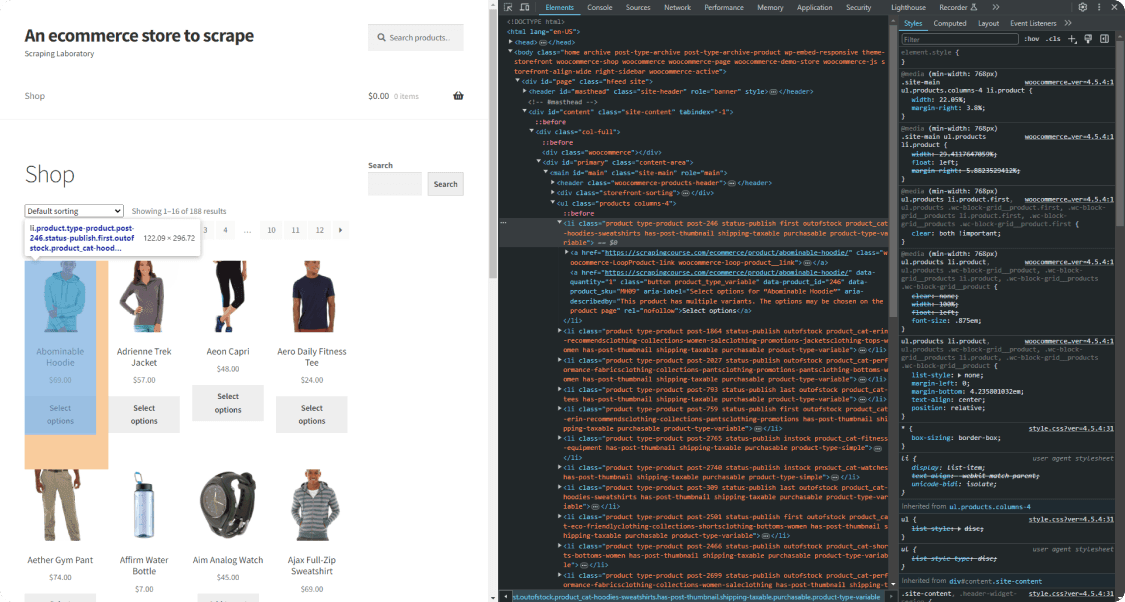
To define an effective node selection strategy, you need to study the structure of the page. Open the target page in the browser, right-click on a product HTML element, and choose "Inspect".

The DevTools section will appear:
![Scrapingcourse Ecommerce Homepage Inspect First Page ](https://static.zenrows.com/content/scrapingcourse_ecommerce_homepage_inspect_first_product_li_dfbd3055ad.png)

Expand the HTML code and see how each product is a `<li>` node with a `"product"`  class. That means you can select it with the following [CSS selector](https://developer.mozilla.org/en-US/docs/Web/CSS/CSS_selectors):

<!-- scraper.ts -->
```
li.product
```

You can retrieve this information from a product’s HTML element:

- The product URL in `<a>`.
- The product image in `<img>`.
- The product name in `<h2>`.
- The product price in `<span>`.

You can do it with `cheerio` with this TypeScript web scraping logic:

<!-- scraper.ts -->
```
// select the first product element on the page
const productHTMLElement = $("li.product").first()

// extract the data of interest from the product node
const url = $(productHTMLElement).find("a").first().attr("href")
const image = $(productHTMLElement).find("img").first().attr("src")
const name = $(productHTMLElement).find("h2").first().text()
const price = $(productHTMLElement).find("span").first().text()
```

`find()` applies a CSS selector strategy to the child nodes of the current HTML element. Use `first()` to get the first HTML node that matches the CSS selector. Then, access its attribute values with `attr()` and its text with `text()`.

Those few lines of code are enough to perform web scraping with TypeScirpt.

Log the scraped data with:

<!-- scraper.ts -->
```
console.log(url)
console.log(image)
console.log(name)
console.log(price)
```

Your current `scraper.ts` file will contain:

<!-- scraper.ts -->
```
`
import axios from "axios"
import { load } from "cheerio"

async function scrapeSite() {
  // perform an HTTP GET request to the target page
  const response = await axios.get("https://www.scrapingcourse.com/ecommerce/")
  // get the HTML from the server response
  const html = response.data

  // parse the HTML content
  const $ = load(html)

  // select the first product element on the page
  const productHTMLElement = $("li.product").first()
  // extract the data of interest from the product node
  const url = $(productHTMLElement).find("a").first().attr("href")
  const image = $(productHTMLElement).find("img").first().attr("src")
  const name = $(productHTMLElement).find("h2").first().text()
  const price = $(productHTMLElement).find("span").first().text()

  // log the scraped data
  console.log(url)
  console.log(image)
  console.log(name)
  console.log(price)
}

scrapeSite()
```

Run your web scraping TypeScript script, and it'll produce this output:

```nginx
https://www.scrapingcourse.com/ecommerce/product/abominable-hoodie/
https://www.scrapingcourse.com/ecommerce/wp-content/uploads/2024/03/mh09-blue_main-324x324.jpg
Abominable Hoodie
$69.00
```

Terrific! The parsing logic works like a charm.

### Step 3: Extract Data from All Elements
The target page contains more than just one product. To scrape them all, you'll need to scrape one product HTML node at a time and store the resulting data in an array. 

Define a TypeScript type for the product objects:

<!-- scraper.ts -->
```
type Product = {
  Url?: string
  Image?: string
  Name?: string
  Price?: string
}
```

Next, initialize an empty array of type `Product`:

<!-- scraper.ts -->
```
const products: Product[] = []
```

Replace `first()` with `each()` to iterate over all products on the page. For each product HTML node, scrape its data, initialize a `Product` object, and add it to `products`:

<!-- scraper.ts -->
```
$("li.product").each((i, productHTMLElement) => {
  // extract the data of interest from the product node
  const url = $(productHTMLElement).find("a").first().attr("href")
  const image = $(productHTMLElement).find("img").first().attr("src")
  const name = $(productHTMLElement).find("h2").first().text()
  const price = $(productHTMLElement).find("span").first().text()

  // initialize a Product object with the scraped data
  // and add it to the list
  const product: Product = {
    Url: url,
    Image: image,
    Name: name,
    Price: price
  }
  products.push(product)
})
```

Cycle over `products` and log each element to check that the TypeScript web scraping logic works:

<!-- scraper.ts -->
```
for (const product of products) {
  console.log(product.Url)
  console.log(product.Image)
  console.log(product.Name)
  console.log(product.Price)
  console.log(`\n`)
}
```

This is what `scraper.ts` will now look like:

<!-- scraper.ts -->
```
import axios from "axios"
import { load } from "cheerio"

// a custom type representing the product elements
// to scrape
type Product = {
  Url?: string
  Image?: string
  Name?: string
  Price?: string
}

async function scrapeSite() {
  // perform an HTTP GET request to the target page
  const response = await axios.get("https://www.scrapingcourse.com/ecommerce/")
  // get the HTML from the server response
  const html = response.data

  // parse the HTML content
  const $ = load(html)

  // where to store the scraped data
  const products: Product[] = []

  // select all product elements on the page
  // and iterate over them
  $("li.product").each((i, productHTMLElement) => {
    // extract the data of interest from the product node
    const url = $(productHTMLElement).find("a").first().attr("href")
    const image = $(productHTMLElement).find("img").first().attr("src")
    const name = $(productHTMLElement).find("h2").first().text()
    const price = $(productHTMLElement).find("span").first().text()

    // initialize a Product object with the scraped data
    // and add it to the list
    const product: Product = {
      Url: url,
      Image: image,
      Name: name,
      Price: price
    }
    products.push(product)
  })


  // log the scraped data
  for (const product of products) {
    console.log(product.Url)
    console.log(product.Image)
    console.log(product.Name)
    console.log(product.Price)
    console.log(`\n`)
  }
}

scrapeSite()
```

Execute it, and it'll log:

```nginx
https://www.scrapingcourse.com/ecommerce/product/abominable-hoodie/
https://www.scrapingcourse.com/ecommerce/wp-content/uploads/2024/03/mh09-blue_main-324x324.jpg
Abominable Hoodie
$69.00

// omitted for brevity...

Artemis Running Short
https://www.scrapingcourse.com/ecommerce/product/artemis-running-short/
https://www.scrapingcourse.com/ecommerce/wp-content/uploads/2024/03/wsh04-black_main-324x324.jpg
£159.00
```

Awesome! The scraped objects now contain the data you wanted.

### Step 4: Convert Your Data Into a CSV File
The [Node.js Standard API](https://nodejs.org/docs/latest/api/) provides everything you need to create a CSV file and populate it. At the same time, dealing with CSV becomes much easier with a third-party library. [`fast-csv`](https://c2fo.github.io/fast-csv/) is a popular library for parsing and formatting CSV files in JavaScript.

Install the [`fast-csv`](https://www.npmjs.com/package/fast-csv) npm TypeScript package in your project:

```nginx
npm install fast-csv
```

Import the [`writeToPath()`](https://c2fo.github.io/fast-csv/docs/formatting/methods#writetopath) function for CSV formatting from `fast-csv`:

<!-- scraper.ts -->
```
import { writeToPath } from "@fast-csv/format"
```

Next, use `writeToPath()` to create an output CSV file and populate it with the data in `products`:

<!-- scraper.ts -->
```
// export the scraped data to CSV
writeToPath("products.csv", products, { headers: true })
  .on("error", error => console.error(error));
```

Put it all together, and you'll get:

<!-- scraper.ts -->
```
import axios from "axios"
import { load } from "cheerio"
import { writeToPath } from "@fast-csv/format"

// a custom type representing the product elements
// to scrape
type Product = {
  Url?: string
  Image?: string
  Name?: string
  Price?: string
}

async function scrapeSite() {
  // perform an HTTP GET request to the target page
  const response = await axios.get("https://www.scrapingcourse.com/ecommerce/")
  // get the HTML from the server response
  const html = response.data

  // parse the HTML content
  const $ = load(html)

  // where to store the scraped data
  const products: Product[] = []

  // select all product elements on the page
  // and iterate over them
  $("li.product").each((i, productHTMLElement) => {
    // extract the data of interest from the product node
    const url = $(productHTMLElement).find("a").first().attr("href")
    const image = $(productHTMLElement).find("img").first().attr("src")
    const name = $(productHTMLElement).find("h2").first().text()
    const price = $(productHTMLElement).find("span").first().text()

    // initialize a Product object with the scraped data
    // and add it to the list
    const product: Product = {
      Url: url,
      Image: image,
      Name: name,
      Price: price
    }
    products.push(product)
  })

  // export the scraped data to CSV
  writeToPath("products.csv", products, { headers: true })
    .on("error", error => console.error(error));
}

scrapeSite()
```

Compile your `scraper.ts` TypeScript scraping script:

```
tsc scraper.ts
```

Then, launch its corresponding `scraper.js` file with:

```nginx
node scraper.js
```

Wait for the script to complete its execution. A `products.csv` file will appear in the project's root folder. Open it, and you'll see this data:

![ScrapingCourse first page csv](https://static.zenrows.com/content/scrapingcourse_first_page_csv_b5a32f9d9a.jpg)

Here we go! You’ve just learned the basics of web scraping with TypeScript. 

Now let’s move to more advanced tasks.

## TypeScript for Advanced Web Scraping
It's time to explore more advanced TypeScript web scraping techniques.

### How to Scrape Multiple Pages with TypeScript
The CSV output file presented above contains just a few products. That's not surprising, considering the TypeScript scraper only targeted one web page. Still, the target sites always contain a list of products spread across many pages. To scrape them all you need to do web crawling. 

If you’re not sure what it means, check out our article on [web crawling vs web scraping](/blog/web-crawling-vs-web-scraping). Here’s a brief summary of what you need to do to perform web crawling in TypeScript:

1. Visit a web page and parse its HTML code.
2. Select the pagination link HTML nodes.
3. Extract the URLs from those elements and add them to a queue.
4. Repeat the loop on the URL of a new page.

You already know how to download a web page and parse its HTML document. Once again, the first thing to do is to define a selection strategy for the pagination link nodes. Inspect them in the browser with DevTools:

![ScrapingCourse next page inspection](https://static.zenrows.com/content/scrapingcourse_next_page_original_234cd48cc0.jpg)

Note that the link nodes contain the URLs to new pages in HTML elements, which you can select with this CSS selector:

<!-- scraper.ts -->
```
a.page-numbers
```

Performing web crawling is tricky because you don't want to visit the same page twice. To go through all product pages, you need to store data in two variables:

- `pagesDiscovered`: An array to use as a set containing the URLs currently being discovered.
- `pagesToScrape`: An array to use as a stack storing the pages the script will visit next.

Initialize them both with the first page you need to scrape. Then, define the TypeScript web crawling logic with a `while` loop. This will stop when the script visits all product pages or scrapes more than 5 pages:

<!-- scraper.ts -->
```
 // the first page to visit
const firstPage = "https://www.scrapingcourse.com/ecommerce/page/1/"

// support data structures for web crawling
const pagesToScrape = [firstPage]
const pagesDiscovered = [firstPage]

// page counter
let  i = 1

// max number of pages to scrape
const limit = 5

while (pagesToScrape.length !== 0 && i <= limit) {
  // retrieve the current page to scrape
  const pageURL = pagesToScrape.shift()

  // retrieve the HTML of the page and parse it

  // crawling logic
  $("a.page-numbers").each((j, paginationHTMLElement) => {
    // get the pagination link URL
    const paginationURL = $(paginationHTMLElement).attr("href")

    // if the page discovered is new
    if (paginationURL && !pagesDiscovered.includes(paginationURL)) {
      pagesDiscovered.push(paginationURL)

      // if the page discovered should be scraped
      if (!pagesToScrape.includes(paginationURL)) {
        pagesToScrape.push(paginationURL)
      }
    }
  })

  // scraping logic...

  // increment the page counter
  i++
}
```

Thanks to the `limit` variable, the script won't make too many requests in development. Considering the web scraping TypeScript script built here is just an example, not visiting all pages is fine.

Integrate the above logic into the `scraper.ts` file, and you'll get:

<!-- scraper.ts -->
```
import axios from "axios"
import { load } from "cheerio"
import { writeToPath } from "@fast-csv/format"

// a custom type representing the product elements
// to scrape
type Product = {
  Url?: string
  Image?: string
  Name?: string
  Price?: string
}

async function scrapeSite() {
  // where to store the scraped data
  const products: Product[] = []

  // the first page to visit
  const firstPage = "https://www.scrapingcourse.com/ecommerce/page/1/"

  // support data structures for web crawling
  const pagesToScrape = [firstPage]
  const pagesDiscovered = [firstPage]

  // page counter
  let  i = 1

  // max number of pages to scrape
  const limit = 5

  while (pagesToScrape.length !== 0 && i <= limit) {
    // retrieve the current page to scrape
    const pageURL = pagesToScrape.shift()

    // perform an HTTP GET request to the target page
    const response = await axios.get("https://www.scrapingcourse.com/ecommerce/")
    // get the HTML from the server response
    const html = response.data

    // parse the HTML content
    const $ = load(html)

    // crawling logic
    $("a.page-numbers").each((j, paginationHTMLElement) => {
      // get the pagination link URL
      const paginationURL = $(paginationHTMLElement).attr("href")

      // if the page discovered is new
      if (paginationURL && !pagesDiscovered.includes(paginationURL)) {
        pagesDiscovered.push(paginationURL)

        // if the page discovered should be scraped
        if (!pagesToScrape.includes(paginationURL)) {
          pagesToScrape.push(paginationURL)
        }
      }
    })

    // select all product elements on the page
    // and iterate over them
    $("li.product").each((i, productHTMLElement) => {
      // extract the data of interest from the product node
      const url = $(productHTMLElement).find("a").first().attr("href")
      const image = $(productHTMLElement).find("img").first().attr("src")
      const name = $(productHTMLElement).find("h2").first().text()
      const price = $(productHTMLElement).find("span").first().text()

      // initialize a Product object with the scraped data
      // and add it to the list
      const product: Product = {
        Url: url,
        Image: image,
        Name: name,
        Price: price
      }
      products.push(product)
    })

    // increment the page counter
    i++
  }

  // export the scraped data to CSV
  writeToPath("products.csv", products, { headers: true })
    .on("error", error => console.error(error));
}

scrapeSite()
```

Compile the scraper again:

```nginx
tsc scraper.ts
```

Run the script:

```nginx
node scraper.js
```

It'll take some time since the script needs to go through more pages. The output CSV file will now contain more than just a few records as before:

![Scrapingcourse full data csv scrapy](https://static.zenrows.com/content/scrapingcourse_full_data_csv_scrapy_463d56cef2.jpg)

Congratulations! You’ve just learned how to perform TypeScript web scraping and crawling.

### Avoid Getting Blocked When Scraping with TypeScript
Data is valuable, so most companies make an effort to make its retrieval as difficult as possible, even if it's publicly available on a site. That's why anti-bot systems, which can detect and block automated scripts., keep gaining popularity.

Anti-bot systems pose the biggest challenge to web scraping with TypeScript. To perform [web scraping without getting blocked](/blog/web-scraping-without-getting-blocked), you can:

1. Disguise requests as if they were coming from a browser by setting a real-world User Agent.
2. Hide your IP with a proxy server.

Let’s learn how to implement them in `axios`.

Get a valid browser User-Agent string and the URL of a free proxy from a site such as [Free Proxy List](https://free-proxy-list.net/). Configure them in `axios` as below, or follow our [User-Agent axios tutorial](/blog/axios-user-agent) and [`proxy axios guide`](/blog/axios-proxy):

<!-- scraper.ts -->
```
const response = await axios.get(
  "https://www.scrapingcourse.com/ecommerce/",
  {
    headers: {
      "User-Agent": "Mozilla/5.0 (Windows NT 10.0; Win64; x64) AppleWebKit/537.36 (KHTML, like Gecko) Chrome/122.0.0.0 Safari/537.36"
    },
    proxy: {
        protocol: "http",
        host: "149.129.239.170",
        port: 7653,
    },
  }
)
```

> **Info**
>
> By the time you try this code, the chosen proxy server may no longer work, because free proxies are short-lived. Use them only for learning purposes and never in production.

This simple method may work with light anti-bot systems, but won’t help you with advanced solutions like [Cloudflare](/blog/bypass-cloudflare). WAFs will still be able to recognize your web scraping TypeScript script as a bot. 

To see what it looks like in practice, try targeting a Cloudflare-protected site, such as a G2 review page:

<!-- scraper.ts -->
```

import axios from "axios"

async function scrapeSite() {
  // perform an HTTP GET request to the target page
  const response = await axios.get(
    "https://www.g2.com/products/notion/reviews",
    {
      headers: {
        "User-Agent": "Mozilla/5.0 (Windows NT 10.0; Win64; x64) AppleWebKit/537.36 (KHTML, like Gecko) Chrome/122.0.0.0 Safari/537.36"
      },
      proxy: {
          protocol: "http",
          host: "149.129.239.170",
          port: 7653,
      },
    }
  )
  // get the HTML from the server response
  // and log it
  const html = response.data
  console.log(html)
}

scrapeSite()
`
```

The TypeScript scraping script will fail with the following `403 Forbidden` error:

```nginx
AxiosError {message: 'Request failed with status code 403', name: 'AxiosError', code: 'ERR_BAD_REQUEST', ...}
```

Does it mean you have to give up? Of course, not! You just need a web scraping API, such as  [Zenrows](/). It will provide you with User-Agent and IP rotation while offering the best anti-bot toolkit to elude any blocks.

Let’s try it out. [Sign up for free](/) to get up to free 1,000 URLs and reach the following Request Builder page:

![building a scraper with zenrows](/blog/_img/zenrows-playground.png)

To scrape the [G2.com page](https://www.g2.com/products/airtable/reviews) shown above, here’s what you have to do:

1. Paste the target URL (`https://www.g2.com/products/notion/reviews`) into the "URL to Scrape" input. 
2. Check "Premium Proxy" to enable IP rotation via proxy servers.
3. Enable the "JS Rendering" feature ( User-Agent rotation and the AI-powered anti-bot toolkit are always included by default). 
4. Select “cURL” and then the “API” mode to get the complete URL of the Zenrows API.

Call the generated URL with `get()` in `axios`:

<!-- scraper.ts -->
```
import axios from "axios"

async function scrapeSite() {
  // perform an HTTP GET request to the target page
  const response = await axios.get("https://api.zenrows.com/v1/?apikey=<YOUR_ZENROWS_API_KEY>&url=https%3A%2F%2Fwww.g2.com%2Fproducts%2Fnotion%2Freviews&js_render=true&premium_proxy=true")
  // get the HTML from the server response
  // and log it
  const html = response.data
  console.log(html)
}

scrapeSite()
```

Compile and execute your script again. This time, it'll log the source HTML of the target G2 page:

```nginx
<!DOCTYPE html>
<head>
  <meta charset="utf-8" />
  <link href="https://www.g2.com/assets/favicon-fdacc4208a68e8ae57a80bf869d155829f2400fa7dd128b9c9e60f07795c4915.ico" rel="shortcut icon" type="image/x-icon" />
  <title>Notion Reviews 2024: Details, Pricing, &amp; Features | G2</title>
  <!-- omitted for brevity ... -->
```

You just learned how to use Zenrows for web scraping in TypeScript. Bye-bye, 403 errors!

### How to Use a Headless Browser with TypeScript
`cheerio` is nothing more than an HTML parser. It’s great for scraping static pages, but what if your target site uses JavaScript for rendering or data retrieval? In this case, you'll need to use a [headless browser](/blog/headless-browser-scraping) library.

A headless browser can render web pages in a controllable browser. One of the most popular choices in TypeScript is [Puppeteer](https://pptr.dev/). This Node.js package comes with a high-level API to control Chrome over the DevTools Protocol. 

You'll need a new target page to test the power of Puppeteer. A web page such as the [Infinite Scrolling demo](https://scrapingclub.com/exercise/list_infinite_scroll/) is a great example of a dynamic content page. It loads new data dynamically as the user scrolls down:

![Dynamic Text](https://static.zenrows.com/content/7_8be2b9a560.gif)

Learn how to scrape that page in TypeScript with the snippet below! For a more detailed tutorial, check out our guide on [Puppeteer web scraping](/blog/puppeteer-web-scraping).

Add [`puppeteer`](https://www.npmjs.com/package/puppeteer) to your project's dependencies:

```nginx
npm install puppeteer
```

The package includes the TypeScript typings. 

Then, install the browsers Puppeteer will control:

```
`nginx
npx puppeteer browsers install chrome
```

Import it in `scraper.ts`, launch a new browser, open a new page, visit the destination page, and extract data:

<!-- scraper.ts -->
```
import puppeteer from "puppeteer"

async function scrapeData() {
  // since the URLs in the page are all relative
  const baseURL = "https://scrapingclub.com"

  // launch browser in headless mode
  const browser = await puppeteer.launch({ headless: true })

  // open a new page
  const page = await browser.newPage()

  // navigate to the target page
  await page.goto("https://scrapingclub.com/exercise/list_infinite_scroll/")

  // wait for product elements to load
  await page.waitForSelector(".post")

  // extract product data
  const productElements = await page.$$(".post")
  for (const productElement of productElements) {
    const name = await productElement.$eval("h4", element => element.textContent?.trim())
    const url = baseURL + await productElement.$eval("a", element => element.getAttribute("href"))
    const image = baseURL + await productElement.$eval("img", element => element.getAttribute("src"))
    const price = await productElement.$eval("h5", element => element.textContent)

    // log the scraped data
    console.log("Name: " + name)
    console.log("URL: " + url)
    console.log("Image: " + image)
    console.log("Price: " + price)
    console.log(`\n`)
  }

  // close the browser
  await browser.close()
}

// Call the function to start scraping
scrapeData()
```

Compile the script:

```nginx
tsc scraper.ts
```

Execute the compiled headless browser TypeScript scraping script:

```nginx
node scraper.js
```

The output will be:

```nginx
Name: Short Dress
URL: https://scrapingclub.com/exercise/list_basic_detail/90008-E/
Image: https://scrapingclub.com/static/img/90008-E.jpg
Price: $24.99

// omitted for brevity...

Name: Fitted Dress
URL: https://scrapingclub.com/exercise/list_basic_detail/94766-A/
Image: https://scrapingclub.com/static/img/94766-A.jpg
Price: $34.99
```

Good job! You're now a web scraping TypeScript master.

## Conclusion
This step-by-step tutorial demonstrated how to perform web scraping with TypeScript. You learned the fundamentals and then saw more complex aspects. You've become a TypeScript web scraping master!

TypeScript guarantees effective, robust, and reliable scraping. Thanks to its interoperability with JavaScript, it gives you access to multiple packages.

The main problem is that anti-scraping measures can still stop your TypeScript scraping script. You can avoid all of these with a web scraping API such as [Zenrows](/), which will equip you with the most effective anti-bot bypass features.

Good luck with your web scraping efforts. Retrieving data from a site is only one API call away!
