# XPath for Web Scraping: Step-by-Step Tutorial for Beginners
> Learn to extract HTML data with XPath expressions for web scraping with this step-by-step tutorial. You'll also implement XPath in a real Python script.
Source: https://www.zenrows.com/blog/xpath-web-scraping
Do you find it challenging to select elements from a page you want to scrape? Then, using XPath for web scraping is the way to go to **easily search through a document and extract elements**! You'll learn how to use it in this tutorial.
Let's dive in!
## What Is XPath in Web Scraping?
XML Path (XPath) is a language used to locate parts of an XML-like document, like HTML. It allows you to navigate through the tree of nodes and select elements with **XPath expressions, a query language to retrieve data**.
## Why Learn XPath?
Although its execution performance is slower than other selectors', it comes in handy because it's more powerful than CSS selectors. For instance, you can reference parent elements and navigate the DOM in any direction.
## DOM Crash Course
As a reminder, the DOM (Document Object Model) is an interface that determines the hierarchical structure of the tags (headings, paragraphs, etc.) in an HTML document. For example, take a look at the page below:
```html
XPath for Web Scraping
What Is XPath
XPath is a language
Check out our blog
```
It translates to the following structure in the DOM:
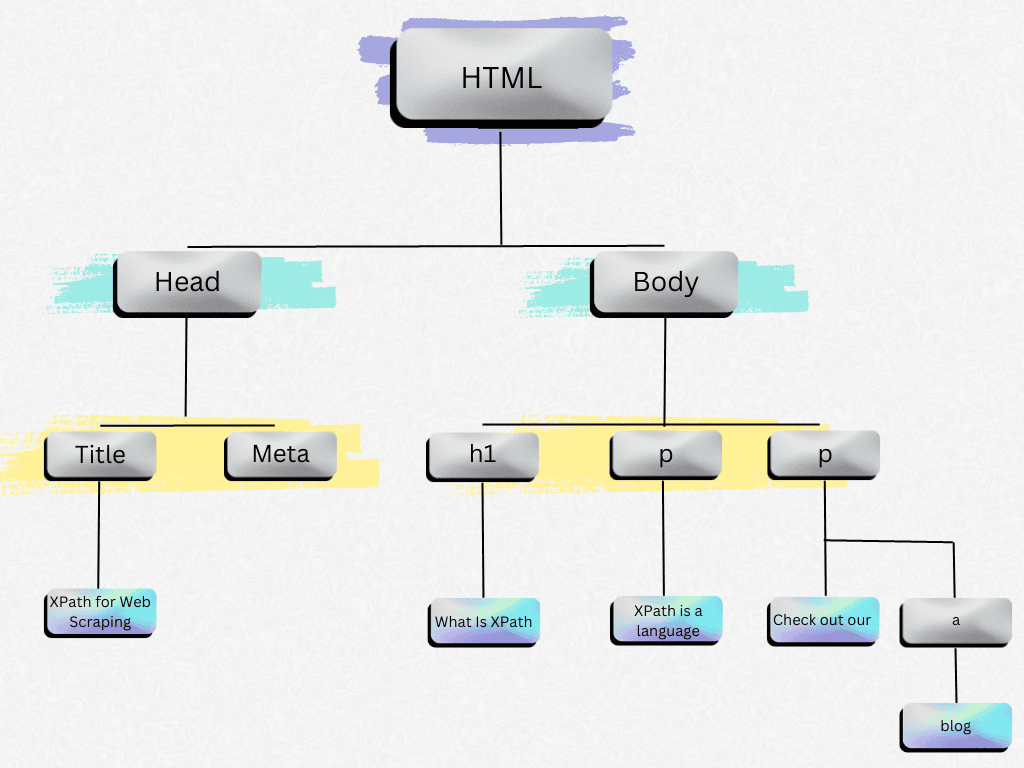
As you can see, the structure is tree-like, consisting of nodes and objects.
Now that we've reviewed this, it's time to go into more detail about XPath.
## XPath Syntax for Web Scraping: Practical Guide
Next, we'll learn the XPath syntax and see examples to learn how to extract data from HTML documents.
### XPath Nodes
As discussed above, the XPath selector treats the document as a tree of nodes. Therefore, **the elements in the document follow a hierarchical structure**.
We'll use the following HTML as an example:
```html
Harry Potter
J K. Rowling
2005
29.99
```
Let's see how the nesting works using the XPath terms:
| **Term** | **Meaning** | **Example** |
| --- | --- | --- |
| Parent | Each element and attribute has one parent. | The `` element is the parent of the ``, `<author>`, `<year>` and `<price>` elements. |
| Children | Nodes that have zero, one or more children. | The `<title>`, `<author>`, `<year>`, and `<price>` elements are all children of the `<book>` element. |
| Siblings | Nodes that have the same parent. | The `<title>`, `<author>`, `<year>`, and `<price>` elements are all siblings. |
| Ancestors | A node's parent, parent's parent, etc. | The ancestors of the `<title>` element are the `<book>` element and the `<bookstore>` element. |
| Descendants | A node's children, children's children, etc. | The descendants of the `<bookstore>` element are the `<book>`, `<title>`, `<author>`, `<year>`, and `<price>` elements. |
> **Skip the blocks.** [Try Zenrows free](/) and get clean web data without the anti-bot fight.
### XPath Elements {#xpath-elements}
XPath elements are the core of the XPath expressions used to select elements from a document.
The following table contains the most common XPath elements:
| **Element** | **Use** |
| ------- | ------------------------------------------ |
| price | Selects all nodes with the name `price`. |
| / | Starts selecting from the root node. |
| // | Starts selecting from the current node. |
| . | Selects the current node. |
| .. | Selects the parent of the current node. |
| @ | Selects a specific attribute. |
### XPath Predicates
**Predicates are specified XPath expressions written in square brackets** to find a specific node or a node containing a specific value.
Consider the following code:
```html
<bookstore>
<book>
<title lang="en">Harry Potter
29.99
Learning XML
39.95
```
The table below explains XPath predicates and their result.
| **Predicate** | **Use** |
| ------------------------- | -------------------------------------------------------------------------------------------------------------------- |
| /bookstore/book[1] | Selects the first `` element that is the child of the `` element. |
| /bookstore/book[last()] | Selects the last `` element that is the child of the `` element. |
| //title[@lang] | Selects all the `` elements with an attribute named `lang`. |
| //title[@lang='en'] | Selects all the `<title>` elements that have a `lang` attribute with a value of `en`. |
| /bookstore/book[price>35] | Selects all the `<book>` elements of `<bookstore>` that have a `<price>` element with a value greater than 35. |
This will be clearer with a practical example, which follows below.
### XPath Example
Now, let's use XPath to access real data, such as products' prices on [Etsy](https://www.etsy.com/search?q=laptop).
Here's what you need to do:
**Step #1:** Enter the website, right-click on the price, and click on Inspect. You'll get the following page:
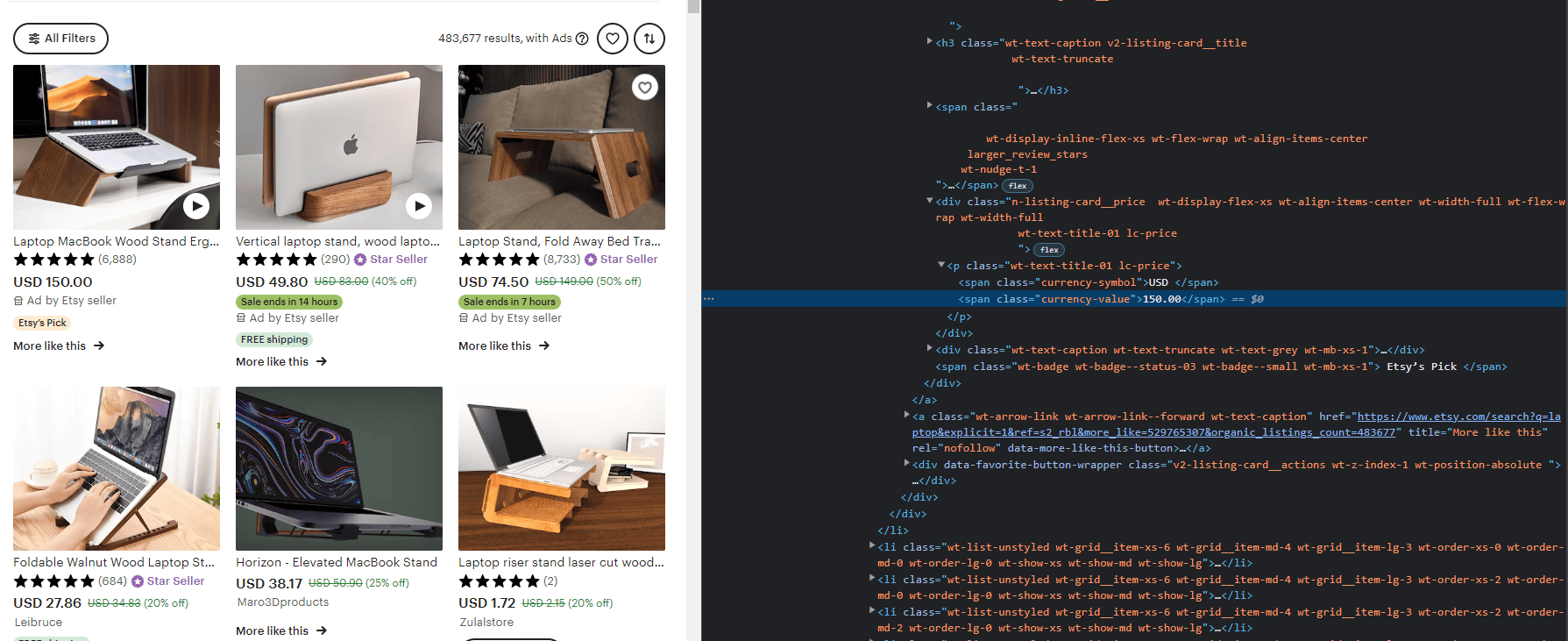
As you can see from the image, the price is in the `<span>` element with the `class` named `currency-value`.
**Step #2:** To get a price, press CTRL+F to open the XPath search bar and paste the following line:
```html
//span[@class='currency-value']
```
The table below explains what this XPath expression means:
| **Part** | **Use** |
| ------------------------- | ------------------------------------------------------------ |
| // | Selects all nodes in the document, no matter where they are. |
| span | Selects all nodes with a `<span>` element. |
| [@class='currency-value'] | Select all classes with the name`currency-value`. |
Here's the result we got:
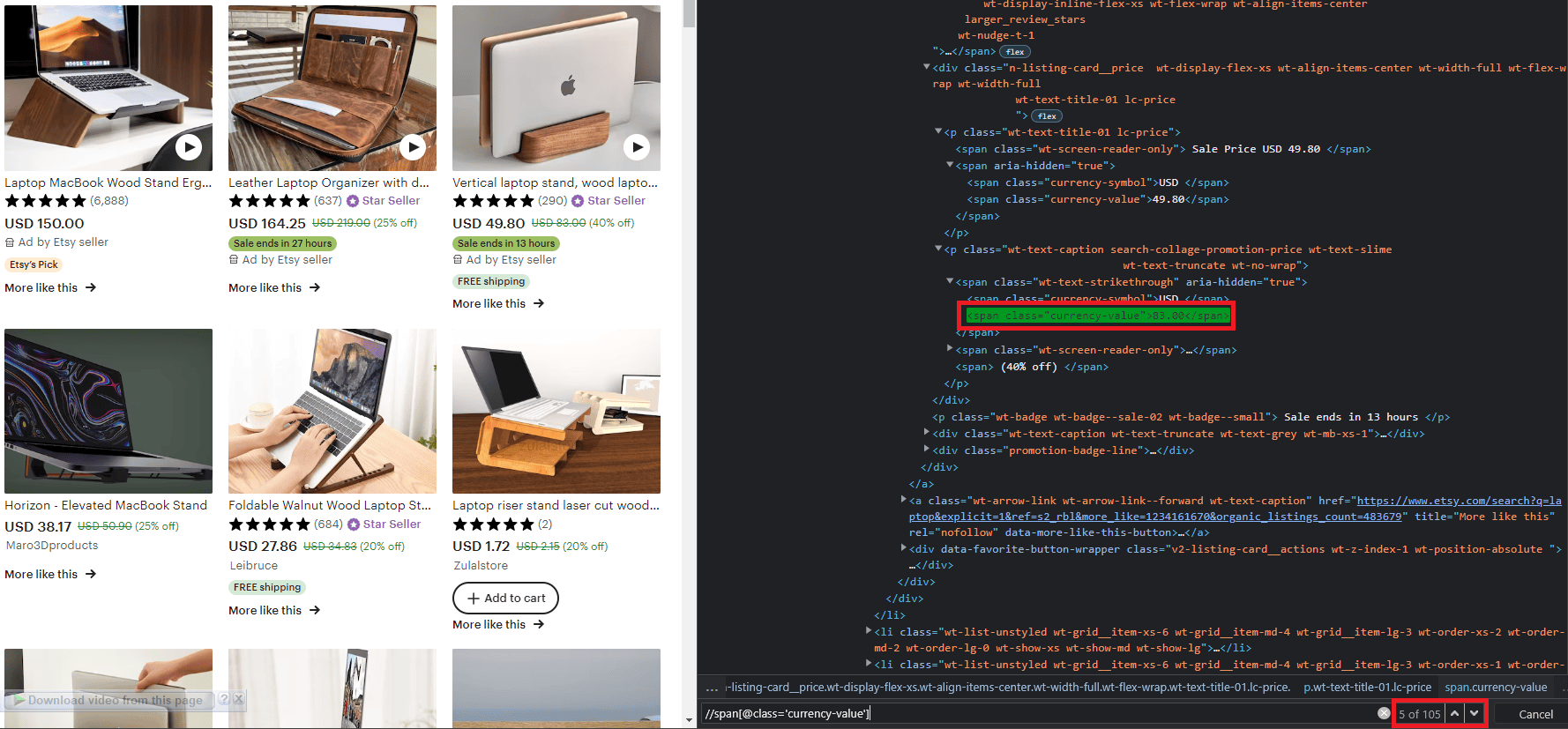
**Remark:** To scrape all prices with XPath, you'll need to create a loop. Stay with us, and we'll get there in the following sections.
## XPath in Web Browsers: Quick Hack
Web pages and HTML often follow complex structures. So in order to do XPath web scraping well, we need a fast way to get the XPath syntax for elements we want to scrape. Fortunately, **most web browsers generate the XPath expressions** for you.
To do that, open the same web page as before, inspect the element, and then right-click on `Copy XPath`.
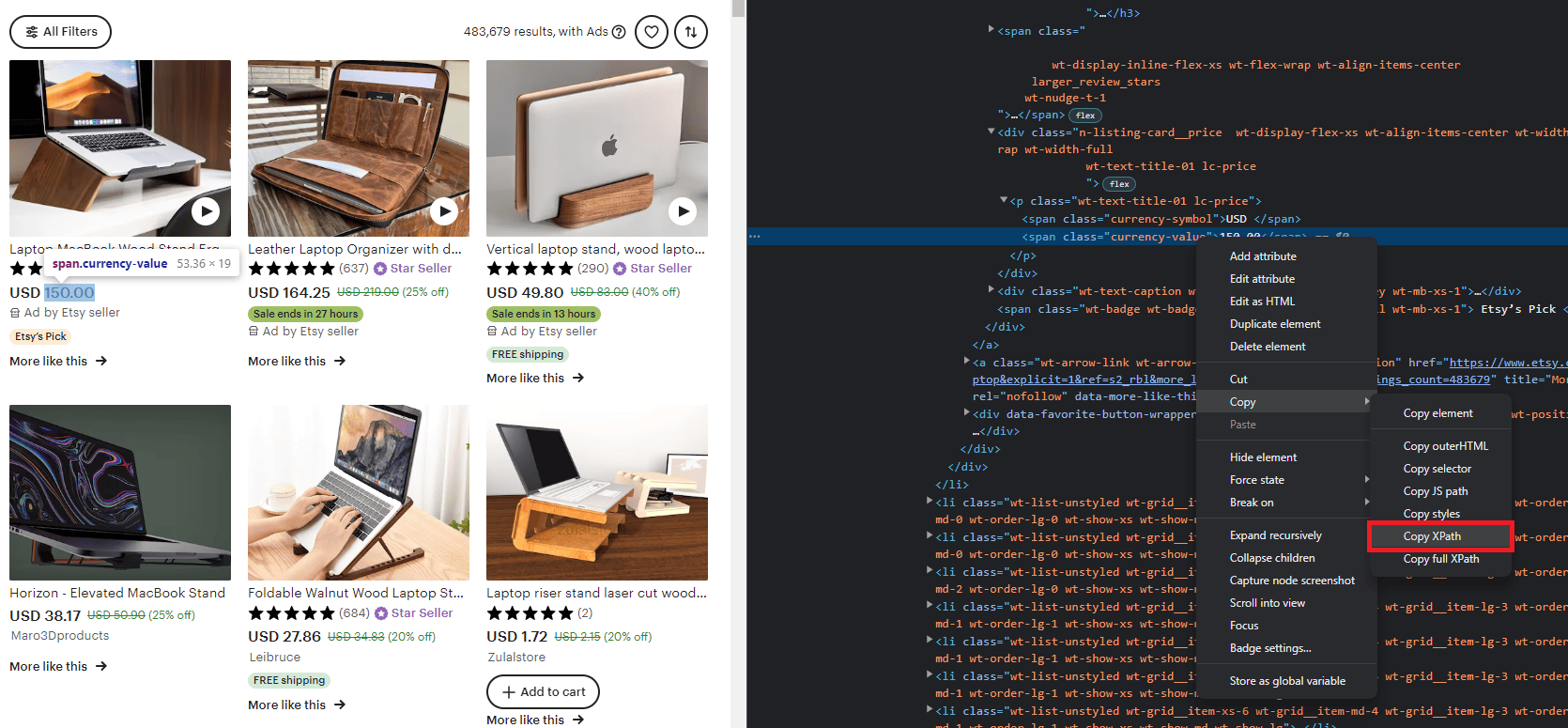
This way, you'll get the full XPath of the element beginning from the root node:
```html
//*[@id="content"]/div[1]/div[1]/div/div[3]/div[8]/div[2]/div[10]/div[1]/div/div/ol/li[1]/div/div/a[1]/div[2]/div[1]/p/span[2]
```
However, compared to the previous XPath expression we wrote, this one is very hard to read.
## Using XPath with Python and Selenium for Web Scraping
Once we've learned the basics, let's see how XPath works in practice by scraping with [Python](/blog/web-scraping-python), the most popular language for web scraping, and [Selenium](/blog/selenium-python-web-scraping), the most used tool for web browser automation.
Our target website? [ScrapingCourse.com](https://www.scrapingcourse.com/ecommerce/), a demo website with e-commerce features. While this is an unprotected website, for real-world cases, you might need to learn how to [bypass anti-bots like Cloudflare with Selenium](/blog/selenium-cloudflare-bypass).
### Step #1: Install the Dependencies
Open a terminal in your editor and install Selenium in your project. Selenium WebDriver used to require separate installation, but now it's automatically included in version 4 and later. Update to the newest version by using `pip show selenium` to check and `pip install --upgrade selenium` to upgrade.
```nginx
pip install selenium
```
### Step #2: Set up the Environment
Then, create a Python file named `scraper.py`, import the dependencies and initialize the WebDriver.
<!-- scraper.py -->
```python
from selenium import webdriver
from selenium.webdriver.chrome.options import Options
from selenium.webdriver.common.by import By # Util that helps to select elements with XPath
import csv # CSV library that helps us save our result
options = Options()
options.add_argument("--headless") # Run selenium under headless mode
driver = webdriver.Chrome(options=options) # Initialize the driver instance
```
Now that we have our scraper ready, let's do some XPath scraping!
### Step #3: Filter HTML and Extract Data
Before we scrape our data, we need to set up a CSV file to save the data. The following code creates a `file.csv` and the column names for this file. Then, it initializes a CSV `writer` that inputs the data into the CSV file.
<!-- scraper.py -->
```python
filecsv = open('file.csv', 'w', encoding='utf8')
csv_columns = ['name', 'price', 'img', 'link']
writer = csv.DictWriter(filecsv, fieldnames = csv_columns)
writer.writeheader()
```
Ok, time to get the XPath syntax for each product.
1. Go to [ScrapingCourse.com](https://www.scrapingcourse.com/ecommerce/), right-click on any product, and select `Inspect`.
2. Right-click on any `li` element and select `Copy XPath`.
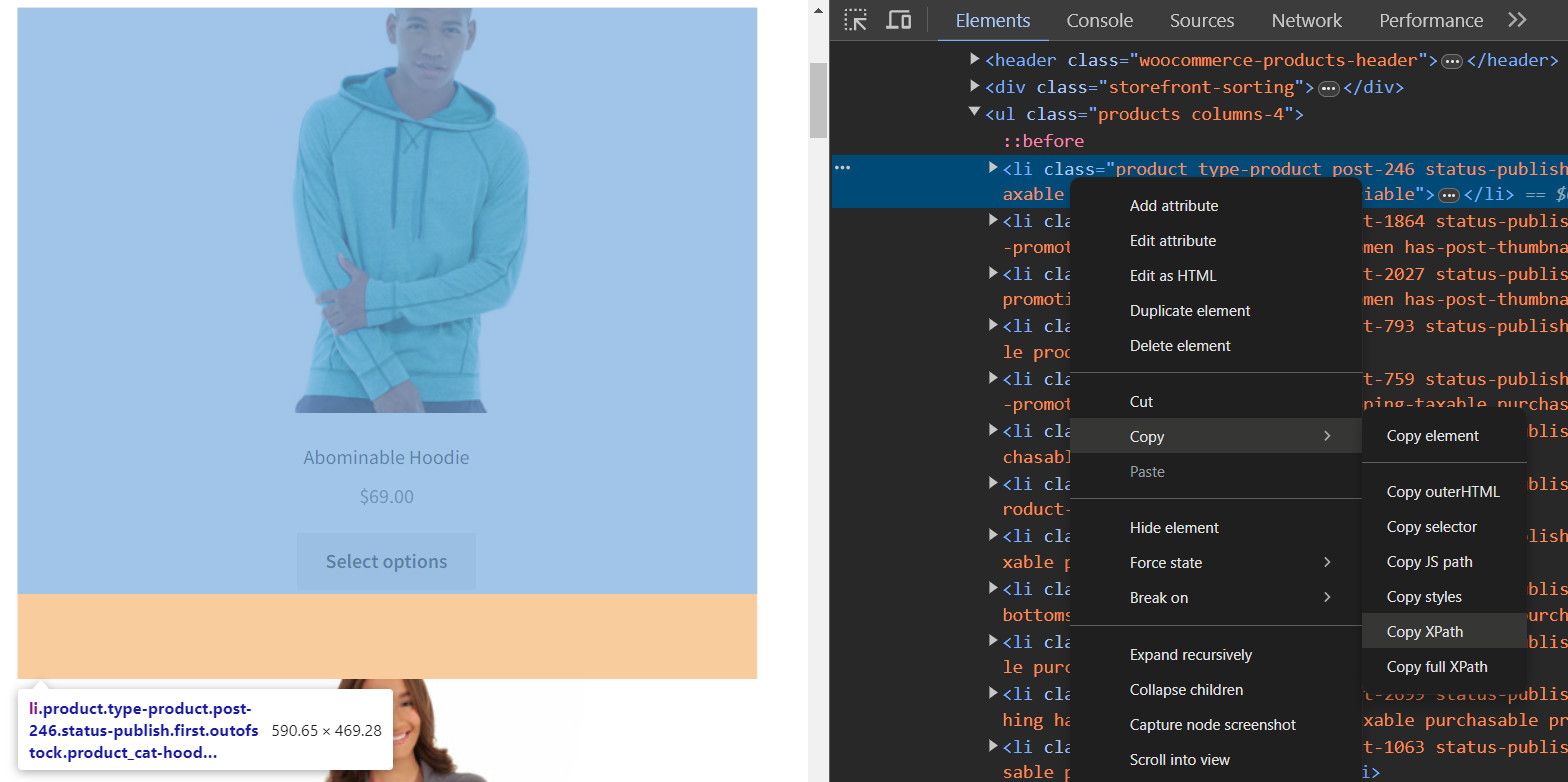
The XPath you copied is this:
```html
//*[@id="main"]/ul/li[3]
```
In order to get all elements, remove the last predicate:
<!-- scraper.py -->
```html
//*[@id="main"]/ul/li
```
And back to the Python code, go over the web page and use the `find_elements` method to select all products using the expression above:
<!-- scraper.py -->
```python
driver.get("https://www.scrapingcourse.com/ecommerce/")
products = driver.find_elements(By.XPATH, "//*[@id='main']/ul/li")
```
To get the XPath of the elements inside each product, right-click on any of their names and select `Inspect`. Here's the data we're interested in:
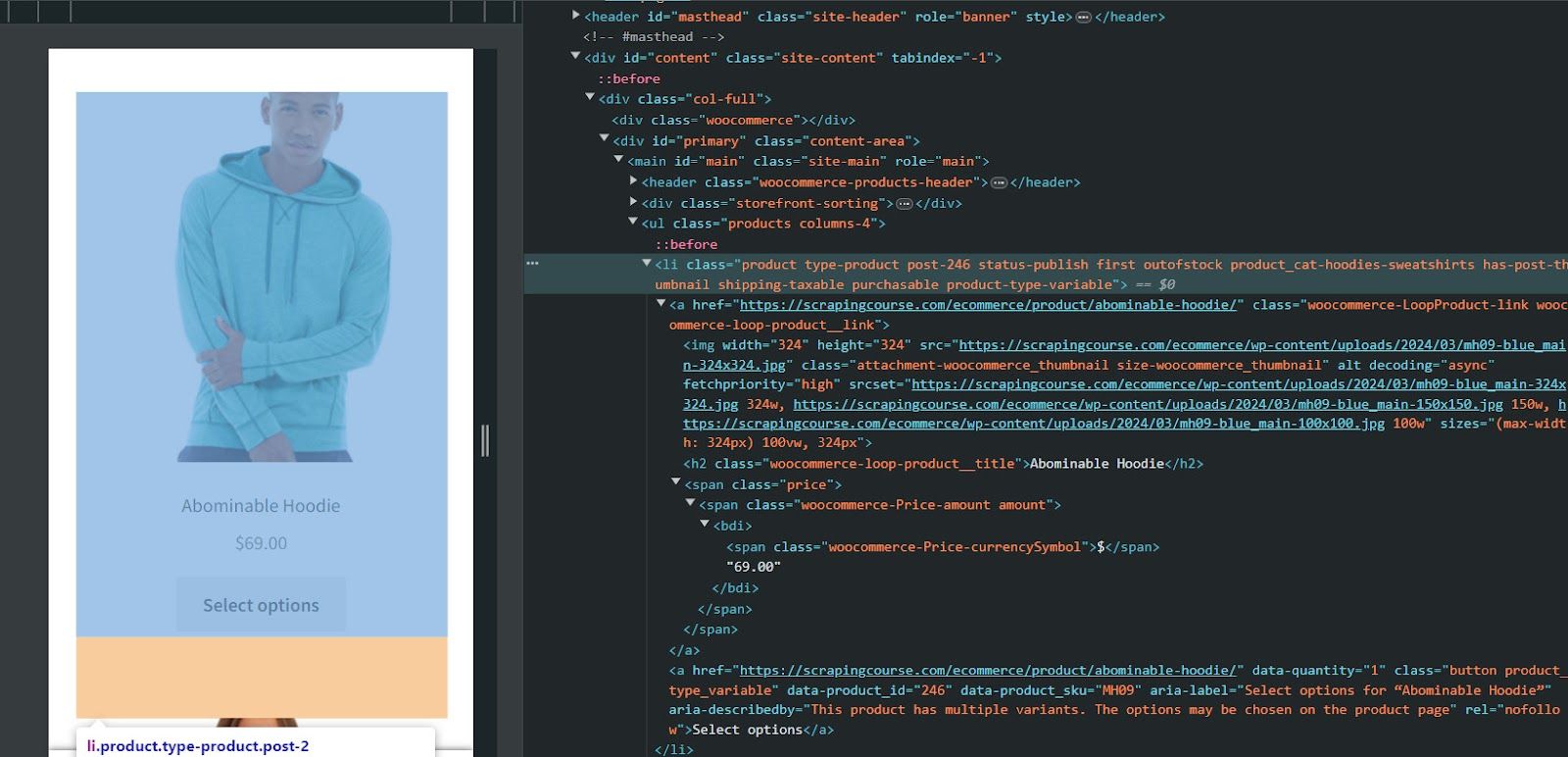
Now that we know where each element is located, let's loop through each product and select the elements with XPath.
<!-- scraper.py -->
```python
for product in product:
name = product.find_element(By.XPATH, ".//h2").text
price = product.find_element(By.XPATH, ".//span").text
img = product.find_element(By.XPATH, ".//img").get_attribute("src")
link = product.find_element(By.XPATH, ".//a").get_attribute("href")
```
We used the `find_element` method to find a single element inside the product container and the `.text` method to get the name and price since they're defined as text in the HTML. For the image and link, they live under `<src>` and `<href>` tags, so we used the `get_attribute` method with each.
Now, save each element to the file and close the driver.
<!-- scraper.py -->
```python
for product in products:
#...
writer.writerow({'Url': link, 'Image': img, 'Name': name, 'Price': price})
filecsv.close()
driver.close()
```
The complete code should look like this:
<!-- scraper.py -->
```python
from selenium import webdriver
from selenium.webdriver.chrome.options import Options
from selenium.webdriver.common.by import By # Util that helps to select elements with XPath
import csv # CSV library that helps us save our result
options = Options()
options.add_argument("--headless") # Run selenium under headless mode
driver = webdriver.Chrome(options=options) # Initialize the driver instance
filecsv = open('file.csv', 'w', encoding='utf8')
csv_columns = ['name', 'price', 'img', 'link']
writer = csv.DictWriter(filecsv, fieldnames = csv_columns)
writer.writeheader()
driver.get("https://www.scrapingcourse.com/ecommerce/")
products = driver.find_elements(By.XPATH, "//*[@id='main']/ul/li")
for product in products:
name = product.find_element(By.XPATH, ".//h2").text
price = product.find_element(By.XPATH, ".//span").text
img = product.find_element(By.XPATH, ".//img").get_attribute("src")
link = product.find_element(By.XPATH, ".//a").get_attribute("href")
writer.writerow({'Url': link, 'Image': img, 'Name': name, 'Price': price})
filecsv.close()
driver.close()
```
Here's the output we got:
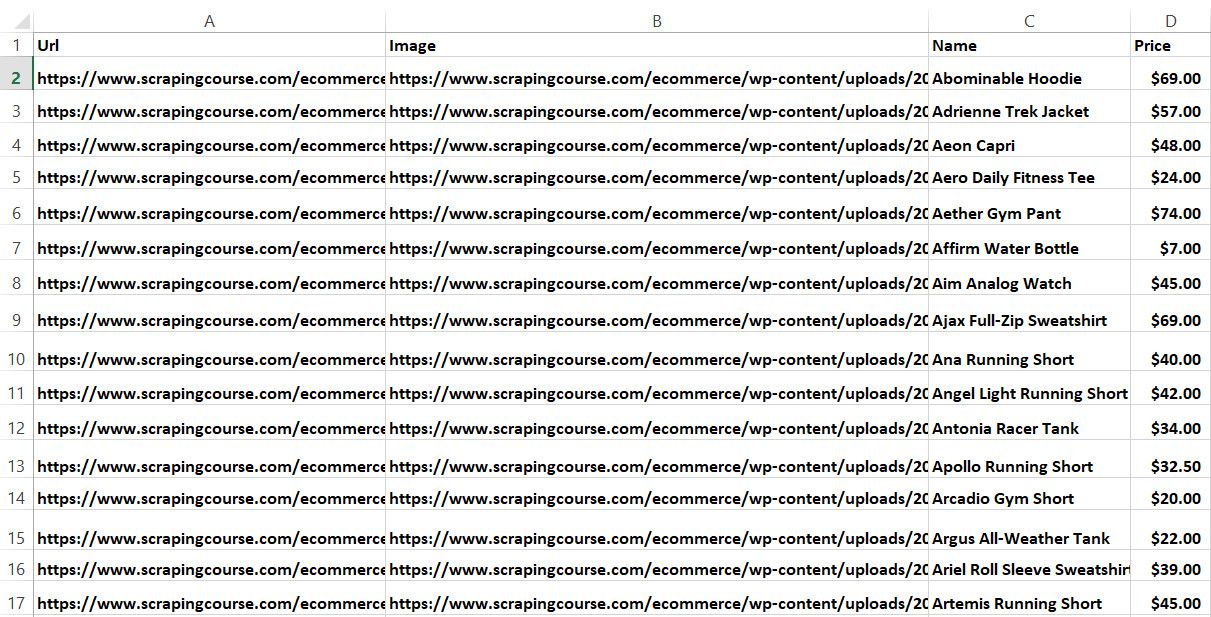
**Remark**: while that is a static website, we have a guide on [dynamic web scraping with Python](/blog/dynamic-web-pages-scraping-python#what-is-a-dynamic-website) you may find useful. Also, if you want to scrape e-commerce data from a more complex website, check out our [Amazon web scraping](/blog/web-scraping-amazon#what-is-amazon-scraping) tutorial.
## CSS vs. XPath Web Scraping
There are many selectors available, including Type, Class, ID, XPath and CSS selectors. The most popular ones are the latest ones, so let's discuss the differences between CSS selectors and XPath expressions to see which one is the best for your use case.
But before that, you need to consider that **a good selector should do the following**:
- Only find the element you need with no duplicates.
- Return the same result if there are changes to the UI.
- Be clear, simple to understand, and fast.
XPath uniquely identifies the elements of an HTML document and is **effective at finding the exact elements you need with no duplicates**.
While CSS selectors rely on CSS properties, XPath relies on IDs, classes and the HTML structure. Therefore, **they can't return the same result if the UI changes**. XPath might be more help helpful here.
The only downside of the **XPath selector is that it's a bit slower than the CSS selector**.
## Conclusion
**XPath is an accurate selector that helps you select and extract data from websites.** However, while it's a great tool that helps you get the exact data you want from websites, it can't do the job itself.
Integrating XPath with a powerful tool like [Zenrows](/){:data-popup=true} will make your web scraping experience much easier because you'll avoid getting blocked by anti-scrapers.