
How to Integrate Web Scraping Into Your n8n Workflows
Learn to enhance your n8n workflow with real-time web data. Optimize your pipeline for consistent web access, scalability, and high-quality results.



Your n8n workflow doesn't require complex API setups or coding to access live web data. You can set it up quickly with web scraping using simple point-and-click, drag-and-drop, or copy-paste actions. But here's the challenge: most n8n web scraping nodes fail on arrival because they can't withstand tough anti-scraping measures, especially at scale.
In this article, we'll show you how to provide your n8n workflow with reliable web data. You'll also learn essential scaling tips, including the singular tactic for consistent data delivery without getting blocked.
Why Scrape with n8n?
As a low-code automation platform, n8n lets you connect processes visually on a canvas. For web scraping, n8n enables you to seamlessly integrate scraped data into broader workflows, such as storage, processing, and notifications.
You can automate n8n scraping to run at regular intervals or in response to specific events. This ensures timely access to the latest information and enables improved decision-making at critical points.
You can connect external tools out of the box, including Large Language Models (LLMs), databases, Excel and Google Sheets, and more. This enables you to build modular, extensible scraping workflows that efficiently process, store, and analyze data.
Log in to your n8n account, and let's get started with setting you up for n8n scraping right away.
Skip the blocks. Try Zenrows free and get clean web data without the anti-bot fight.
The Standard n8n Web Scraping Flow
In this section, you'll create an n8n scraper that extracts product information from the Ecommerce Challenge page. Let's go through the steps below.
Step 1: Set up a Trigger
An n8n workflow usually starts with a trigger, which can be instant, scheduled, or event-based. Here's how to set it up:
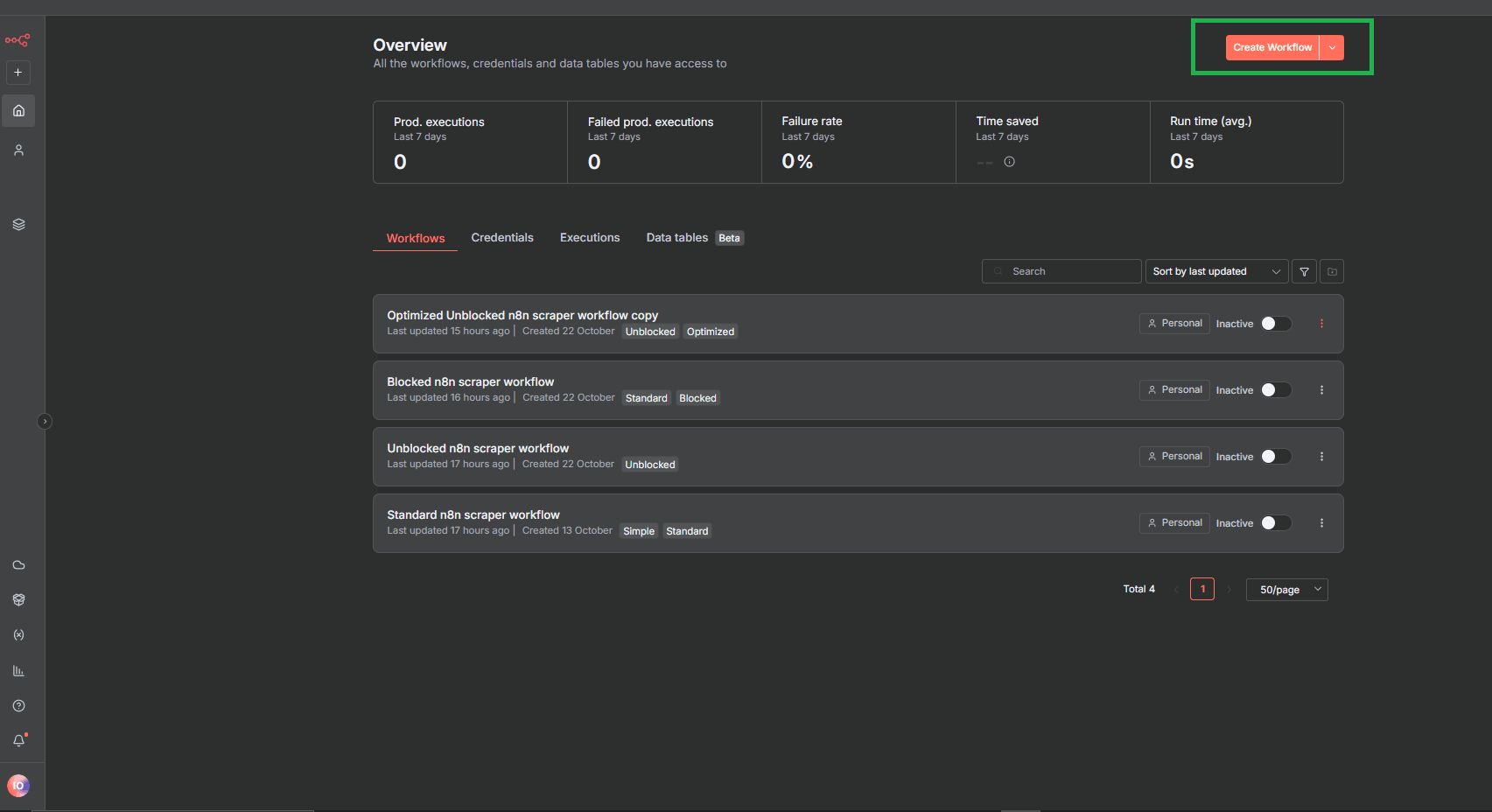
- Once you log into your n8n account, create a new workflow by clicking Create Workflow at the top-right.
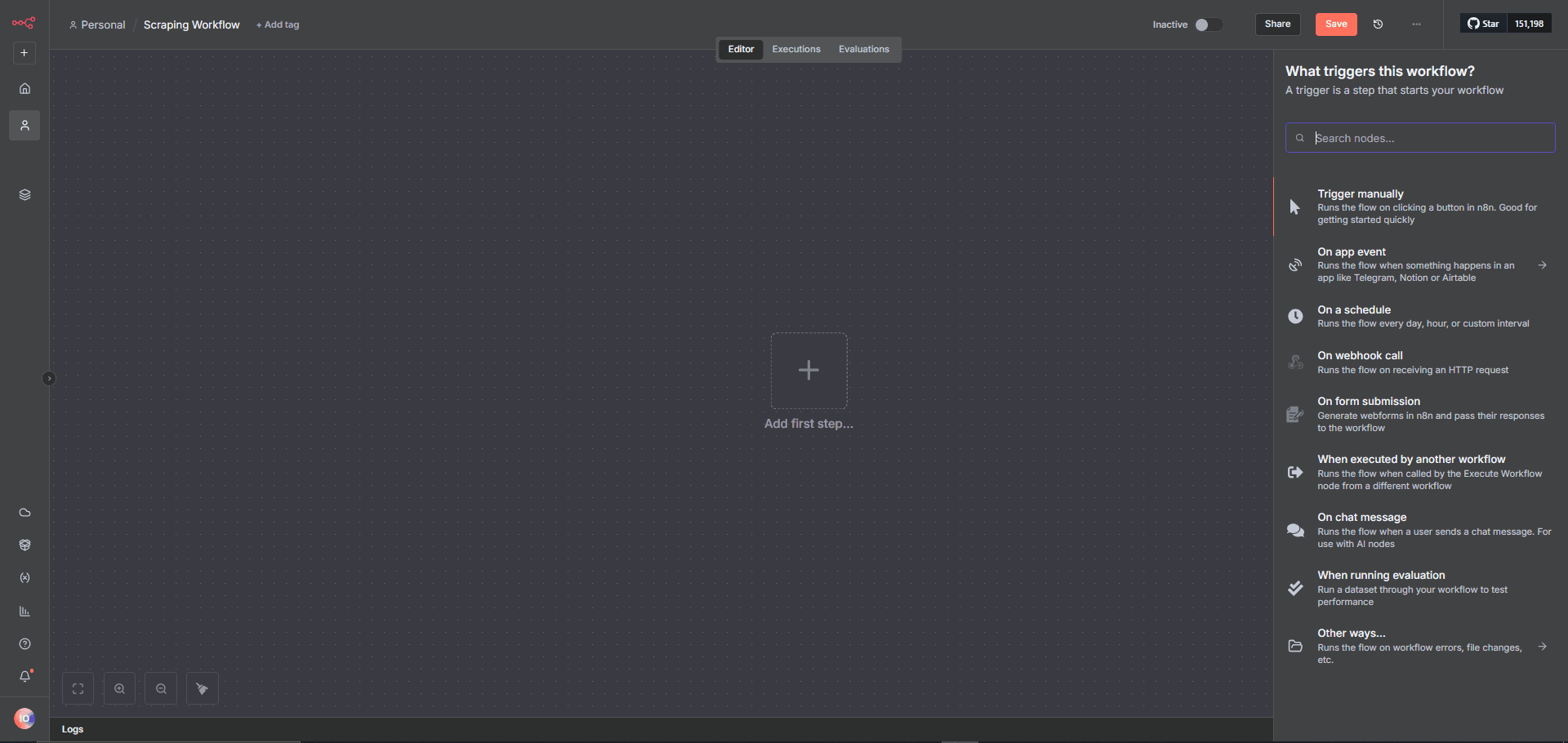
- Next, click the + icon in the canvas to create a trigger that initiates your processes.
- Select a trigger that works for you from the options. In this case, we'll use the "On a schedule" option to schedule the scraping task.
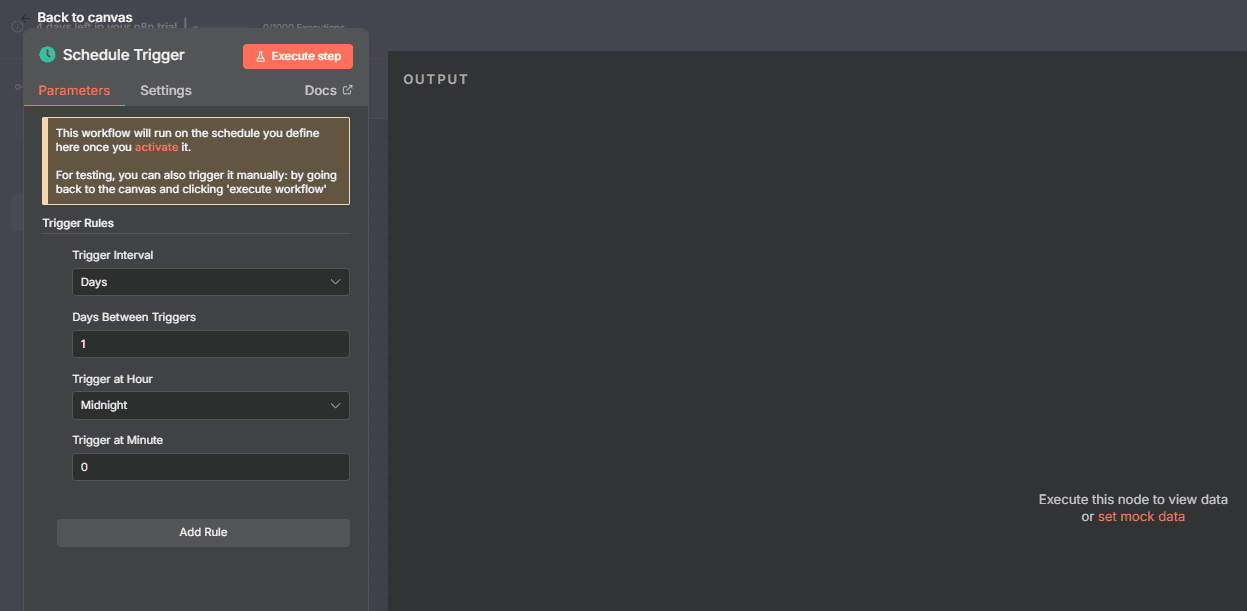
- Set the schedules and click "Back to canvas" at the top-left to return to the n8n canvas.
Step 2: Get Raw HTML
The next step is to request the target site's HTML. Here are the steps to achieve this:
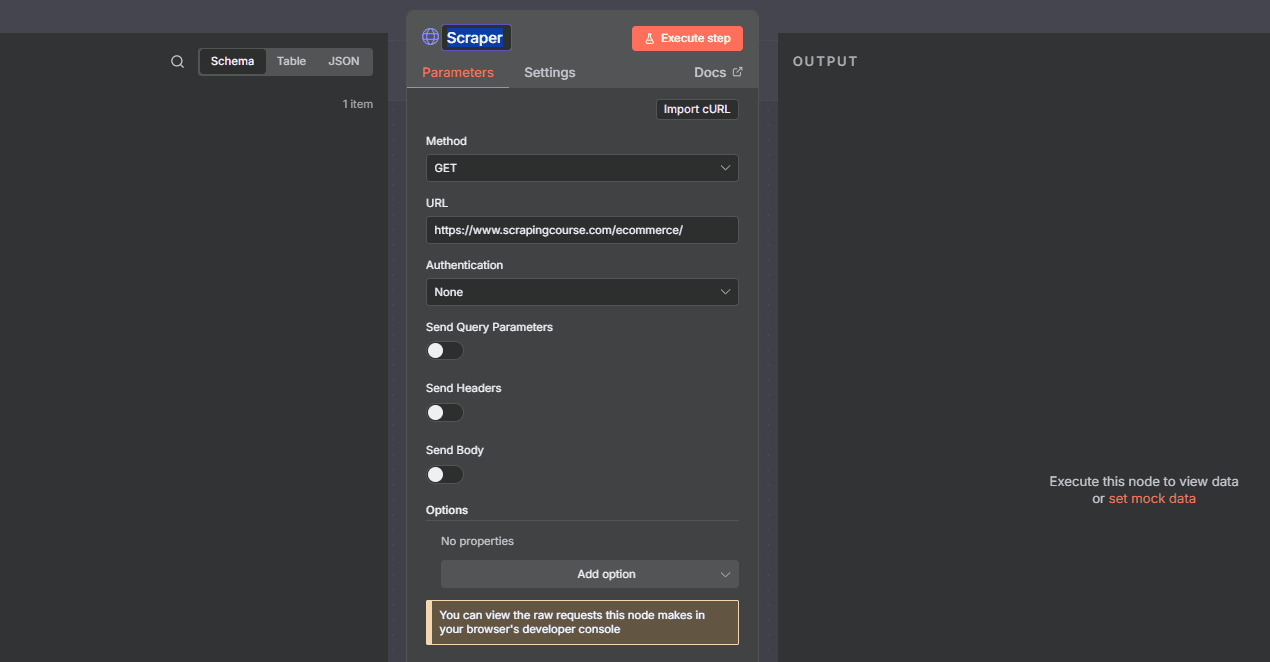
- Click the "+" icon next to the trigger node. Search and select the "HTTP Request" node.
- Paste your target URL in the URL field.
- Click the node name at the top of the opened modal, then rename it to "Scraper."
- Click "Execute step" at the top to make an initial request.
The execution will output the website content. You'll see a raw HTML result like the following:
<!DOCTYPE html>
<html lang="en-US">
<head>
    <!--- ... --->

    <title>Ecommerce Test Site to Learn Web Scraping - ScrapingCourse.com</title>

  <!--- ... --->
</head>
<body class="home archive ...">
    <p class="woocommerce-result-count">Showing 1-16 of 188 results</p>
    <ul class="products columns-4">

        <!--- ... --->

    </ul>
</body>
</html>
You should have the following workflow at this point:
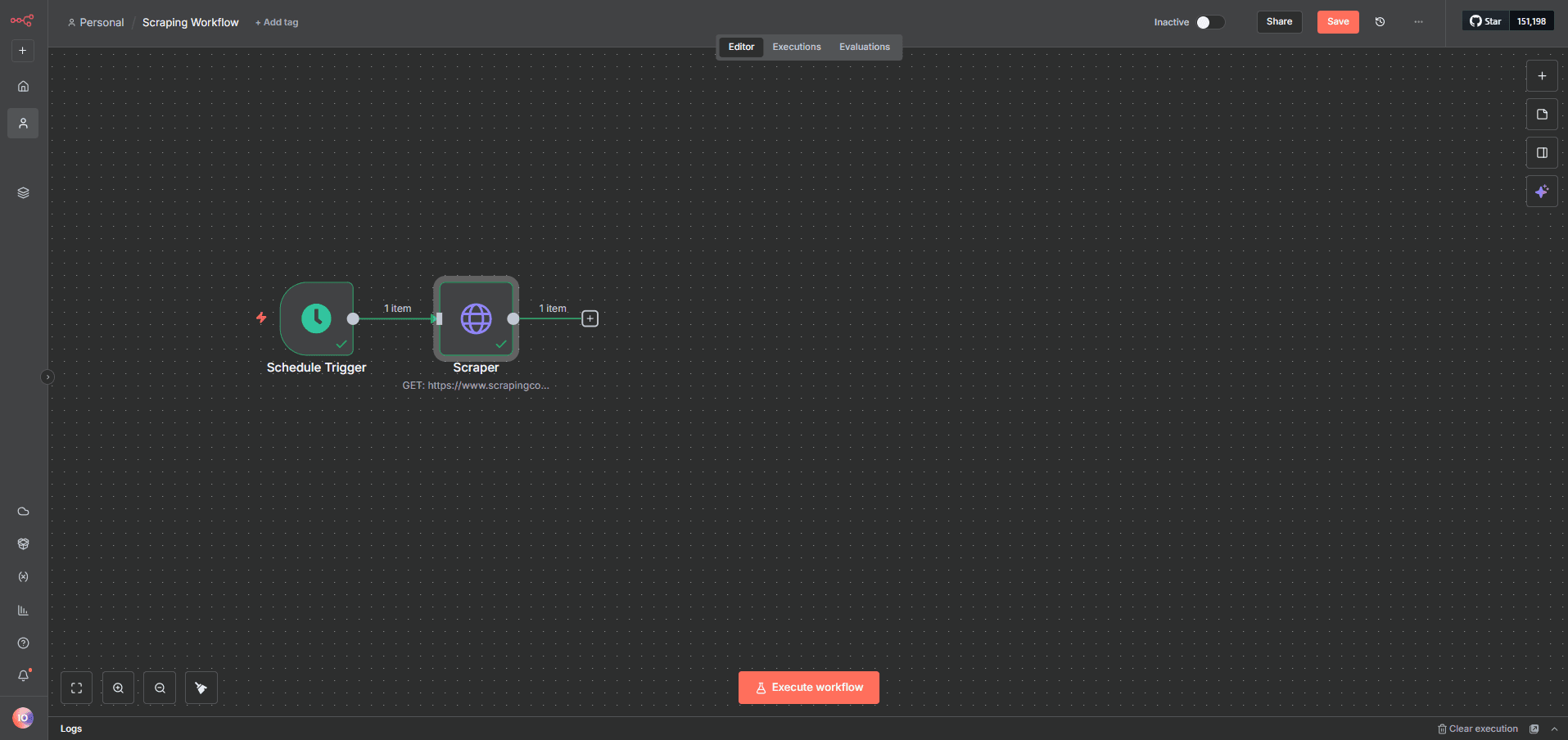
Step 3: Parse the HTML Content
n8n has a built-in HTML parser that lets you extract content from raw HTML. We'll extract the products' names and prices from the target site using CSS selectors:
- Go to the canvas and click "+" next to the HTTP Request (Scraper) flow. From the Node search box, search and select "HTML."
- Choose "Extract HTML Content."
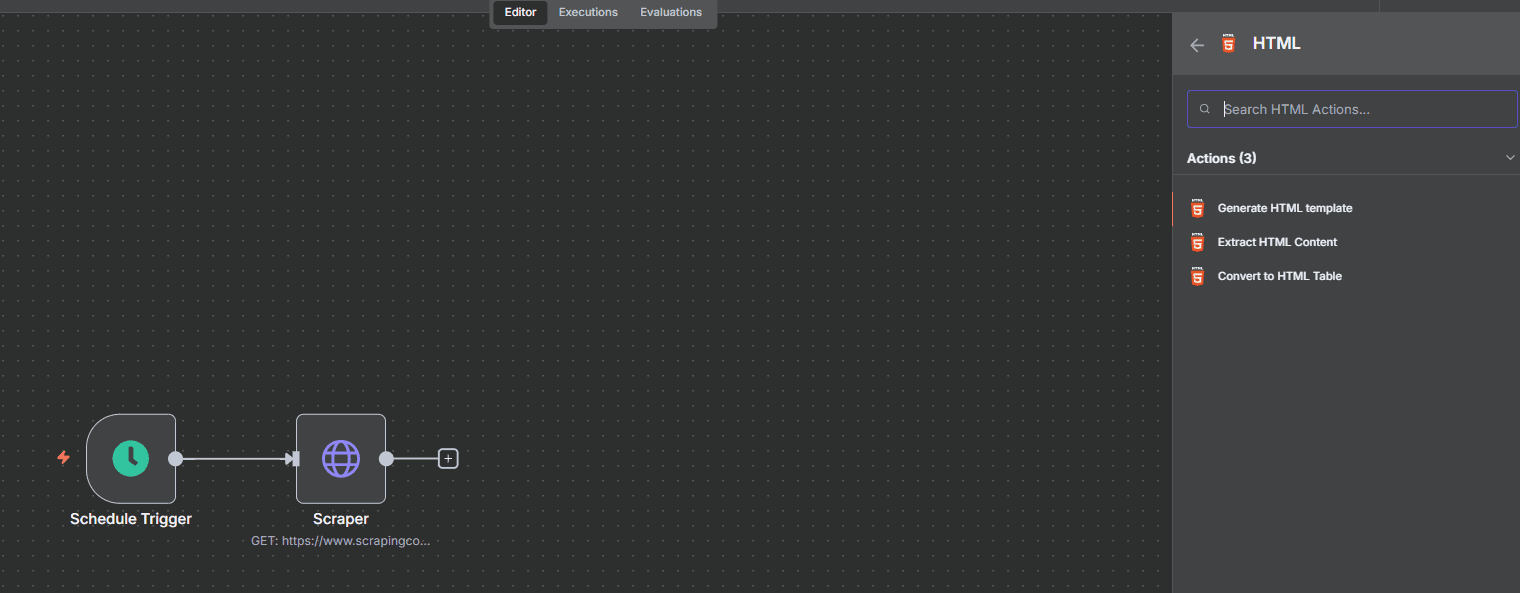
- Rename the node to "HTML Parser" or a similar name.
- Type "Name" in the "Key" field and enter its selector name in the "CSS Selector" field (the target is
.product-name, in this case). - Click "Add Value."
- Type "Price" in the "Key" field and fill in the CSS selector (
.price, in this case). - Toggle the "Return Array" button for both values to get an array of all product names and prices from the target site.
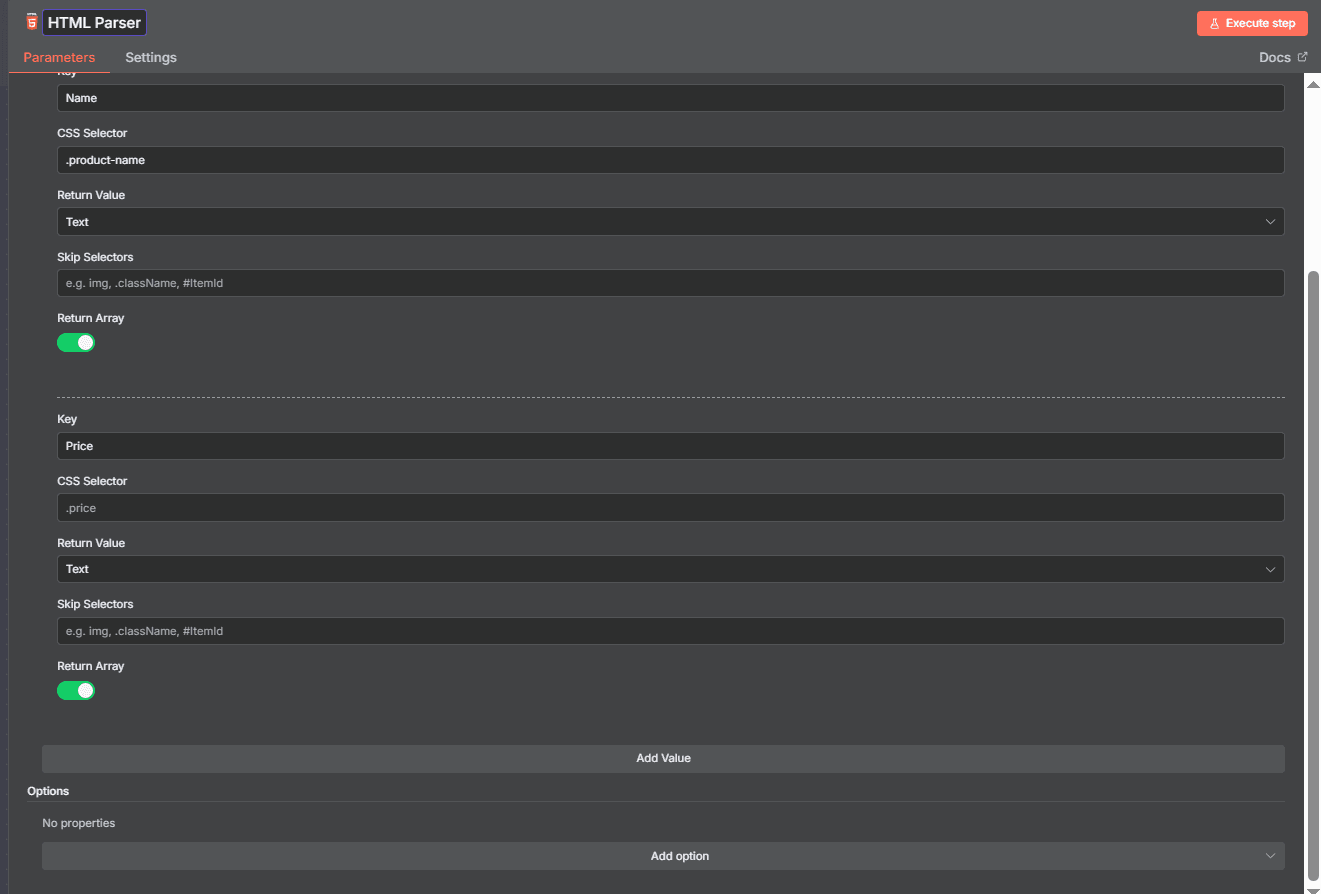
- Click "Execute step" at the top to test the current node. This returns the scraped product data in an array.
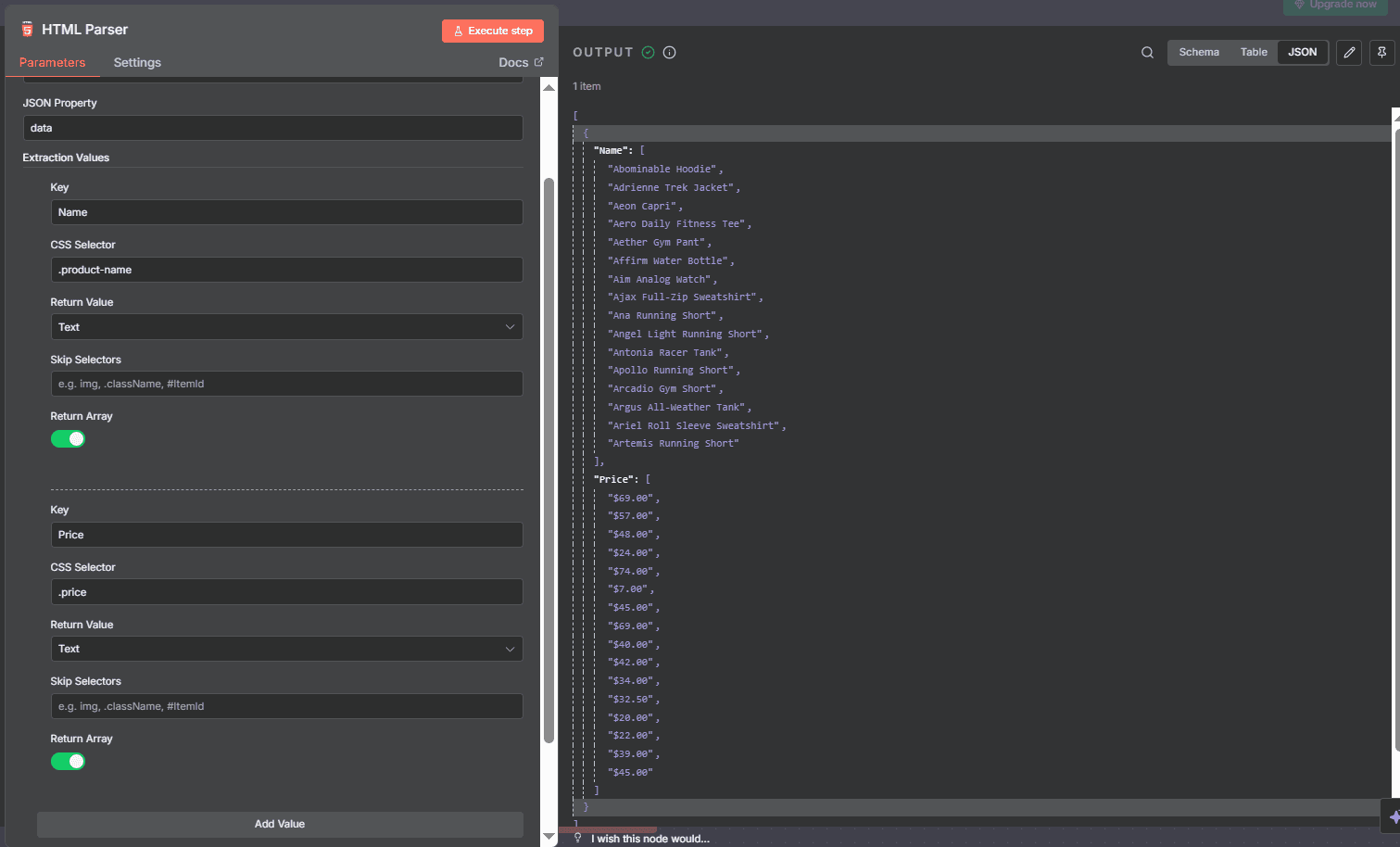
The data is in a disjointed array. Let's split it into pairs in the next step.
Step 4: Split the Data Into Pairs
You can pair each product with its price using the Split Out node in n8n:
- Click "+" next to the HTML Parser node.
- Search for and select "Split Out" from the node search box.
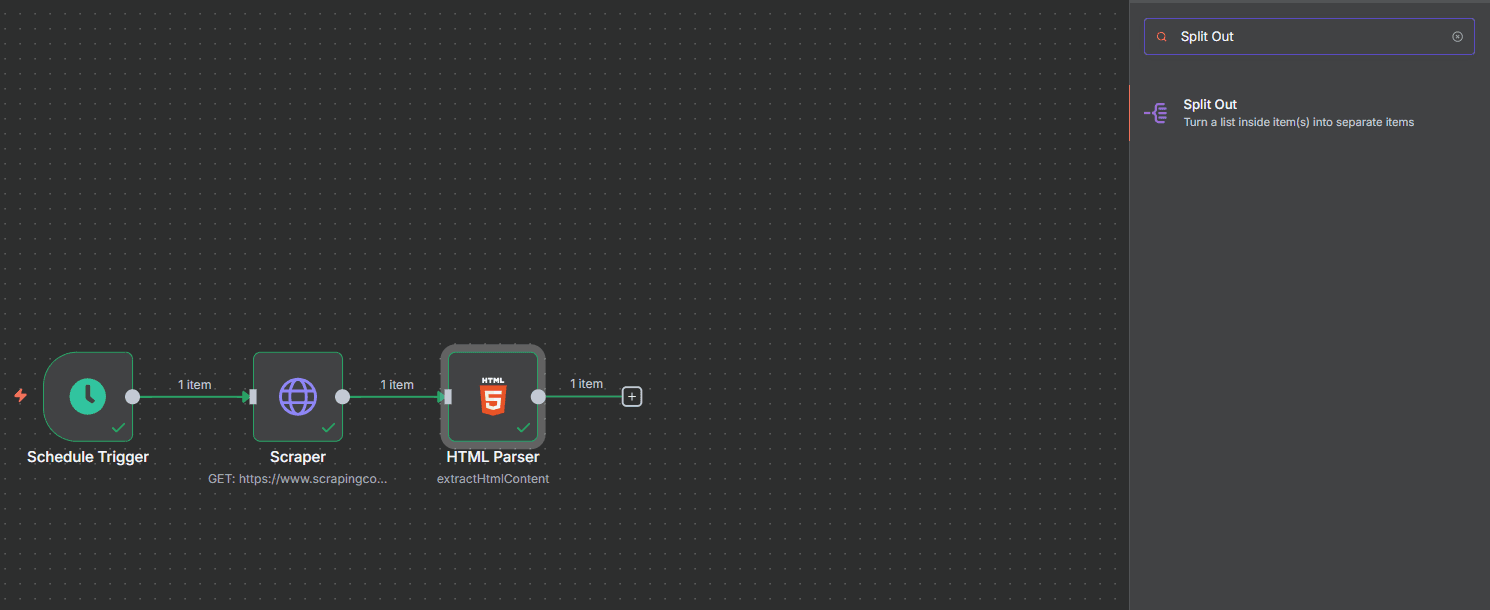
- Type each of the data fields into the "Fields To Split Out" (Name, Price).
- Click "Execute step" to test the split process. You'll see the paired product data on the right panel:
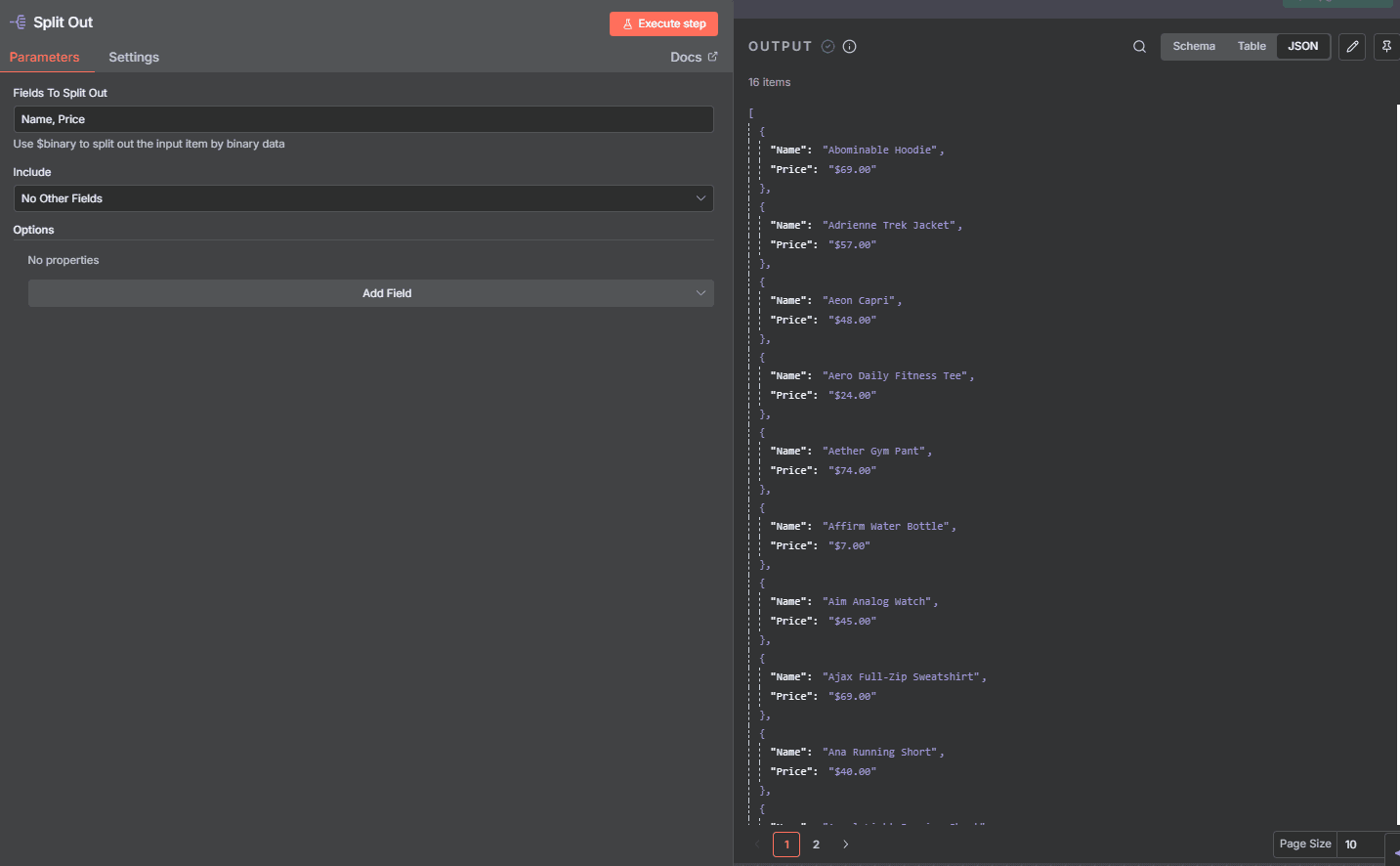
Here's the sample data returned by the n8n scraper:
[
    {
        "Name": "Antonia Racer Tank",
        "Price": "$34.00",
    },
    # ..., omitted for brevity
    {
        "Name": "Artemis Running Short",
        "Price": "$45.00",
    },
]
Step 5: Store the Data
You can store the data in a database, Excel, or Google Sheet for persistence, referencing, analytics, and more.
Here's how to go about it with Google Sheets:
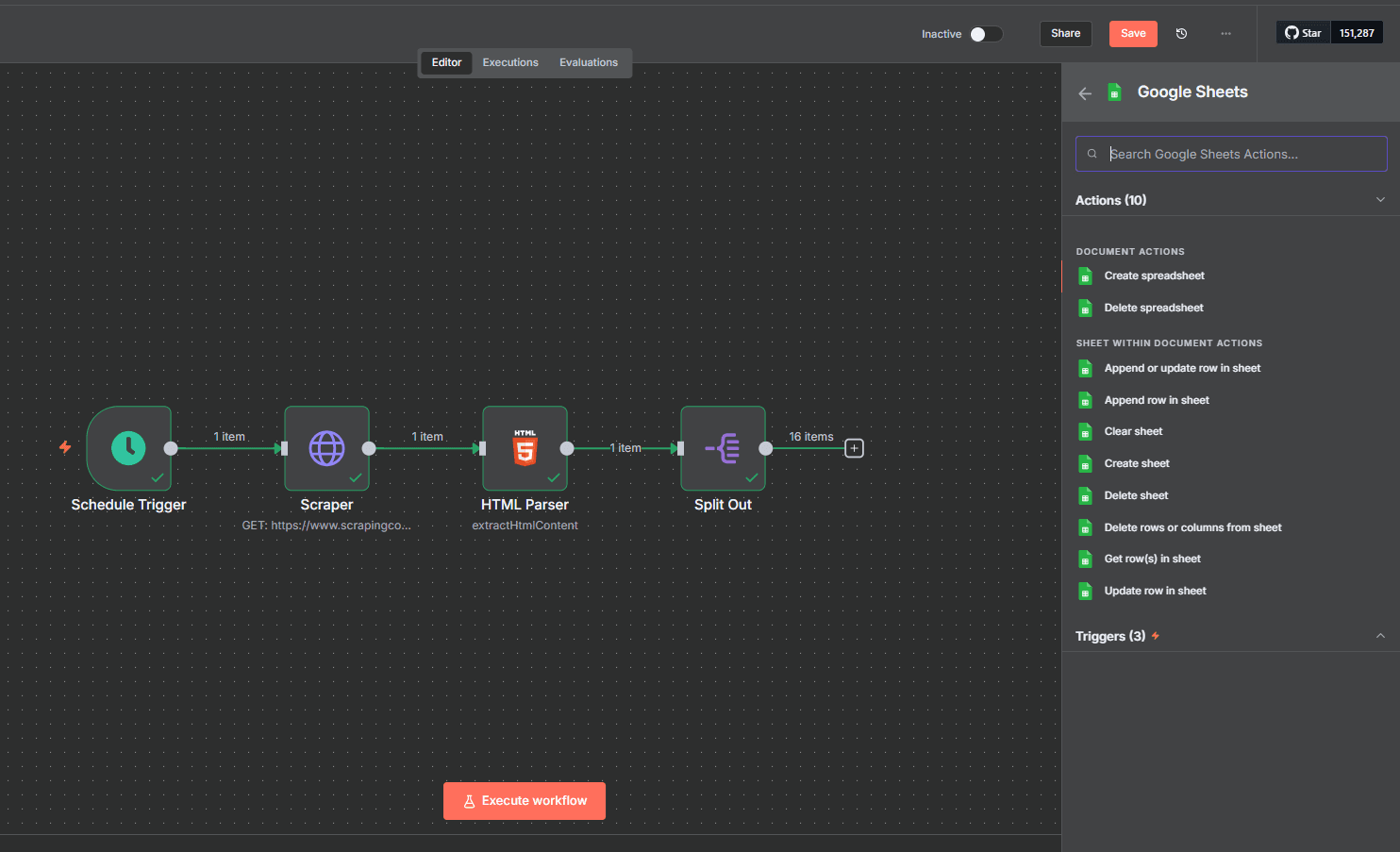
- Click "+" next to the Split Out node.
- From the node search box, search for and select "Google Sheets."
- Select "Update row in sheet." This only updates the sheet and doesn't append data each time you run the scraping request.
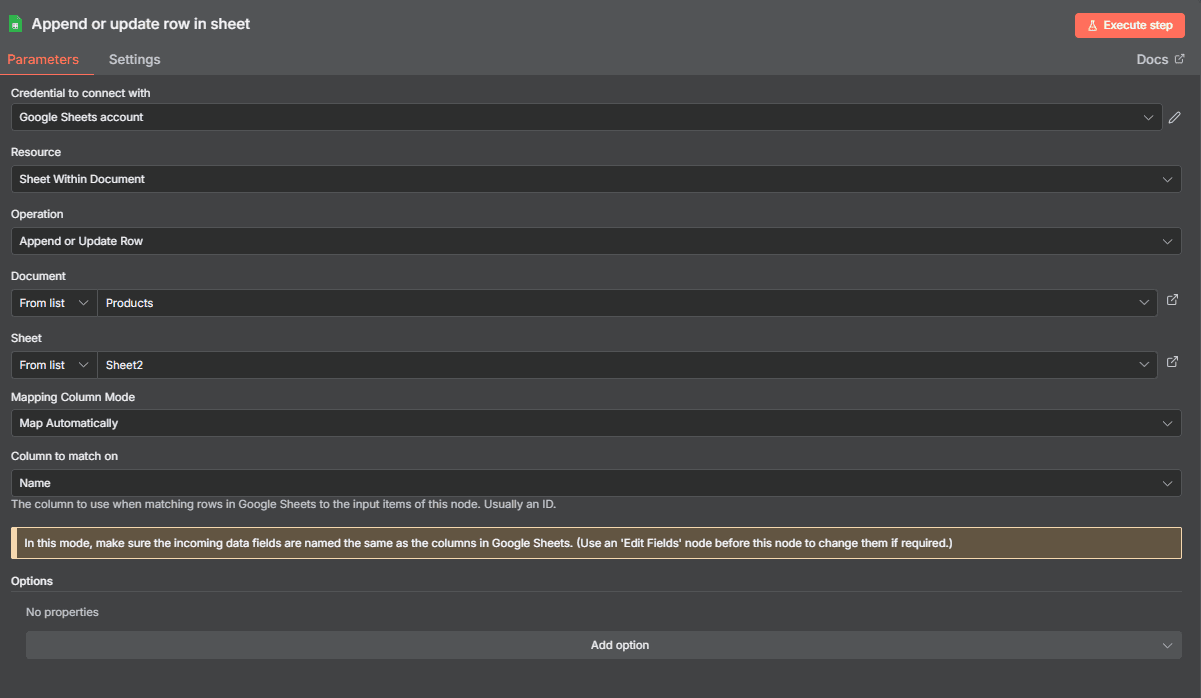
- Connect your Google account.
- Select the spreadsheet you want to write the data to from the "Document" dropdown.
- Choose the destination sheet from the "Sheet" dropdown.
- From "Mapping Column Mode," select "Map Automatically" to write the data using the existing data schema.
- Under "Column to match on", select the first column (Name).
Step 6: Run Your n8n Scraper
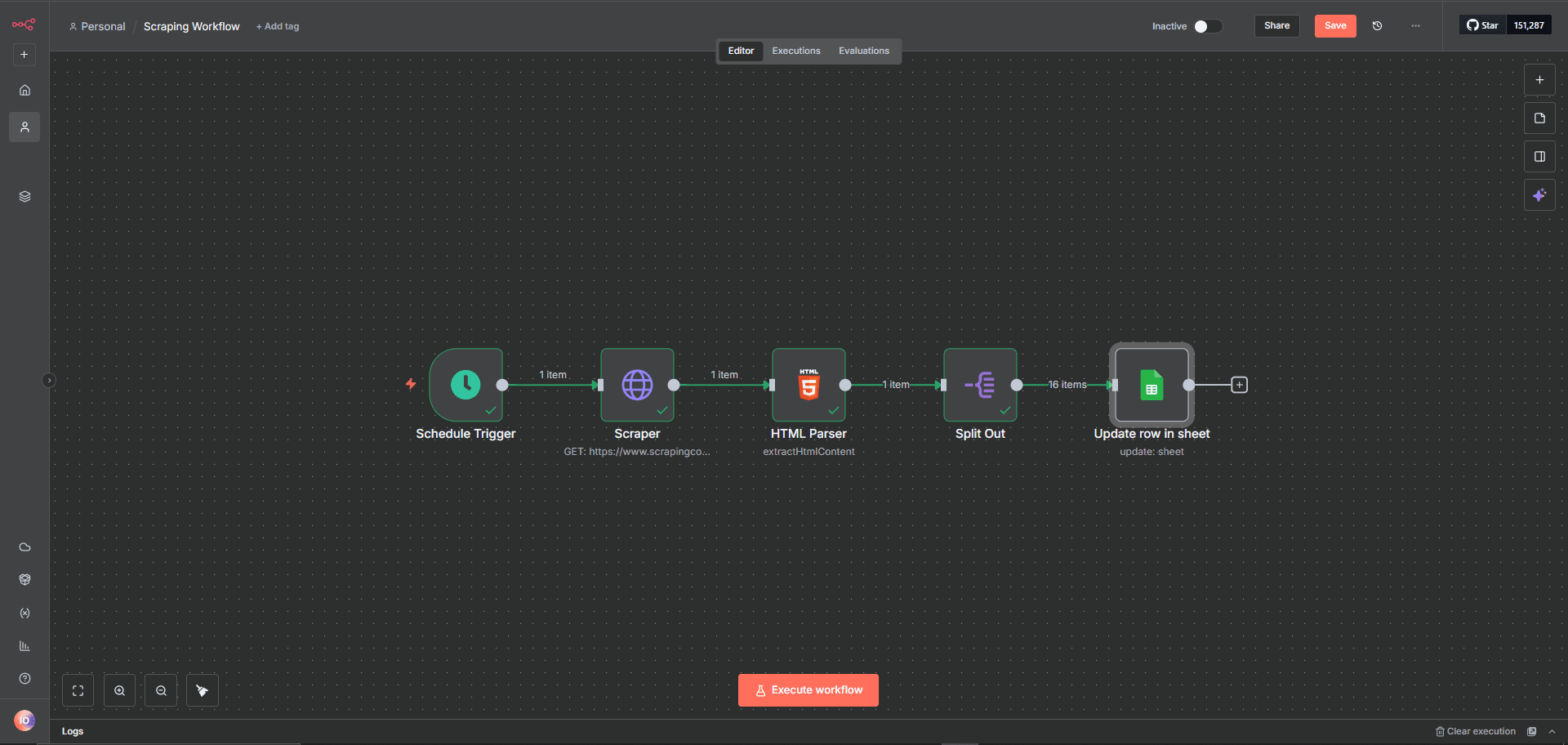
Head back to the canvas and click "Save" at the top-right to save your flow. Then, click "Execute workflow" at the bottom to run your n8n web scraper:
Check the destination Google Sheets to view the scraped product data:
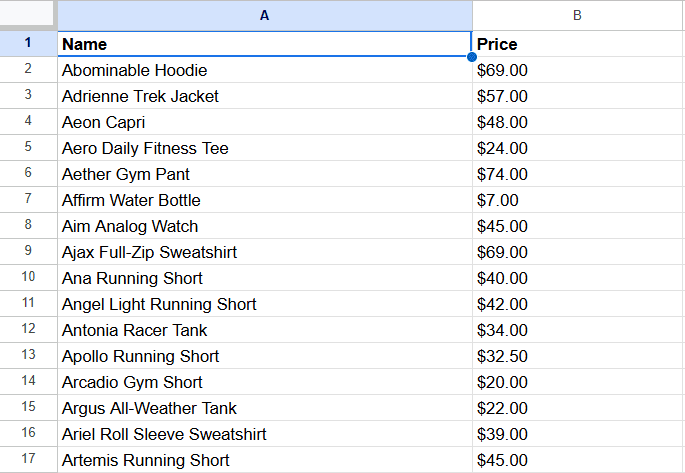
Great! You've set up a basic n8n web scraper. However, there's still more work to do to ensure your scraper is ready for real-world data extraction.
Getting Blocked by Harder Targets
Using only the HTTP Request node makes your scraping flow vulnerable to anti-bot protections, which can block your requests and disrupt your workflow without warning.
Additionally, the current n8n scraper can't handle dynamically rendered websites. Unlike static pages, dynamic sites load content via JavaScript after the initial page load, which means your scraper may miss important data or return empty results.
For example, let's test the workflow with the Antibot Challenge page, a protected site that also uses JavaScript to dynamically render content.
Try it out by double-clicking the HTTP Request node (Scraper) and replacing the URL in the previous workflow with the protected one.
Click "Execute step", and you'll see the request fails with a 403 forbidden error:
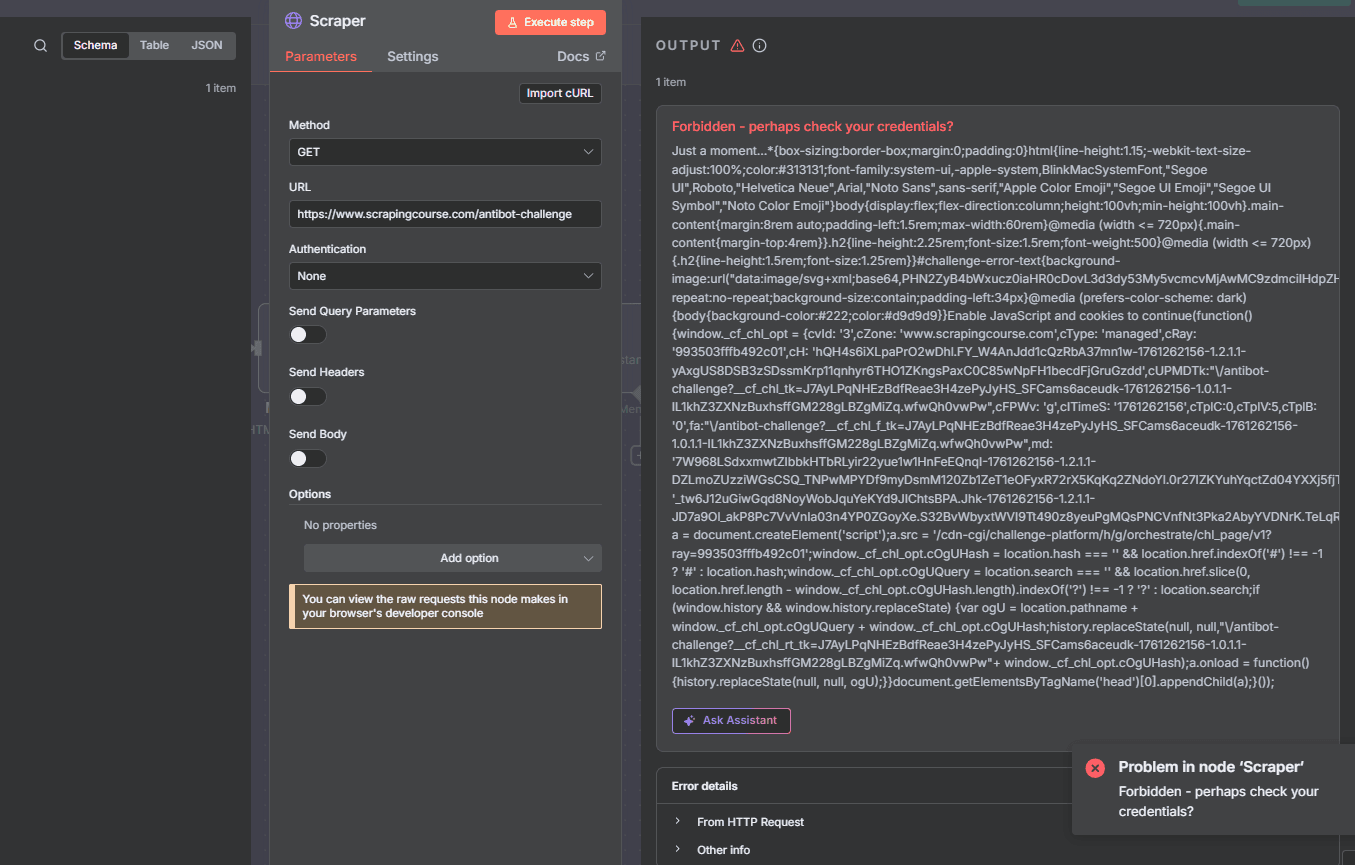
Here's the sample error message from this request:
Forbidden - perhaps check your credentials?
Check the canvas, and you'll see that your n8n scraper has failed from the scraping layer:
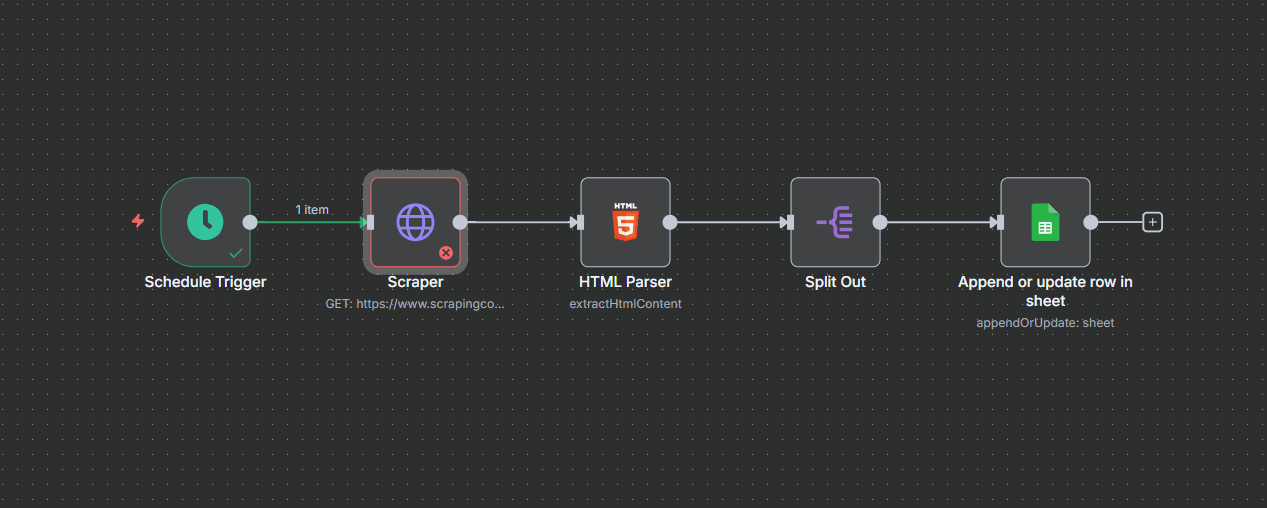
The above response shows that your current n8n web scraper can't access protected sites. This means your scraping workflow is at risk of failing when scaling to more complex data sources.
The good news is you can handle these limitations without stress. You'll see how in the next section.
Build a Reliable n8n Scraper with Zenrows: Avoid Getting Blocked
The easiest way to build a reliable, scalable n8n scraper is via a web scraping solution like the Zenrows Fetch.
Zenrows integrates seamlessly with n8n, providing all the toolkits needed to bypass anti-bot measures, handle JavaScript rendering, extract data without regional limitations, and more.
With Zenrows, you get an auto-scaled, auto-managed infrastructure that scales with your needs. Setting up is straightforward, and you can configure your scraping request in just a few seconds using the visual Request Builder.
Let's see how it works with the same Antibot Challenge page that blocked you previously.
To integrate Zenrows with n8n, sign up with Zenrows and go to the Request Builder. Paste your target URL in the link box, activate JS Rendering and Premium Proxies.
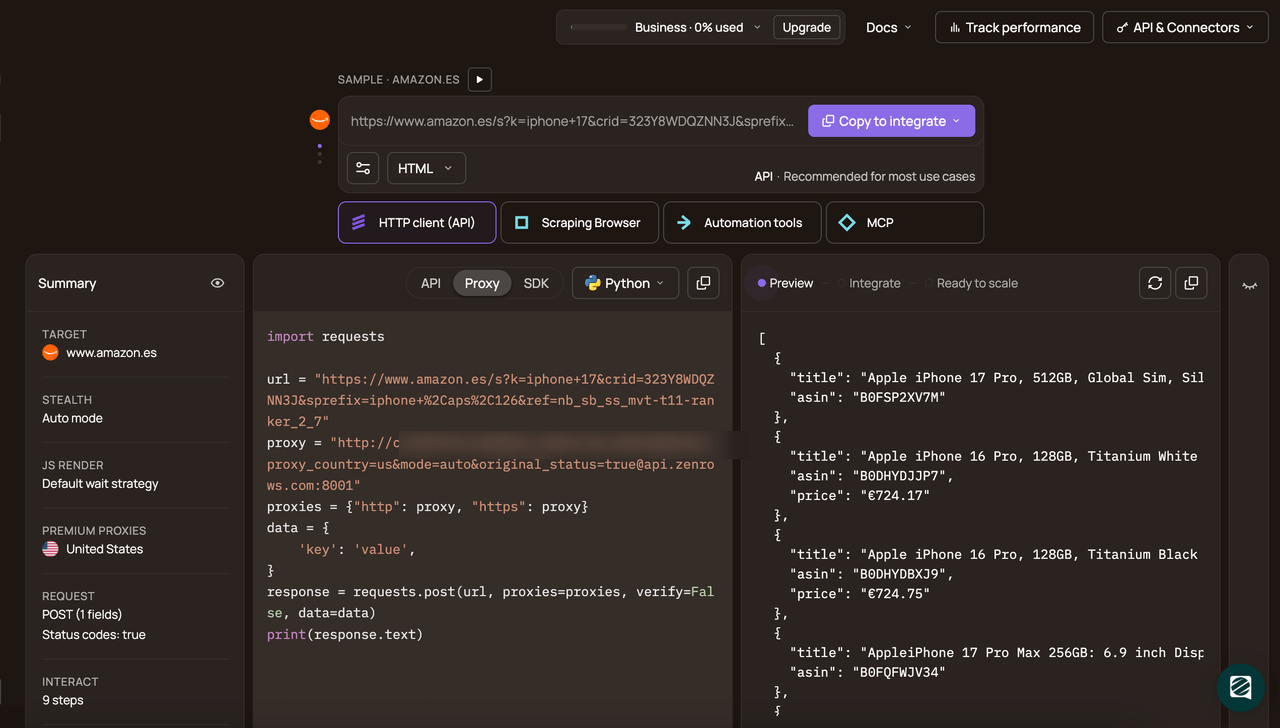
Choose the API connection mode and select cURL as your programming language. Copy the generated cURL code and head back to n8n.
Here's a sample of the generated cURL:
curl "https://api.zenrows.com/v1/?apikey=<YOUR_ZENROWS_API_KEY>&url=https%3A%2F%2Fwww.scrapingcourse.com%2Fantibot-challenge&js_render=true&premium_proxy=true"
On n8n, double-click the HTTP Request node (Scraper). Click "Import cURL" at the top-right of the modal box.
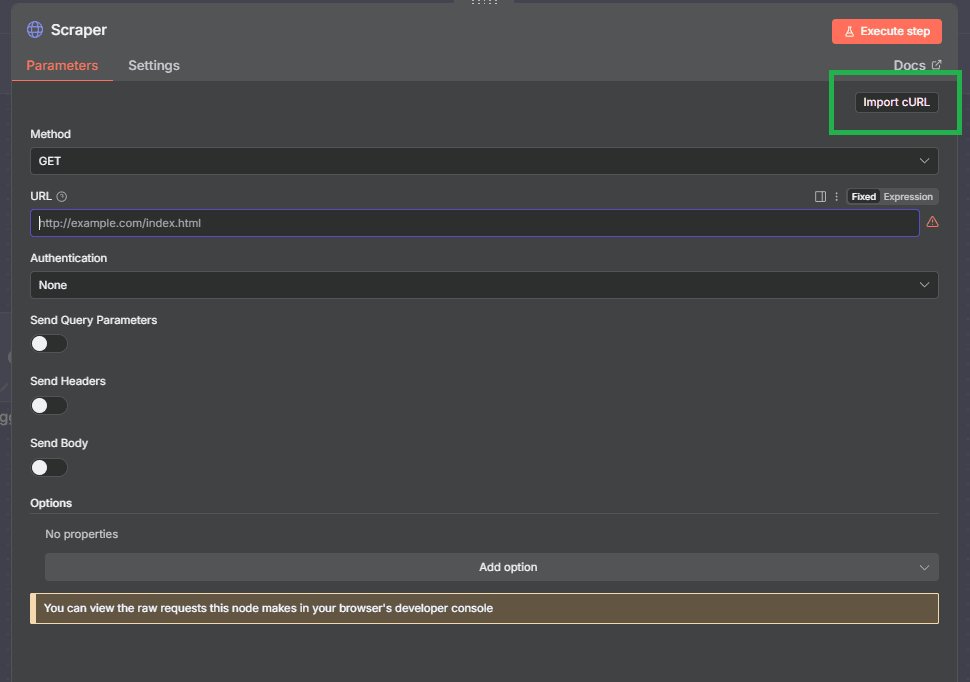
Paste the generated Zenrows cURL code in the cURL Command field. Then, click Import at the bottom-right.
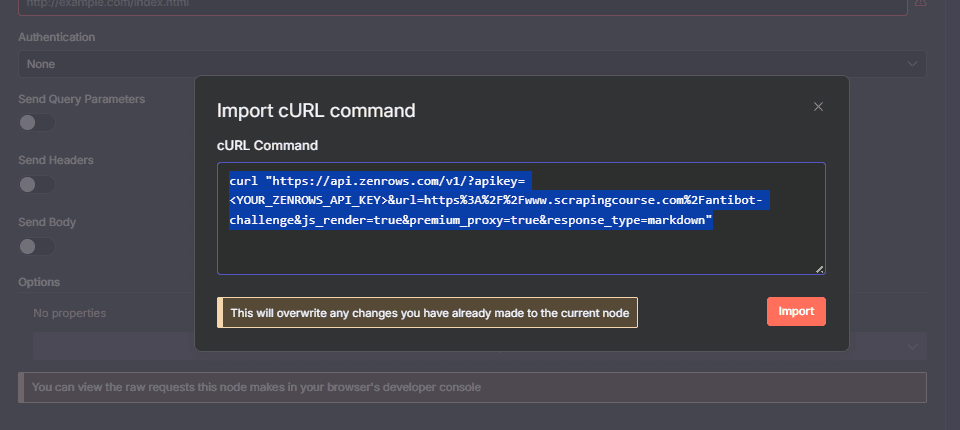
Now, click "Execute step" to test the scraper flow.
The n8n scraping request outputs the following HTML, showing you've bypassed the anti-bot measure:
<html lang="en">
<head>
    <!-- ... -->
    <title>Antibot Challenge - ScrapingCourse.com</title>
    <!-- ... -->
</head>
<body>
    <!-- ... -->
    <h2>
        You bypassed the Antibot challenge! :D
    </h2>
    <!-- other content omitted for brevity -->
</body>
</html>
Congratulations! 🎉 Your n8n scraping workflow now bypasses anti-bots via Zenrows integration. Your automated workflow is now set for large-scale, real-world scraping without limitations.
Advanced Optimization Tips for Your n8n Web Scraper
While you've seen how to set up your n8n scraper against blocks, it's also essential to optimize it for production. Here are some quick tips to improve your n8n scraping workflow.
Scrape Multiple URLs
So far, you've seen how to scrape a single website. But you can also scrape multiple URLs in n8n by loading them from a source like Google Sheets or a database.
Let's see how to achieve this by scraping a list of URLs from Google Sheets.
- Click "+" between the Scheduled Trigger and the Scraper nodes.
- Search for and select Google Sheets from the node search box.
- Select "Get row(s) in sheet."
- Connect your Google account.
- Click the Document dropdown and select the Google Sheets containing your URLs.
- Choose the appropriate sheet from the Sheet dropdown.
- Click "Execute step" to test this node. This loads the URLs from your Google Sheets.
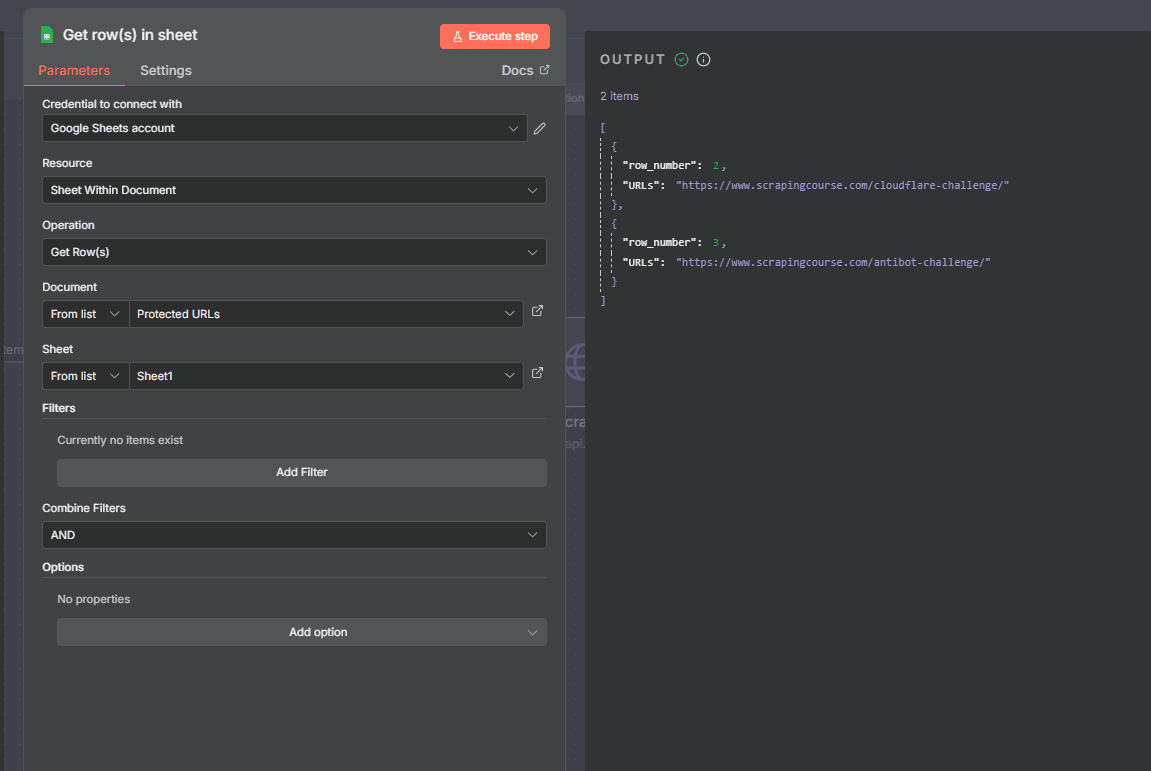
- Return to the canvas, open the HTTP Request (Scraper) node, and drag the URLs field from Google Sheets into the URL field to use multiple URLs.
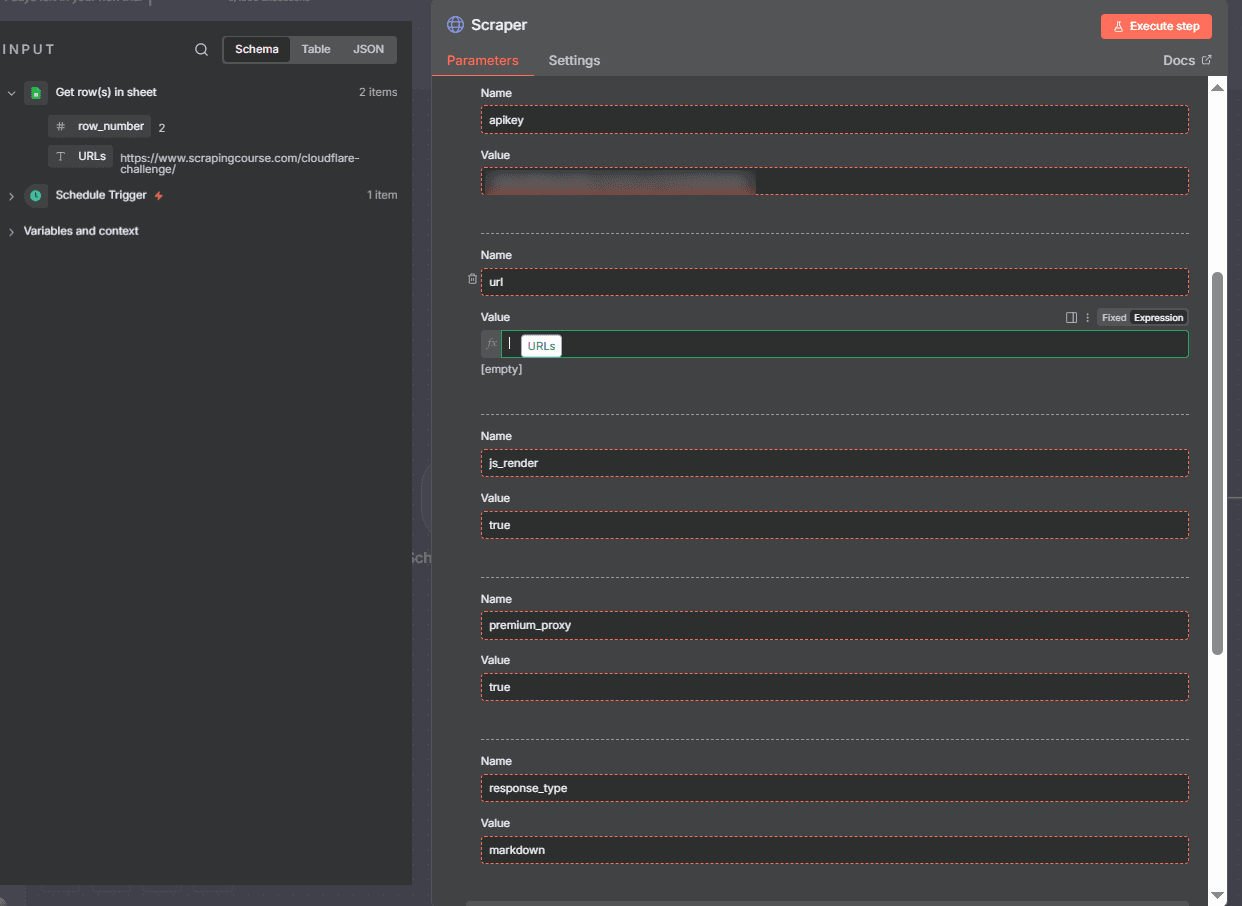
When you execute the workflow, n8n will request all the URLs and return their data in sequence.
Concurrency and Batching
When scraping multiple URLs simultaneously in n8n, you can allow n8n to automatically loop through all the URLs and scrape their data in sequence, as done above.
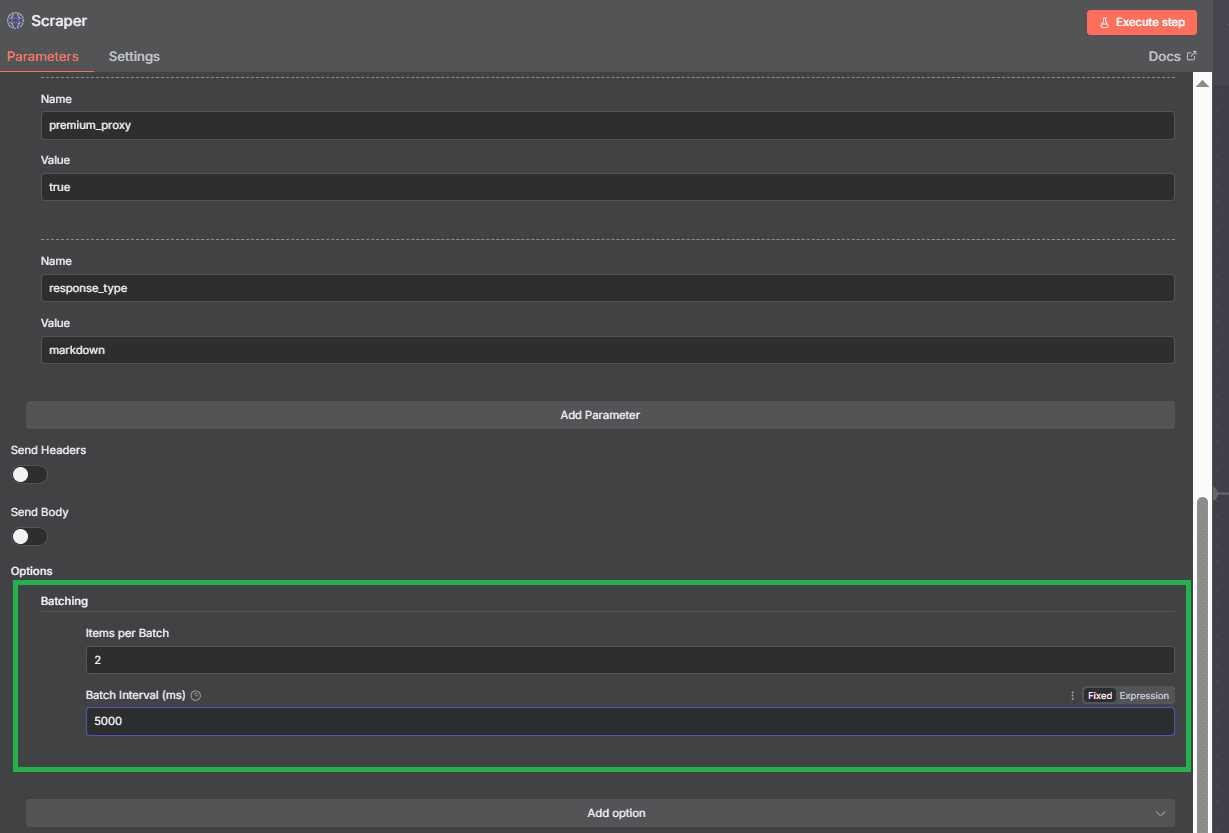
However, best practice is to split the URLs into batches and introduce a pause between each batch of requests. This approach helps prevent overloading the target site and reduces the risk of hitting rate limits or putting excessive strain on your n8n instance.
You can achieve this with the following steps:
- Open the HTTP Request (Scraper) node.
- Scroll down and click "Add option".
- Select "Batching."
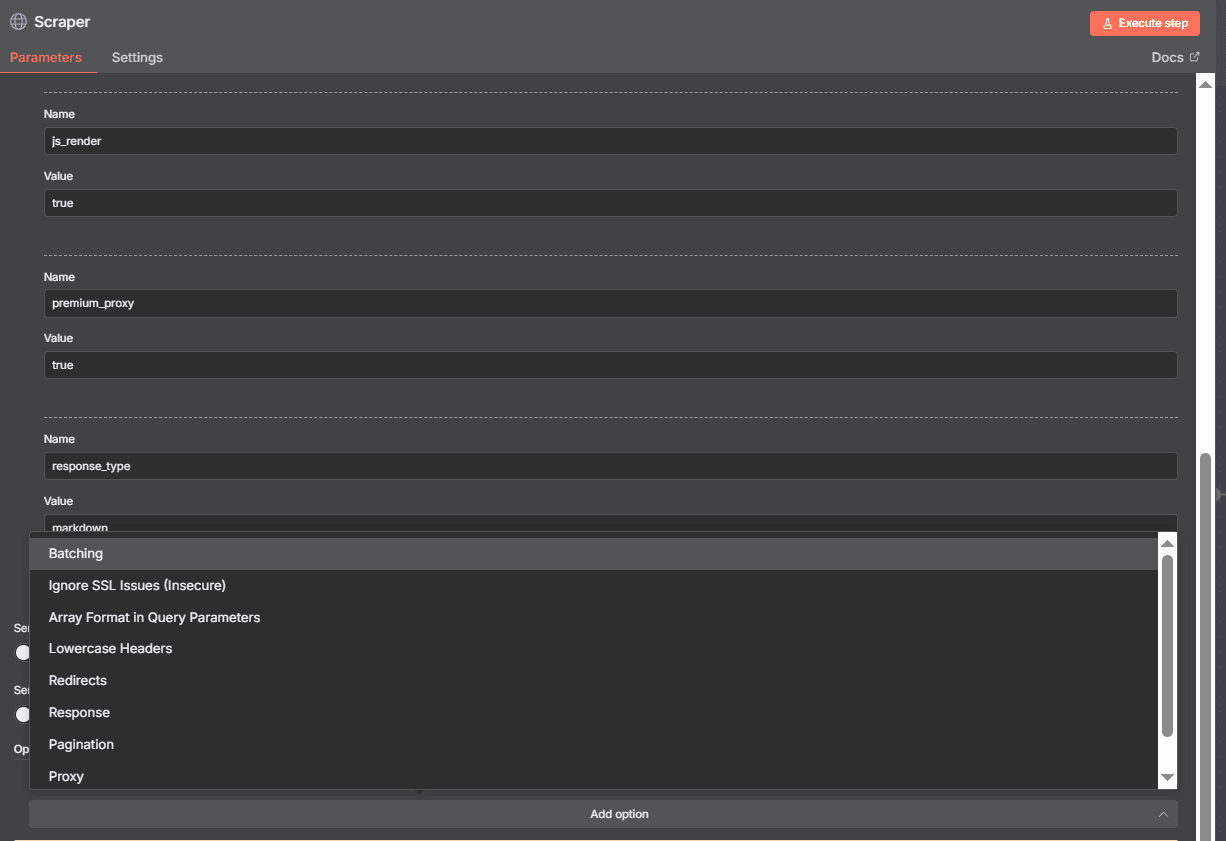
- Next, configure your batch and batch interval as you prefer.
Logical Error Handling
Use n8n’s logic nodes, such as the "If" node, to determine what actions to take when a request succeeds or fails. For example, you can set up an email notification to alert you if the workflow encounters an error, so that you can respond promptly.
Additionally, when an error occurs, you can use the "If" node to redirect your scraping workflow to a fallback step, such as retrying the request or switching to a backup data source. This approach enhances data quality and integrity by ensuring that potential data gaps are filled.
Follow the steps below to achieve this with the current n8n setup:
- Click "+" after the HTTP Request (Scraper) node.
- Search for and select "If" from the node box.
- You can rename this node if you want (e.g., as "Validation Logic").
- Configure your logic by selecting a condition on the scraped data. For instance, you can set the logic to check if the scraped data is equal to what you're expecting.
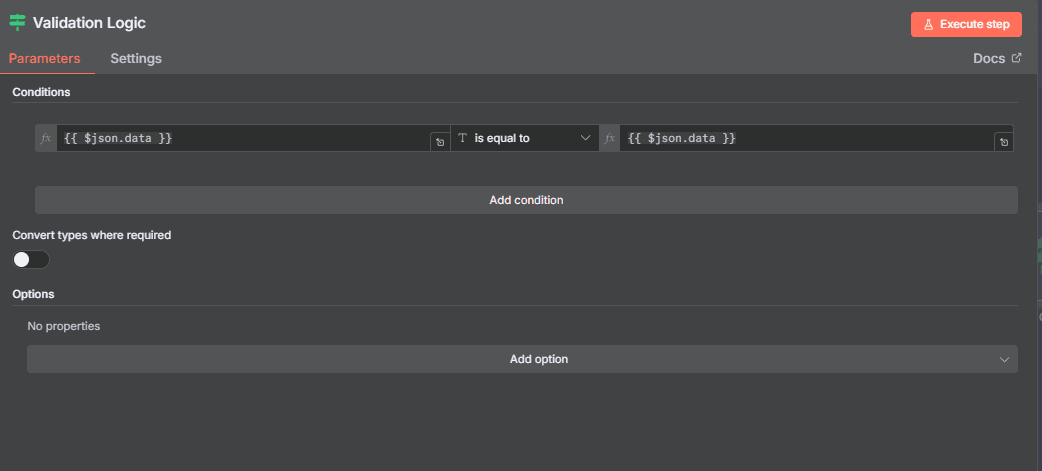
That's it! Your n8n scraper is optimized. That said, there are still plenty of improvements you can apply. Feel free to tweak the parameters and adapt them to your specific requirements.
Conclusion
You've seen how to scrape with n8n and learned a hands-on solution for bypassing anti-bot measures at scale. You've also learned some tips on optimizing your n8n scraper for production-grade reliability.
Keep in mind that your n8n scraper isn't complete without the correct web scraping solution. To avoid sudden workflow disruptions and maintain data integrity, your best bet is to integrate Zenrows into your n8n scraper. Let Zenrows handle the hard job of scraping the hard targets while you focus on business-oriented tasks, such as data fine-tuning, analytics, and decision-making.
Try Zenrows for free now or speak with sales!
FAQ
How do I handle dynamic pages while scraping with n8n?
n8n’s built-in HTTP Request node can only access static HTML content and cannot render JavaScript. To handle dynamic pages, you'll need to use an external service or API that supports headless browsing, such as Zenrows.
Zenrows offers the production-grade reliability you need at scale, as it's lightweight and guarantees an anti-bot bypass success rate of up to 99.93%.
Can I scrape specific data with n8n using custom CSS selectors?
Yes, you can extract specific data using custom CSS selectors in n8n. After fetching the HTML, use the HTML Extract node to specify your desired CSS selectors and pull out the exact elements or attributes you need from the page.
Should I build a custom n8n scraper or use a third-party solution?
A custom scraper is usually enough for a static page that doesn't use any security measures. However, for sites with strong anti-bot protections or dynamic pages, using a third-party solution that supports headless browsing and advanced features saves time and improves reliability.