
How to Scrape with Zendriver to Bypass Anti-bots
Learn how to use Zendriver to bypass anti-bot checks and scrape protected pages with Python. Plus, when to switch to a scraping API.



If the target site tags your traffic as a bot, your scraper can stop working without warning. You might land on a challenge page, get a CAPTCHA, see a 403, or receive HTML that looks valid but doesn’t contain the data you expected. That’s because the site’s anti-bot system checks browser behavior, fingerprints, IP reputation, session signals, etc., not only your headers.
In this guide, you’ll learn how to use Zendriver to drive a real browser session and get past common anti-bot checks. You’ll also learn where self-hosted browser scraping starts breaking down, and when to switch to a web scraping API for more consistent results.
What Is Zendriver?
Zendriver is an open-source Python library for browser automation and scraping that controls a CDP-capable Chromium browser through the Chrome DevTools Protocol (CDP). It started as a fork of Nodriver, and both use CDP to drive Chromium. It runs a real browser session, so the page can execute JavaScript, render content, and keep session state using cookies and a persisted browser profile.
It’s async-first, and it doesn’t rely on Selenium WebDriver. Instead, it exposes options like browser_executable_path, browser_args, and user_data_dir so you can control the Chrome binary, pass launch flags, and persist a profile across runs.
Skip the blocks. Try Zenrows free and get clean web data without the anti-bot fight.
How to Scrape With Zendriver
In this section, you’ll see how to scrape a protected page with Zendriver by driving a real browser session using Python. You’ll use the ScrapingCourse Antibot challenge as the demo target, and you can reuse the same approach on your own site by swapping the URL. You’ll compare what happens with a plain requests.get() call versus a browser session that can run JavaScript and carry session state.
Getting Started With Zendriver
Before installing Zendriver, make sure you’re running a recent version of Python. If you haven’t installed Python yet, install the latest version available for your operating system, then confirm it’s on your PATH.
python3 --version
Next, install Zendriver into your active virtual environment.
pip3 install zendriver
Once zendriver is installed, you're ready to write code.
Run a Browser Launch Test
Start by testing Zendriver on a simple bot detection page. This confirms Zendriver can launch a CDP-capable browser, load a page, and save output.
# pip3 install zendriver
import asyncio
import zendriver as zd

async def main() -> None:
    # start a browser session
    browser = await zd.start()

    # open the target page in a tab
    page = await browser.get("https://www.browserscan.net/bot-detection")

    # wait for the scripts and redirects to finish
    await page.wait(10)

    # capture a screenshot for inspection
    await page.save_screenshot("browserscan.png")

    # close the browser
    await browser.stop()

if __name__ == "__main__":
    # run the async entrypoint
    asyncio.run(main())
This code opens the target page, waits for the page to settle, and saves a screenshot of the page's final state. After you run it, you should see a browserscan.png file in the same folder as the script.
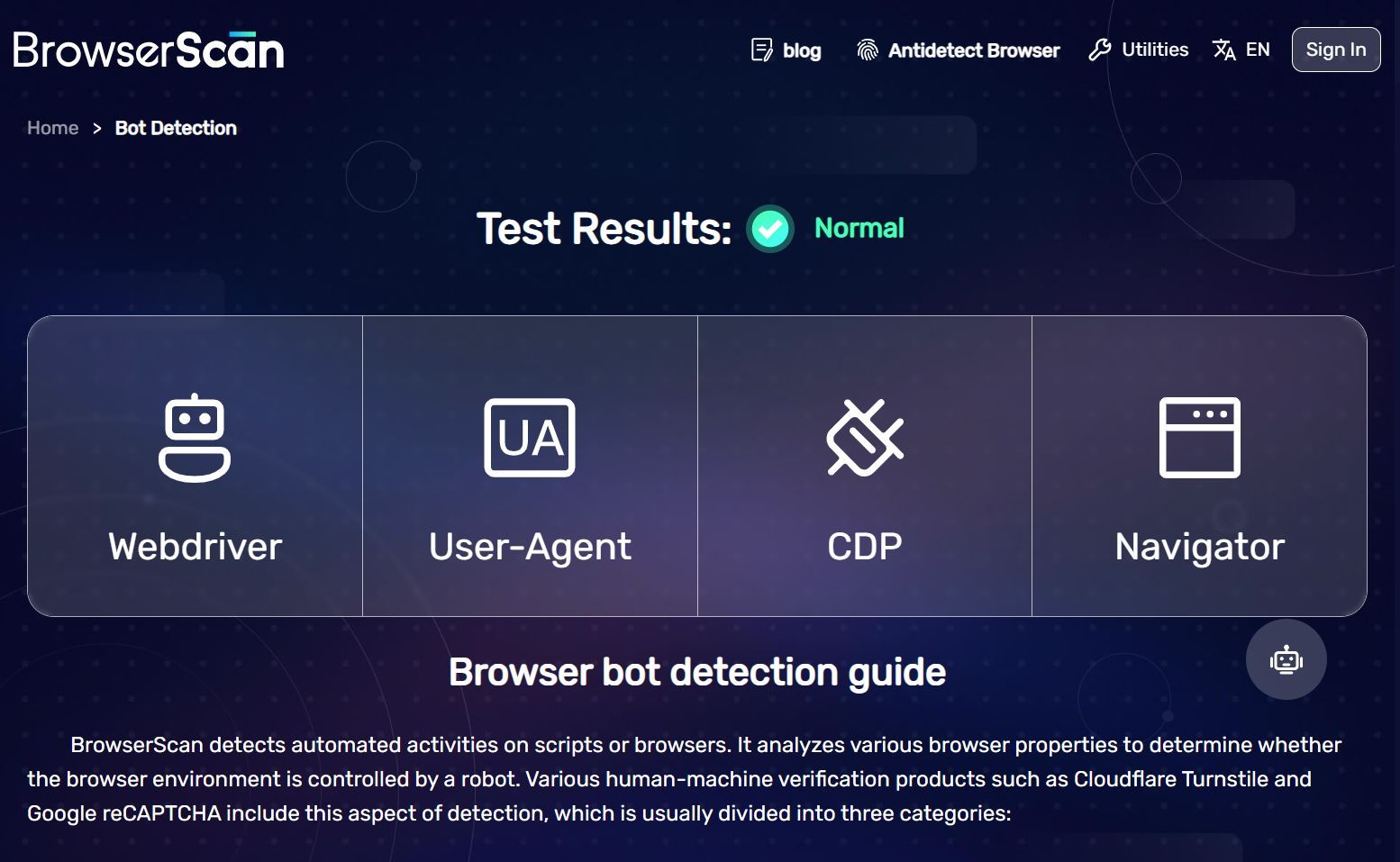
The screenshot shows BrowserScan with "Test Results: Normal". This confirms that Zendriver is driving the session and capturing what the browser rendered.
Zendriver is working, but how does it behave on an anti-bot-protected page that serves challenge flows and gated content?
Scrape a Protected Page Using Plain Requests
Start with a plain HTTP request to the ScrapingCourse Antibot challenge page. This will help you see how anti-bots respond when they classify your traffic as automated, even if the request includes basic browser-like headers.
# pip3 install requests
import requests

# target page
URL = "https://www.scrapingcourse.com/antibot-challenge"

# send a basic http request without a real browser session
resp = requests.get(
    URL,
    headers={
        # set a simple user agent so the request is not blank
        "User-Agent": "Mozilla/5.0",
        # ask for html like a normal browser would
        "Accept": "text/html,application/xhtml+xml",
    },
    timeout=30,
)

# print the http status code returned by the server
print("status:", resp.status_code)

# print the response body
print(resp.text)
When you run the code, it returns a 403 status code, and the response body is an anti-bot challenge, not the real page content.
status: 403

<!DOCTYPE html>
<html lang="en-US">
<head>
    <title>Just a moment...</title>
    <meta http-equiv="Content-Type" content="text/html; charset=UTF-8">
    <!-- ... -->
</head>
<body>
    <!-- ... -->
    <h2 class="h2" id="challenge-running">
        Checking if the site connection is secure
    </h2>
    <!-- ... -->
</body>
</html>
Let's see what happens when you target the same page using zendriver.
Bypass Anti-Bot Checks With Zendriver
In this section, you’ll advance the earlier browser launch script into a protected page workflow. You’ll point Zendriver at the ScrapingCourse Antibot challenge page, use a repeatable launch config with profile persistence, and save a screenshot and HTML snapshot.
Step 1. Import Dependencies and Configure Paths
Add the imports and configuration block first.
# pip3 install zendriver

import asyncio
import json
import sys
from pathlib import Path

import zendriver as zd
from zendriver import cdp

# target url to test against
URL = "https://www.scrapingcourse.com/antibot-challenge"

# keep everything relative to the script
BASE_DIR = Path(__file__).resolve().parent
PROFILE_DIR = BASE_DIR / "zd_profile"
COOKIES_PATH = BASE_DIR / "zd_cookies.json"
OUT_DIR = BASE_DIR / "out"

# fixed wait so the page has time to settle
WAIT_S = 10

# turn on cookie import/export only when needed
use_cookies = False
This sets the target URL and all output paths. user_data_dir later points at zd_profile, which already persists a full browser profile and will carry cookies across runs. The cookie file is for portability when you want to reuse cookies without copying the whole profile folder, or when you want tighter control over what gets carried forward.
Step 2. Launch the Browser With Profile Persistence
Add the browser launch function next and enable profile persistence by passing user_data_dir to zd.start().
# ...

async def launch_browser():
    # create folders if they do not exist
    PROFILE_DIR.mkdir(exist_ok=True)
    OUT_DIR.mkdir(exist_ok=True)

    # reuse the same browser profile between runs
    browser = await zd.start(
        headless=False,
        user_data_dir=str(PROFILE_DIR),
        browser_args=["--lang=en-US"],
    )

    # check whether the profile dir is writable
    print("Local State exists:", (PROFILE_DIR / "Local State").exists())
    return browser
This starts the browser with a persistent profile directory user_data_dir=str(PROFILE_DIR) which tells Zendriver to reuse the same profile directory on every run. The --lang=en-US flag keeps the browser language consistent.
Keep headless=False while you’re establishing session state on protected pages. After you get a successful run and the profile or cookie file is saved, switch to headless=True for later runs. As for the Local State exists print, it confirms the profile folder is writable, and the session is saving state.
Step 3. Load the Target and Wait for It To Settle
Add the navigation helper that will help wait for the page to render fully.
# ...

async def navigate_and_wait(browser, url):
    # open the url in the current browser session
    page = await browser.get(url)

    # wait for js and redirects to finish
    await page.wait(WAIT_S)
    return page
This code loads the target URL and waits for a set time. The wait gives scripts, redirects, and challenge flows time to run before you save artifacts.
Step 4. Save Results and Export Cookies
Add the output and cookie export functions next. Keep cookie export behind the use_cookies flag so you only write a cookie file when you need it.
# ...

async def save_results(page):
    # save a single screenshot and html snapshot
    await page.save_screenshot(str(OUT_DIR / "zendriver.png"))
    (OUT_DIR / "zendriver.html").write_text(await page.get_content(), encoding="utf-8")


async def persist_cookies(page):
    # export cookies to disk for portability
    if use_cookies:
        cookies = await page.send(cdp.storage.get_cookies())
        print("Cookie count:", len(cookies))
        COOKIES_PATH.write_text(
            json.dumps([c.to_json() for c in cookies], indent=2),
            encoding="utf-8",
        )
Run the script once and check out/zendriver.png first.
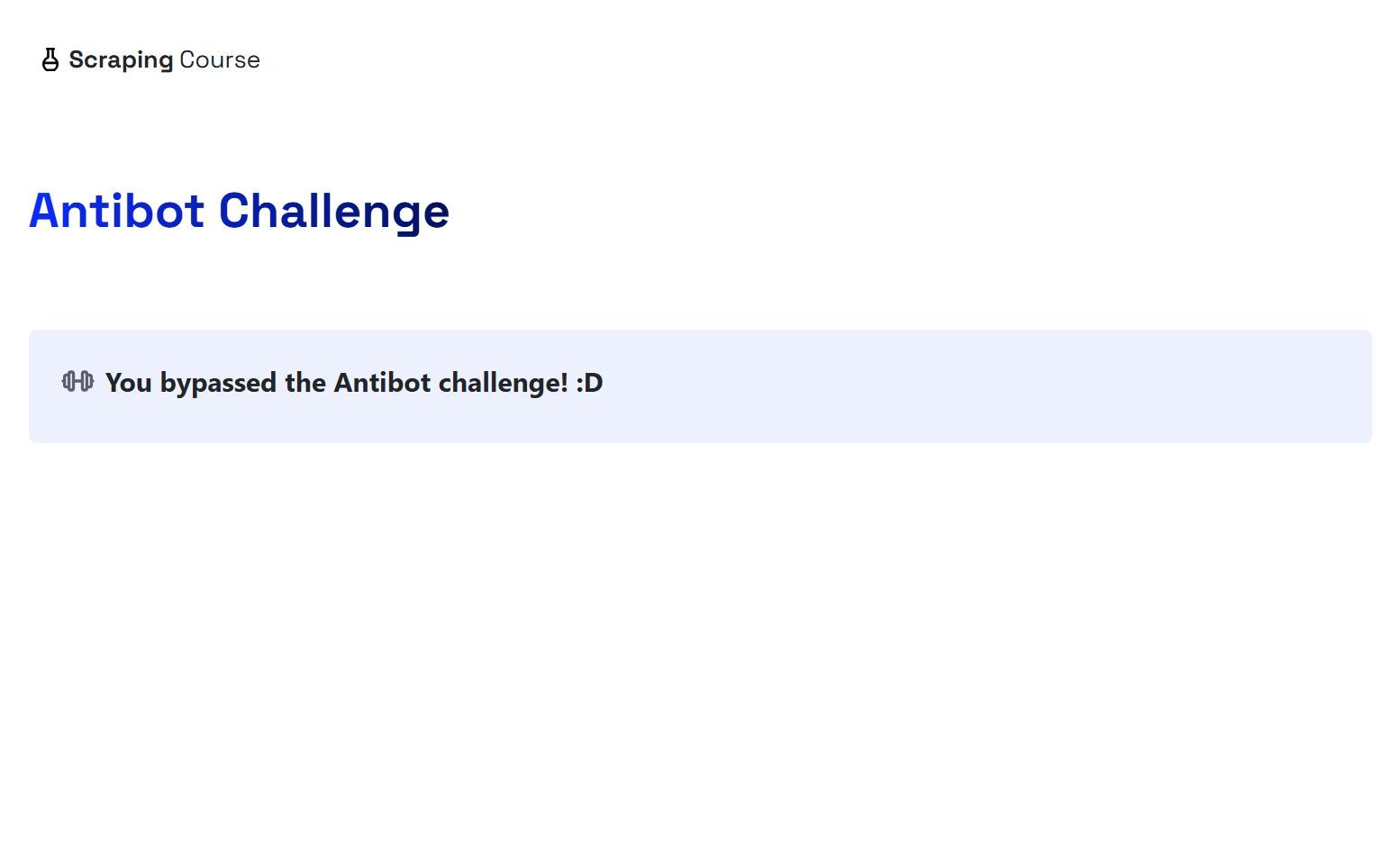
If you reached the success page, set use_cookies = True and rerun so the script writes zd_cookies.json. That cookie file is useful when you want portability or when you want to reuse session cookies without copying the entire profile folder.
Step 5. Restore Cookies on Later Runs When Needed
Once you have a cookie file saved, you can restore it on later runs.
# ...

async def restore_cookies(page):
    # load cookies from disk into the browser session
    if use_cookies and COOKIES_PATH.exists():
        raw = json.loads(COOKIES_PATH.read_text(encoding="utf-8"))
        cookies = [cdp.network.CookieParam.from_json(c) for c in raw]
        if cookies:
            await page.send(cdp.storage.set_cookies(cookies))
This code reads zd_cookies.json, converts each entry into a Zendriver cookie object, and injects the cookies into the current session before you navigate to the target URL.
Step 6. Wire Everything Together
Add the main() function and the entrypoint.
# ...

async def main() -> None:
    browser = await launch_browser()

    try:
        page = await browser.get("about:blank")

        if use_cookies:
            await restore_cookies(page)

        page = await navigate_and_wait(browser, URL)

        await save_results(page)

        if use_cookies:
            await persist_cookies(page)

    finally:
        await browser.stop()


if __name__ == "__main__":
    if sys.platform == "win32":
        try:
            asyncio.run(main(), loop_factory=asyncio.SelectorEventLoop)
        except TypeError:
            asyncio.run(main())
    else:
        asyncio.run(main())
The code starts the browser, optionally restores cookies into a blank tab, navigates to the target URL, waits for the page to settle, saves a screenshot and HTML snapshot, optionally exports cookies, then closes the browser cleanly.
When you combine the pieces from the steps above, you get this single script.
# pip3 install zendriver

import asyncio
import json
import sys
from pathlib import Path

import zendriver as zd
from zendriver import cdp

# target url to test against
URL = "https://www.scrapingcourse.com/antibot-challenge"

# keep everything relative to the script
BASE_DIR = Path(__file__).resolve().parent
PROFILE_DIR = BASE_DIR / "zd_profile"
COOKIES_PATH = BASE_DIR / "zd_cookies.json"
OUT_DIR = BASE_DIR / "out"

# wait so the page has time to settle
WAIT_S = 10

# turn on cookie import/export only when needed
use_cookies = False


async def launch_browser():
    # create folders if they do not exist
    PROFILE_DIR.mkdir(exist_ok=True)
    OUT_DIR.mkdir(exist_ok=True)

    # reuse the same browser profile between runs
    browser = await zd.start(
        headless=False,
        user_data_dir=str(PROFILE_DIR),
        browser_args=["--lang=en-US"],
    )

    # check whether the profile dir is writable
    print("Local State exists:", (PROFILE_DIR / "Local State").exists())
    return browser


async def navigate_and_wait(browser, url):
    # open the url in the current browser session
    page = await browser.get(url)

    # wait for js and redirects to finish
    await page.wait(WAIT_S)
    return page


async def save_results(page):
    # save a single screenshot and html snapshot
    await page.save_screenshot(str(OUT_DIR / "zendriver.png"))
    (OUT_DIR / "zendriver.html").write_text(await page.get_content(), encoding="utf-8")


async def restore_cookies(page):
    # load cookies from disk into the browser session
    if use_cookies and COOKIES_PATH.exists():
        raw = json.loads(COOKIES_PATH.read_text(encoding="utf-8"))
        cookies = [cdp.network.CookieParam.from_json(c) for c in raw]
        if cookies:
            await page.send(cdp.storage.set_cookies(cookies))


async def persist_cookies(page):
    # export cookies to disk for portability
    if use_cookies:
        cookies = await page.send(cdp.storage.get_cookies())
        print("Cookie count:", len(cookies))
        COOKIES_PATH.write_text(
            json.dumps([c.to_json() for c in cookies], indent=2),
            encoding="utf-8",
        )


async def main() -> None:
    # launch browser with profile persistence
    browser = await launch_browser()

    try:
        # use a blank page as a safe place to inject cookies
        page = await browser.get("about:blank")

        # restore cookies from a previous run if enabled
        if use_cookies:
            await restore_cookies(page)

        # navigate and wait for the page to resolve
        page = await navigate_and_wait(browser, URL)

        # save the final html and take a screenshot
        await save_results(page)

        # persist cookies for the next run if enabled
        if use_cookies:
            await persist_cookies(page)

    finally:
        # close the browser
        await browser.stop()


if __name__ == "__main__":
    # use selector loop on windows for compatibility
    if sys.platform == "win32":
        try:
            asyncio.run(main(), loop_factory=asyncio.SelectorEventLoop)
        except TypeError:
            asyncio.run(main())
    else:
        asyncio.run(main())
Run the script, then open out/zendriver.png and out/zendriver.html. If the run reaches the real page, the HTML snapshot should include the success message, like this.
<html lang="en">
<head>
    <!-- ... -->
    <title>Antibot Challenge - ScrapingCourse.com</title>
    <!-- ... -->
</head>
<body>
    <!-- ... -->
    <h2>
        You bypassed the Antibot challenge! :D
    </h2>
    <!-- other content omitted for brevity -->
</body>
</html>
And the saved screenshot should be similar to this one.
Here are the saved cookies when you set use_cookies = True.
[
  {
    "name": "cf_clearance",
    "value": "3P4jmlQmxMU4kUo_Qlpe...RybpN8",
    "domain": ".scrapingcourse.com",
    "path": "/",
    "httpOnly": true,
    "secure": true,
    "sameSite": "None",
    "expires": 1797800824.304265
  }
  // other cookies omitted for brevity
]
Good, your Zendriver script reached the real page, but self-managed browser runs still have limitations you should know before you try to scale them up.
Zendriver's Limitations
Zendriver runs a real, self-managed browser session, but outcomes still depend on what the target decides to serve. If your IP reputation is poor, you can still get blocked or pushed into repeated anti-bot challenges. That problem gets worse when you run many sessions from the same network range.
Some anti-bot challenges still require manual steps that you can’t reliably automate. Even when you can automate them, a small change in the flow can break your run without warning. It also gets harder to reuse solved state once you start rotating proxies, since solution cookies are often tied to a specific IP address or user-agent.
Scaling is the other constraint. Running many full browser sessions increases CPU and memory usage, and it adds operational work around restarts, crashes, and profile management. That’s where a managed scraping API becomes the better fit, since it can handle proxies, rendering, and anti-bot friction outside your code.
Bypass Anti-Bots With a Web Scraping API
Web scraping APIs take the browser and anti-bots work out of your code, which makes them a better fit when you need consistent results for large-scale scraping. Zenrows is built for this. Zenrows' Fetch lets you send a target URL and receive rendered HTML, Markdown, or structured data, ready for downstream pipelines.
Zenrows supports JavaScript Rendering and Premium Proxies. Plus controls like Proxy Country for country targeting, Session ID for sticky sessions, and more. It removes the maintenance overhead when protections change, since it’s designed to keep adjusting as anti-bot layers evolve.
To see how Zenrows handles an anti-bot-protected target, use it to scrape the same ScrapingCourse Antibot challenge page.
Sign up and open the Zenrows' Request Builder, paste the URL, then enable Premium Proxies and JavaScript Rendering.
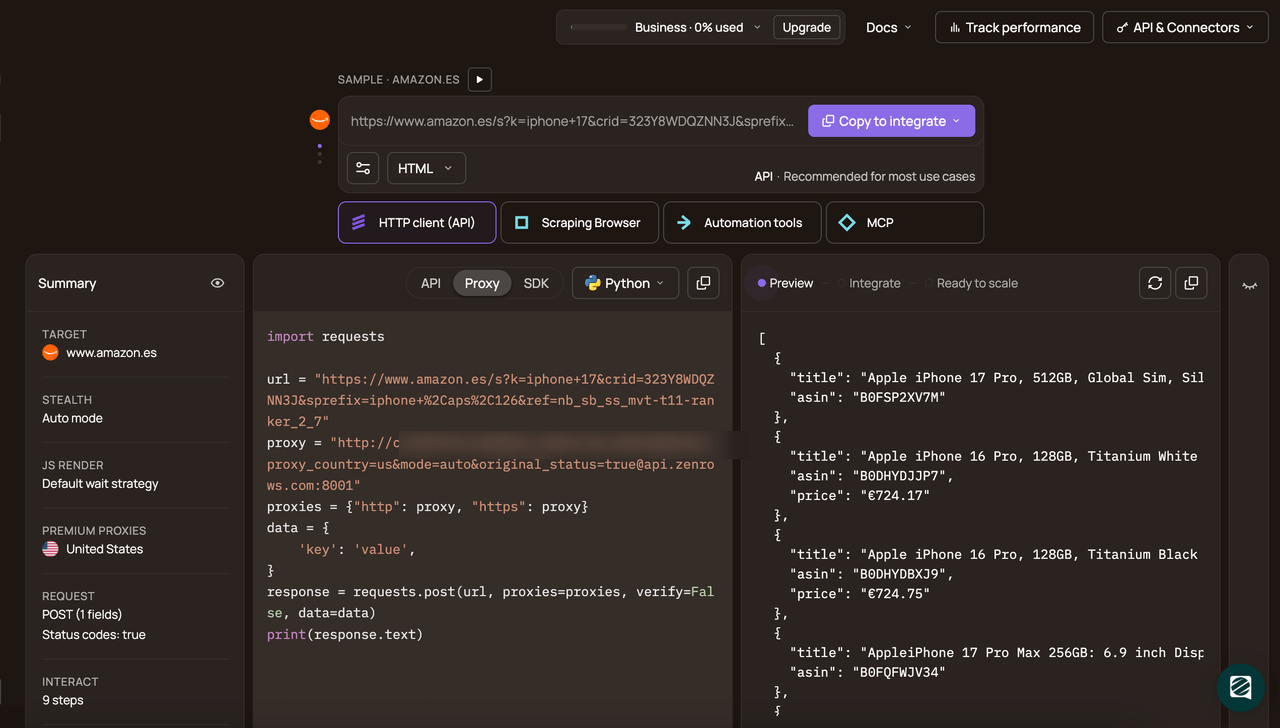
Then, set Python as the programming language, choose the API connection mode, and copy the generated snippet into your scraper file.
# pip3 install requests
import requests

url = "https://www.scrapingcourse.com/antibot-challenge"
apikey = "<YOUR_ZENROWS_API_KEY>"

params = {
    "url": url,
    "apikey": apikey,
    "js_render": "true",
    "premium_proxy": "true",
}

response = requests.get("https://api.zenrows.com/v1/", params=params, timeout=60)
print(response.text)
Run the code, and the output should include the real page HTML, like this.
<html lang="en">
<head>
    <!-- ... -->
    <title>Antibot Challenge - ScrapingCourse.com</title>
    <!-- ... -->
</head>
<body>
    <!-- ... -->
    <h2>
        You bypassed the Antibot challenge! :D
    </h2>
    <!-- other content omitted for brevity -->
</body>
</html>
Congratulations! 🎉 You’ve just bypassed the ScrapingCourse anti-bot challenge with a single Zenrows request, so you can focus on extraction instead of anti-bot friction.
Conclusion
Anti-bots can block scrapers with 403s, challenge pages, or HTML that doesn’t include the data you need. Zendriver helps by running a real browser session and saving artifacts you can verify. That approach gets harder to keep stable as volume grows, especially once you add proxy rotation and more parallel runs.
Web scraping APIs shift the anti-bot work out of your code. Zenrows’ Fetch handles the browser execution and the ongoing anti-bot changes for you, and it can return rendered HTML, Markdown, screenshots, or structured data for your pipeline. Use Zendriver when you need hands-on control during small-scale scraping, and use Zenrows when you need reliable results at scale.
Try Zenrows for free now. No credit card needed!
FAQ
What makes Zendriver different from Selenium-style setups for protected pages?
Zendriver drives a CDP-capable Chromium browser through the Chrome DevTools Protocol (CDP), not Selenium WebDriver. That avoids some WebDriver signals that anti-bots commonly look for, but results still depend on what the target decides to serve.
What is the correct way to persist Zendriver state across runs?
Set user_data_dir so the browser reuses the same profile folder across runs and keeps session state there. Save cookies to a file only when you need portability, then restore them into a fresh session before you load the target.
Why do some pages return 403 to plain requests?
Anti-bots often require browser execution and valid session signals, so a plain HTTP client can get blocked even with basic headers. A 403 can also reflect IP reputation, rate limits, or both.
Do you still need proxies when using Zendriver?
Often, yes. A real browser doesn’t fix IP reputation or high-volume blocking on its own. When you rotate proxies, session reuse can get harder because some challenge state is tied to client signals like IP. At that point, migrating to a web scraping API is the most reliable solution.