
How To Scrape With Pydoll To Bypass Anti-Bots
Learn to bypass anti-bots with Pydoll when scraping. Discover its limitations and how to scrape at scale without getting blocked.



Does your scraper keep hitting 403 or 429 errors? Or does it return 200 but serve a verification page? This is a sign that anti-bots are intercepting your requests and blocking access to the target page.
In this guide, you’ll learn what Pydoll is, its features, and how it can help you bypass anti-bot checks. You’ll also see Pydoll’s limitations and what to use instead when you need to scrape at scale.
What Is Pydoll
Pydoll is an async-first Python library for automating Chromium-based browsers through the Chrome DevTools Protocol (CDP). It connects to the browser’s debugging interface and controls the browser directly, without a WebDriver setup.
Because it doesn’t use WebDriver, the browser isn’t put into a WebDriver-controlled mode. That helps on sites that check for WebDriver markers, such as navigator.webdriver, or for driver-specific behavior during page load. You also avoid managing a driver binary like ChromeDriver, so browser and driver version mismatches are less likely to stop your runs.
Pydoll Features
Pydoll has some key features that make it useful for bypassing anti-bot checks. Here are the most relevant ones for scraping.
CDP-Based Browser Control Without WebDriver
Pydoll controls Chromium-based browsers through the Chrome DevTools Protocol (CDP). This removes the WebDriver layer and the driver binary setup.
Async-First API For Concurrent Runs
Pydoll is async by default. This makes it easier to run multiple tabs or parallel page scraping in one script. It also keeps waiting, retries, and timeouts in the same async control flow.
Flexible Element Finding
Pydoll supports both attribute-based and selector-based element lookup. Use find() when you can describe the element with attributes like id, class_name, or visible text. Use query() when you have a CSS or XPath selector string. This helps when the page structure changes and you need more than one way to locate elements.
Human-Like Interactions
Pydoll supports human interactions, such as clicking, typing, key presses, and scrolling. These actions use browser-level events rather than simulated HTTP calls. You can also pace interactions to match how the page loads content.
Cookies And Session Handling
Pydoll supports browser contexts and profiles, allowing session state to persist across runs. It also exposes cookie APIs for reading, setting, and clearing cookies when you need controlled reuse. This is useful when a target ties access to an existing session.
Proxy Configuration Support
Pydoll supports proxy setup through browser options, including authenticated proxies. It can also scope proxies to specific browser contexts when you need different routes in one run. This can be useful for bypassing IP blocks.
Screenshots And PDF Export
Pydoll can save page screenshots and element screenshots for proof and debugging. It also supports exporting the page to PDF. These outputs make visual debugging easier.
Network Tooling
Pydoll supports network monitoring and request interception. Interception lets you block, modify, or mock requests for specific resources during page load. It also supports browser context HTTP requests via the active tab, enabling you to reuse the same session state.
Skip the blocks. Try Zenrows free and get clean web data without the anti-bot fight.
How to Scrape With Pydoll
In this section, you’ll learn how to scrape with Pydoll. You’ll scrape e-commerce data from an unprotected e-commerce page using CSS selectors, then switch to scraping an anti-bot challenge page and bypass the challenge.
Getting Started With Pydoll
First, make sure a Chromium-based browser, such as Chrome or Edge, is installed on your computer.
Then, install Pydoll with pip.
pip3 install pydoll-python
Using the ScrapingCourse E-commerce page as the target, let's create a basic Pydoll scraper that extracts HTML content from that site.
First, create an asynchronous function that starts a browser session and opens a tab. Navigate to your target URL, wait for a specific element to appear, and save the final HTML of the rendered page.
import asyncio
from pathlib import Path
from pydoll.browser.chromium import Chrome

OUTPUT_DIR = Path("output")  # folder where outputs will be saved
OUTPUT_DIR.mkdir(parents=True, exist_ok=True)  # create it if it doesn't exist

NAV_TIMEOUT_SECONDS = 180  # max time to wait for navigation to finish
WAIT_TIMEOUT_SECONDS = 120  # max time to wait for an element to appear

async def main() -> None:
    async with Chrome() as browser:  # launch Chrome and close it automatically at the end
        tab = await browser.start()  # open a new tab

        # load the page and wait up to nav timeout
        await tab.go_to("https://www.scrapingcourse.com/ecommerce/", timeout=NAV_TIMEOUT_SECONDS)

        # wait for a stable element, so you know the page rendered
        await tab.query("h1", timeout=WAIT_TIMEOUT_SECONDS)

        # grab the current DOM HTML (what the browser sees after rendering)
        html = await tab.page_source
        (OUTPUT_DIR / "products.html").write_text(html, encoding="utf-8")  # save HTML to a file

        print("saved output/products.html")  # quick success check in terminal

if __name__ == "__main__":
    asyncio.run(main())  # run the async main() function
After running the code, you should see the products.html file in the output folder. When you open it, the HTML shows the website's HTML content, including the product list markup from the page.
<!DOCTYPE html>
<html lang="en-US">
<head>
  <!-- ... ⟶ -->

  <title>Ecommerce Test Site to Learn Web Scraping - ScrapingCourse.com</title>

  <!-- ... ⟶ -->
</head>
<body class="home archive ...">
  <h1 class="woocommerce-products-header__title page-title">Shop</h1>

  <p class="woocommerce-result-count">Showing 1-16 of 188 results</p>
  <ul class="products columns-4">

    <!-- ... ⟶ -->

  </ul>
</body>
</html>
Since Pydoll works as expected, let's see how you can scrape the actual product data from the E-commerce page.
Scrape Data Using Pydoll
To scrape data with Pydoll, you’ll use the same script as before. The difference is that you’ll use CSS selectors to collect a list of product cards, then extract fields from each card.
Related: XPath vs. CSS Selectors: The Difference and Winner (2026)
Import the modules you need, then set the output folder, target URL, and timeouts. OUT_DIR is where the CSV will be saved. NAV_TIMEOUT_S caps the time the browser waits for the page to load before timing out. QUERY_TIMEOUT_S defines the time Pydoll waits for the product card selector.
import asyncio
import csv
from pathlib import Path

from pydoll.browser.chromium import Chrome

OUT_DIR = Path("output")  # folder where outputs will be saved
OUT_DIR.mkdir(exist_ok=True)  # create it if it doesn't exist

URL = "https://www.scrapingcourse.com/ecommerce/"  # target page

NAV_TIMEOUT_S = 120  # max time to wait for navigation to finish
QUERY_TIMEOUT_S = 120  # max time to wait for selectors to appear
Then, add a helper to normalize returned data. This trims whitespace and converts missing values to an empty string.
# ...
def clean(s: str | None) -> str:
    return (s or "").strip()  # normalize missing text and remove extra whitespace
Proceed to start the browser, open a tab, and navigate to the target page. Then select all product cards using ul.products li.product. Pass find_all=True to return every matching card as a list, not just the first one.
# ...
async def main() -> None:
    async with Chrome() as browser:  # launch Chrome and close it automatically
        tab = await browser.start()  # open a new tab
        await tab.go_to(URL, timeout=NAV_TIMEOUT_S)  # load the page

        # product cards are under ul.products li.product
        cards = await tab.query(
            "ul.products li.product",
            find_all=True,
            timeout=QUERY_TIMEOUT_S,
        )
Extract fields from each product card by querying the card itself. This matters because the page repeats the same structure. Querying from card ensures you read the title, price, and image for that specific product.
Title and price come from visible text on the page, so the script reads them with .text. The image URL is stored in the markup, so the script reads it from the <img> element's src attribute using get_attribute("src").
# ...
        results: list[dict[str, str]] = []  # collected product rows

        for card in cards:  # loop through each product card element
            title_el = await card.query(".woocommerce-loop-product__title", timeout=5, raise_exc=False)  # title node
            price_el = await card.query("span.price", timeout=5, raise_exc=False)  # price node
            img_el = await card.query("img", timeout=5, raise_exc=False)  # image node

            title = clean(await title_el.text) if title_el else ""  # read visible title text
            price = clean(await price_el.text) if price_el else ""  # read visible price text

            # get_attribute is not async, so do not await it
            image = clean(img_el.get_attribute("src")) if img_el else ""  # read image url

            if title or price or image:  # only keep rows with at least one value
                results.append({"title": title, "price": price, "image": image})
Write the results to a CSV file and store it in output/ecommerce.csv, then run the scraper.
# ...
        # save as csv file
        csv_path = OUT_DIR / "ecommerce.csv"
        if results:
            with open(csv_path, mode="w", newline="", encoding="utf-8") as csvfile:  # write csv to disk
                fieldnames = ["title", "price", "image"]  # column order
                writer = csv.DictWriter(csvfile, fieldnames=fieldnames)
                writer.writeheader()  # write header row
                writer.writerows(results)  # write data rows
            print(f"Saved CSV: {csv_path}")


if __name__ == "__main__":
    asyncio.run(main())  # run the async main() function
Here is the full code you can copy and run:
import asyncio
import csv
from pathlib import Path

from pydoll.browser.chromium import Chrome

OUT_DIR = Path("output")  # folder where outputs will be saved
OUT_DIR.mkdir(exist_ok=True)  # create it if it doesn't exist

URL = "https://www.scrapingcourse.com/ecommerce/"  # target page

NAV_TIMEOUT_S = 120  # max time to wait for navigation to finish
QUERY_TIMEOUT_S = 120  # max time to wait for selectors to appear


def clean(s: str | None) -> str:
    return (s or "").strip()  # normalize missing text and remove extra whitespace


async def main() -> None:
    async with Chrome() as browser:  # launch Chrome and close it automatically
        tab = await browser.start()  # open a new tab
        await tab.go_to(URL, timeout=NAV_TIMEOUT_S)  # load the page

        # woocommerce product cards are commonly under ul.products li.product
        cards = await tab.query(
            "ul.products li.product",
            find_all=True,
            timeout=QUERY_TIMEOUT_S,
        )

        results: list[dict[str, str]] = []  # collected product rows

        for card in cards:  # loop through each product card element
            title_el = await card.query(".woocommerce-loop-product__title", timeout=5, raise_exc=False)  # title node
            price_el = await card.query("span.price", timeout=5, raise_exc=False)  # price node
            img_el = await card.query("img", timeout=5, raise_exc=False)  # image node

            title = clean(await title_el.text) if title_el else ""  # read visible title text
            price = clean(await price_el.text) if price_el else ""  # read visible price text

            # get_attribute is not async, so do not await it
            image = clean(img_el.get_attribute("src")) if img_el else ""  # read image url

            if title or price or image:  # only keep rows with at least one value
                results.append({"title": title, "price": price, "image": image})

        # save as csv file
        csv_path = OUT_DIR / "ecommerce.csv"
        if results:
            with open(csv_path, mode="w", newline="", encoding="utf-8") as csvfile:  # write csv to disk
                fieldnames = ["title", "price", "image"]  # column order
                writer = csv.DictWriter(csvfile, fieldnames=fieldnames)
                writer.writeheader()  # write header row
                writer.writerows(results)  # write data rows
            print(f"Saved CSV: {csv_path}")


if __name__ == "__main__":
    asyncio.run(main())  # run the async main() function
When you run the code, the output in output/ecommerce.csv should be similar to this:
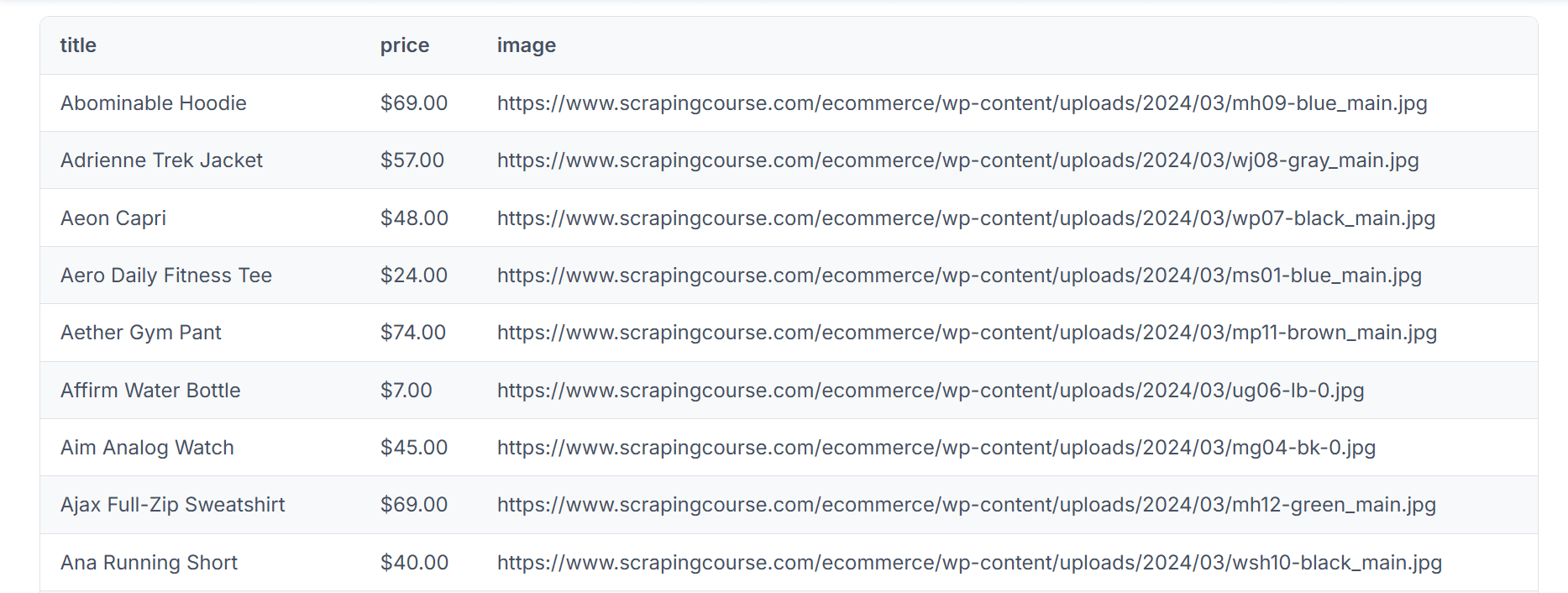
Until now, you’ve scraped data from an unprotected target site. But what happens when the site uses anti-bots to block scrapers?
Bypassing Anti-bot Checks With Pydoll
In Pydoll, bypassing anti-bot checks starts with the configuration of ChromiumOptions using Chromium command-line arguments and, when needed, Chromium preferences.
After that, there are two paths for CAPTCHA gates. If you know the exact CAPTCHA that is blocking you, you can try Pydoll’s built-in interaction helpers for common widgets like Cloudflare Turnstile and reCAPTCHA v3.
The other path is to complete the challenge once in a visible browser, and then reuse that same session to access the site in subsequent requests. Since the built-in helpers don’t cover every CAPTCHA type and can still fail even on supported widgets, we'll go with the manual session profile reuse method.
Step 1. Import Necessary Modules And Define Paths
Start by importing Pydoll’s Chromium browser, options, and network events. Then define where you want to store outputs and the browser profile. Finally, set the target URL as the Antibot Challenge page.
import asyncio
from pathlib import Path

from pydoll.browser.chromium import Chrome
from pydoll.browser.options import ChromiumOptions
from pydoll.constants import PageLoadState
from pydoll.protocol.network.events import NetworkEvent, ResponseReceivedEvent

OUT_DIR = Path("output")  # folder where outputs will be saved
OUT_DIR.mkdir(parents=True, exist_ok=True)  # create it if it doesn't exist

PROFILE_DIR = Path.cwd() / "browser_profiles" / "antibot_profile"  # Chrome profile folder (cookies, storage)
PROFILE_DIR.mkdir(parents=True, exist_ok=True)  # create it if it doesn't exist

URL = "https://www.scrapingcourse.com/antibot-challenge"  # target page

# ...
# run mode
HEADLESS = False  # false shows the browser so you can watch or interact
USE_NEW_HEADLESS = True  # uses Chrome's newer headless mode when headless is true

# timeouts / load behavior
START_TIMEOUT = 20  # max time to wait for Chrome to start
PAGE_LOAD_STATE = PageLoadState.INTERACTIVE  # stop waiting at domcontentloaded

# network monitoring
CAPTURE_NETWORK = True  # prints status codes + urls for responses
PROFILE_DIR is what lets the second run reuse the same session. HEADLESS lets you switch between a visible run and a headless run without changing the rest of the script.
Step 2. Configure A Realistic Browser Session
Next, build a ChromiumOptions configuration that points Chrome at the persistent profile and sets a fixed window size. This keeps the layout stable and lets Chrome reuse cookies and local storage. Also, add launch flags that reduce obvious automation signals and keep the browser stable.
# ...
async def main() -> None:
    options = ChromiumOptions()  # configure how Chrome will launch

    options.add_argument(f"--user-data-dir={PROFILE_DIR.as_posix()}")  # reuse the same profile between runs

    # ===== stealth configuration =====
    options.add_argument("--disable-blink-features=AutomationControlled")  # hides webdriver-style signals
    options.add_argument("--disable-features=IsolateOrigins,site-per-process")  # changes site isolation behavior
    options.add_argument("--lang=en-US")  # browser ui language hint
    options.add_argument("--accept-lang=en-US,en;q=0.9")  # language preference hint (site-dependent)
    options.add_argument("--use-gl=swiftshader")  # forces a software gl backend
    options.add_argument("--force-webrtc-ip-handling-policy=disable_non_proxied_udp")  # reduces webrtc ip leaks
    options.add_argument("--disable-dev-shm-usage")  # helps stability on some systems
    options.add_argument("--no-sandbox")  # sandbox off (often needed in some restricted environments)
    options.add_argument("--window-size=1920,1080")  # set viewport size

    options.start_timeout = START_TIMEOUT  # startup timeout for launching Chrome
    options.page_load_state = PAGE_LOAD_STATE  # what "loaded" means for go_to()
    options.block_notifications = True  # avoid permission popups
    options.block_popups = True  # reduce popup windows
    options.set_accept_languages("en-US,en")  # sets accept-language headers

    if HEADLESS:  # run without a visible window
        if USE_NEW_HEADLESS:
            options.add_argument("--headless=new")  # new headless flag
        else:
            options.headless = True  # pydoll-managed headless setting
The profile flag keeps session state on disk, and the fixed viewport reduces layout shifts that would break selectors if you later add extraction on this page.
Step 3. Complete The First Access Flow And Persist The Session
For the first run, keep HEADLESS = False so you see the browser window. Navigate to the anti-bot challenge page, complete any on-page verification in the window, then let the script save the final HTML. Network logging is optional but useful for seeing how requests are behaving.
# ...
    async with Chrome(options=options) as browser:  # launch Chrome with these options
        tab = await browser.start()  # open a new tab

        if CAPTURE_NETWORK:
            await tab.enable_network_events()  # start emitting network events

            async def log_response(event: ResponseReceivedEvent):
                response = event["params"]["response"]  # cdp response payload
                print(f"← {response['status']} {response['url']}")  # show status code + url

            await tab.on(NetworkEvent.RESPONSE_RECEIVED, log_response)  # subscribe to response events

        await tab.go_to(URL)  # navigate to the target page
        await asyncio.sleep(30)
        html = await tab.page_source  # get rendered DOM HTML
        (OUT_DIR / "antibot-challenge.html").write_text(html, encoding="utf-8")  # save HTML to disk

        print(f"HTML saved to {OUT_DIR / 'antibot-challenge.html'}")  # quick success check


if __name__ == "__main__":
    asyncio.run(main())  # run the async main() function
On this first headful run, manually handle any verification step in the visible browser. When you reach the success state, Chrome writes the cookies and local storage into PROFILE_DIR. The output/antibot-challenge.html file captures the page's appearance after the check.
Here is the full code you can copy.
import asyncio
from pathlib import Path

from pydoll.browser.chromium import Chrome
from pydoll.browser.options import ChromiumOptions
from pydoll.constants import PageLoadState
from pydoll.protocol.network.events import NetworkEvent, ResponseReceivedEvent

OUT_DIR = Path("output")  # folder where outputs will be saved
OUT_DIR.mkdir(parents=True, exist_ok=True)  # create it if it doesn't exist

PROFILE_DIR = Path.cwd() / "browser_profiles" / "antibot_profile"  # Chrome profile folder (cookies, storage)
PROFILE_DIR.mkdir(parents=True, exist_ok=True)  # create it if it doesn't exist

URL = "https://www.scrapingcourse.com/antibot-challenge"  # target page

# run mode
HEADLESS = False  # false shows the browser so you can watch or interact
USE_NEW_HEADLESS = True  # uses Chrome's newer headless mode when headless is true

# timeouts / load behavior
START_TIMEOUT = 20  # max time to wait for Chrome to start
PAGE_LOAD_STATE = PageLoadState.INTERACTIVE  # stop waiting at domcontentloaded

# network monitoring
CAPTURE_NETWORK = True  # prints status codes + urls for responses

async def main() -> None:
    options = ChromiumOptions()  # configure how Chrome will launch

    options.add_argument(f"--user-data-dir={PROFILE_DIR.as_posix()}")  # reuse the same profile between runs

    # ===== stealth configuration =====
    options.add_argument("--disable-blink-features=AutomationControlled")  # hides webdriver-style signals
    options.add_argument("--disable-features=IsolateOrigins,site-per-process")  # changes site isolation behavior
    options.add_argument("--lang=en-US")  # browser ui language hint
    options.add_argument("--accept-lang=en-US,en;q=0.9")  # language preference hint (site-dependent)
    options.add_argument("--use-gl=swiftshader")  # forces a software gl backend
    options.add_argument("--force-webrtc-ip-handling-policy=disable_non_proxied_udp")  # reduces webrtc ip leaks
    options.add_argument("--disable-dev-shm-usage")  # helps stability on some systems
    options.add_argument("--no-sandbox")  # sandbox off (often needed in some restricted environments)
    options.add_argument("--window-size=1920,1080")  # set viewport size

    options.start_timeout = START_TIMEOUT  # startup timeout for launching Chrome
    options.page_load_state = PAGE_LOAD_STATE  # what "loaded" means for go_to()
    options.block_notifications = True  # avoid permission popups
    options.block_popups = True  # reduce popup windows
    options.set_accept_languages("en-US,en")  # sets accept-language headers

    if HEADLESS:  # run without a visible window
        if USE_NEW_HEADLESS:
            options.add_argument("--headless=new")  # new headless flag
        else:
            options.headless = True  # pydoll-managed headless setting

    async with Chrome(options=options) as browser:  # launch Chrome with these options
        tab = await browser.start()  # open a new tab

        if CAPTURE_NETWORK:
            await tab.enable_network_events()  # start emitting network events

            async def log_response(event: ResponseReceivedEvent):
                response = event["params"]["response"]  # cdp response payload
                print(f"← {response['status']} {response['url']}")  # show status code + url

            await tab.on(NetworkEvent.RESPONSE_RECEIVED, log_response)  # subscribe to response events

        await tab.go_to(URL)  # navigate to the target page
        await asyncio.sleep(30)

        html = await tab.page_source  # get rendered DOM HTML
        (OUT_DIR / "antibot-challenge.html").write_text(html, encoding="utf-8")  # save HTMLto disk

        print(f"HTML saved to {OUT_DIR / 'antibot-challenge.html'}")  # quick success check


if __name__ == "__main__":
    asyncio.run(main())  # run the async main() function
When you run the code, the anti-bot challenge page will show Cloudflare’s Turnstile checkbox. Solve that step manually.
After a successful solve, the verified session is saved in the profile directory.
Step 4. Reuse The Session In Headless Mode
Once the first run is working, change HEADLESS = False to HEADLESS = True at the top of the script and run it again. The browser now starts in headless mode but still uses the same profile folder, so it can reuse the cookies and local storage from the headful run.
On this second run, the challenge does not appear, and the new output/antibot-challenge.html looks like this:
<html lang="en">
<head>
    <!-- ... -->
    <title>Antibot Challenge - ScrapingCourse.com</title>
    <!-- ... -->
</head>
<body>
    <!-- ... -->
    <h2>
        You bypassed the Antibot challenge! :D
    </h2>
    <!-- other content omitted for brevity -->
</body>
</html>
Bravo! You’ve used Pydoll to bypass anti-bots and access a protected page. But before you use it for large-scale scraping, there are important limitations you should consider.
Pydoll’s Limitations
Pydoll’s session reuse degrades over time. Cookies expire, device or browser fingerprints change, and anti-bot flows get updated, so a profile that works today can suddenly start failing without any code change on your side.
Even with a realistic browser session, IP reputation still matters. If your IP or proxy pool looks noisy or low quality, anti-bot systems can block or challenge you, no matter how good your browser setup is.
Full browser runs are also expensive. Each tab consumes CPU and memory, retries multiply that cost, and coordinating many concurrent sessions adds operational overhead. At scale, this makes Pydoll hard to run. At this point, a managed scraping API is the better choice.
Solving Pydoll’s Limitations With a Web Scraping API
Instead of maintaining Pydoll browsers, profiles, proxies, and anti-bot tweaks for every target, you can shift that work to a managed scraping API, which automatically handles the anti-bots for you.
A good example is Zenrows Fetch. Zenrows provides an auto-scaled, auto-managed infrastructure that adapts to your scraping needs at any scale. Let's see how it handles the same Antibot Challenge page we used with Pydoll. It handles JavaScript rendering, proxy rotation, country targeting, selector-based waits, and CAPTCHA and anti-bot bypass through a single endpoint.
Sign up, then open the Request Builder and paste the Antibot challenge URL into the URL field. Set the Mode to Adaptive Stealth Mode.
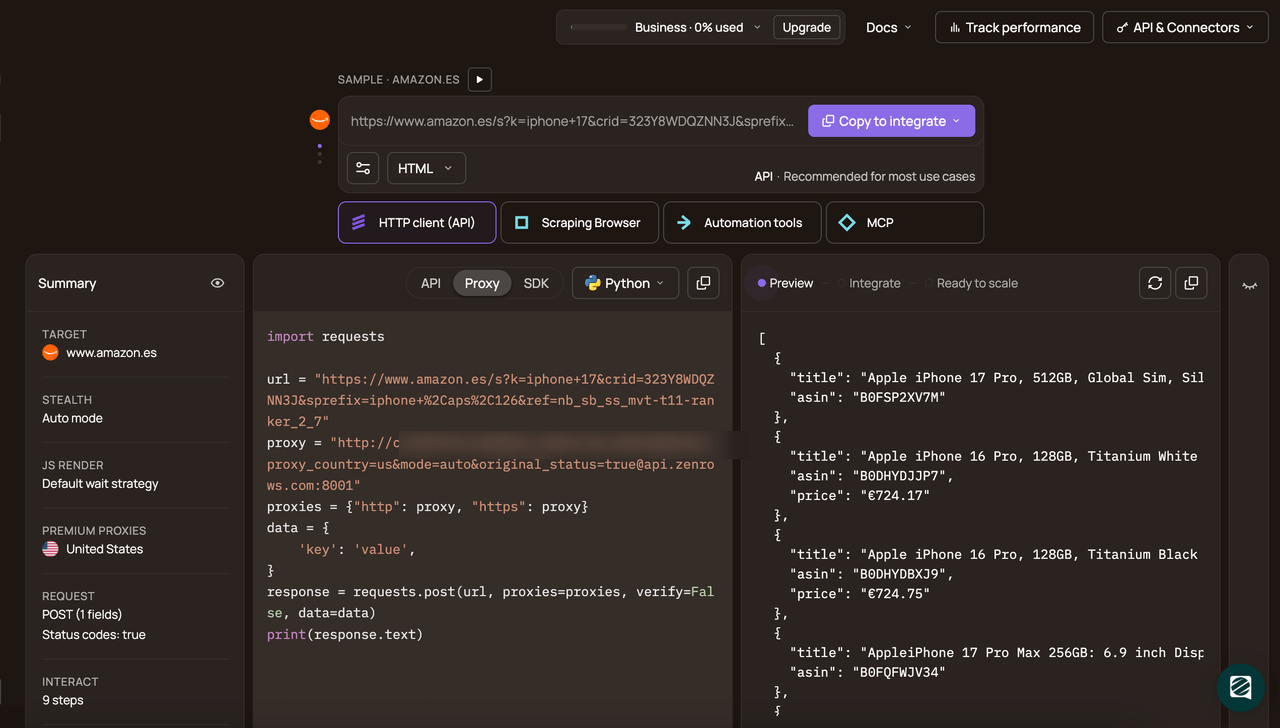
In the code panel, choose Python and select API connection mode. Then copy the generated code.
The generated Python code should look like this:
# pip install requests
import requests

url = 'https://www.scrapingcourse.com/antibot-challenge'
apikey = '<YOUR_ZENROWS_API_KEY>'
params = {
    'url': url,
    'apikey': apikey,
    'mode': 'auto',
}
response = requests.get('https://api.zenrows.com/v1/', params=params)
print(response.text)
This is the output when you run the above code:
<html lang="en">
<head>
    <!-- ... -->
    <title>Antibot Challenge - ScrapingCourse.com</title>
    <!-- ... -->
</head>
<body>
    <!-- ... -->
    <h2>
        You bypassed the Antibot challenge! :D
    </h2>
    <!-- other content omitted for brevity -->
</body>
</html>
Congratulations 🎉 You’ve now successfully ScrapingCourse anti-bot challenge with zenrows using a single API call.
Conclusion
In this article, you saw how to use Pydoll to run a real Chromium session, scrape data from an unprotected page, and reuse a browser profile to scrape a protected anti-bot target. That approach works for testing and small runs where you need tight control over the browser.
For larger-scale scraping, an auto-managed solution like Zenrows Fetch is a better fit. It provides all the toolkits needed to scrape any website at scale without getting blocked. Let Zenrows handle your scraping infrastructure while you focus on using your data downstream without worrying about sudden blocks.
Try Zenrows for free now or speak with sales!
FAQ
What makes Pydoll different from Selenium-style scrapers?
Pydoll communicates with Chromium via the Chrome DevTools Protocol rather than WebDriver. That means there is no separate driver binary layer, and there are fewer of the classic Selenium fingerprints that some sites look for. You also get low-level control over network events, page state, and browser options from one async API.
Does Pydoll require WebDriver setup?
No. Pydoll does not use WebDriver, so there is no chromedriver or geckodriver to install or keep up to date. You need a Chromium-based browser on your computer and a Python environment.
Is Pydoll enough for bypassing anti-bots?
Pydoll helps you act like a real browser, keep sessions between runs, and add human-like behavior, which can reduce obvious automation signals. It does not eliminate the impact of IP reputation, fingerprint checks, or changes to anti-bot security. For long-term, large-scale scraping on hard targets, you need a dedicated web scraping API.
What is the best alternative to Pydoll?
The best alternative to Pydoll is a web scraping API like Zenrows, specifically designed for web scraping and anti-bot bypass at scale. This lets you focus on consuming the data you need, rather than fighting anti-bots or maintaining your own scraping infrastructure.