
Puppeteer MCP Server: LLM Web Scraping Guide
Learn how to set up the open-source Puppeteer MCP for AI web scraping, its limitations on protected sites, and how to solve them.



The official Puppeteer MCP server was archived, leaving AI agents without a maintained Puppeteer tool. But the open-source community built its own version, so does it actually hold up for LLM web scraping?
Here's how to set up and use the open-source Puppeteer MCP, its limitations, and how to overcome them during AI web scraping.
What's Puppeteer MCP?
Puppeteer MCP is a Node.js server built with the Model Context Protocol SDK. It exposes Puppeteer's browser automation capabilities to a Large Language Model (LLM), allowing the model to navigate, click, evaluate JavaScript, and scrape data from a real browser session.
One of the fastest-growing open-source Puppeteer MCP implementations by GitHub stars is merajmehrabi/puppeteer-mcp-server, which we’ll use in this LLM web scraping guide. Inspired by the official archived Puppeteer MCP server, the alternative Puppeteer MCP supports two modes for AI web scraping: standard mode, which launches a new browser instance, and active-tab mode, which connects to an existing Chrome window through remote debugging.
What Are the Use Cases of Puppeteer MCP for AI Scraping?
Puppeteer MCP connects your AI agent to a real browser, enabling many AI web scraping tasks. Here are the main ones.
Product Research
E-commerce and B2B product pages often place specs, pricing, reviews, and related details inside product builders, expandable tabs, and variant selectors. That data appears only after page interactions such as clicks, option changes, and tab switches. Puppeteer MCP gives your AI agent browser control, enabling it to trigger actions across multiple product pages and extract comparable data in a structured format.
Lead Research
Multi-step search interfaces are how most business directories and professional networks gate company contacts, locations, firmographic details, and more. Puppeteer MCP enables the AI client to work through those interfaces, typing into fields, selecting categories, submitting forms, and scraping lead data from the resulting pages.
Market Analysis
Competitor metrics, hiring trends, SEO positioning, and more shift frequently, and the pages that expose them change just as often. Document Object Model (DOM) updates, CSS selector changes, and layout overhauls break static extraction logic the moment they deploy. With Puppeteer MCP, the AI client uses JavaScript evaluation tools to inspect the page context directly, ensuring that the data remains consistently extractable regardless of changes to the underlying structure.
Multi-Source Aggregation
Every platform structures its content differently, which means gathering articles, real estate listings, job postings, etc., from multiple sources often requires writing a unique parser for each layout. Puppeteer MCP eliminates that overhead by giving the AI agent browser control to navigate different sites, paginate through results, dismiss boilerplate, and extract content into one standardized dataset.
Skip the blocks. Try Zenrows free and get clean web data without the anti-bot fight.
How Do I Set Up Puppeteer MCP for LLM Web Scraping?
Puppeteer MCP runs on Node.js and connects to MCP-compatible AI clients, including Claude Desktop, VS Code, Cursor, Windsurf, and others. For this article, we’ll use Claude Desktop as the example.
First, make sure Node.js is installed on your computer.
node -v
If Node.js isn't installed, download and install the latest version from the official Node.js website.
Open Claude Desktop and go to Settings → Developer → Edit Config.
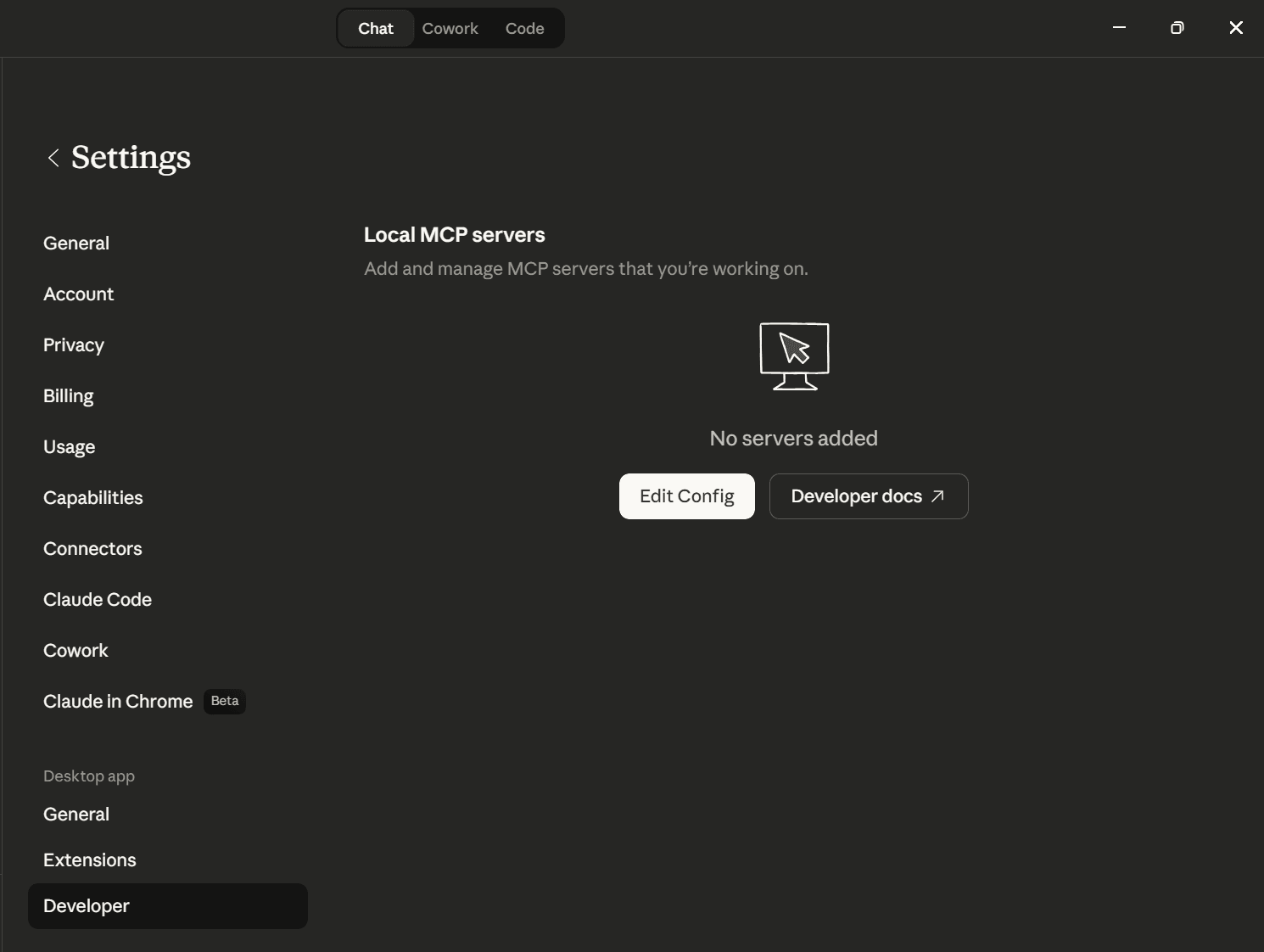
This opens the claude_desktop_config.json file.
On macOS, the file is generally located at:
~/Library/Application Support/Claude/claude_desktop_config.json
On Windows, you'll generally find it at the following location:
%APPDATA%\Claude\claude_desktop_config.json
Add Puppeteer MCP to Claude Desktop
Inside the mcpServers object in claude_desktop_config.json, add a server entry for Puppeteer MCP as shown below.
{
  "mcpServers": {
    "puppeteer": {
      "command": "npx",
      "args": ["-y", "puppeteer-mcp-server"],
      "env": {}
    }
  }
}
This tells Claude Desktop to start Puppeteer MCP with npx. In this setup, puppeteer is the server name that appears in Claude Desktop, "command": "npx" defines how Claude launches it, and "puppeteer-mcp-server" is the package it runs.
Enable Puppeteer MCP in Claude Desktop
After saving the file, restart Claude Desktop.
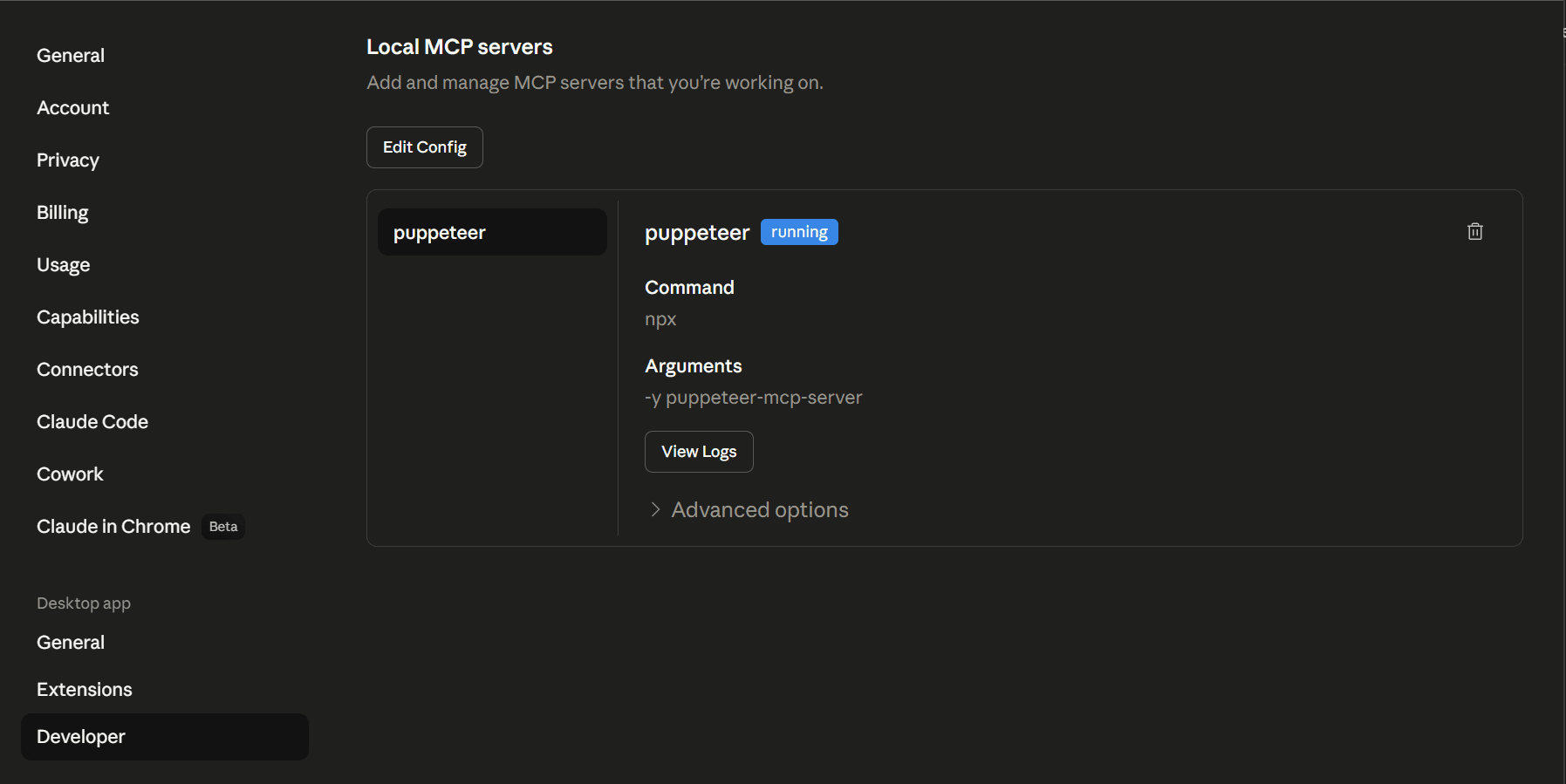
Then go to Settings → Developer and check the Local MCP servers section. If Puppeteer MCP appears there with a running status, the configuration was successful.
Troubleshooting Possible Connection Error
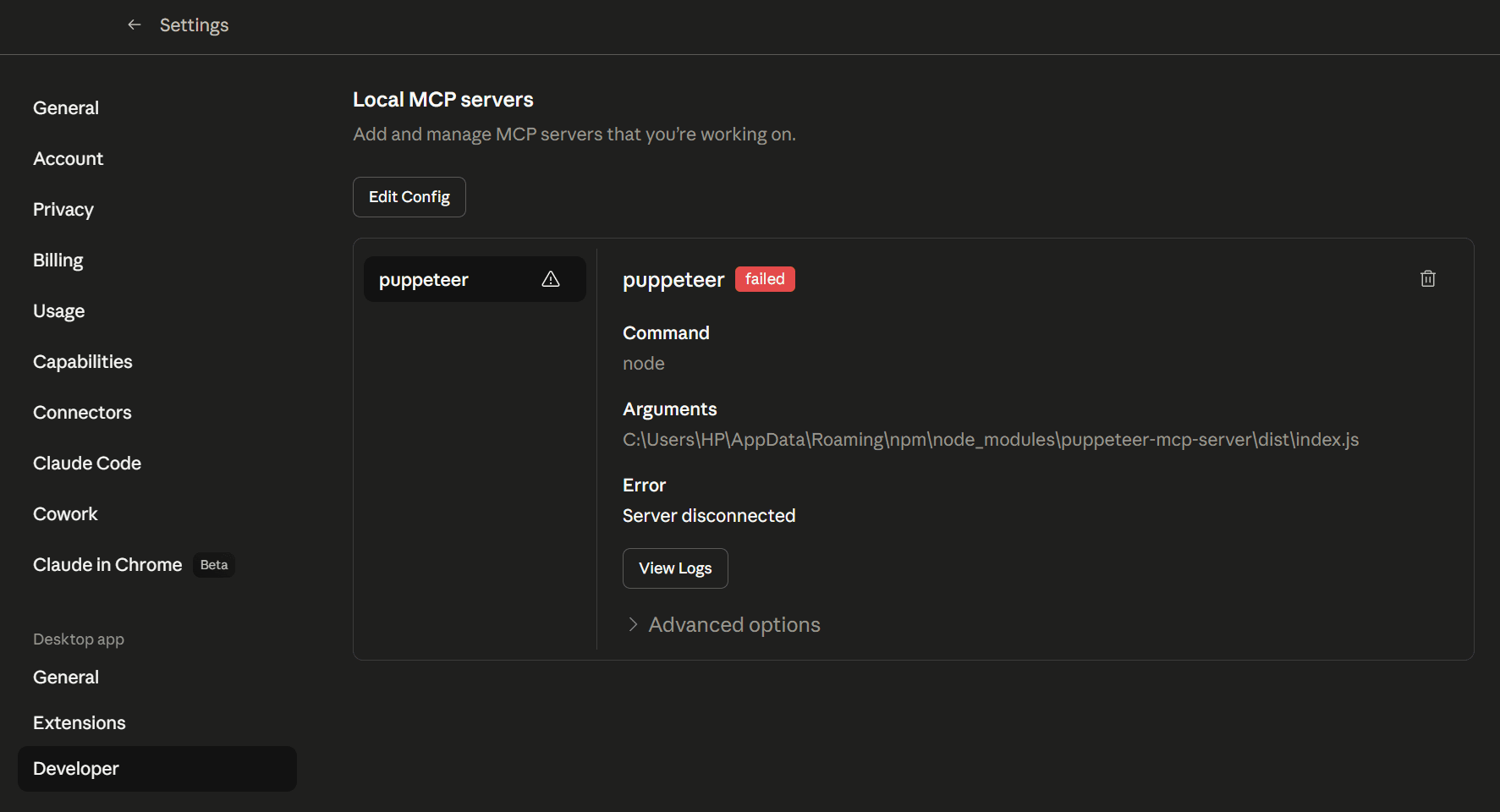
If Puppeteer MCP appears with a failed status under Local MCP servers, the server failed during startup.
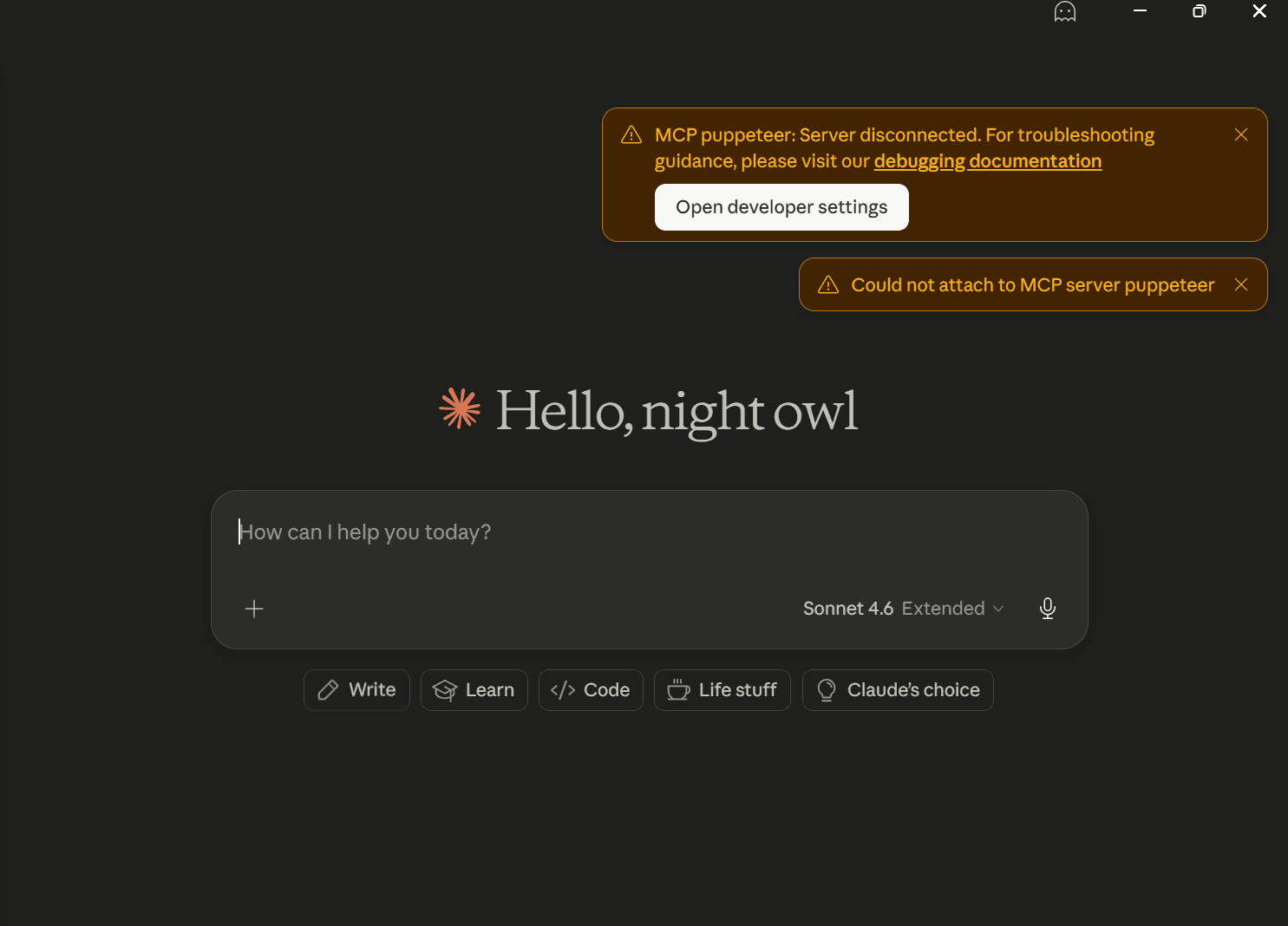
Claude Desktop may also display the same startup failure as warning banners on the main screen, including "Server disconnected" or "Could not attach to MCP server puppeteer."
Let’s see how to fix the failure.
Fix the Startup Error
This startup error occurs because Puppeteer MCP attempts to create its logs folder in the current working directory upon startup. If Claude Desktop launches Puppeteer MCP from a protected system directory, that attempt throws a permission error, causing the server to fail during startup.
To fix this, create a folder outside system-protected paths, such as your home directory, Desktop, Documents, or any other project directory, and copy its path. Then update the env section in your Claude Desktop config, as shown, replacing the path with your folder path:
{
  "mcpServers": {
    "puppeteer": {
      "command": "npx",
      "args": ["-y", "puppeteer-mcp-server"],
      "env": {
        "NODE_OPTIONS": "--import=data:text/javascript,import process from 'node:process';process.chdir('</your/folder/path>')"
      }
    }
  }
}
The above setting causes Node to change the working directory before Puppeteer MCP starts, so the server creates its logs folder there instead.
After saving the file, restart Claude Desktop. The server should now start successfully.
AI Scraping With Puppeteer MCP
In this section, you’ll use Puppeteer MCP with an AI client (Claude Desktop in this case) to scrape an unprotected JavaScript-rendered page first. Then, you’ll test it on a protected target to see how it performs.
Scraping a JavaScript-Rendered Page With Puppeteer MCP
Let’s start with a product research task on the ScrapingCourse JavaScript Rendering page. It contains clothing items with product names, prices, links, and images, which gives us enough data for product comparison. Open Claude Desktop and send this prompt:
Use Puppeteer MCP to scrape https://www.scrapingcourse.com/javascript-rendering.
Return the visible products as a table with these columns: product_name, price, product_url, image_url.
Then identify the three cheapest products and the three most expensive products.
Here is the output from the Claude Desktop session using Puppeteer MCP.
Claude used Puppeteer MCP to scrape all 12 products from the page, returned them in a structured format, and identified the cheapest and most expensive items.
Scraping a Protected Page With Puppeteer MCP
Next, let’s test Puppeteer MCP on a protected target. We’ll use Zillow’s New York 3-bedroom apartments page. Open Claude Desktop and send this prompt.
Use Puppeteer MCP to scrape https://www.zillow.com/new-york-ny/apartments-3-bedrooms/.
Return the first 10 visible listings as a table with these columns: listing_name, monthly_price, address, beds, baths, square_feet, amenities_or_tags.
Then identify the three lowest-priced listings and compare them by price, size, and location.
Claude was able to use Puppeteer MCP to open Zillow, but PerimeterX blocked the session with a 403 error before the listings loaded. Instead of property results, the target returned a Press & Hold anti-bot challenge page. Claude’s attempt to bypass it using mouse events failed, making AI scraping more challenging.
What Are the Puppeteer MCP Tools for LLM Web Scraping?
Puppeteer MCP exposes the following 8 tools for browser automation and LLM web scraping tasks.
| Tool | What It Does |
|---|---|
puppeteer_navigate |
Loads the target page and starts the LLM scraping session |
puppeteer_click |
Interacts with buttons, tabs, pagination controls, cookie banners, and other clickable elements on the page |
puppeteer_fill |
Types into search boxes, login forms, and other input fields |
puppeteer_select |
Picks values from dropdown menus used for filters, categories, or settings |
puppeteer_hover |
Reveals menus or hidden page elements that only appear on hover |
puppeteer_screenshot |
Captures the current page or a specific element so the AI client can confirm what's loaded |
puppeteer_evaluate |
Runs JavaScript in the page context so the AI client can inspect the DOM and extract the target data |
puppeteer_connect_active_tab |
Attaches to an existing Chrome window with remote debugging enabled, which makes it possible to reuse an open browser session |
Puppeteer MCP’s tools are enough for page interaction and AI data extraction, but they don’t include built-in controls for bypassing anti-bot systems. That’s why the protected site’s anti-bot blocked the browser session.
Puppeteer MCP Limitations for AI Web Scraping
Puppeteer MCP excels at browser automation but falls short in handling protected targets and large-scale scraping. Here are the limitations you should keep in mind before integrating it into LLM web scraping pipelines.
- Anti-bot blocking: Puppeteer MCP doesn’t include a built-in anti-bot bypass. If the target uses systems such as Cloudflare, DataDome, Akamai, or PerimeterX, the browser session can still be blocked or presented with a challenge page.
- Token overhead on blocked pages: When a target serves a CAPTCHA, challenge page, or other blocked response, the AI client still has to navigate the page, inspect the DOM, and often process screenshots before it can determine that the scrape has failed. That increases token usage and model cost without returning the data you actually needed.
- Browser overhead: Puppeteer MCP runs a full browser session for each scrape. That adds CPU and memory overhead, increasing infrastructure and runtime costs, and making it harder to operate at scale.
- Active-tab overhead: Active-tab mode can reuse an existing Chrome session, but it adds more setup and maintenance. You need to start Chrome with remote debugging enabled, keep that browser session running, and manage it alongside the scrape.
Let’s now look at how Zenrows MCP helps address these limitations.
Solving Puppeteer MCP’s Web Scraping Limitations With Zenrows MCP
Zenrows MCP is an MCP server built on top of Fetch. It brings Zenrows web scraping capabilities into MCP-compatible AI tools, making LLM web scraping seamless.
Zenrows MCP has automatic anti-bot bypass, JavaScript rendering, premium proxy rotation, geotargeting, and can execute user interactions with zero infrastructure overhead. It also uses Adaptive Stealth Mode to automatically select the best scraping configuration to achieve success at the lowest possible cost.
By default, Zenrows MCP returns clean Markdown, reducing token costs by stripping out raw HTML boilerplate before the content reaches the AI client. It can also return structured JSON and plain text for LLM-friendly processing, as well as raw outputs such as HTML and screenshots if the AI client needs them.
To use it, sign up, then navigate to the Playground and copy your API key. Zenrows gives you a free trial with 1,000 URLs so you can test your use case before committing.
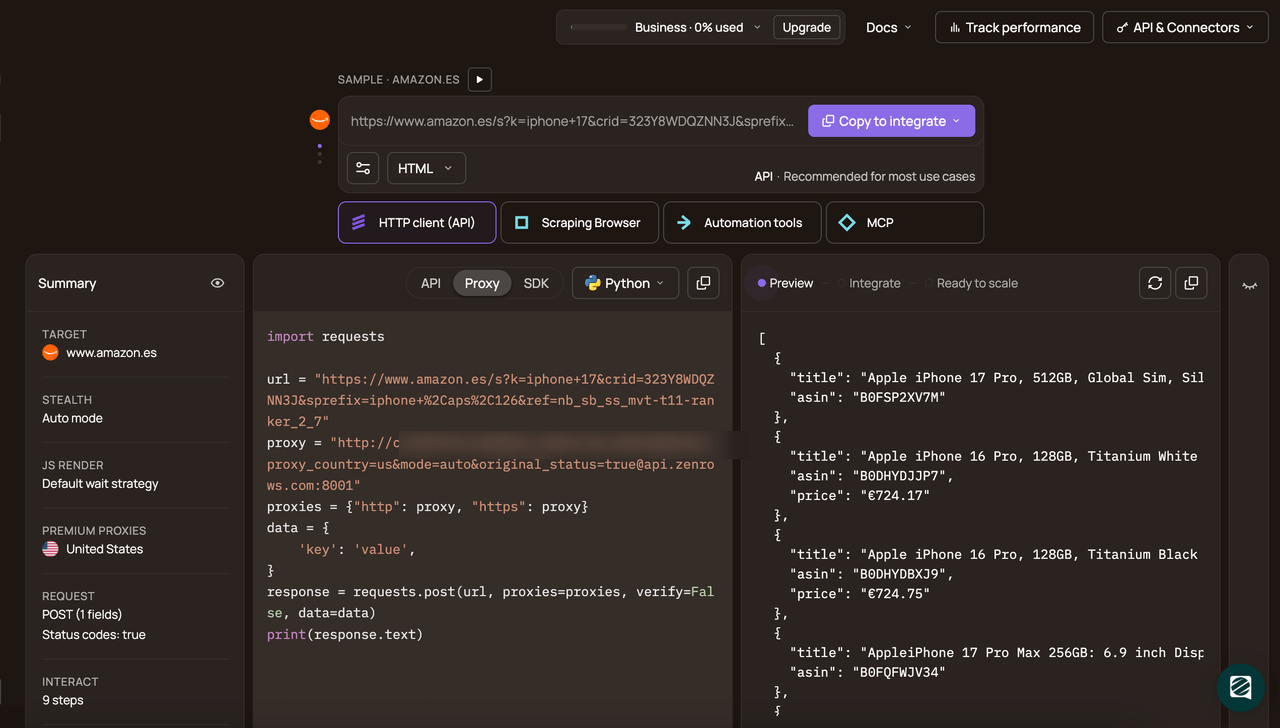
Now, open the Claude Desktop config file and add Zenrows MCP to your list of MCP servers.
{
  "mcpServers": {
    "zenrows": {
      "command": "npx",
      "args": ["-y", "@zenrows/mcp"],
      "env": {
        "ZENROWS_API_KEY": "<YOUR_ZENROWS_API_KEY>"
      }
    }
  }
}
After saving the file, restart Claude Desktop to load Zenrows MCP. Then, scrape the same protected target that blocked Puppeteer MCP using the prompt below.
Use ZenRows MCP to scrape https://www.zillow.com/new-york-ny/apartments-3-bedrooms/.
Return the first 10 visible listings as a table with these columns: listing_name, monthly_price, address, beds, baths, square_feet, amenities_or_tags.
Then identify the three lowest-priced listings and compare them by price, size, and location.
Here is the output:
Congratulations 🎉 Your AI assistant used Zenrows MCP to bypass Zillow’s anti-bot protection, retrieve 9 visible listings, and compare the three lowest-priced options by price and location. Your AI tool is now equipped for reliable LLM web scraping without getting blocked.
Puppeteer MCP vs. Zenrows MCP for AI Web Scraping
Anti-bot bypass isn’t the only difference between Zenrows MCP and Puppeteer MCP. The table below compares them across the scraping features that matter most for real-world use.
| Feature | Zenrows MCP (Recommended) | Puppeteer MCP |
|---|---|---|
| Anti-bot bypass | ✅ Built in | ❌ Not included |
| CAPTCHA bypass | ✅ Supported | ❌ Not supported |
| Proxy rotation | ✅ Automatic with premium proxies and geotargeting | ❌ Not included in the MCP server |
| JavaScript rendering | ✅ Included | ✅ Included |
| Interaction model | ✅ JavaScript instructions sent with the scrape request | ✅ Real-time browser controls such as navigate, click, fill, select, and hover |
| Structured data output | ✅ Markdown by default, plus JSON and plain text | ❌ Manual extraction from the DOM |
| Success rate on protected sites | ✅ 99.93% | ❌ Low (mostly blocked) |
| Hosting and maintenance | ✅ Fully managed | ❌ Self-managed |
| Scalability | ✅ Auto-scaled | ⚠️ Manual browser and concurrency management |
| Setup complexity | ✅ API key and MCP config | ⚠️ Local setup and browser management |
| Total cost of ownership | ✅ Predictable (API-based cost) | ⚠️ Browser, proxy, CAPTCHA, and maintenance costs add up |
| Best for | Protected targets and large-scale scraping | Unprotected targets and browser automation tasks |
Conclusion
In this article, you’ve learned how to set up, troubleshoot, and use Puppeteer MCP for AI web scraping. You also saw how it performs on an unprotected, JavaScript-rendered page and where it falls short.
For protected targets and large-scale scraping, Zenrows MCP is the better choice for LLM web scraping. It gives your AI assistant anti-bot bypass, JavaScript rendering, JavaScript instructions, premium proxies with geotargeting, and AI-ready outputs.
Try Zenrows for free now or speak with sales!
FAQ
Can Puppeteer MCP connect to an existing chrome tab?
Yes. It supports active-tab mode, which connects to an existing Chrome window with remote debugging enabled. It can also target a specific tab URL and reuse that browser session instead of opening a new one.
Why does Puppeteer MCP fail on protected websites?
The Puppeteer MCP server fails on protected targets because it focuses on browser automation rather than built-in anti-bot bypass. If a site is protected by anti-bot systems, the browser session can still be blocked or presented with a challenge page before the data loads. If you want a scraping MCP server with automatic anti-bot bypass, consider using a dedicated web scraping API MCP.
Which is the best alternative to the official Puppeteer MCP server?
If you’re scraping unprotected targets, merajmehrabi/puppeteer-mcp-server is the best alternative to the archived Puppeteer MCP server. However, if your goal is web scraping on protected targets, Zenrows MCP is the better choice because it has built-in anti-bot bypass, proxies, and AI-ready outputs, and removes much of the scraping infrastructure you’d otherwise have to manage yourself.