
How to Build a Real Estate AI Agent Using LangChain and Zenrows
Build an AI agent to scrape real estate listings automatically using LangChain and Zenrows. Collect property data without getting blocked.



If you’ve ever tried to collect property listings from multiple websites, you know how time-consuming it can be. Data is structured differently, often loaded with JavaScript, and sometimes protected against scraping. Also, doing that manually or with basic scripts rarely gives consistent results.
A better approach is to use an AI agent that can handle the entire process for you. In this guide, you’ll build a real estate data aggregation AI agent powered by LangChain and Zenrows. LangChain manages the logic flow while Zenrows takes care of scraping the data.
How the Agent Works
The agent will take a text query, such as "Find properties in Miami under $800K" as input. It’ll then interpret that request, search for property listings, scrape the pages, and extract key details like price, location, and size.
Under the hood, it'll follow four main steps:
- First, the agent will use the Zenrows Google Search SERP API to perform a Google search and return relevant property URLs.
- Next, it’ll scrape each page using Zenrows’ Fetch, which renders JavaScript and retrieves the full content.
- LangChain will then process the scraped content using OpenAI’s GPT-4o model, identify important fields, and structure the information.
- Finally, the results will be saved in a CSV file for future reference or analysis.
Zenrows is a web scraping solution that automatically deploys all the necessary toolkits to scrape any website without being blocked. It bypasses CAPTCHA and other anti-bot measures behind the scenes. Its auto-scaled, auto-managed infrastructure allows you to focus on data analysis and decision-making rather than wasting time debugging scraping failures.
Skip the blocks. Try Zenrows free and get clean web data without the anti-bot fight.
Prerequisites
To comfortably follow along with this article, make sure you’ve the following ready:
- Python 3.9 or later is installed on your machine.
- Zenrows Fetch key. Sign up for free on Zenrows to get yours.
- An OpenAI API key for running the language model.
- Basic familiarity with Python programming.
- A code editor of your choice, like VS Code or any IDE that supports Python.
Once these are set up, you're ready to configure your environment.
Setting Up Your Development Environment
Start by creating a new directory named real-estate-agent. This’ll be your main project directory where all files and scripts will live. Then, install the libraries you’ll need for the project:
langchain: This’ll provide the framework for building the agent.langchain-openai. Will help connect LangChain to OpenAI models.langchain-core: Contains shared utilities for LangChain tools.langgraph: Will manage agent memory and state.langchain-zenrows: Will help integrate Zenrows with LangChain for scraping.python-dotenv: Will help load environment variables from a.envfile.aiohttp: Will handle asynchronous HTTP requests.
Install them all using pip by running the following command in your terminal:
pip3 install langchain langchain-openai langchain-core langgraph langchain-zenrows python-dotenv aiohttp
Finally, create a .env file in your project’s root directory (real-estate-agent) and add your API keys and agent settings in this format:
ZENROWS_API_KEY=your_zenrows_api_key
OPENAI_API_KEY=your_openai_api_key

# agent Settings
MAX_LISTINGS_PER_QUERY=5
MODEL_NAME=gpt-4o-mini
TEMPERATURE=0
You’ll use these API keys to connect your project to Zenrows and OpenAI. As for the agent settings, you’ll understand their use as you progress. Once the packages are installed, you’re ready to start building the real estate data aggregation agent.
Related: 7 Proven Ways to Generate More Real Estate Leads
Building the Real Estate Data Aggregation AI Agent
Begin by creating the tools that handle the main parts of the workflow. Tools are modular functions that an agent can call when it needs to perform a specific action. These will be responsible for listing searching, scraping property pages, extracting key details, and saving the results.
Inside your root directory, create a new file named tools.py. This is where you’ll write all the tools that power your real estate data aggregation agent. Begin by importing the necessary libraries and configuring your environment variables.
Step 1: Import the Required Libraries
Open your tools.py file and start by adding the following imports. Importing the libraries will ensure you’re able to use the packages you installed earlier and their functions:
import os
import json
import urllib.parse
import time
import csv
import aiohttp
from typing import Optional
from langchain_core.tools import tool
from langchain_openai import ChatOpenAI
from langchain_zenrows import ZenRowsUniversalScraper
from dotenv import load_dotenv
Next, load your environment variables:
# ...
# load environment variables from .env file
load_dotenv()
This makes your API keys and settings accessible in all the files.
Step 2: Manage Configuration
After loading your environment variables, define all the constants that’ll control how the tools behave. These include API credentials, retry policies, and CSV field definitions.
# ...
# api keys and pipeline configuration from .env
ZENROWS_API_KEY = os.getenv("ZENROWS_API_KEY")
OPENAI_API_KEY = os.getenv("OPENAI_API_KEY")
MODEL_NAME = os.getenv("MODEL_NAME", "gpt-4o-mini")
TEMPERATURE = float(os.getenv("TEMPERATURE", "0"))
MAX_RESULTS = int(os.getenv("MAX_LISTINGS_PER_QUERY", "5"))

# set csv columns for property saving/export
CSV_FIELDS = ['title', 'price', 'location', 'property_type', 'beds', 'baths', 'sqft', 'description', 'agent', 'url']
These constants let you control your agent’s performance without changing code logic. The model temperature controls how creative the model can be. The lower the value, the more deterministic the outputs will be. As for the CSV_FIELDS, this’ll be the field names the agent will use to save the final results.
Step 3: Creating the Agent Tools
With the configurations ready, it’s time to build the tools that’ll work together to form the full data aggregation workflow.
Building the Property Search Tool
This tool will be used by the agent to perform the first operation when a user submits a query. It’ll use Zenrows’ Google Search SERP API to find property listings based on user input. It constructs a search query using parameters like location, property type, and price limit, then requests data from Google’s results through Zenrows.
This is the entry point for every run of your agent because it provides the URLs that the next tools will scrape and analyze.
# ...
@tool
async def search_properties(
    location: str,
    property_type: Optional[str] = None,
    max_price: Optional[str] = None,
    bedrooms: Optional[int] = None,
    max_results: int = MAX_RESULTS
) -> str:
    """
    search for real estate properties using google search. returns urls to property listing pages.

    use this first to find property listing pages, then use process_property_listing on each url.

    args:
        location: city and state (e.g. 'Miami, FL')
        property_type: type like 'house', 'condo', 'apartment' (optional)
        max_price: max price like '800000' or '500K' (optional)
        bedrooms: number of bedrooms (optional)
        max_results: how many results to return (default 5)
    """
    try:
        # compose the query from all user-supplied filters
        parts = [f"properties for sale {location}"]
        if property_type:    # optionally append property type (if specified)
            parts.append(property_type)
        if bedrooms:
            parts.append(f"{bedrooms} bedroom")
        if max_price:
            parts.append(f"under ${max_price}")

        # join parts and print for debug
        query = " ".join(parts)
        print(f"\n[search] searching for: {query}")

        # url encode for use in SERP API; queries Google for real estate listings
        url = f"https://serp.api.zenrows.com/v1/targets/google/search/{urllib.parse.quote(query)}"

        # open an aiohttp session and make request to Zenrows SERP endpoint with api key
        async with aiohttp.ClientSession() as session:
            async with session.get(url, params={"apikey": ZENROWS_API_KEY}, timeout=10) as response:
                response.raise_for_status()      # will raise exception on non-200
                data = await response.json()

        # result extraction: filter each result for a valid link, take at most max_results
        results = [
            {'title': item.get('title', ''), 'url': link, 'snippet': item.get('snippet', '')}
            for item in data.get('organic_results', [])[:max_results]
            if (link := item.get('link', ''))
        ]

        # handle situation when no URLs are found in organic results
        if not results:
            print(f"[search] no results found")
            return json.dumps({"error": "no results found"})

        # print out all found results for debug/logging
        print(f"[search] found {len(results)} property listing pages")
        for i, r in enumerate(results, 1):
            print(f"  {i}. {r['title'][:60]}...")

        # return JSON string containing results and the count
        return json.dumps({"results": results, "count": len(results)})

    except Exception as e:
        # on any error (network, parse, rate limit etc.), print and return error message as JSON
        print(f"[search] error: {str(e)}")
        return json.dumps({"error": str(e)})
When the tool is called, it builds a query string from user inputs, encodes it for a valid URL, and sends a request to Zenrows’ search endpoint. Zenrows returns a structured list of results that includes titles, URLs, and snippets. The tool then formats those results as JSON so the next tool can read them easily.
The @tool decorator registers the function with LangChain. When registered, the function’s docstring becomes the tool’s description that helps the model understand when to use it. The agent uses the parameter names in the function signature to decide which values to extract from the user’s request.
Building the Property Processing Tool
After the agent discovers URLs, it needs to scrape data from each listing. Create a tool that uses Zenrows Fetch to fetch content, then passes it to OpenAI for structured extraction. Zenrows handles anti-bot detection at scale, automatically bypassing blocks and CAPTCHAs to ensure reliable scraping without interruption.
# ...
@tool
async def process_property_listing(url: str) -> str:
    """
    scrape a property listing url and extract all properties found on that page.

    this handles both scraping and extraction automatically. call this on each url
    from search_properties results. returns extracted property data as json.

    args:
        url: the property listing page url to scrape
    """
    try:
        # timer for monitoring total scrape/extraction time
        start_time = time.time()

        # invoke Zenrows scraper using dynamic rendering and proxies for robust fetch
        scraper = ZenRowsUniversalScraper(zenrows_api_key=ZENROWS_API_KEY)
        markdown = await scraper.ainvoke({
            "url": url,
            "js_render": "true",
            "premium_proxy": "true",
            "response_type": "markdown",
            "wait": "500"
        })

        # ensure enough page content scraped to proceed; else skip as insufficient
        if not markdown or len(markdown) < 200:
            return json.dumps({"status": "failed", "url": url, "error": "insufficient content"})

        # only send at most 8000 characters to LLM extractor
        content = markdown[:8000] if len(markdown) > 8000 else markdown
When the tool runs, it immediately initializes the Zenrows scraper and begins fetching the property page content. Here’s what each scraper configuration does:
js_renderandpremium_proxyare set totrueto increase the scraping success rate and ensure JavaScript-heavy content, such as property details or price widgets, fully loads before the scraper captures it.response_typeismarkdownto give a clean, readable output format, which is preferred for LLM-based extraction.waitadds a small delay, allowing slower elements like images or interactive widgets to finish rendering before the content is returned.
When content is successfully scraped, it checks if the result meets a minimum length. If not, the incomplete or broken pages are ignored. Finally, it logs key statistics, truncates extremely long text for performance, and returns a structured JSON response containing the Markdown, URL, and timing information.
After scraping the data, the next step is to turn the Markdown content into structured information. The tool uses OpenAI's model you defined in the .env to read through the text and return clean JSON data of all property listings with key details such as price, address, and property type.
# ...
        # ...
        # configure LLM to use strict json_object output for extraction step
        llm = ChatOpenAI(
            model=MODEL_NAME,
            temperature=TEMPERATURE,
            api_key=OPENAI_API_KEY,
            model_kwargs={"response_format": {"type": "json_object"}}
        )

        # prepare very specific extraction prompt to guide LLM to output consistent structured JSON
        prompt = f"""extract all property listings from this real estate page.

url: {url}

content:
{content}

return json with this exact structure:
{{
  "properties": [
    {{
      "title": "property title",
      "price": "price string",
      "location": "address",
      "property_type": "house/apartment/condo/townhouse",
      "beds": "bedrooms",
      "baths": "bathrooms",
      "sqft": "square feet",
      "description": "brief description",
      "agent": "agent name",
      "url": "{url}"
    }}
  ]
}}

extract every property listing on the page. if field missing use null. if no properties return {{"properties": []}}"""

        # do extraction step with LLM (with required structure enforced by model_kwargs)
        response = await llm.ainvoke(prompt)

        # parse response. fail if LLM does not produce valid JSON content
        result = json.loads(response.content if isinstance(response.content, str) else str(response.content))
        properties = result.get('properties', [])

        # ensure every property object has a reference url set
        for prop in properties:
            if not prop.get('url'):
                prop['url'] = url

        # monitor/how long the extraction (including LLM) took
        total_time = time.time() - start_time

        # report properties, url, count, timing and basic status
        return json.dumps({
            "status": "success" if properties else "no_properties",
            "url": url,
            "properties": properties,
            "count": len(properties),
            "total_time": round(total_time, 1)
        })

    except Exception as e:
        # if anything fails, return error string with a short message for diagnosis
        return json.dumps({"status": "error", "url": url, "error": str(e)[:100]})
The tool uses the prompt variable to give the model explicit instructions to output valid JSON only, with null values where data is missing. When the LLM receives the page content and a prompt asking it to find all property listings, it returns a JSON array where each object represents one property.
Building the CSV Export Tool
The last step in the workflow is saving all collected properties into a CSV file. This allows you to keep a permanent record of every listing extracted during a session.
# ...
@tool
async def save_properties_to_csv(properties_json: str, filename: Optional[str] = None) -> str:
    """
    save property data to csv file.

    call this after collecting properties from process_property_listing calls.
    pass the combined properties as json string.

    args:
        properties_json: json string containing list of property dictionaries
        filename: csv filename (optional, auto-generated if not provided)
    """
    try:
        # ensure properties_json is parsed into python list/dict
        properties = json.loads(properties_json) if isinstance(properties_json, str) else properties_json

        # if no valid property objects are present, abort
        if not properties:
            return json.dumps({"error": "no properties to save"})

        # select default output filename if not specified, force .csv extension
        if not filename:
            filename = f"properties_{time.strftime('%Y%m%d_%H%M%S')}.csv"
        if not filename.endswith('.csv'):
            filename += '.csv'

        # open csv file for writing and dump header/rows
        with open(filename, 'w', newline='', encoding='utf-8') as f:
            writer = csv.DictWriter(f, fieldnames=CSV_FIELDS)
            writer.writeheader()
            for prop in properties:
                writer.writerow({field: prop.get(field) for field in CSV_FIELDS})

        # report status, output filename, count of properties saved
        return json.dumps({
            "status": "success",
            "filename": filename,
            "properties_saved": len(properties)
        })

    except Exception as e:
        # handle all errors and return error status and string
        return json.dumps({"error": str(e)})
The above tool checks if any properties were successfully extracted. If so, it generates a filename using the current date and time, ensuring every export is unique. The csv.DictWriter module then writes the data into a structured table that matches the CSV_FIELDS list you defined earlier.
If no data is available, the function returns an error message. Otherwise, it returns a JSON response containing the filename and property count, confirming that the data was saved successfully.
You now have all the tools your agent needs to operate.
Step 4: Create the LangChain Agent
The final step is to combine the tools into a working agent that manages the entire workflow automatically. You need to initialize the language model, connect your tools, and run the full pipeline.
Create a new file named agent.py in your root directory. This file will serve as the main entry point for your real estate agent.
Step 1: Importing the Required Libraries
The agent depends on LangChain, LangGraph, and your previously created tools. Start by importing everything the script needs:
import asyncio
import json
from langchain_openai import ChatOpenAI
from langchain.agents import create_agent
from langchain_core.messages import HumanMessage
from langgraph.checkpoint.memory import MemorySaver
from tools import (
    search_properties,
    process_property_listing,
    save_properties_to_csv,
    MODEL_NAME,
    TEMPERATURE,
    OPENAI_API_KEY,
    ZENROWS_API_KEY
)
This code loads your API keys, brings in the tool functions, and imports components that handle asynchronous execution and conversational memory.
Step 2: Creating a Real Estate Agent
Next, define a function that creates your agent. It’ll initialize the language model, attach your tools, and define the system prompt that controls how the agent behaves.
# ...
def create_real_estate_agent():
    """create real estate agent with tools and memory."""
    # initialize openai chat model with loaded config
    llm = ChatOpenAI(model=MODEL_NAME, temperature=TEMPERATURE, api_key=OPENAI_API_KEY)
    # register agent tools for search, data extraction, and saving
    tools = [search_properties, process_property_listing, save_properties_to_csv]

    # system prompt outlines the workflow for the agent and summary policy
    system_prompt = """you are a real estate data aggregation agent.

workflow:
1. parse user's search criteria (location required, price/type/beds optional)
2. use search_properties to find property listing urls
3. call process_property_listing on each url to extract property data
4. collect all extracted properties from the tool results
5. combine them into a single json array
6. call save_properties_to_csv with the combined properties json
7. summarize results: total found, price ranges, csv filename

important:
- if user provides a url directly, call process_property_listing on it
- the properties are returned in each process_property_listing call - collect them
- pass all collected properties to save_properties_to_csv as json string
- track failed urls but continue processing others
- provide friendly summaries without technical errors"""

    # build the agent with tools, prompt, and memory checkpointing
    return create_agent(
        model=llm,
        tools=tools,
        system_prompt=system_prompt,
        checkpointer=MemorySaver()
    )
The function first initializes ChatOpenAI, which acts as the decision-maker for the agent. It's configured with the model and temperature you defined earlier. The tools list connects the three functions, giving the agent access to search, scrape, extract, and save data.
Then, the system_prompt tells the agent how to process listings and how to summarize results. This structured prompt ensures that the workflow remains consistent. Finally, MemorySaver provides in-memory checkpointing, which lets the agent maintain context across multiple runs without resetting.
Step 3: Running the Agent
After creating the agent, you need an asynchronous function to run it and stream its progress in real time.
# ...
async def execute_search(query: str, search_limit: int = 5) -> dict:
    """
    execute real estate search workflow.

    args:
        query: search query describing properties to find
        search_limit: max number of properties to search

    returns:
        dict with agent response
    """
    # check for required api keys in environment
    if not OPENAI_API_KEY or not ZENROWS_API_KEY:
        print("\nerror: missing api keys in .env file")
        return {"success": False, "error": "missing api keys"}

    # print basic workflow initiation info
    print("\n" + "="*80)
    print("real estate agent - starting workflow")
    print("="*80)
    print(f"query: {query}")
    print(f"search limit: {search_limit}")
    print("="*80)

    # create and configure the autonomous agent
    agent = create_real_estate_agent()
    config = {"configurable": {"thread_id": "real_estate_conversation"}}

    # create enhanced prompt for the agent (enforces limit)
    enhanced_query = f"{query} (find up to {search_limit} properties)"
    inputs = {"messages": [HumanMessage(content=enhanced_query)]}

    try:
        print("\n[agent] agent is working...\n")
        # invoke the agent with inputs in batch, capturing result
        result = await agent.ainvoke(inputs, config=config)

        # extract the agent's reply message
        if "messages" in result:
            final_message = result["messages"][-1]
            response = final_message.content if hasattr(final_message, 'content') else str(final_message)
        else:
            response = str(result)

        # print the agent's output in a clear format
        print("\n" + "="*80)
        print("agent response:")
        print("="*80)
        print(response)
        print("="*80 + "\n")

        # package response as result dictionary
        return {"success": True, "response": response}

    except Exception as e:
        print(f"\n[agent] error: {str(e)}\n")
        return {"success": False, "error": str(e)}
This function validates your API keys, launches the agent with the user's query, and prints the agent’s progress throughout. The agent autonomously decides which tools to call, collects results, and delivers a summary.
Step 4: Building the Main Program Loop
The final step is to create the main() function that demonstrates how to use your agent:
async def main():
    """example usage"""
    result = await execute_search(
        query="find properties for sale in miami, florida under $500k",
        search_limit=10
    )

    if result['success']:
        print(f"\ndata aggregation completed successfully")
    else:
        print(f"\ndata aggregation failed: {result.get('error')}")

# run the example pipeline when executed directly
if __name__ == "__main__":
    asyncio.run(main())
You can customize the search by modifying the parameters in the execute_search() call. The query accepts natural language descriptions, and search_limit controls how many listing pages the agent will process.
Testing the AI Agent
Open your terminal in the project folder and run the following command:
python agent.py
If everything is configured correctly, you should see the agent search for properties, scrape each listing page, extract details, and save results to a CSV file:
================================================================================
real estate agent - starting workflow
================================================================================
query: find properties for sale in miami, florida under $500k
search limit: 10
================================================================================

[agent] agent is working...


[search] searching for: properties for sale Miami, FL under $500000
[search] found 10 property listing pages
  1. Homes for Sale Under $500K in Miami FL...
  2. Homes for Sale Under $500k in Miami, FL...
  3. Miami, FL Homes for Sale under $500K...
  4. Homes For Sale Under $500K in Miami Gardens, FL...
  5. 1.7K+ Homes for Sale Under 500K in Miami, Florida...
  6. New Homes in Miami & Dade County, FL Under $500K...
  7. Miami Homes For Sale...
  8. Miami/Dade County FL Houses under ......
  9. Homes for Sale Under $500K in Miami-Dade County FL...
  10. Top 6 Homes for Sale in Miami for Under $500000...

================================================================================
agent response:
================================================================================
I found a total of **22 properties** for sale in Miami, Florida, under $500,000. Here are some highlights:

### Price Ranges:
- The lowest price is **$195,000** for a condo at 871 Ne 207th Ter #102.
- The highest price is **$500,000** for several condos, including one at 229 SW 9th #218.

### Summary of Properties:
- **Total Properties Found:** 22
- **Price Range:** $195,000 - $500,000
- **CSV Filename:** [miami_properties_under_500k.csv](sandbox:/miami_properties_under_500k.csv)

If you need more details or further assistance, feel free to ask!
================================================================================


data aggregation completed successfully
The agent successfully extracted 22 properties. Open the generated CSV file with any spreadsheet viewer to review the extracted property details.
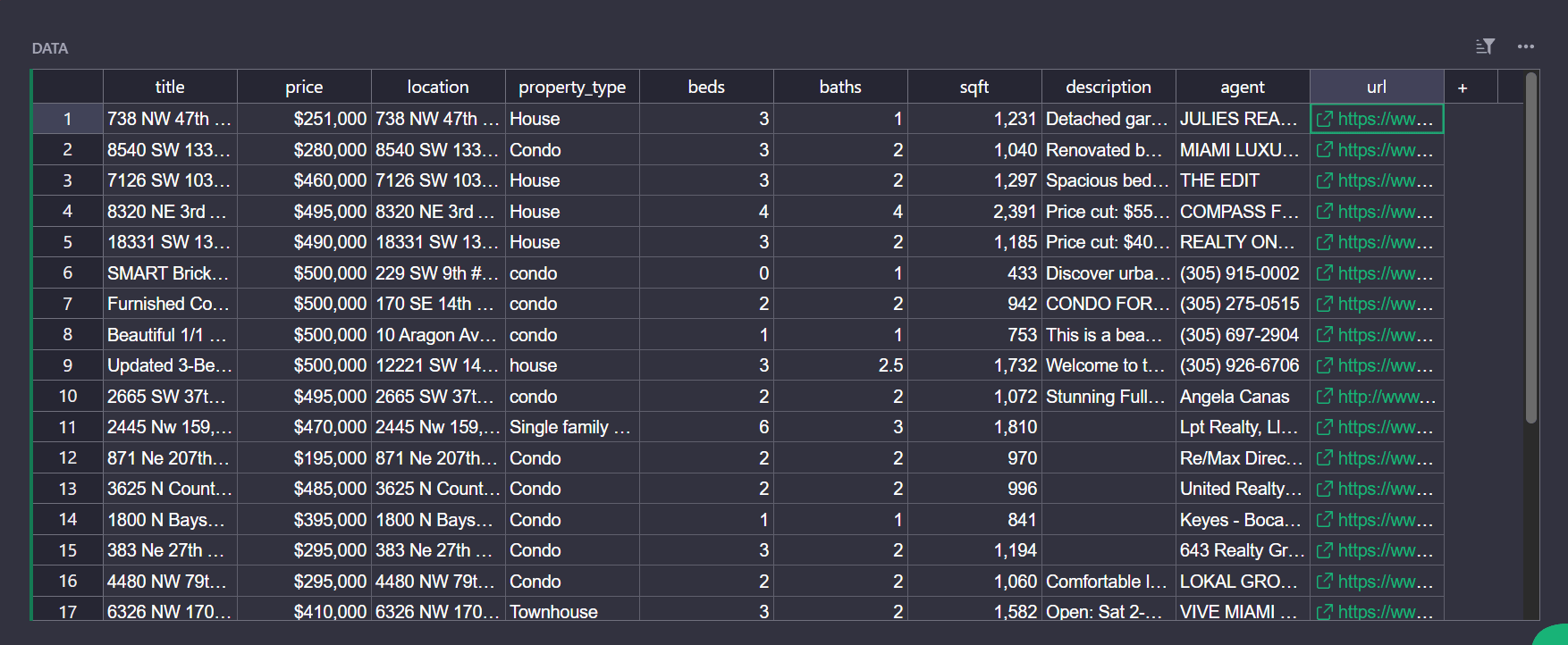
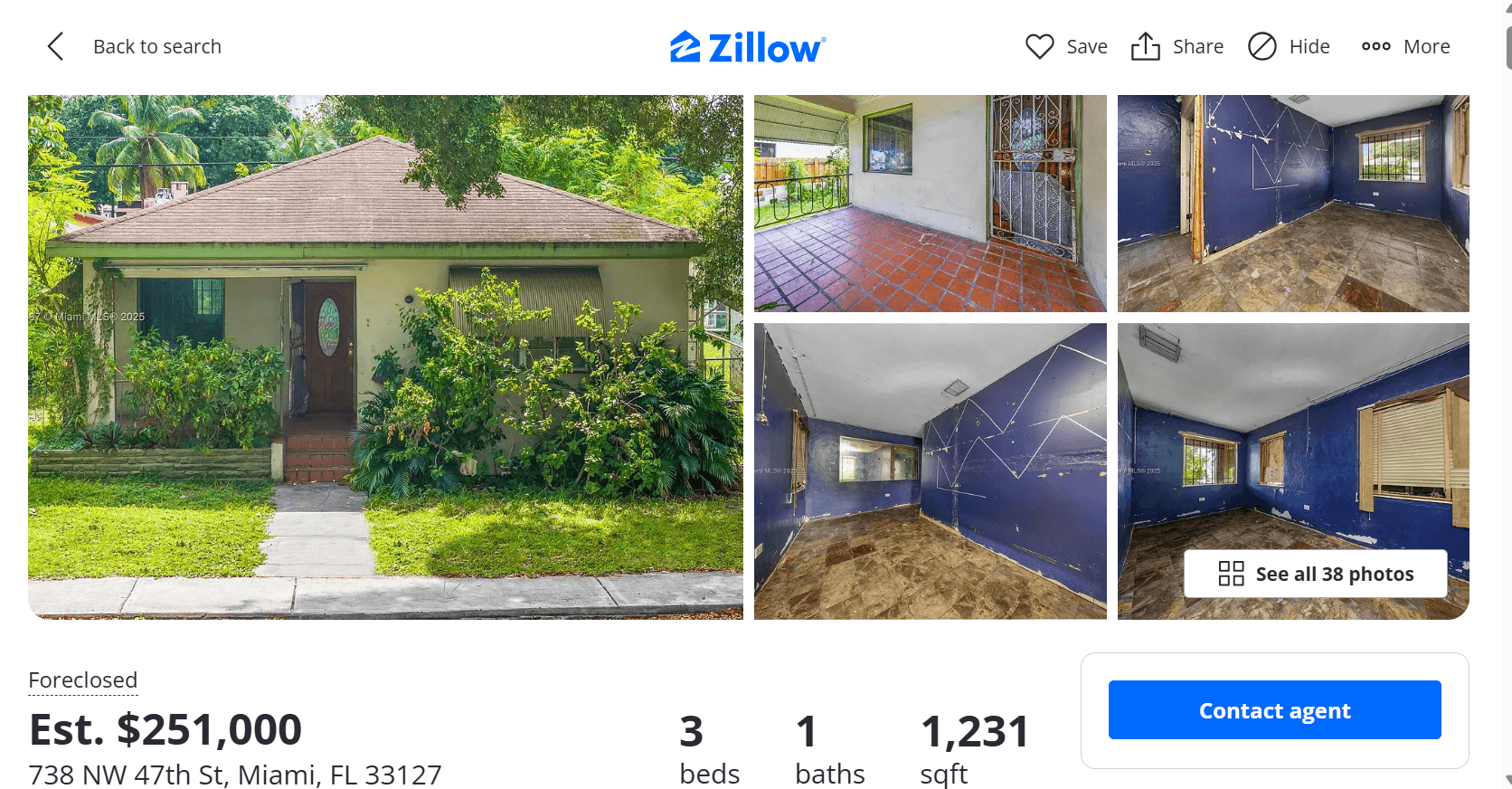
Here is the first listed property that the agent found.
Congratulations! 🎉 You've just built a simple real estate data aggregation AI agent using Zenrows and LangChain. Your AI agent is now ready to collect data at scale without getting blocked.
Conclusion
In this article, you’ve built an agent that turns scattered real estate listings into structured data you can actually use. With LangChain handling the workflow and Zenrows managing the scraping, your agent can search, extract, and organize property details automatically.
You now have a system that simplifies how you collect and analyze real estate information. Go ahead and add more tools to make it even smarter.