
Playwright MCP: AI Web Scraping Guide
Learn how to set up Playwright MCP for AI web scraping, including its use cases and limitations, and how to overcome anti-bots for reliable, AI-ready data extraction.


The Playwright MCP is a free, flexible headless browser for AI agents. Playwright's standard form can scrape data. So why not its MCP?
Here's how to set up the Playwright MCP for AI scraping and give your LLM or AI agents access to live data, including caveats to watch out for.
What Is Playwright MCP?
The Playwright MCP server exposes tools that enable your LLM application or AI agent to control a real browser. This enables the LLM to navigate pages, click elements, fill forms, and read JavaScript-rendered content, just like standard Playwright scraping. However, one important limitation to watch is that the Playwright MCP is not equipped to handle anti-bot-protected pages, such as Cloudflare-protected targets.
Key Playwright MCP Tools for AI Web Scraping
Playwright MCP has 21 tools. The most important ones have been summarized in the table below:
| Category | Tools | What it Does |
|---|---|---|
| Navigation | browser_navigate, browser_tabs |
Opens target URLs and handles pages that load in new tabs |
| Page understanding | browser_snapshot, browser_take_screenshot |
Captures page state for element identification and visual checks |
| Browser interaction | browser_click, browser_type, browser_select_option, browser_press_key |
Works through filters, search bars, pagination, and other page controls |
| Waiting and timing | browser_wait_for |
Waits for JavaScript-rendered content to appear before extraction |
| Extraction and custom actions | browser_evaluate, browser_run_code |
Runs JavaScript on the page and handles custom steps the standard tools don't cover |
| Debugging | browser_network_requests |
Inspects requests behind the page when data loads dynamically or something breaks |
For most AI scraping tasks, the MCP's main loop is simple. The LLM tool uses Playwright to opens the atrget page, captures a snapshot, interacts with the required elements, waits for the right state, and then extracts the data once the content appears.
Skip the blocks. Try Zenrows free and get clean web data without the anti-bot fight.
What Can You Do with Playwright MCP in Web Scraping?
You can use Playwright MCP for LLM-driven browser interactions and AI data scraping tasks. Here are the main ones.
Product Research
Gathering and analyzing product data across sellers and variants requires navigating multiple pages and triggering updates that only appear after selecting a size, color, or configuration. Playwright MCP enables the LLM to switch variants, capture those updates, and collect the full details needed to make informed product decisions.
Competitor Intelligence
Tracking competitor prices, promotions, and stock changes manually across multiple sites doesn't scale. Playwright MCP enables the LLM to open live listing pages across several sites and collect that data in a single session, giving you a current snapshot rather than stale cached results.
News Aggregation
News is scattered across multiple outlets, and each site structures article pages differently. Playwright MCP lets an LLM navigate those pages, extract headlines, links, and publish dates from structured page snapshots, and combine the results into a single feed or dataset without requiring a separate scraper for each source.
Price Comparison
Comparing prices across sellers usually requires a scraper to collect the data and a separate logic to analyze it. You can use the Playwright MCP to collapse that into a single workflow. With it, your LLM can open similar product pages, scrape each page using browser tools, and reason about prices and availability in the same session.
Job Board Research
Your AI agent can use the Playwright MCP to navigate job boards the way a recruiter would, including searching for roles, applying filters, paging through results, and pulling structured hiring data from individual posts. You can use that data to compare openings, spot hiring patterns, or track how companies staff similar roles across the market.
How To Set Up Playwright MCP
Playwright MCP runs on Node.js 18 or newer and works with MCP-compatible clients such as VS Code, Cursor, Windsurf, Claude Desktop, etc. For this guide, we’ll use Claude Desktop.
If you don't have Node.js installed yet, download and install it from the official Node.js website. After installation, open a terminal and confirm the installed version:
node -v
If the version is 18 or higher, you’re ready to continue.
Add Playwright MCP to Claude Desktop
Playwright MCP isn't built into most MCP-compatible clients, including Claude Desktop. You'll need to include it manually, and that only takes a few steps.
Open Claude Desktop and go to Settings → Developer → Edit Config. This opens the claude_desktop_config.json file.
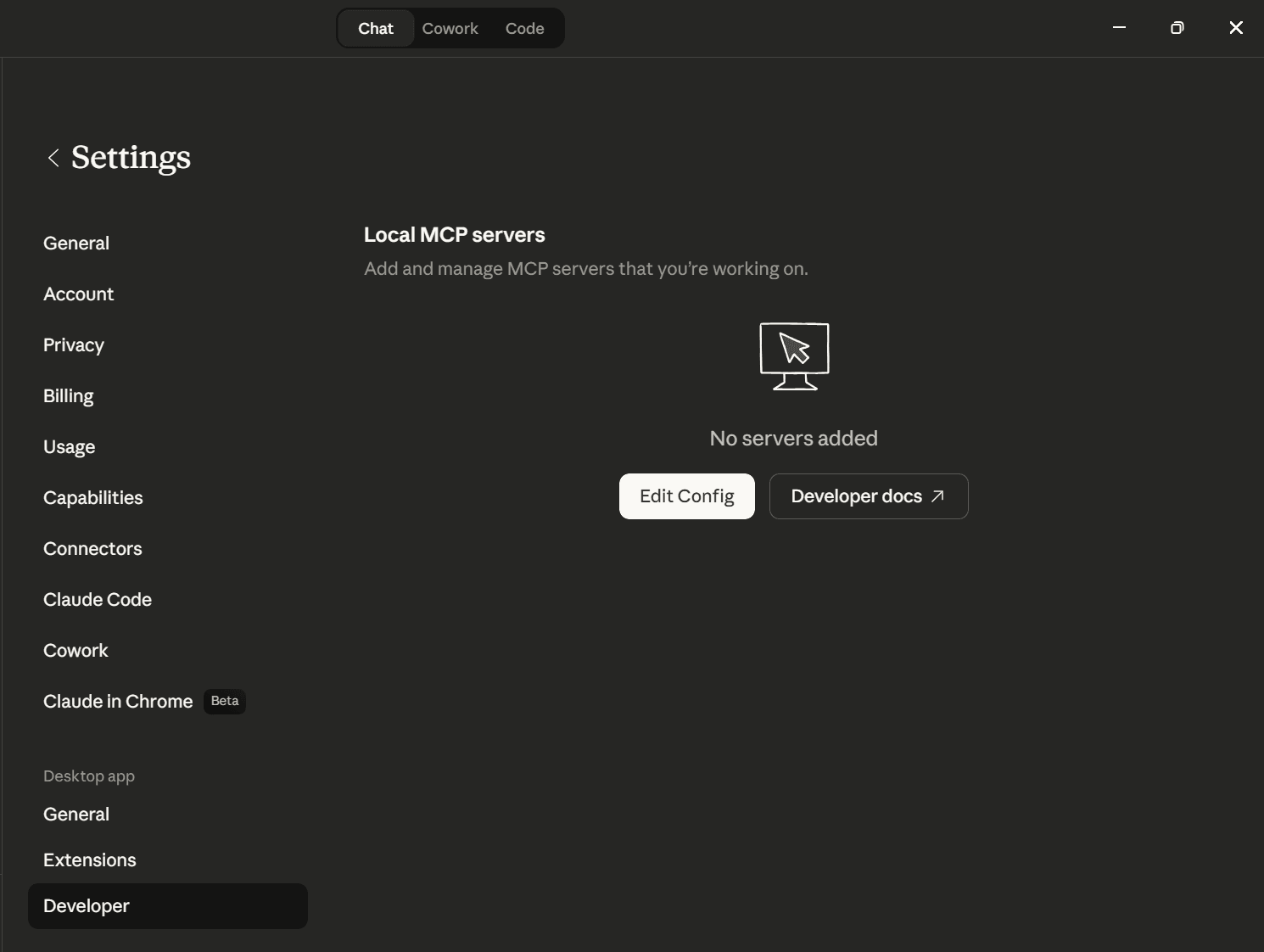
Inside the mcpServers object in the claude_desktop_config.json file, add the Playwright MCP server configuration as shown below. You can name it anything you prefer (we'll use playwright in this example).
{
  "mcpServers": {
    "playwright": {
      "command": "npx",
      "args": ["@playwright/mcp@latest"]
    }
  }
}
Save the file and restart Claude Desktop. Then go to Settings → Developer. Under Local MCP servers, you should see the Playwright MCP with a running status indicator.
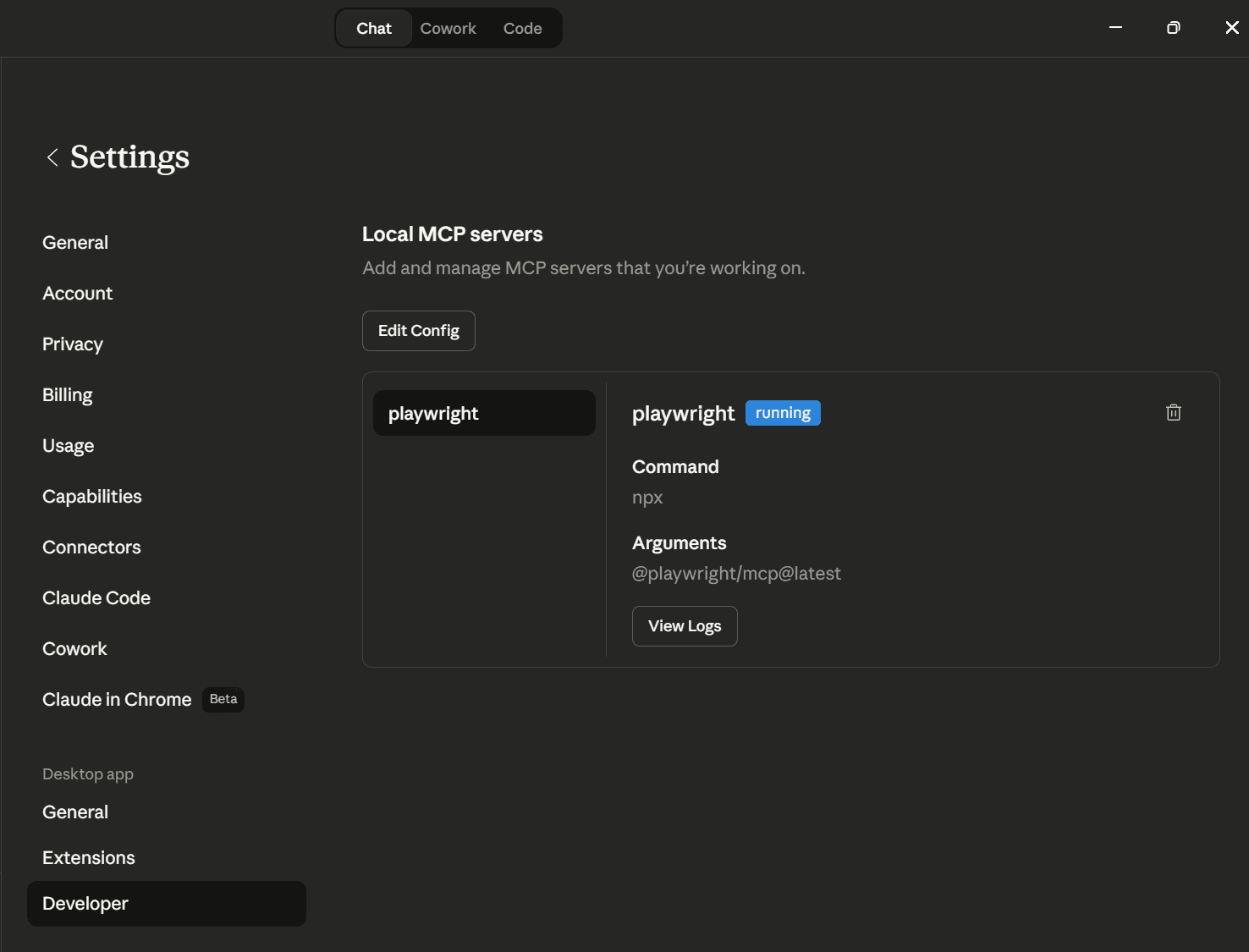
At this point, the Playwright MCP server is active and ready to receive tool calls from Claude using the server's default settings.
Configure Browser Mode and Browser Choice
If you’d like to customize how Playwright MCP runs, you can pass additional flags in the same "args" list. For example, the --headless flag tells the MCP server to run the browser in headless mode. You can also choose the browser engine with --browser.
{
  "mcpServers": {
    "playwright": {
      "command": "npx",
      "args": [
        "@playwright/mcp@latest",
        "--headless",
        "--browser=firefox"
      ]
    }
  }
}
The supported browser options include chrome, firefox, webkit, and msedge.
Using Playwright MCP for AI Web Scraping
In this section, you’ll learn how to use Playwright MCP to scrape a regular, unprotected page. Then we’ll switch to an anti-bot-protected target to see how it holds up.
Scraping a JavaScript-Rendered Page with Playwright MCP
To see how Playwright MCP handles JavaScript-rendered pages, let’s try it on a price comparison scraping task. We’ll use the ScrapingCourse JavaScript Rendering page as the target.
Head to Claude Desktop and send this prompt.
Use Playwright MCP.
Navigate to https://www.scrapingcourse.com/javascript-rendering.
Extract all clothing items priced above $65.
The output is as follows:
Great. Playwright MCP was able to interact with the page and scrape the rendered results. Claude then compared the prices, filtered for items above $65, and returned three matches.
But what happens when you try the same approach on a protected page? Let’s find out.
Scraping a Protected Page Using Playwright MCP
Next, try the same kind of price-based scrape on a protected target. We’ll use Zillow’s California listings page as the target. Proceed to Claude Desktop and send this prompt.
Use Playwright MCP.
Navigate to https://www.zillow.com/ca/.
Find 4 property listings priced below $1,000,000.
Return the address (or listing title), price, and link for each result.
The result looks like this:
Although Playwright MCP loaded the tools, navigated to the target URL, and captured a page snapshot, it couldn't return real listings. Zillow’s anti-bot measures blocked access to the results, so Claude couldn’t extract the property cards or filter them by price.
Playwright MCP Limitations for AI Web Scraping
Playwright MCP works well while scraping unprotected pages. However, limitations start to surface when you move to protected targets. You should consider the following limitations when using Playwright MCP:
- No built-in anti-bot bypass: Playwright MCP gives you browser automation, not anti-bot bypass. On sites protected by Cloudflare, DataDome, Akamai, or PerimeterX, Playwright MCP often loads a block page, challenge screen, or CAPTCHA instead of the real content.
- Token overhead for blocked pages: Each navigation, snapshot, and tool call incurs token costs. On protected sites, the LLM may load full pages and process large accessibility snapshots, only to encounter a block page or a CAPTCHA. Tokens are spent on navigation and retries, but not on usable data.
- Browser and scaling overhead: Playwright MCP runs real browser instances. Memory usage, CPU load, session handling, and concurrency management are still your responsibility. As the number of sessions grows, so does the operational complexity, leaving you with little to no flexibility to scale without significant infrastructure overhead.
Let's see how you can overcome these limitations with the Zenrows MCP server.
Solving Playwright MCP’s Limitations With Zenrows MCP
Zenrows MCP connects your AI client to Zenrows Fetch. Instead of relying on a local browser session to scrape the target page, the LLM sends the scraping request through Zenrows and receives the rendered page content.
The Zenrows MCP server handles the main problems that break scraping on protected and dynamic sites. It supports anti-bot bypass out of the box, renders JavaScript-heavy pages, includes Premium Proxies with geotargeting for region-specific access, and uses Adaptive Stealth Mode to automatically tailor the best configuration for each request.
It also supports JavaScript Instructions for actions such as clicks, form fills, scrolling, and waits before returning the content. Zenrows MCP returns Markdown by default, which is the ideal content format for LLMs. But it also supports other response types such as HTML, screenshots, and structured JSON.
Let’s see how it handles the Zillow target that Playwright MCP couldn’t scrape.
First, sign up for Zenrows and copy your API key from the Playground. New accounts come with 1,000 free URLs.
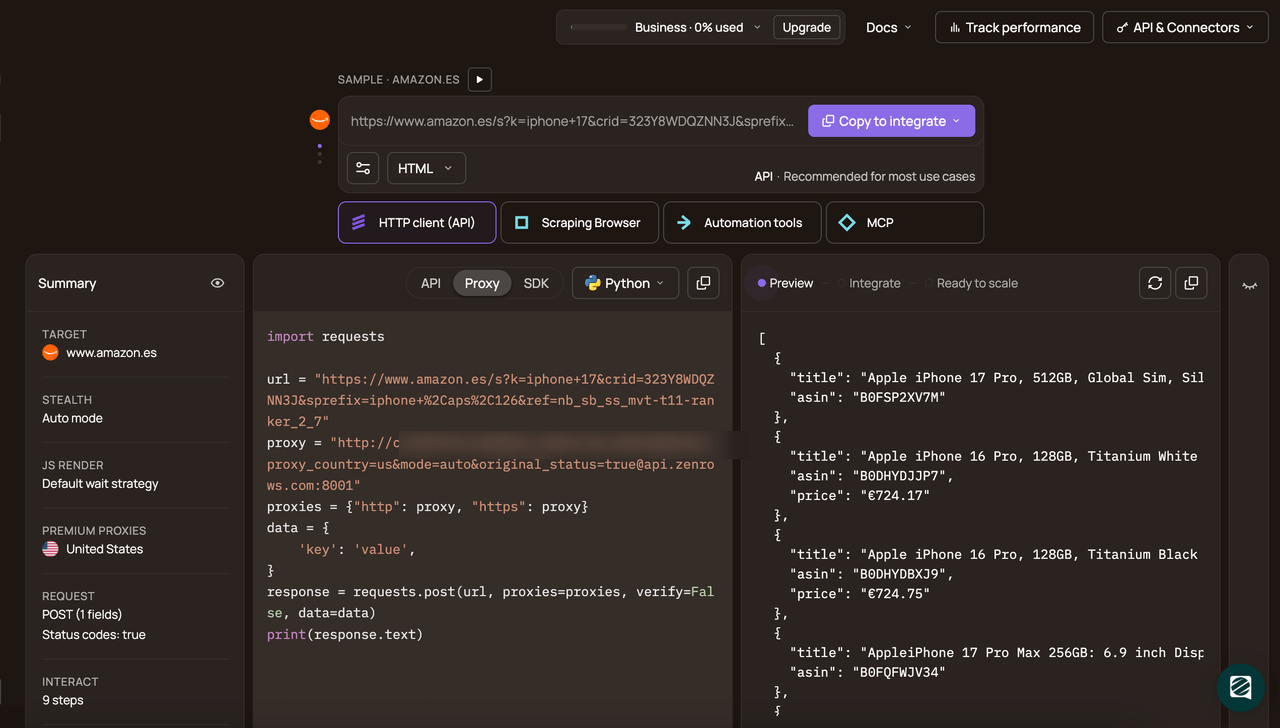
Then open Claude Desktop, go to Settings, then Developer, and click Edit Config.
In the claude_desktop_config.json file, add the Zenrows MCP server entry below, save the file, and restart Claude Desktop. This integrates Zenrows MCP with Claude Desktop.
{
  "mcpServers": {
    "zenrows": {
      "command": "npx",
      "args": ["-y", "@zenrows/mcp"],
      "env": {
        "ZENROWS_API_KEY": "<YOUR_ZENROWS_API_KEY>"
      }
    }
  }
}
Once Claude Desktop reloads, rerun the blocked Zillow target through Zenrows MCP.
Use ZenRows MCP.
Navigate to https://www.zillow.com/ca/.
Find 4 property listings priced below $1,000,000.
Return the address (or listing title), price, and link for each result.
Here is a sample output:
Congratulations 🎉 Your AI assistant can now successfully bypass anti-bot protection and scrape content from a protected target through Zenrows MCP. Your AI agent is now equipped to gain live web data context without limitations.
Playwright MCP vs. Zenrows MCP for AI Scraping
Playwright MCP is well-suited for browser-driven scraping and interactive page control. As for Zenrows MCP, it suits both protected and harder targets. Here is how they compare.
| Feature | Zenrows MCP (Recommended) | Playwright MCP |
|---|---|---|
| Anti-bot bypass (Cloudflare, etc.) | ✅ Built-in (Production-grade) | ❌ Blocked by default |
| CAPTCHA bypass | ✅ Automatic | ❌ Not supported |
| Proxy rotation | ✅ Automatic (residential and datacenter) | ❌ Not included (Manual setup) |
| Fingerprinting and spoofing | ✅ Handled automatically | ❌ Manual configuration required |
| JavaScript rendering | ✅ Cloud-rendered (lightweight) | ✅ Full browser (Local, heavy) |
| Structured data output | ✅ Built-in (Markdown, JSON) | ❌ Raw DOM / Accessibility Tree |
| Success rate on protected sites | ✅ High (99.93%) | ❌ Low ( easily detected) |
| Hosting and maintenance | ✅ Fully managed | ❌ Self-hosted (Runs on your machine) |
| Scalability | ✅ Auto scales | ⚠️ Manual concurrency management |
| Setup complexity | ✅API-ready (1 Env Var) | ⚠️ Requires browser/driver config |
| Total cost of ownership | ✅ Predictable, all in pricing | ⚠️ Browser infrastructure and proxy costs add up |
| Best for | Reliable scraping at scale, including protected sites | Basic scraping or local end-to-end testing on unprotected sites |
The main differences between Zenrows MCP and Playwright MCP are in access, anti-bot handling, output, and operational overhead.
Conclusion
In this guide, you learned what Playwright MCP is, how to set it up, and how to use it for browser-driven scraping on JavaScript-rendered pages. You also saw where it starts to fail on protected targets.
Zenrows MCP is a stronger option for those cases. It connects your AI client to Zenrows Fetch, which supports automatic anti-bot bypass, JavaScript rendering, JavaScript Instructions, Premium Proxies with geotargeting, and AI-ready output.
Try Zenrows for free now or speak with sales!
FAQ
Can Playwright MCP Scrape JavaScript-Rendered Websites?
Yes. Playwright MCP drives a real browser, so it can open pages that load content after JavaScript runs and interact with the rendered page via structured accessibility snapshots.
Can Playwright MCP Get Blocked by Anti-Bots?
Yes. Playwright MCP gives you browser automation, not built-in anti-bot bypass. For protected targets, the request may be blocked with a 403 response or redirected to a challenge page rather than returning the actual content. For reliable, production-grade scraping on protected sites, a dedicated web scraping API MCP is the better choice because it typically has an automatic anti-bot bypass feature.
Does Playwright MCP Support Proxies?
Yes. Playwright MCP supports proxies, but you have to manage them yourself. That means sourcing the proxy provider, configuring it, and handling rotation when the target starts blocking requests. If you want managed proxies with geo-targeting and automatic rotation, use a web scraping API's MCP server, such as the Zenrows MCP.